Intended audience: Developers administrators
AO Platform: 5.0
Overview
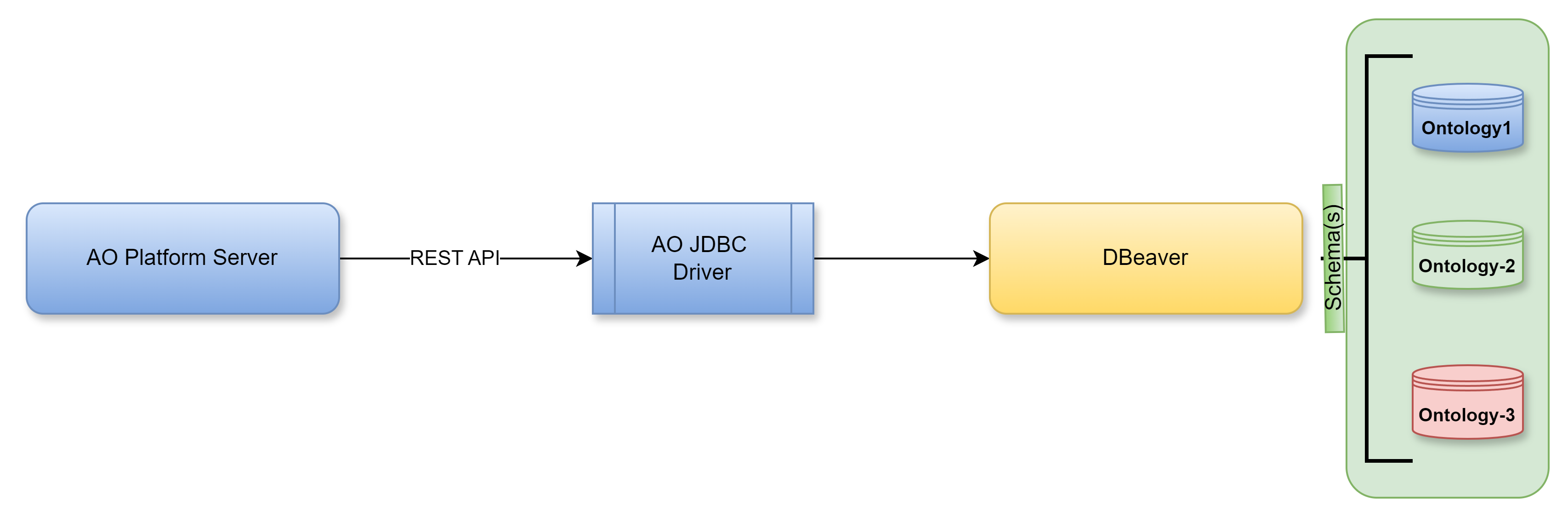
This topic provides insight into how to access the AO Platform Semantic Layer from the DBeaver SQL Product.
General connectivity and data flow between DBeaver and the AO Platform
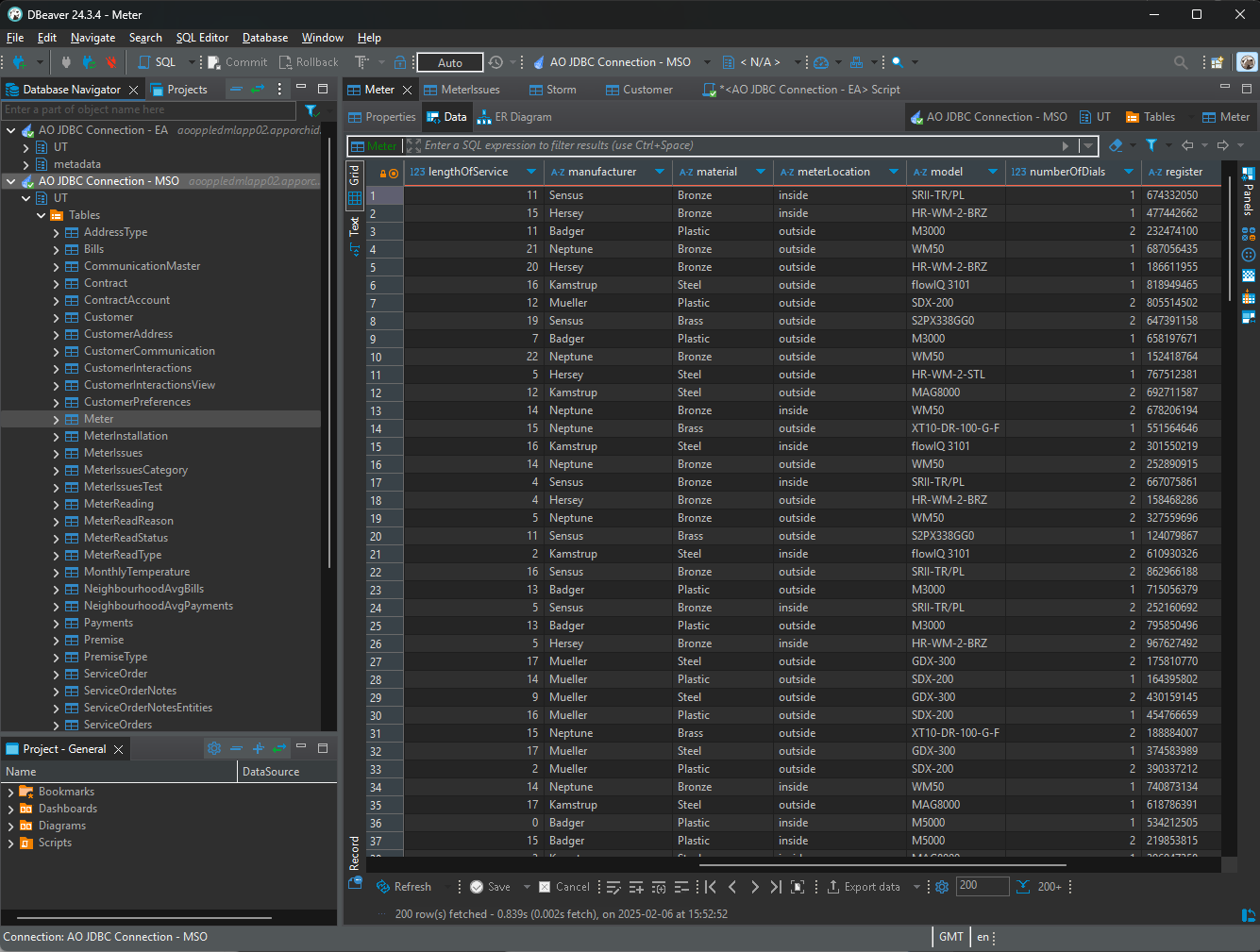
DBeaver example showing data tables from an AO Platform Ontology
Installation and Configuration
-
Download and install DBeaver from https://dbeaver.io/download/.
-
Once installed, open DBeaver.
-
Select File > New from the menu bar, then select Database Connection in the DBeaver folder…
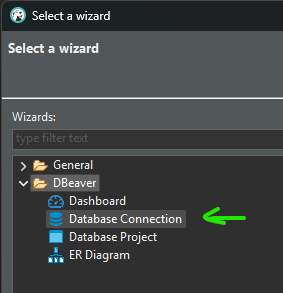
…then the Apache Calcite Avatica connection.
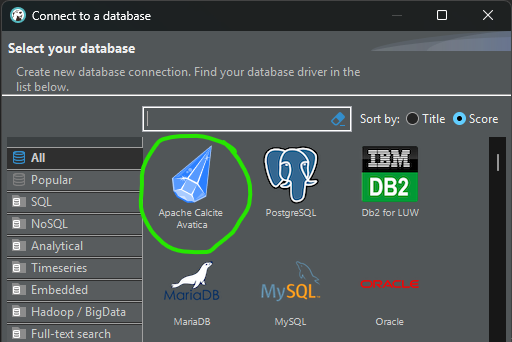
-
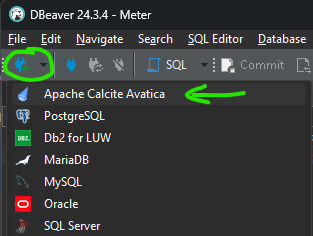
Alternatively, select the Apache Calcite Avatica connection directly from the “plug+” icon in the toolbar dropdown.
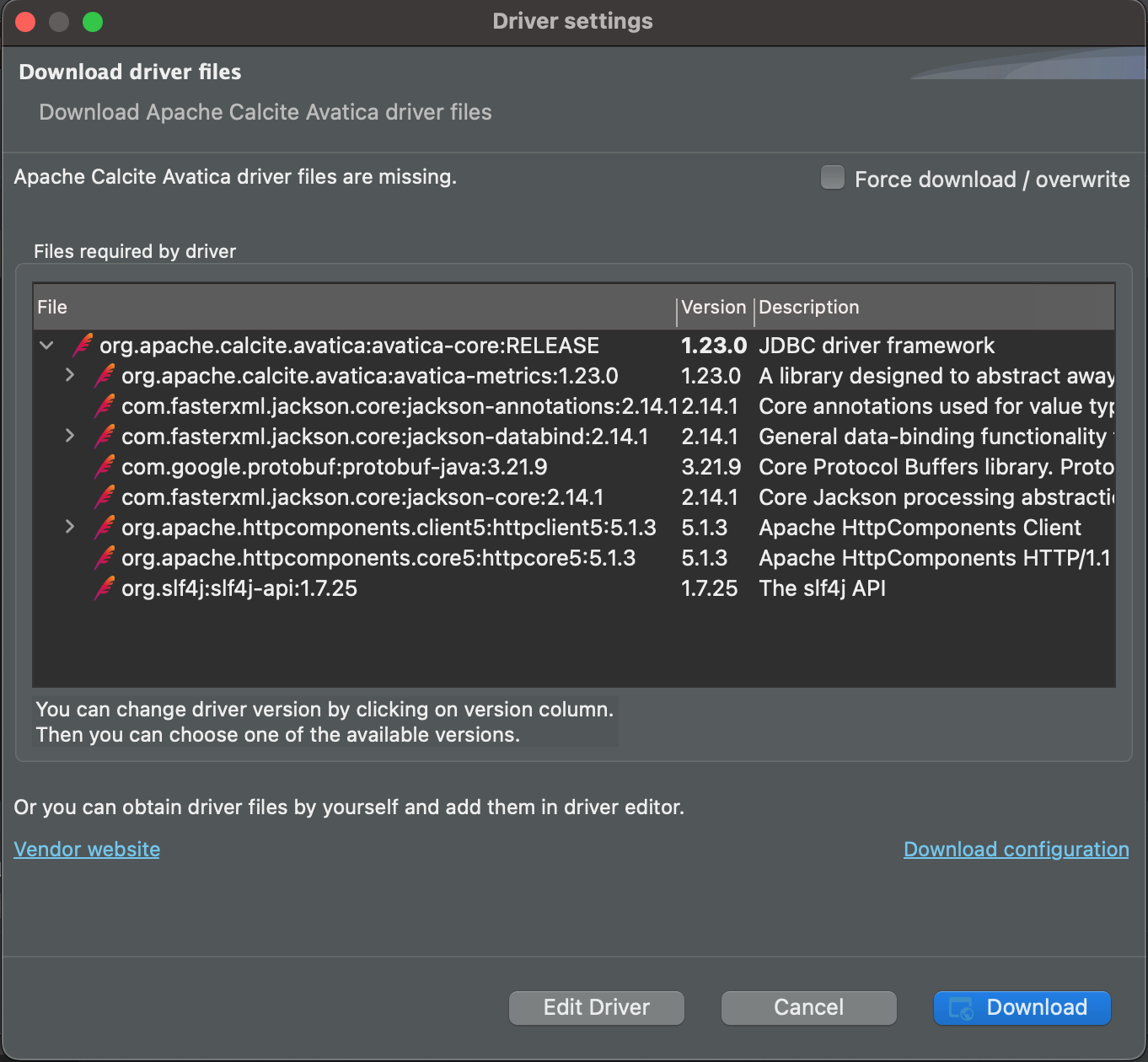
If this is the first time the Apache Calcite Avatica is selected in the DBeaver environment, a dialog will open to indicate that a download of additional files is required. Go ahead with the download before continuing!
-
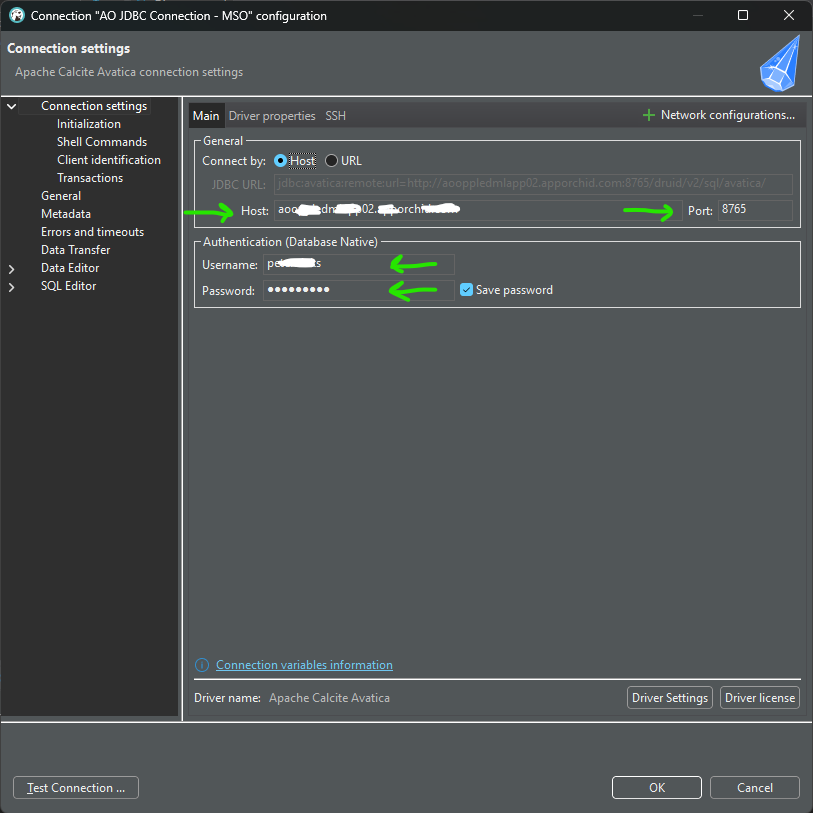
The Connect to a database dialog opens. On the Main tab enter the following:
-
Host (or URL) - this is the hostname for your AO Platform connection, such as customer.apporchid.com (if hosted by App Orchid). If using the URL option, the full JDBC URL: is required, eg, jdbc:avatica:remote:url=https://customer.apporchid.com:8765
-
Port - this is the port number for the Calcite Server in the AO Platform that connects to the Ontology selected. Default port is: 8765
-
Make sure that the port number is available/open in the firewall related to the AO Platform, as otherwise the Test Connection (see below) will fail!
-
-
Username - this is the username for your account in the AO Platform. The username is often your email address.
-
Password - this is the password for your account in the AO Platform.
-
-
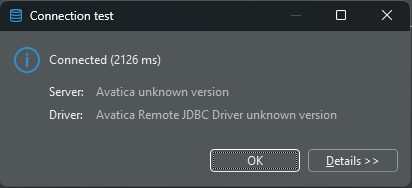
Then click the Test Connection … button. If successful, this dialog shows.
-
Click OK to go back to the Connection Settings dialog, then click on the Driver properties tab
-
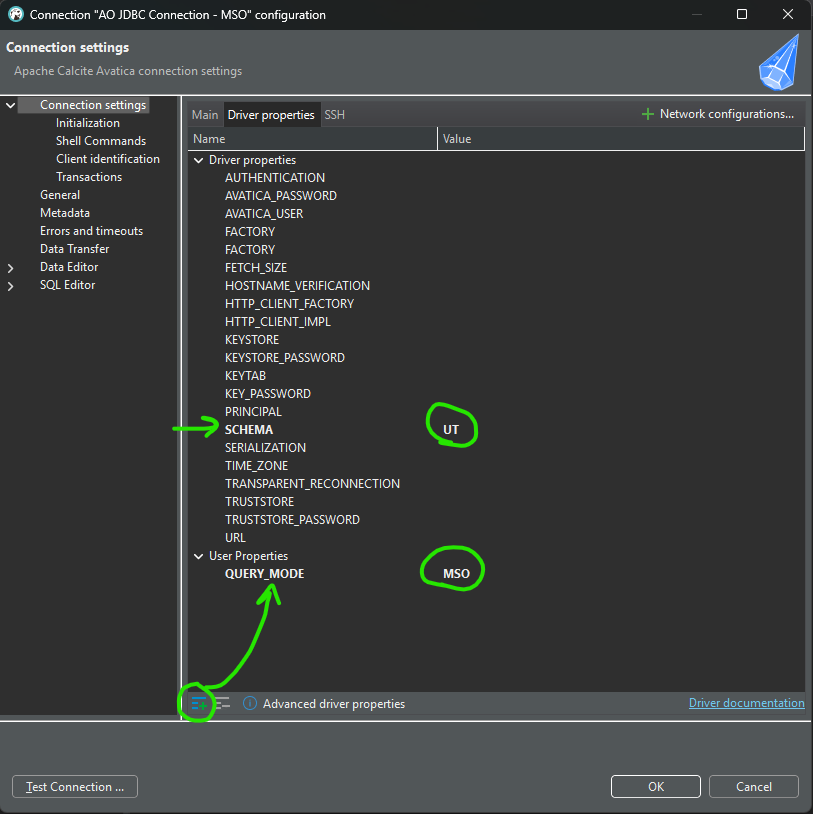
Two properties are required:
-
SCHEMA - enter a Schema Prefix for the Ontology in the AO Platform to be connected to, eg. UT for the Utilities Ontology used by the Asset AI solution.
-
QUERY_MODE - add this property from this

-
MSO - to retrieve data based on SQL queries
-
EA - to retrieve data based on Easy Answers Natural Language Questions (NLQs).
-
-
-
Installation and Configuration are now done!
Using OAUTH Authentication Token Instead of Username/Password Credentials
First, delete the username and password from the Connection Settings > Main tab (keep the Save password checkbox checked).
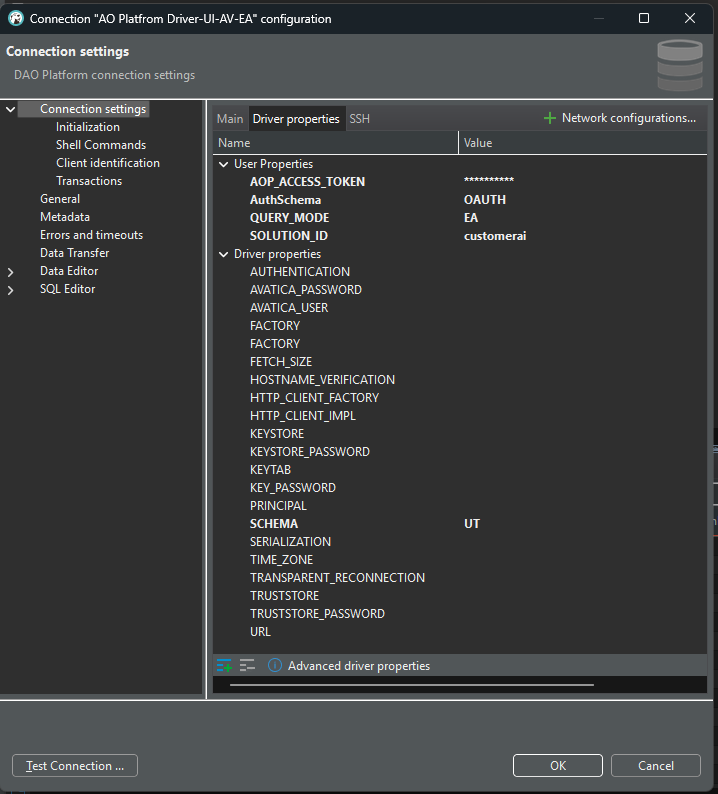
Add the following User Properties on the Driver properties tab:
-
AuthSchema - with value OAUTH
-
AOP_ACCESS_TOKEN - with value <OAuth Bearer Token>, using this token format: 423224fb-d0d8-4fdf-8e40-cb28583435f3
-
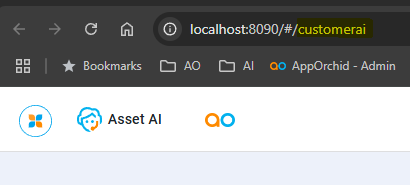
SOLUTION_ID - with value as customerai
Use of DBeaver Connection to AO Platform
-
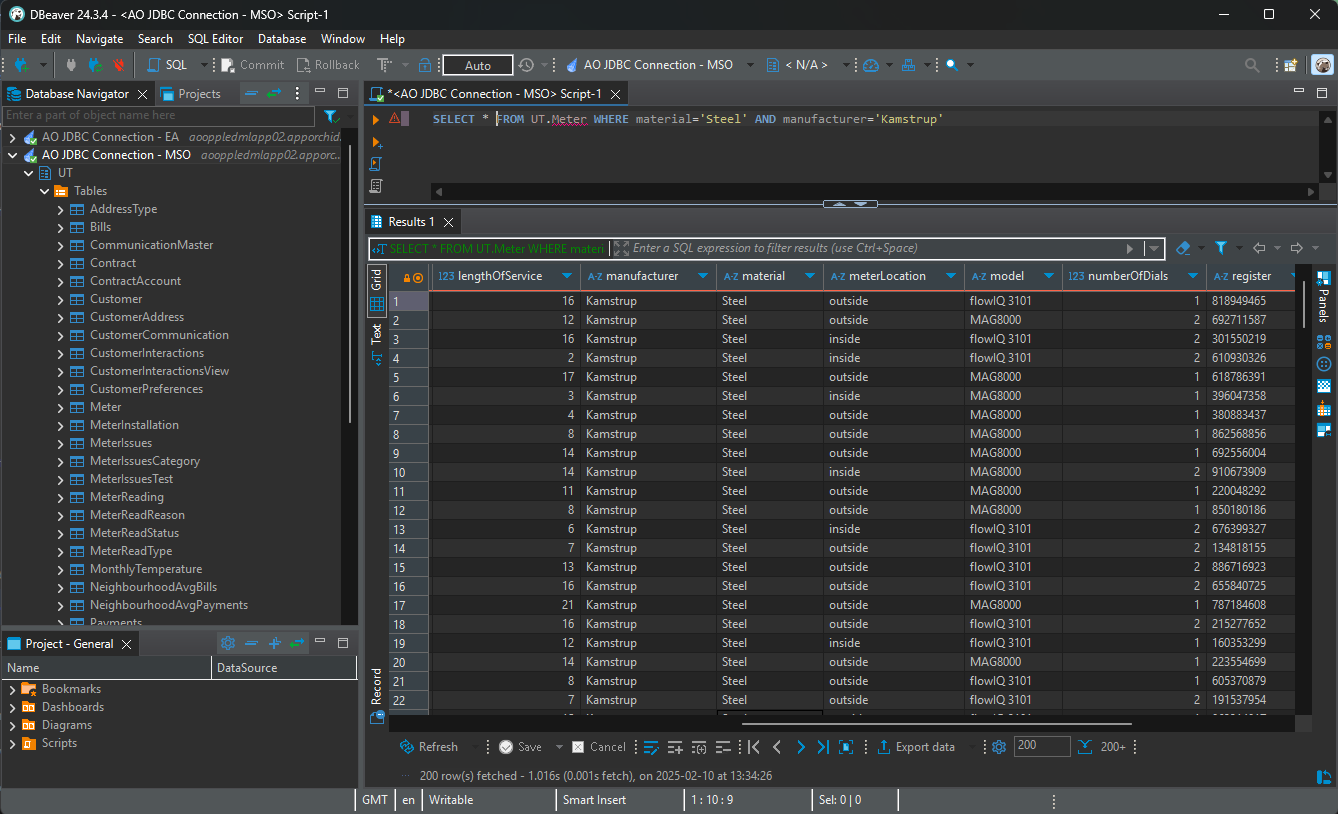
Using QUERY_MODE: MSO, - and asking a SQL query >
SELECT * FROM UT.Meter WHERE material='Steel' AND manufacturer='Kamstrup'
-
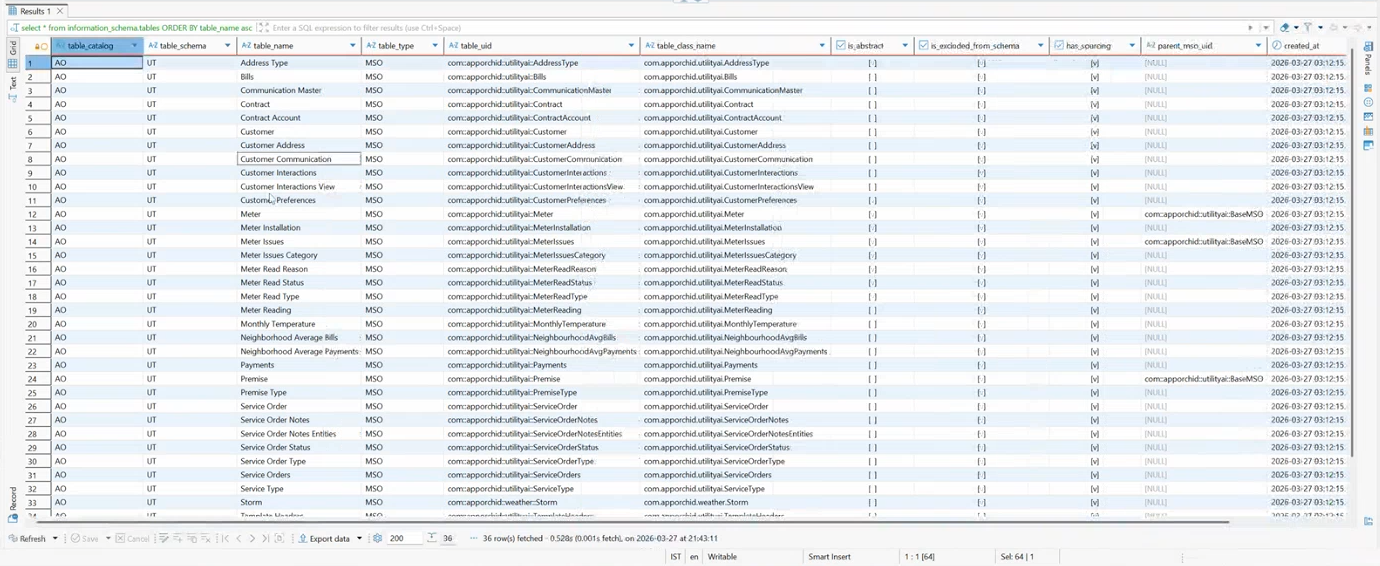
Using QUERY_MODE: MSO, - and asking a SQL query using
information_schema.[tables|columns|table_constraints|key_column_usage]. Some examples:

-
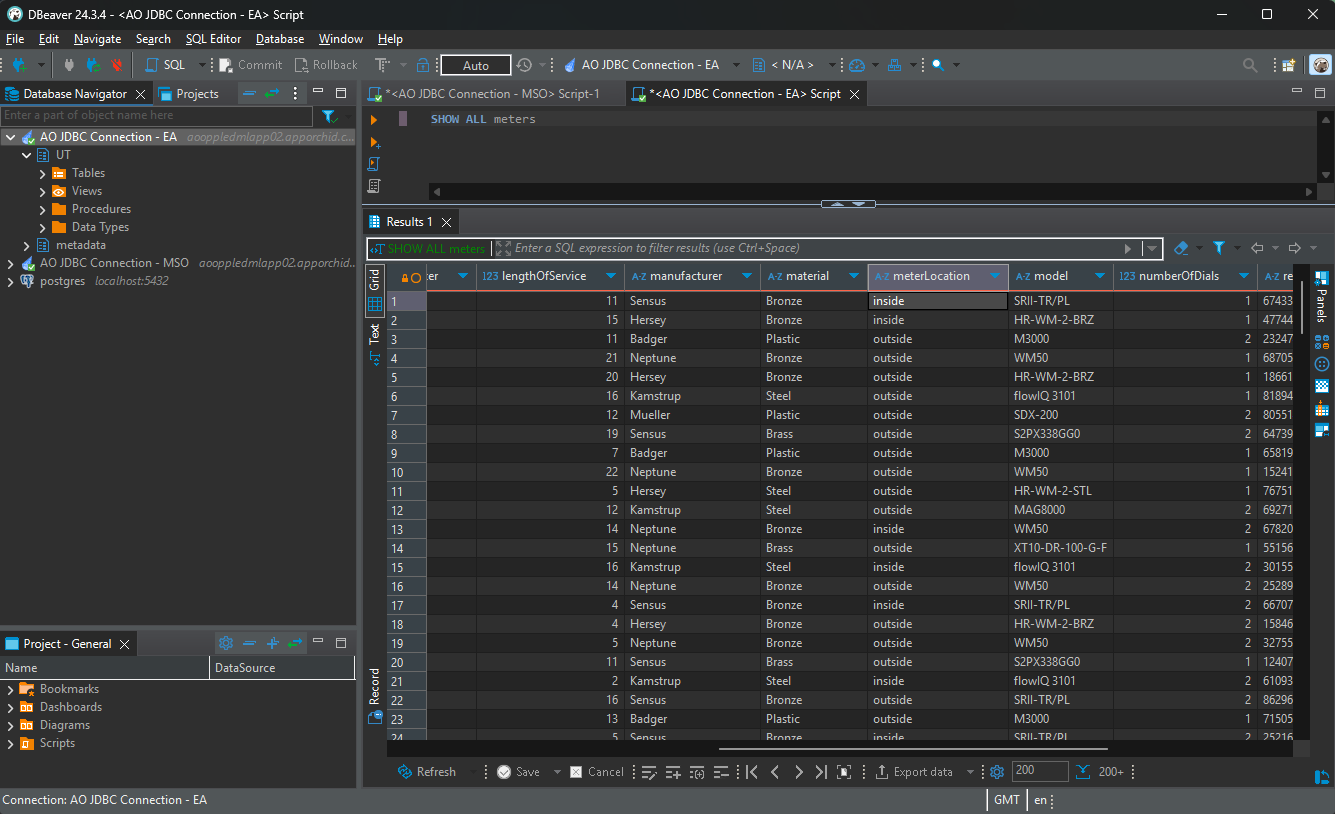
Using QUERY_MODE: EA, - and asking a Natural Language Question >
SHOW ALL meters
Contact App Orchid | Disclaimer