
Intended audience: developers administrators
AO Platform: 5.0
Overview
-
The AO Platform can access API Gateways to connect to the APIs of Large Language Models. This topic describes the configuration process using the WSO2 API Gateway to connect to Azure OpenAI LLMs.
Components and Configuration Flows
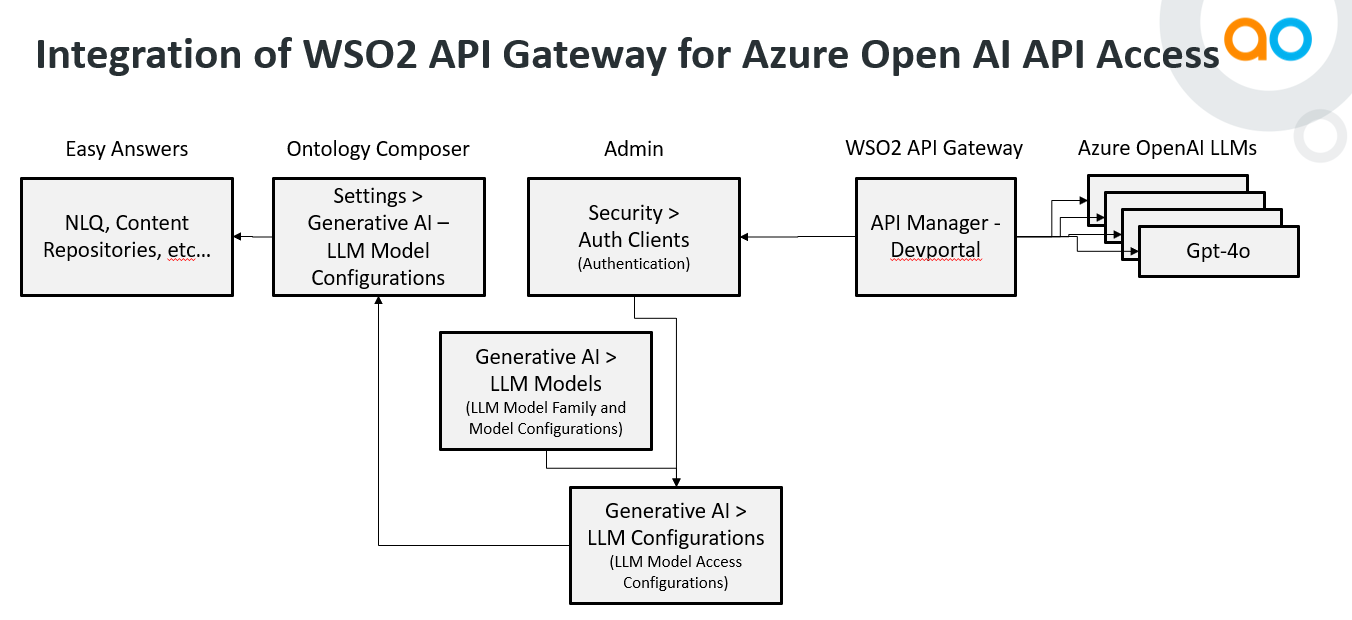
Ontology Composer > Settings
The goal is to select an LLM Model Configuration in our master data that uses the WSO2 Gateway for Authentication. Once configured, the LLM Model Configurations in master data will show up in the dropdown in the Ontology Composer > Settings properties wherever an LLM Model Configuration is required.
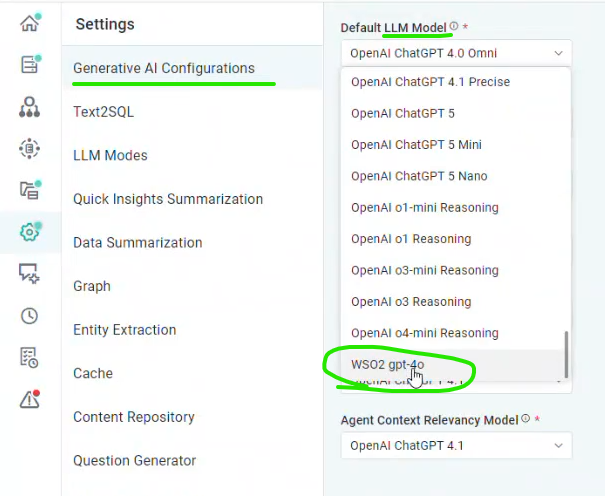
Admin Configurations
Admin > Security > Auth Clients
-
Using the Azure OpenAI API via WSO2 API Gateway requires an OAuth2 authentication configuration on the Admin > Security > Auth Clients page. See Admin > Security.
-
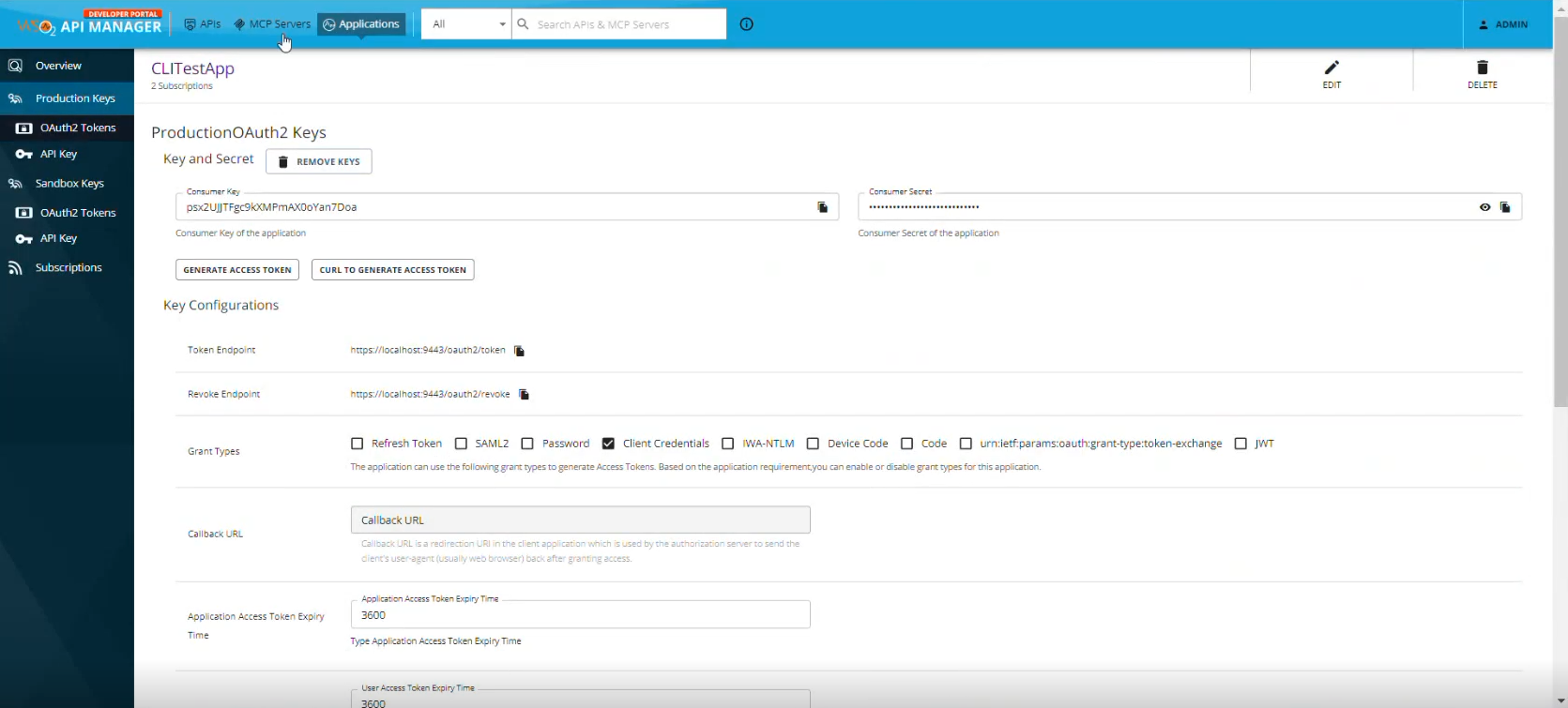
The details to enter come from the OAuth2 Tokens configuration in the WSO2 API Manager - Devportal. See the section below.
-
General Properties
-
Key* - text field - add an Internal, Unique Name for the configuration.
-
Name* - text field - add a friendly Display Name for the configuration.
-
Description - multi-line text field - add a short/concise Description to explain the configuration.
-
-
Help Properties
-
Long Description - multi-line text field - add a Long Description to explain the configuration.
-
-
Auth Properties
-
User Name - text field -
-
Password - obfuscated text field -
-
Token Name - text field -
-
Token Input Type - dropdown -
-
Token Response - text field -
-
Client Id - text field -
-
Client Secret - obfuscated text field -
-
Grant Type - text field - available values include: client_credentials, password
-
Token URL - text field - eg. https://wsoapi-manager.apporchid.com/oauth2/token
-
Referer - text field -
-
Is Logout Support - on/off toggle -
-
Is Refresh Token Support - on/off toggle -
-
Auth Client Type - dropdown - select the authentication client type, including: OAUTH1, OAUTH2, BASIC, LDAP, OPENID
-
-
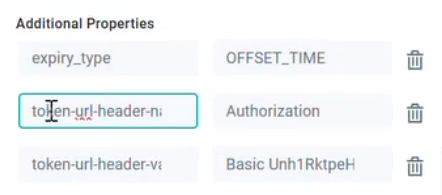
Additional Properties - repeater section with Key/Value pairs - examples in screenshot below:
-
expiry_type - OFFSET_TIME - a parameter holding the expiry time we get from the encrypted access token from the gateway.
-
token-url-header-name - “Authorization” is the key in the key/value pair
-
token-url-header-value - “Basic xxxxxxxx” is the value in the key/value pair
-
-
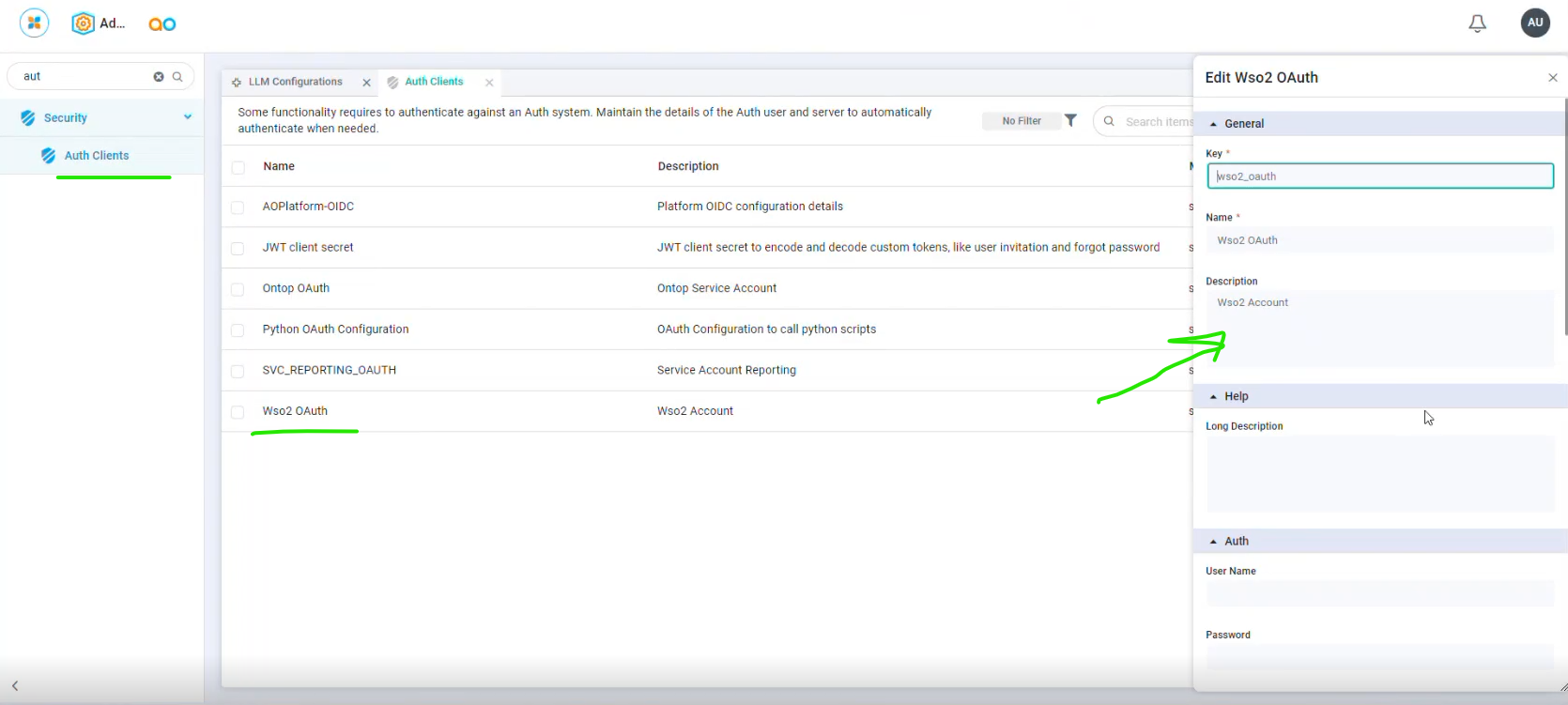
Admin > Generative AI > LLM Models
-
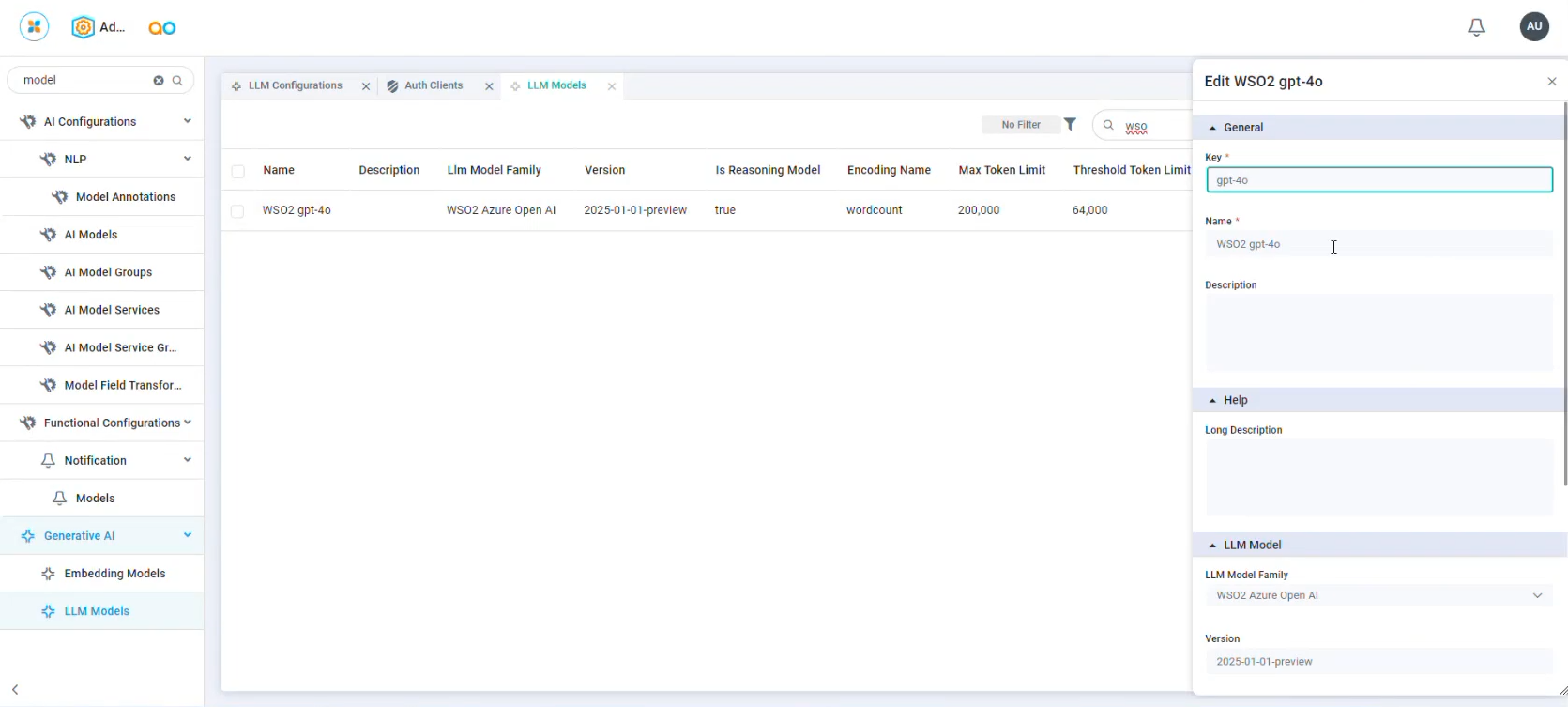
Once the OAuth2 authentication record has been configured, a new record needs to be created on the LLM Models page, identifying the LLM Model Family: WSO2 Azure OpenAI and the Model Version. Multiple records can be created if different LLM Models are required for a given LLM Model Family.
-
General Properties
-
Key* - text field - add an Internal, Unique Name for the configuration.
-
Name* - text field - add a friendly Display Name for the configuration.
-
Description - multi-line text field - add a short/concise Description to explain the configuration.
-
-
Help Properties
-
Long Description - multi-line text field - add a Long Description to explain the configuration.
-
-
LLM Model Properties
-
LLM Model Family - dropdown - select from the available LLM Model Families, including: Anthropic, Azure OpenAI, Deepseek, Google, Meta, Mistral, OpenAI, WSO2 Azure OpenAI.
-
Version - text field - enter a value that describes the LLM Model Family version.
-
Is Reasoning Model - on/off toggle - select on/off. Default is: on.
-
Encoding Name - text field - enter a value. Default is: wordcount.
-
Max Token Limit - number field - enter a value. Default is: 200000.
-
Threshold Token Limit - number field - enter a value. Default is: 64000.
-
-
Admin > Generative AI > LLM Configurations
-
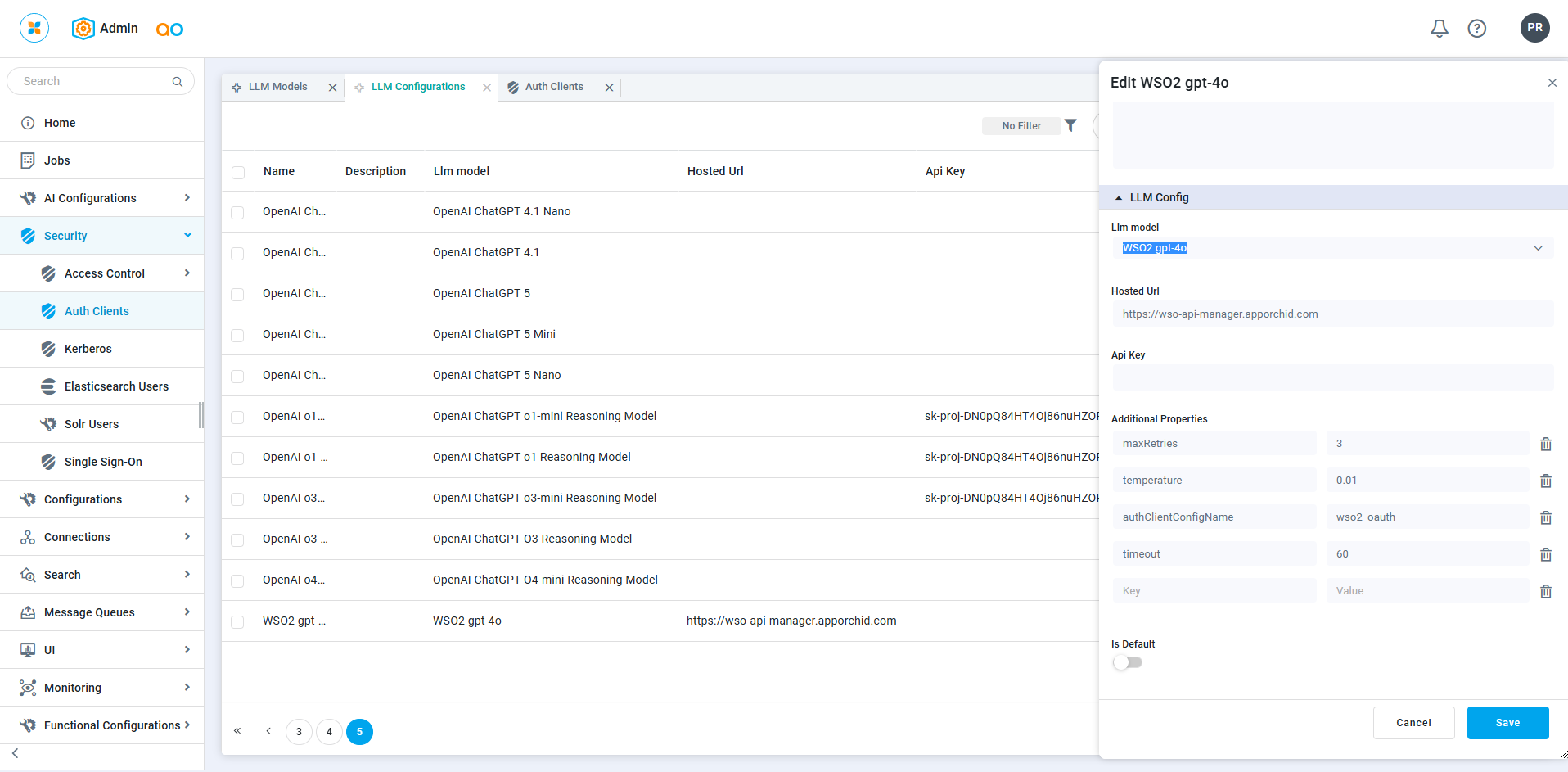
The LLM Configurations page is the next step in order to create the entries that become visible in the dropdowns when selecting which LLM Models to use for the different GenAI functionality in the AO Platform on the Ontology Composer > Settings > Generative AI Configurations page.
-
General Properties
-
Key* - text field - add an Internal, Unique Name for the configuration.
-
Name* - text field - add a friendly Display Name for the configuration.
-
Description - multi-line text field - add a short/concise Description to explain the configuration.
-
-
Help Properties
-
Long Description - multi-line text field - add a Long Description to explain the configuration.
-
-
LLM Model Properties
-
LLM Model - dropdown - select from the available LLM Models created on the LLM Models page. Example: select WSO2 gpt-4o to point to the LLM Model created on the Generative AI > LLM Models page.
-
Hosted URL - text field - enter a URL from which the API will be accessed.
-
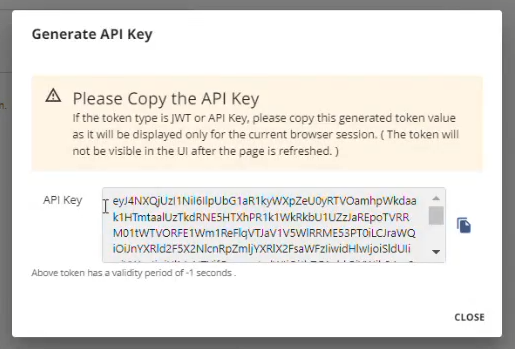
API Key - text field - either provide a generated Access Token/API Key in this property, or use the “authClientConfigName” approach in the Additional Properties section.
-
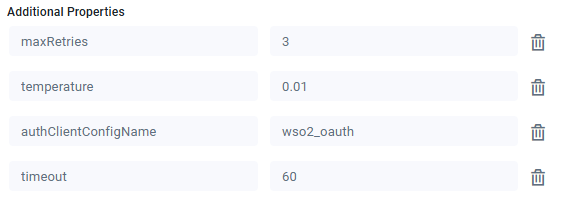
Additional Properties - repeater section w/key-value pairs - examples in screenshot below.
-
maxRetries - a value that determines how many tries to gain authentication from the WSO2 gateway before giving up. Default: 3
-
temperature - a setting that controls the randomness and creativity of a Large Language Model's responses. Lower temperature values produce more predictable, consistent, and deterministic outputs, while higher values generate more diverse, creative, and varied responses. Businesses typically adjust temperature based on the use case—using lower settings for accuracy-critical tasks and higher settings for brainstorming, content creation, or ideation. Default: 0.01
-
authClientConfigName - the configured “Key” from the Security > Auth Clients configuration. Mandatory if the API Key is not configured.
-
timeout - a value that determines how long we wait between retries. Value is in seconds. Default: 60
-
-
Is Default - on/off toggle - select on/off. Default is: off.
-
-
Different Types of Authentication in WSO2 API Manager - Devportal
OAuth2 Tokens
-
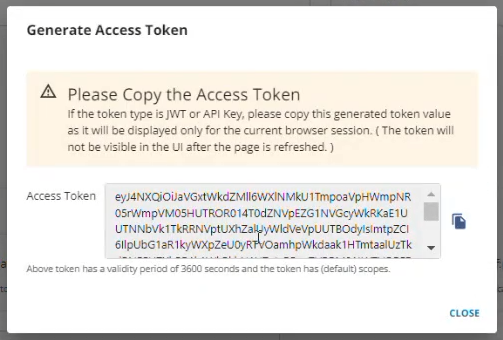
Use this approach for a refreshed access approach. Once an Access Token has been generated, the details shall be added to the AO Platform’s Admin > Security > Auth Clients configuration page. See the section above.
-
Consumer Key and Consumer Secret - Assigned Consumer Key and Consumer Secret.

-
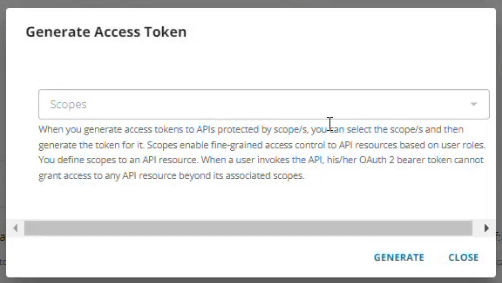
Access Token - generates an Access Token based on the Scope configurations.
-
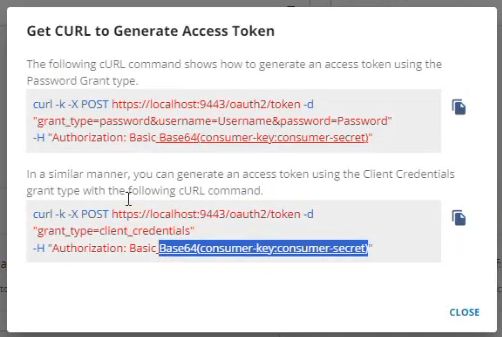
Access Token based on Grant Type -
-
“grant_type=password&username=Username&password=Password”
-
“grant_type=client_credentials”
-
API Key
-
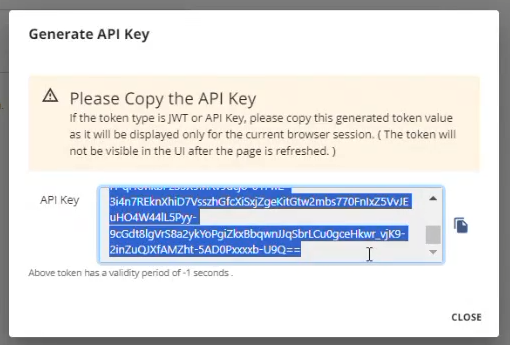
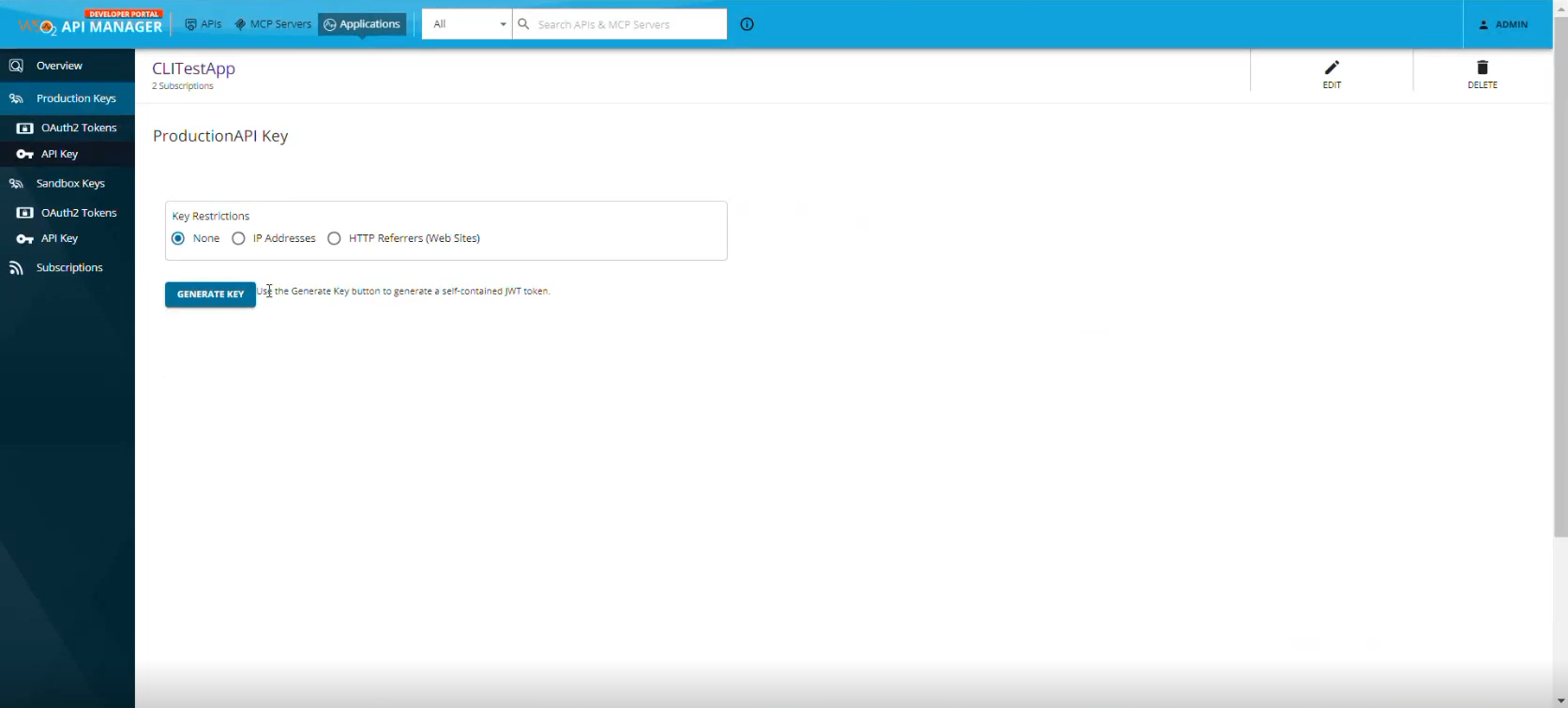
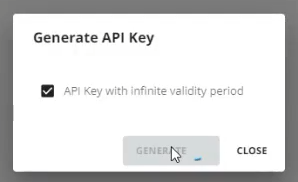
Use this approach for lifetime access without the refresh of a token.
-
Generate API Key
Reference Screens in WSO2 API Manager Gateway
-
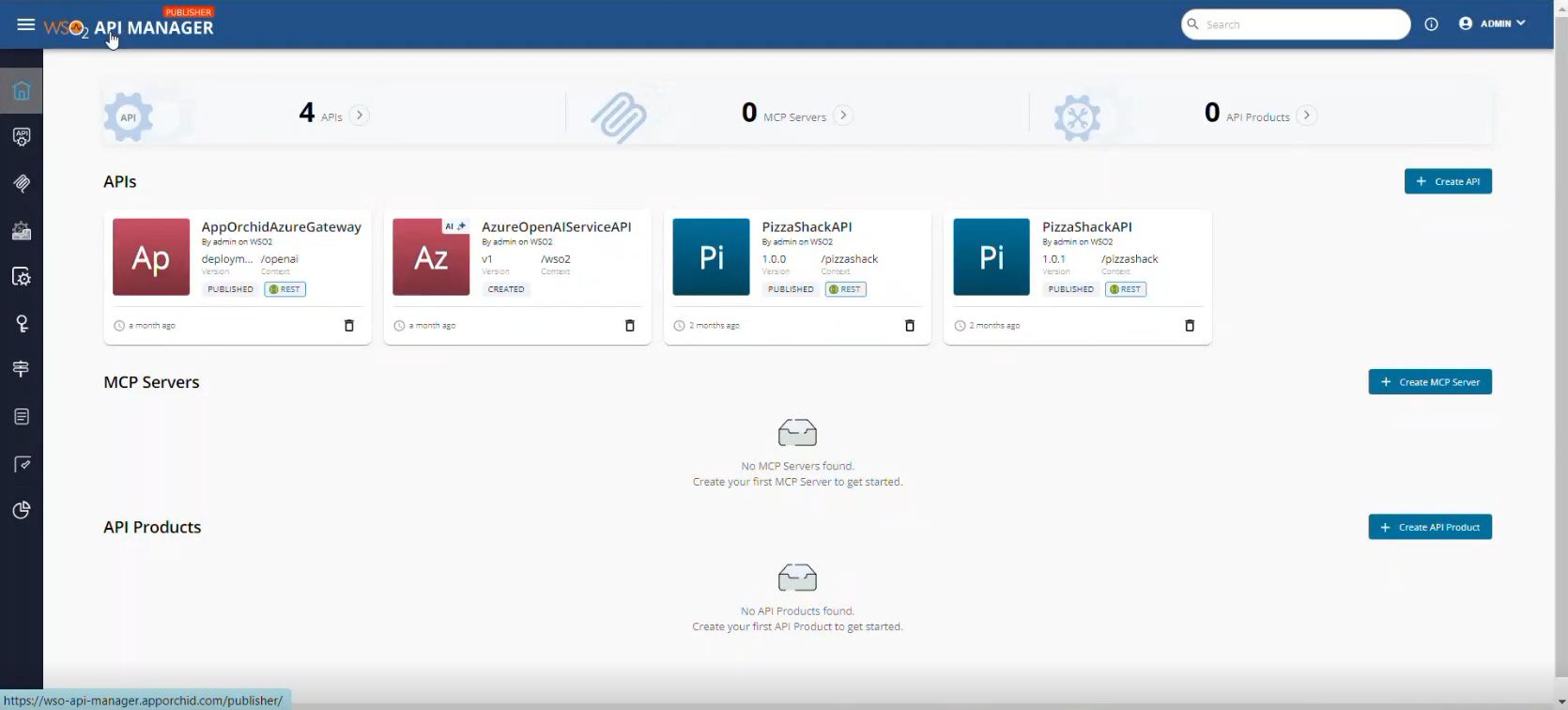
Landing page for APIs, MCP Servers, API Products, …
-
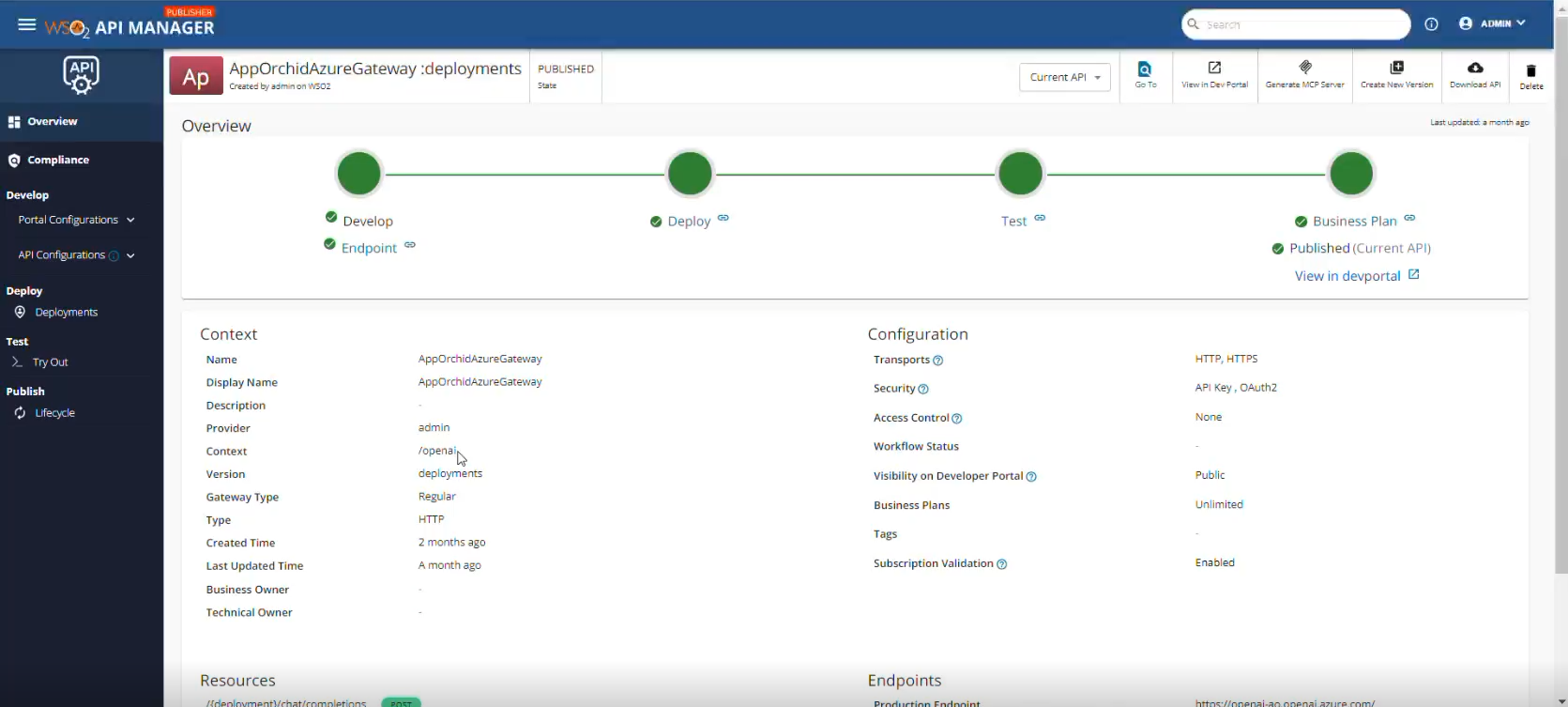
Deployed API Access Configuration in API Manager - Publisher
-
OAuth2 Token Authentication Configuration in API Manager - Devportal
-
API Key Authentication Configuration in API Manager - Devportal
|
|
Contact App Orchid | Disclaimer