
Intended audience: end-users developers
AO Platform: 5.0
Overview
For the Model to be added, click the Add Quick Insight button to see a list of available Quick Insights relative to the Data available.
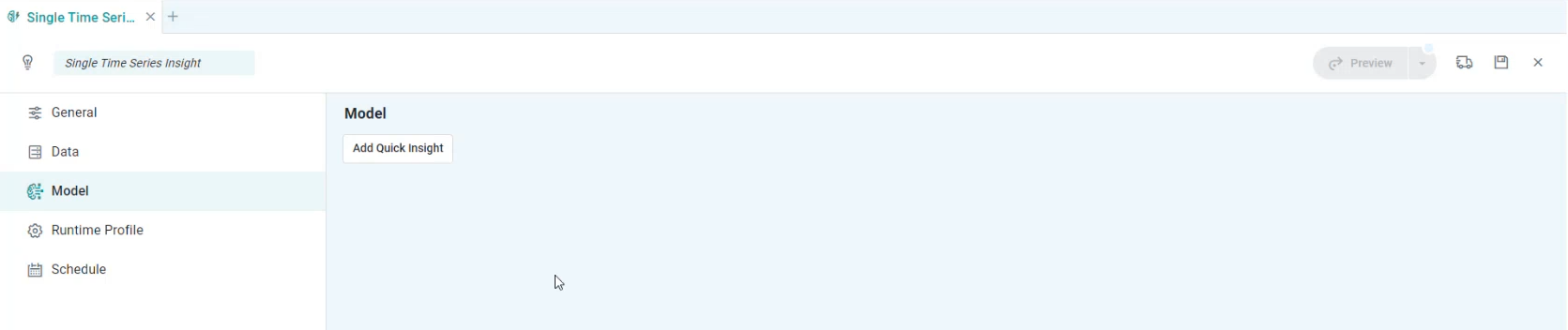
Dialog shown for Add Quick Insight button
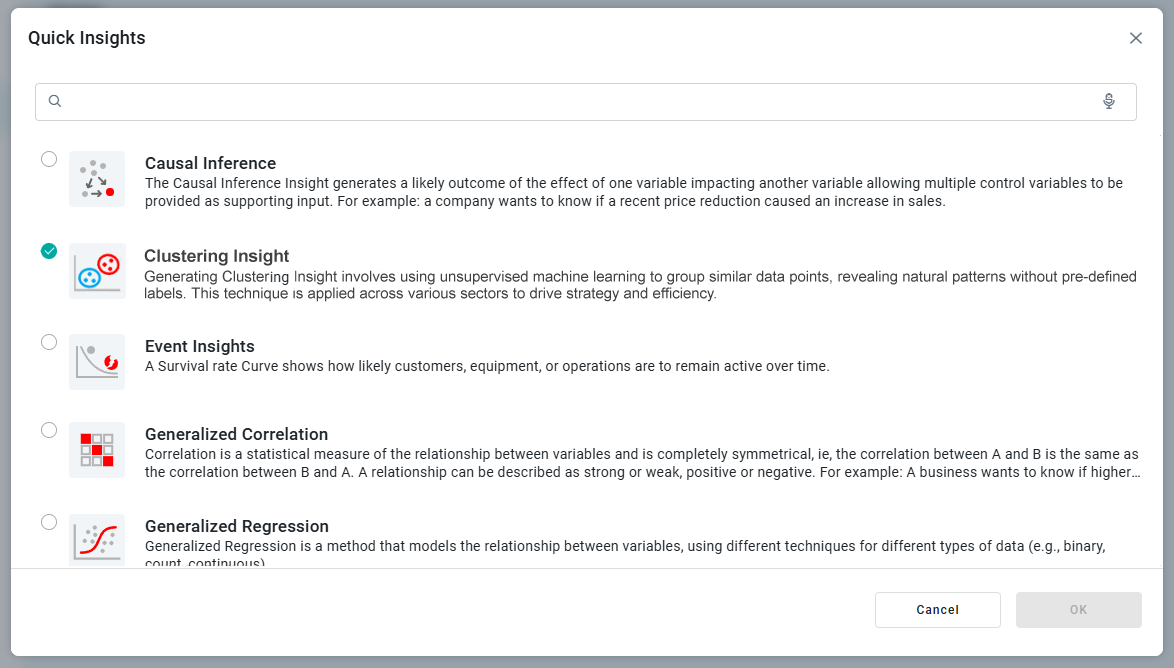
Once a Quick Insight has been selected, the Model will be added to the left-side panel with corresponding configuration properties shown on the right in tabbed sections, including:
-
Model tab > Time-Series - Single -
Model tab > Time-Series - Multi -
Model tab > Statistical Tests - Test for Rates -
Model tab > Statistical Tests - Test for Means -
Model tab > Statistical Tests - Test for Proportions -
Model tab > Survival Events -
Model tab > Generalized Correlation -
Model tab > Causal Inference -
Model tab > Clustering Insight -
Model tab > Outlier Insight -
Model tab > Spatial Correlation -
Model tab > Generalized Regression -
Model > Curations tab -
Model > Textual Insights tab -
Model > Infographic Messages tab -
Model > LLM Summary Configuration tab
Note that some Models can contain sub-models, eg. the Single Time-Series Insights is a “parent” model containing sub-model configurations for Outliers, Change Point, Trend Line, and Forecast.
Contact App Orchid | Disclaimer