
Intended audience: developers administrators
AO Platform: 4.3
Uploading
Login to the recipient/target environment and open the Transport Tool.
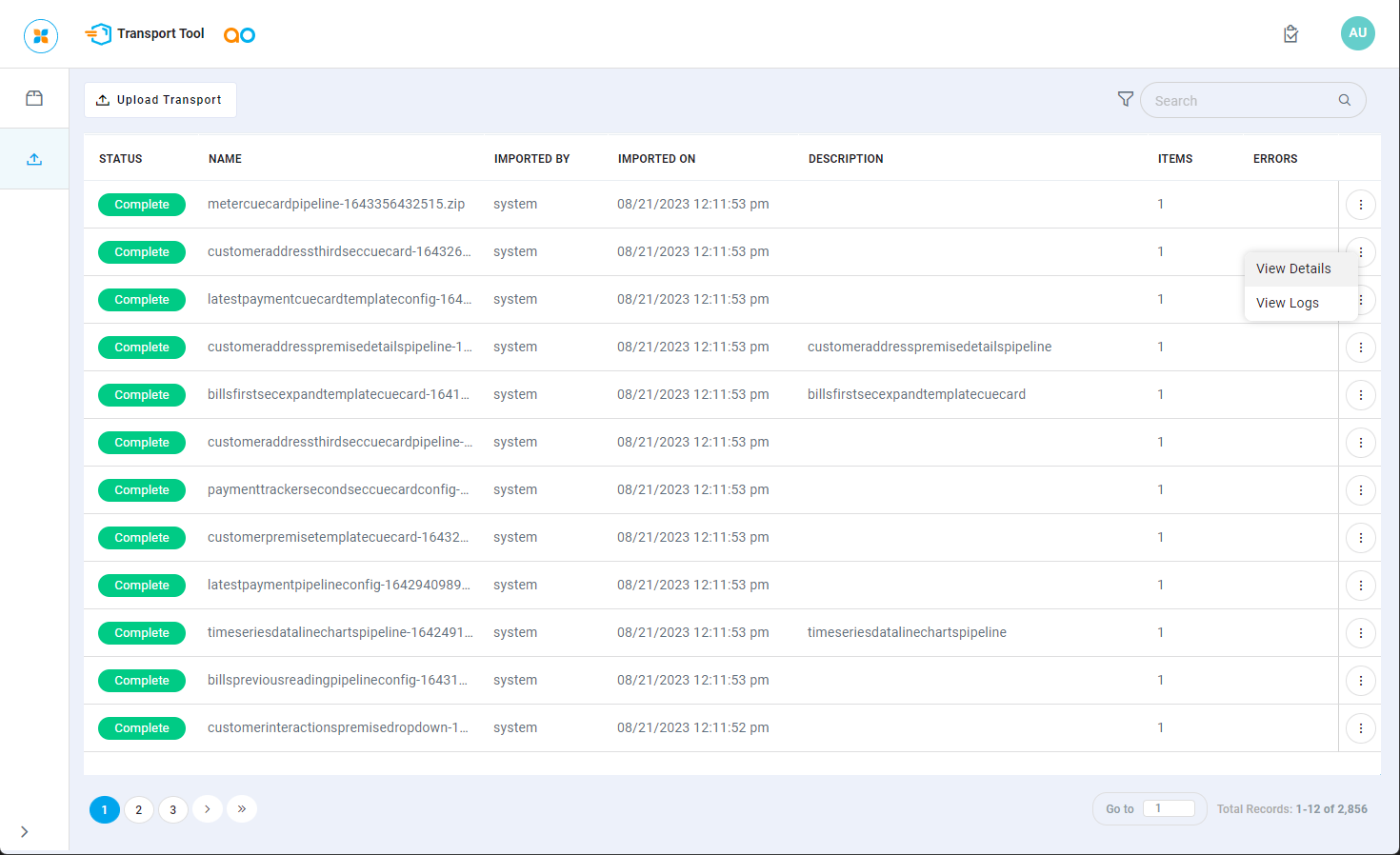
Now select the Upload Transport icon in the left-side panel.
Click the Upload Transport button and select the .zip file downloaded from the source system.
Once .zip file has been uploaded, it’ll show on the list of previously uploaded files.
Validation
AO Platform uses a few validation checks during upload into the target environment to ensure that the content of the transport package (the .zip file) is in the correct structure, hasn’t been tampered with, or otherwise altered, after it was downloaded from its source environment. In case of an invalid transport package, the user will typically see one of the following error messages:
-
Error finding meta-info file from uploaded request.
-
Checksum validation failed for transport file.
Status
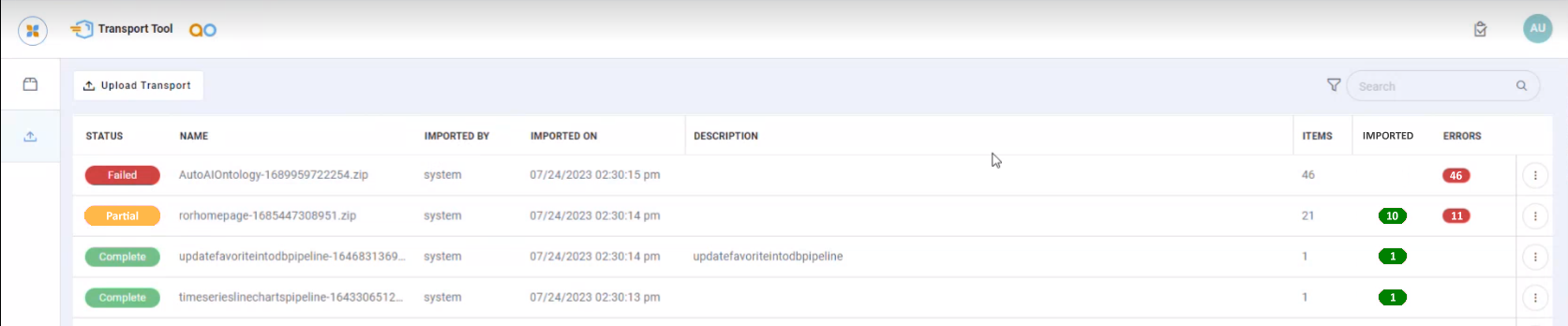
The Status column will show one of the following for an uploaded Transport .zip file:
-
Complete - the .zip file uploaded successfully 100%. All objects checksum validated during upload.
-
Partial - the .zip file was partially uploaded. A subset of all objects in .zip uploaded successfully.
-
Failed - the .zip file failed 100%. Nothing was uploaded.
Options Menu
In the Action menu for uploaded items, the user can select to…
-
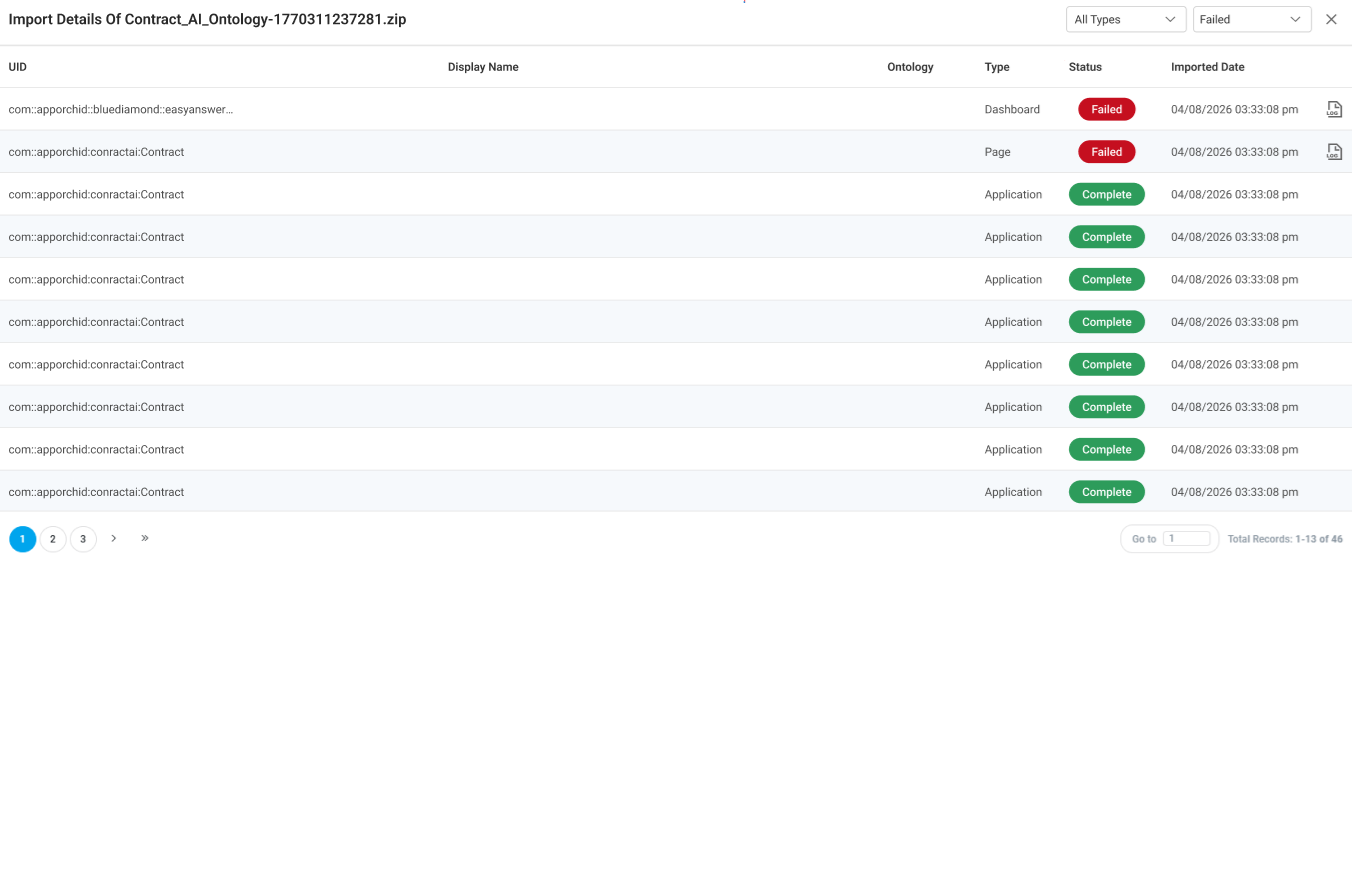
View Details - opens a dialog with details of all included objects/dependencies in the .zip Transport including the UID, Display Name, Ontology, Type, Status, and Import timestamp.
For any component with a Status of Failed, a Log icon is shown at the end of the row. Clicking the Log icon opens the Failed to Import dialog -
View Errors - for any Transport package that results in one or more errors, select View Errors to open a summary of failed components.
(Screeenshot needed)
-
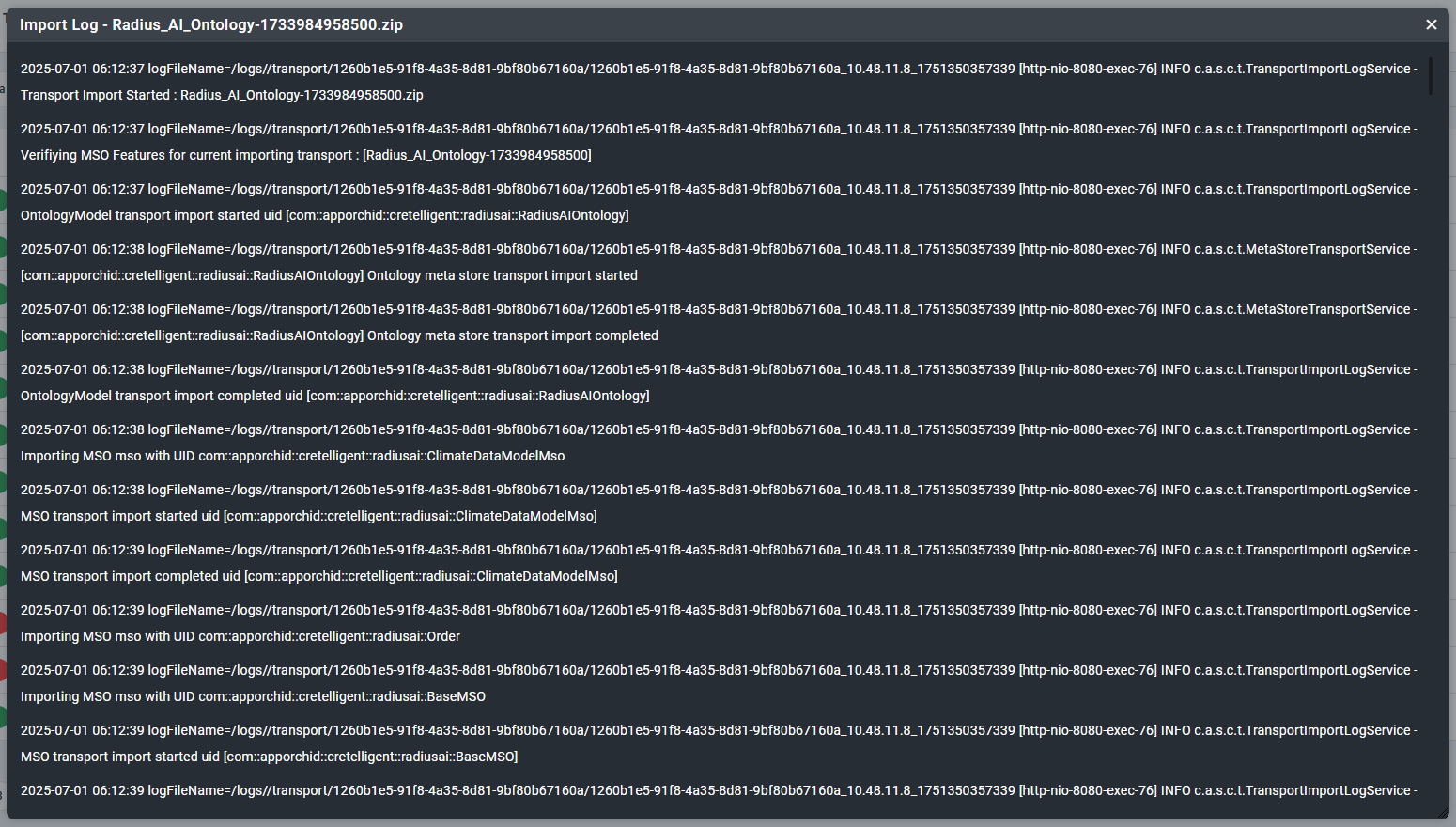
View Logs - opens a dialog showing the log file for the import/upload process.
Failed to Import Dialog
Clicking the Log icon on a Failed component in the View Details dialog opens the Failed to Import dialog, showing a breakdown of all components in the Transport .zip package:
-
Component - a tree structure of the components.
-
Total - the total number of elements processed.
-
Success - the total number of elements imported successfully.
-
Failed - the total number of elements that failed to import.
For any component with failed imports, a Log icon is shown. Clicking it opens a Log View with the specific error message(s) for that element. The full error log is accessible via View Logs
Video
Contact App Orchid | Disclaimer