
Intended audience: analysts developers administrators
AO Platform: 5.0
Overview
The MSO Composer has multiple actions and tools to support the Discovery processes, ongoing updates, troubleshooting, and exchanging an MSO between different systems.
The MSO Options menu is not shown if the Ontology has been granted “Allow Use” permissions. Allow Use means that all MSO configuration properties and create/edit/delete actions from the MSO Options menu are not allowed. Only a select few options are available, such as the View Ontology and View ER Diagram, as neither makes any changes to the actual MSOs.
MSO Options
-
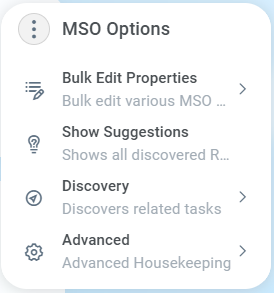
Bulk Edit Properties - see Bulk Edit Properties.
-
Show Suggestions - shows all discovered Relationships, Words, Traits, and Insights, - allowing the user to Accept/Reject as needed. See Showing Suggestions for MSO.
-
Discovery - see Discovery submenu below.
-
Advanced - see Advanced submenu below.
Bulk Edit Properties
-
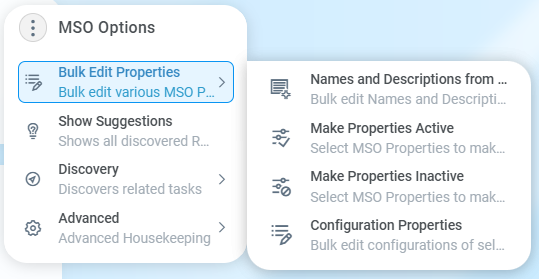
See Bulk Edit Properties.
Discovery Submenu
-
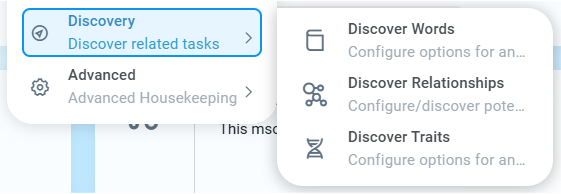
Discover Words - configure options for and discover value-based words from data for MSO properties to be used in Easy Answers. See Discover Words for MSO.
-
Discover Relationships - configure/discover potential connections between this and other MSOs. See Discover Relationships for MSO.
-
Discover Traits - configure options for and discover functional traits to be suggested for MSO properties. See Discover Traits for MSO.
Advanced Submenu
-
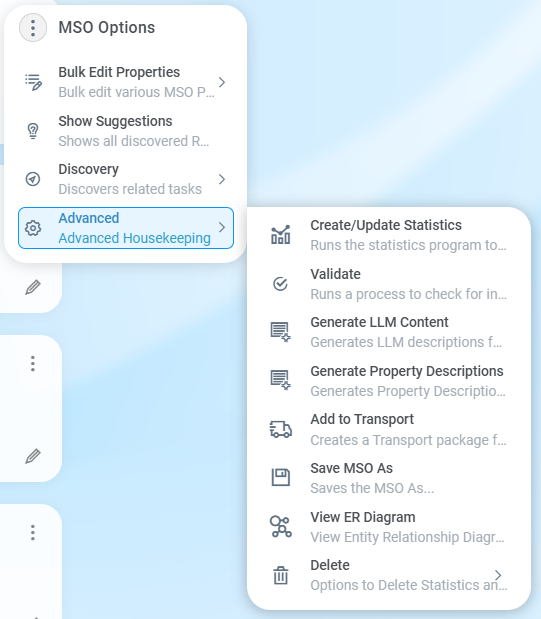
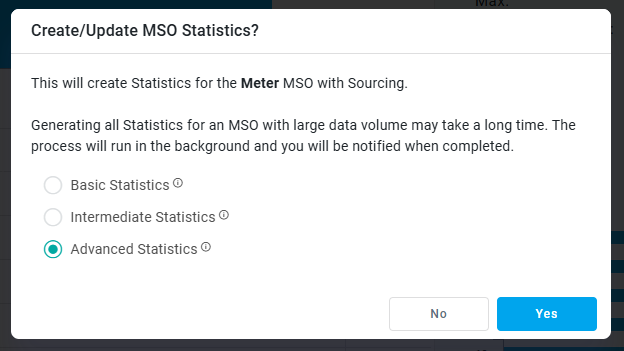
Create/Update Statistics - creates (or updates) the Statistics for MSO with Sourcing. See Statistics Levels.
-
Validate - runs a process to check for inconsistency, best practices, structural, and implementation errors in the MSO. View issues found on the Issues page in the MSO. See MSO - Issues.
-
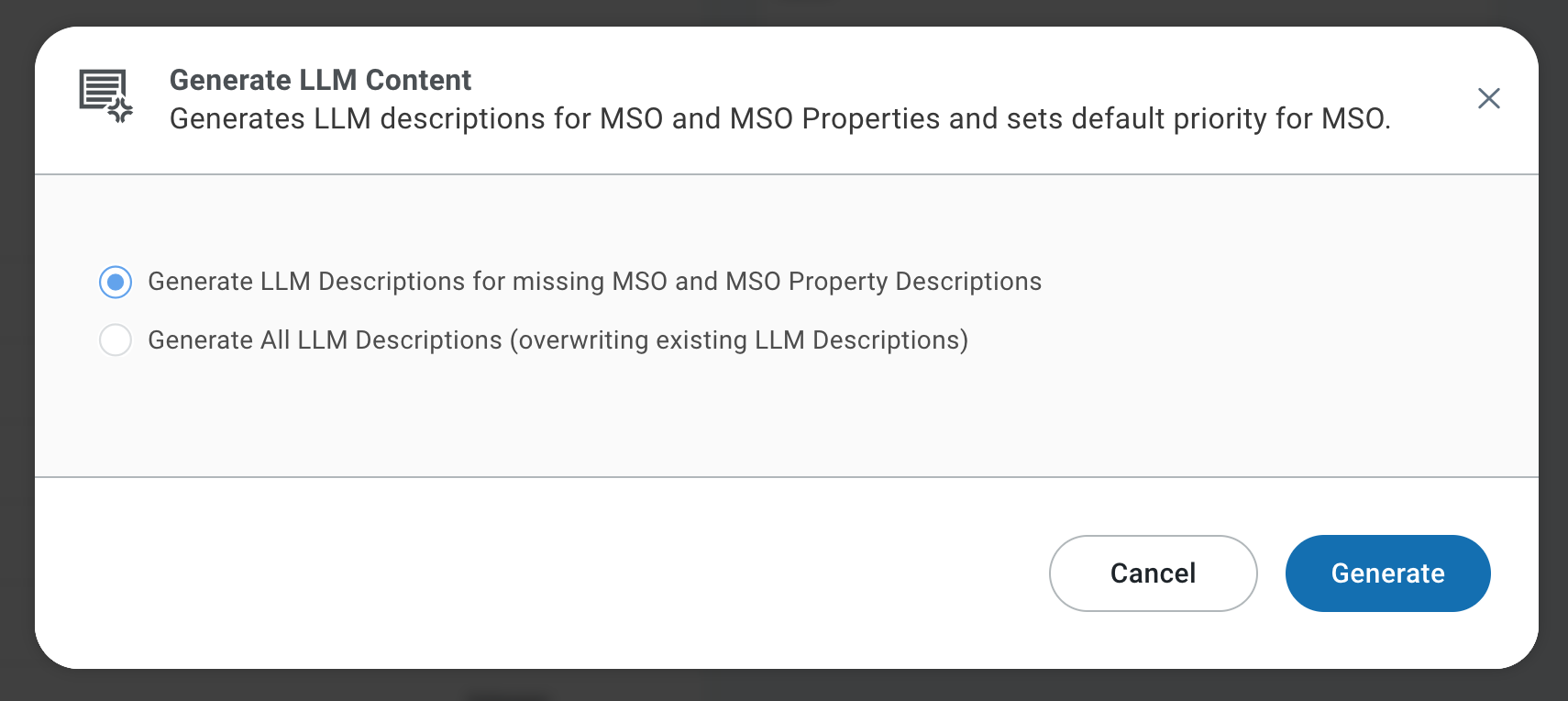
Generate LLM Content - generates LLM Descriptions for MSO and MSO Properties on the LLM Content page in the MSO Composer, and sets the default Priority for the MSO. When selected, a Generate LLM Content dialog opens to start the process. These Descriptions provide context for the LLM interpretations of questions used in Easy Answers. If not available, the MSO and MSO Property Descriptions on the General and Properties page in the MSO Composer will be used.
-
Generate Property Descriptions - generates Descriptions for the MSO Properties on the MSO Properties pages. These Descriptions are used for general descriptions in various places in the UI to inform users of what a given MSO Property is used for. These Descriptions are secondary to the LLM Descriptions on the LLM Content page, which focus on providing context for the LLM interpretations of questions used in Easy Answers.
-
Add to Transport - adds the MSO transport package to (or removes it from) the Transport Tool. See Adding an MSO to Transport.
-
Save MSO As - opens a dialog to save the current MSO under a new name, thereby creating a new MSO. See Saving MSO As.
-
View ER Diagram - opens a dialog showing the MSO in an ER Diagram. See Viewing ER Diagram.
-
Delete - see Delete submenu below.
Delete Submenu
-
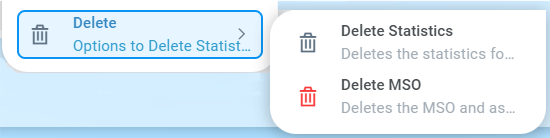
Delete Statistics - deletes the statistics for the MSO in the Ontology. Confirmation is required.
-
Delete MSO - deletes the MSO and associated words, traits, and insights. Related/linked MSOs will not be deleted. This is irreversible and requires confirmation.
Contact App Orchid | Disclaimer