
Intended audience: analysts developers administrators
AO Platform: 5.0
Overview
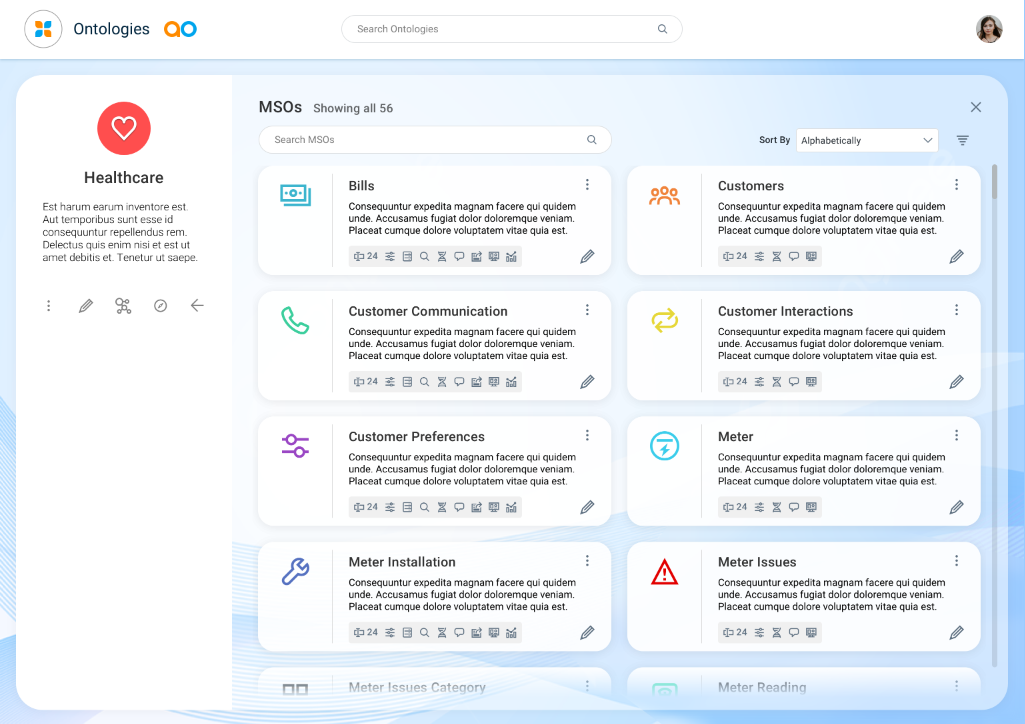
On the MSO home page, the user will have the option to click the + Add icon to add a new MSO, or manage existing MSOs from the Card view.
User Actions
On Page
-
Search - enter a Search term to find relevant objects on the selected page.
-
Sort by - select from dropdown to sort MSOs by Name or by Recently Updated.
-
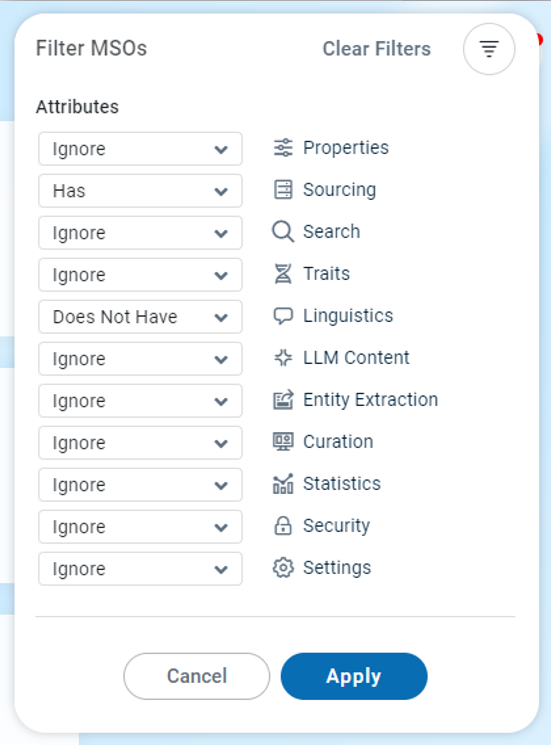
Filter MSOs - click options to Filter MSOs based on configured MSO Attributes, such as Properties, Sourcing, Search, Traits, Linguistics, LLM Content, Entity Extraction, Curation, Statistics, Security, and Settings. Options are to Ignore MSOs with a given attribute, or select to include (Has) or exclude (Does Not Have) MSOs with a certain attribute.
On Individual MSO Cards
|
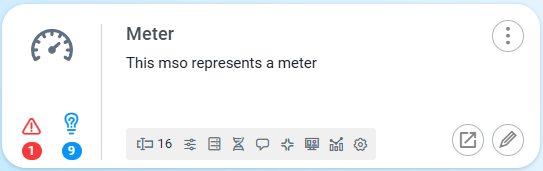
With “Allow Edit” Permissions |
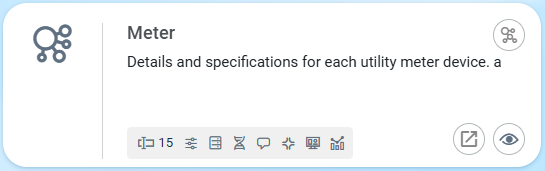
With “Allow Use” (Read-Only) Permissions |
|---|---|
|
|
|
|
In User Menu
-
View Tasks - Shows a task list for any background tasks that may be running relating to MSO creation, Statistics creation, Discovery processes, etc… See View Tasks for MSO.
Contact App Orchid | Disclaimer