
Intended audience: analysts developers administrators
AO Platform: 4.5
Overview
The MSO Composer’s Options menu for Bulk Edit Properties has the following tools to make it easier to make bulk updates to MSO Properties.
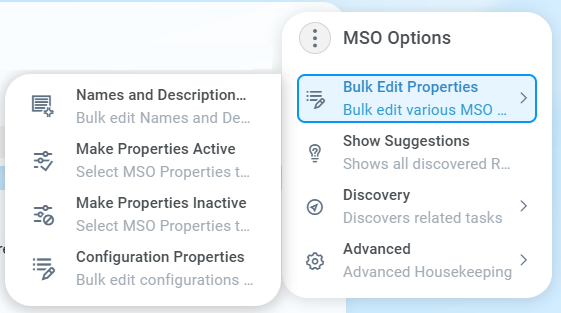
Names and Descriptions
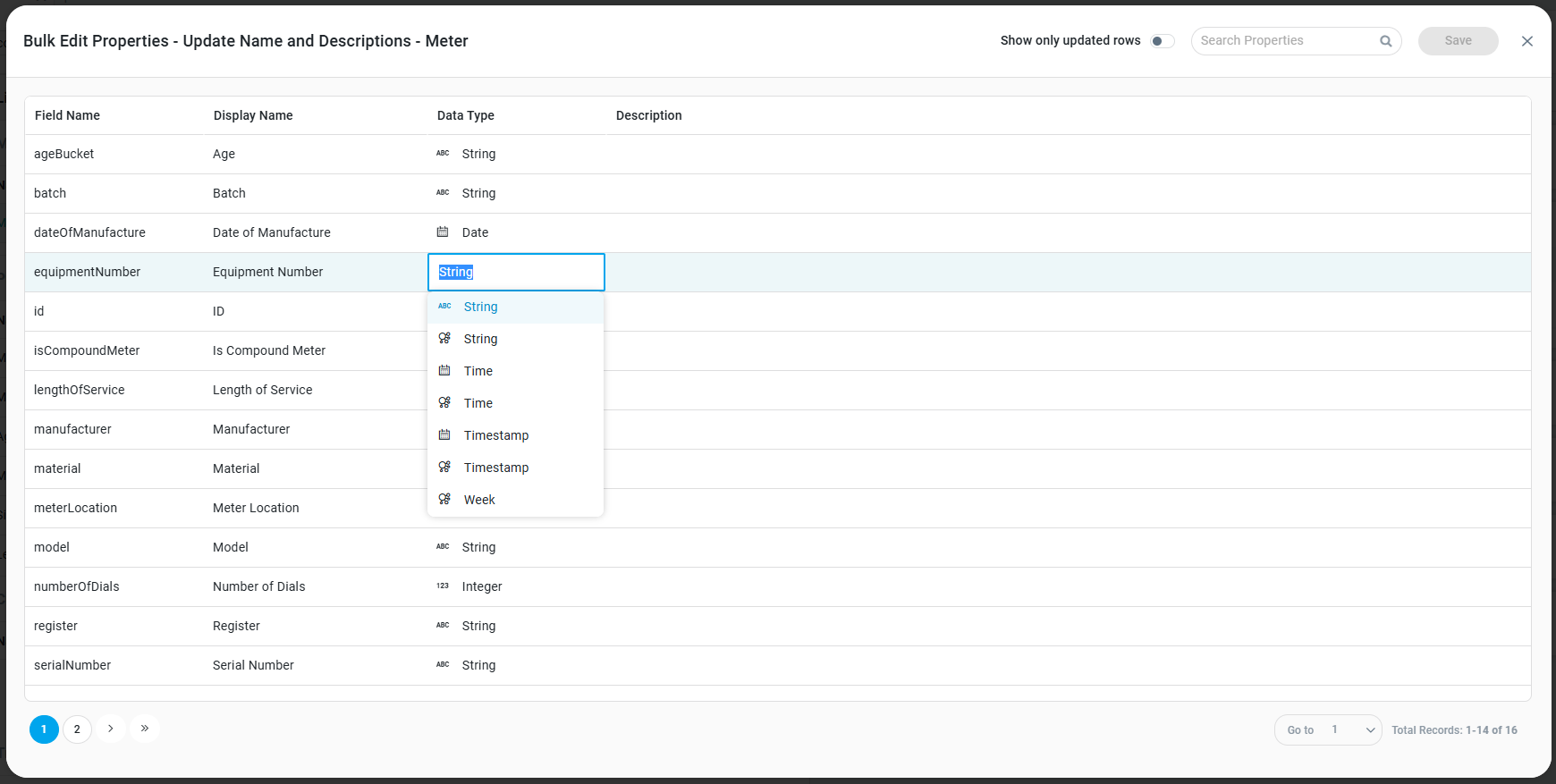
In this dialog, it’s possible to bulk update the following properties in an MSO.
-
Field Name
-
Display Name
-
Data Type
-
Description
Click into the cell of a given property to update the current value. Once done, click the Save button!
Actions in the Dialog Header
-
Show only updated rows - on/off toggle - if enabled, the properties will be filtered to only show records with updates.
-
Search - search field - enter a search term to find matching properties.
-
Save - click to Save when all updates are done.
-
Close - closes the dialog
Make Properties Active
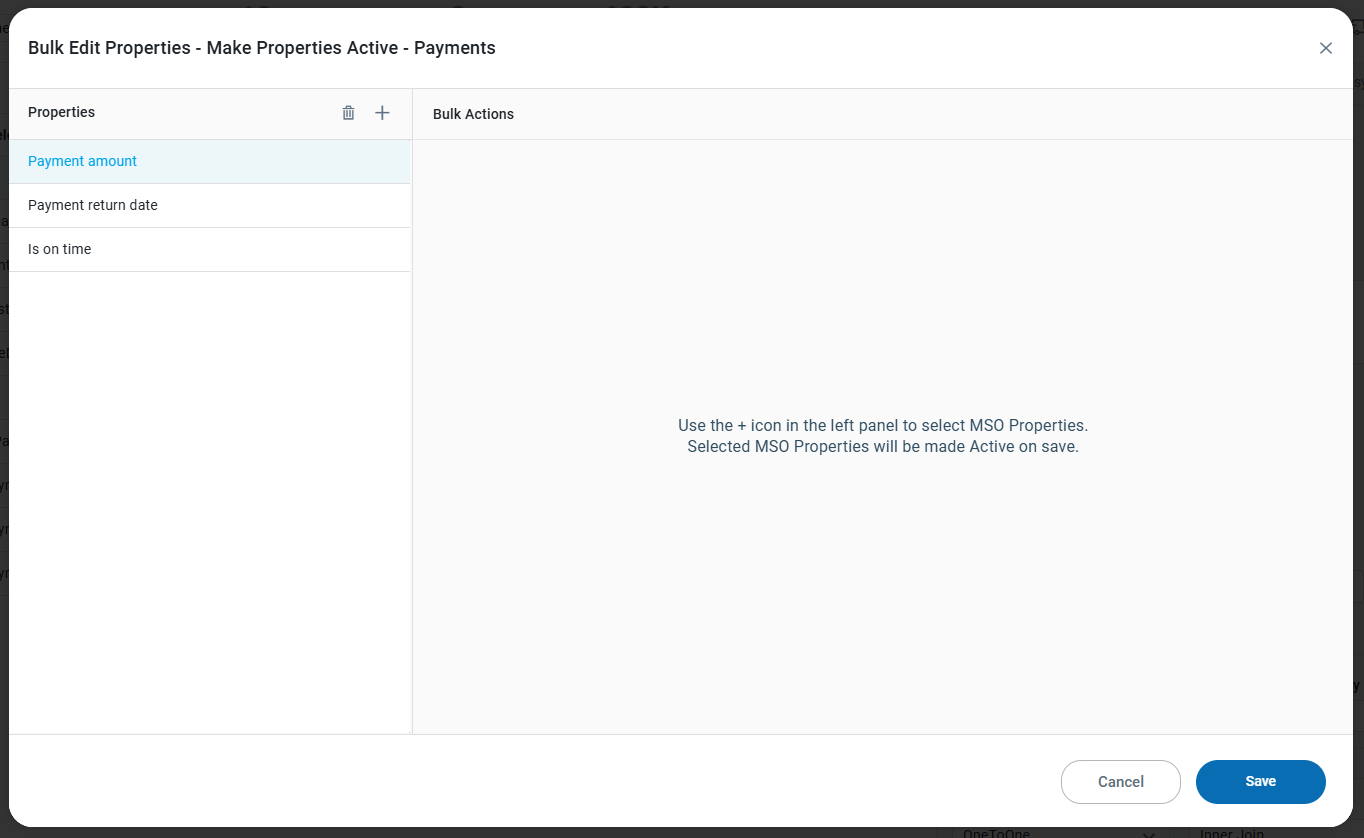
In this dialog, multiple MSO Properties can be selected and then made Active. A prerequisite for adding MSO Properties is that the current MSO has Inactive MSO Properties.
Actions in the Dialog
-
“+” - icon - opens the Select Properties dialog to allow one or more MSO Properties to be selected. See Select Properties Dialog section below.
-
“delete” - icon - deletes any MSO Property that has been added.
When done adding MSO Properties, simply click the Save button, and the MSO Properties will be made Active. Disregard changes by clicking the Cancel button instead.
Make Properties Inactive
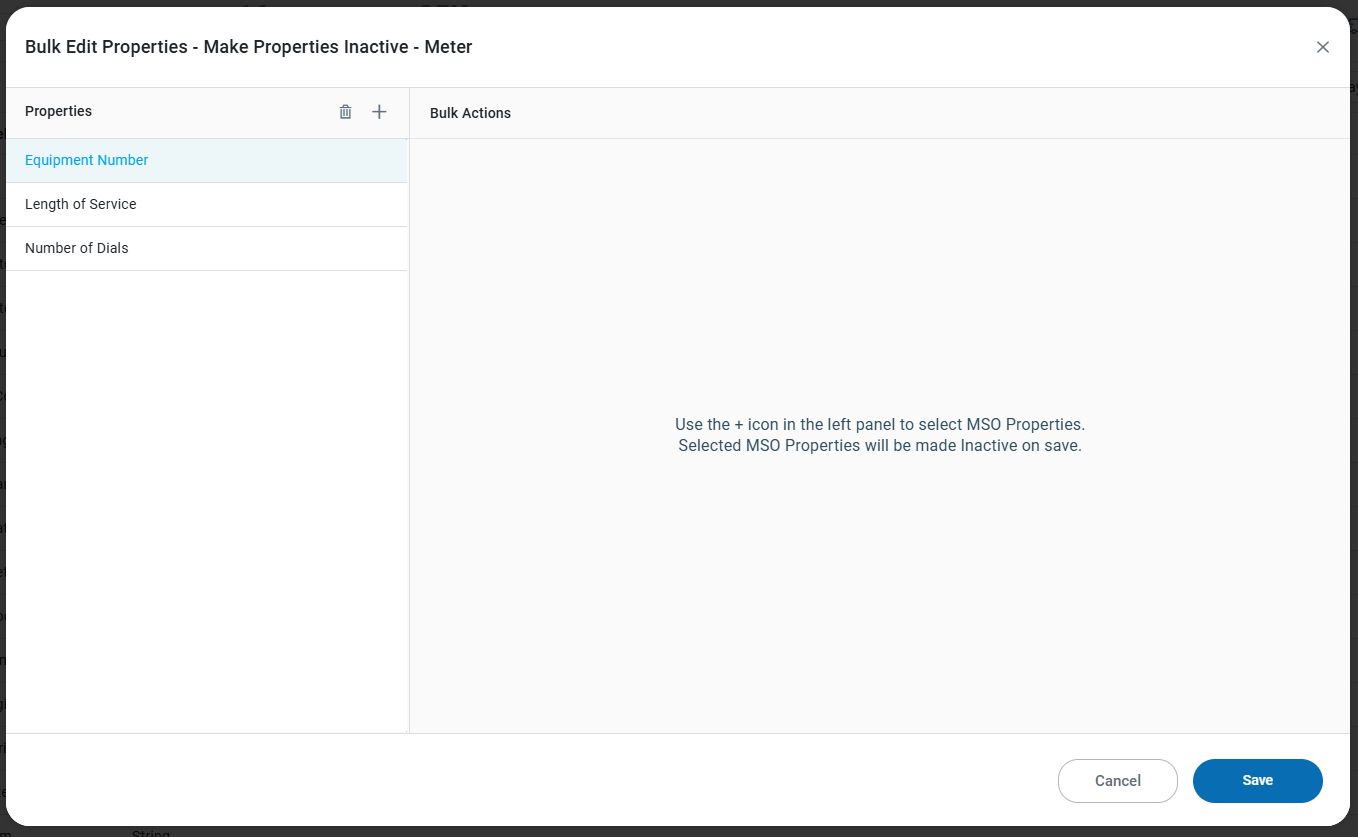
In this dialog, multiple MSO Properties can be selected and then made Inactive.
Actions in the Dialog
-
“+” - icon - opens the Select Properties dialog to allow one or more MSO Properties to be selected. See Select Properties Dialog section below.
-
“delete” - icon - deletes any MSO Property that has been added.
When done adding MSO Properties, simply click the Save button, and the MSO Properties will be made Inactive. Disregard changes by clicking the Cancel button instead.
Configuration Properties
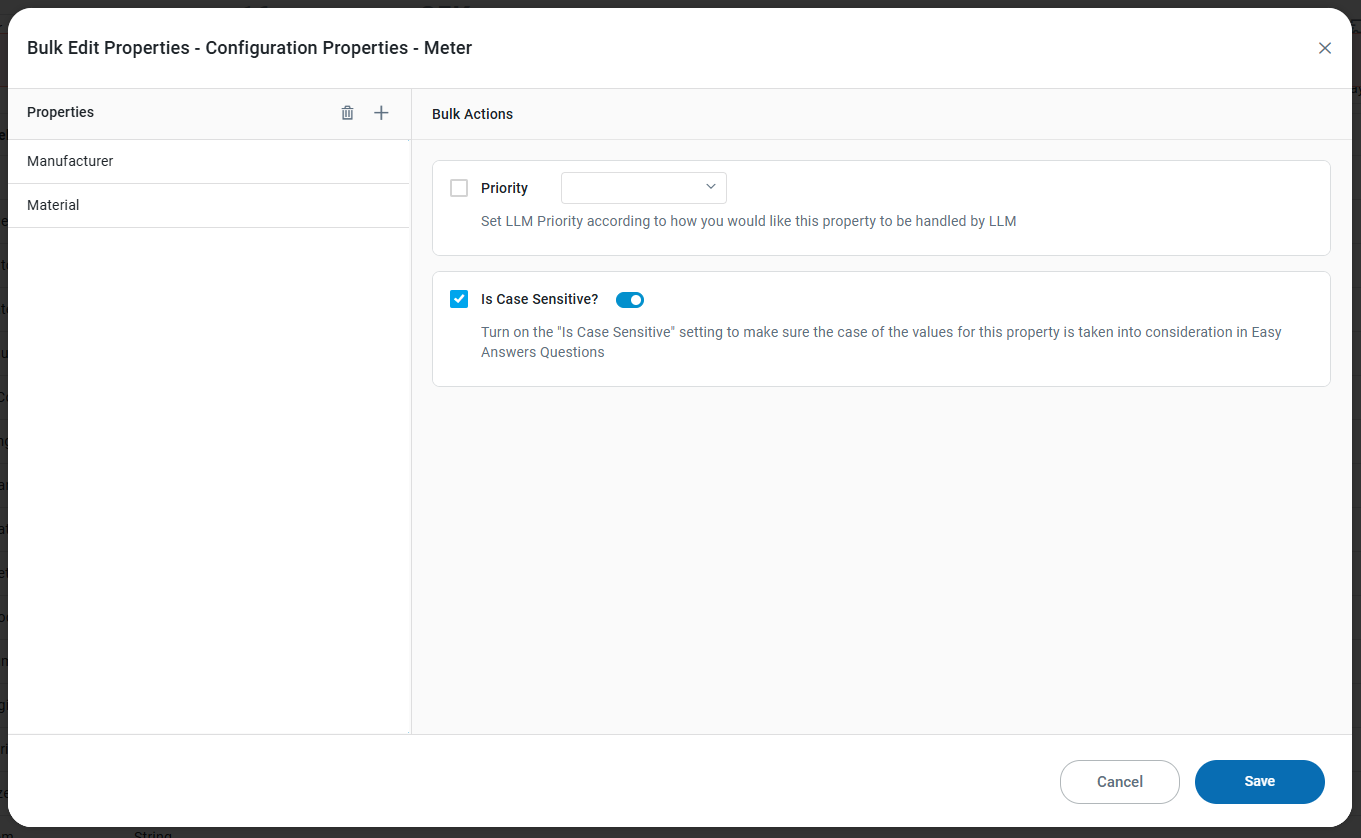
In this dialog, multiple MSO Properties can be selected and then configuration properties can be updated in the Bulk Actions panel.
Actions in the Dialog
-
“+” - icon - opens the Select Properties dialog to allow one or more MSO Properties to be selected. See Select Properties Dialog section below.
-
“delete” - icon - deletes any MSO Property that has been added.
When done adding MSO Properties, click the checkbox for any configuration properties to be updated in the Bulk Actions panel and configure the property. Shown below are two configuration properties:
-
Priority - dropdown - select to update the Priority property from available options in the dropdown.
-
Is Case Sensitive? - on/off toggle - enable/disable the property
Finally, click the Save button, and the selected MSO Properties will be updated with new configurations. Disregard changes by clicking the Cancel button instead.
Select Properties Dialog
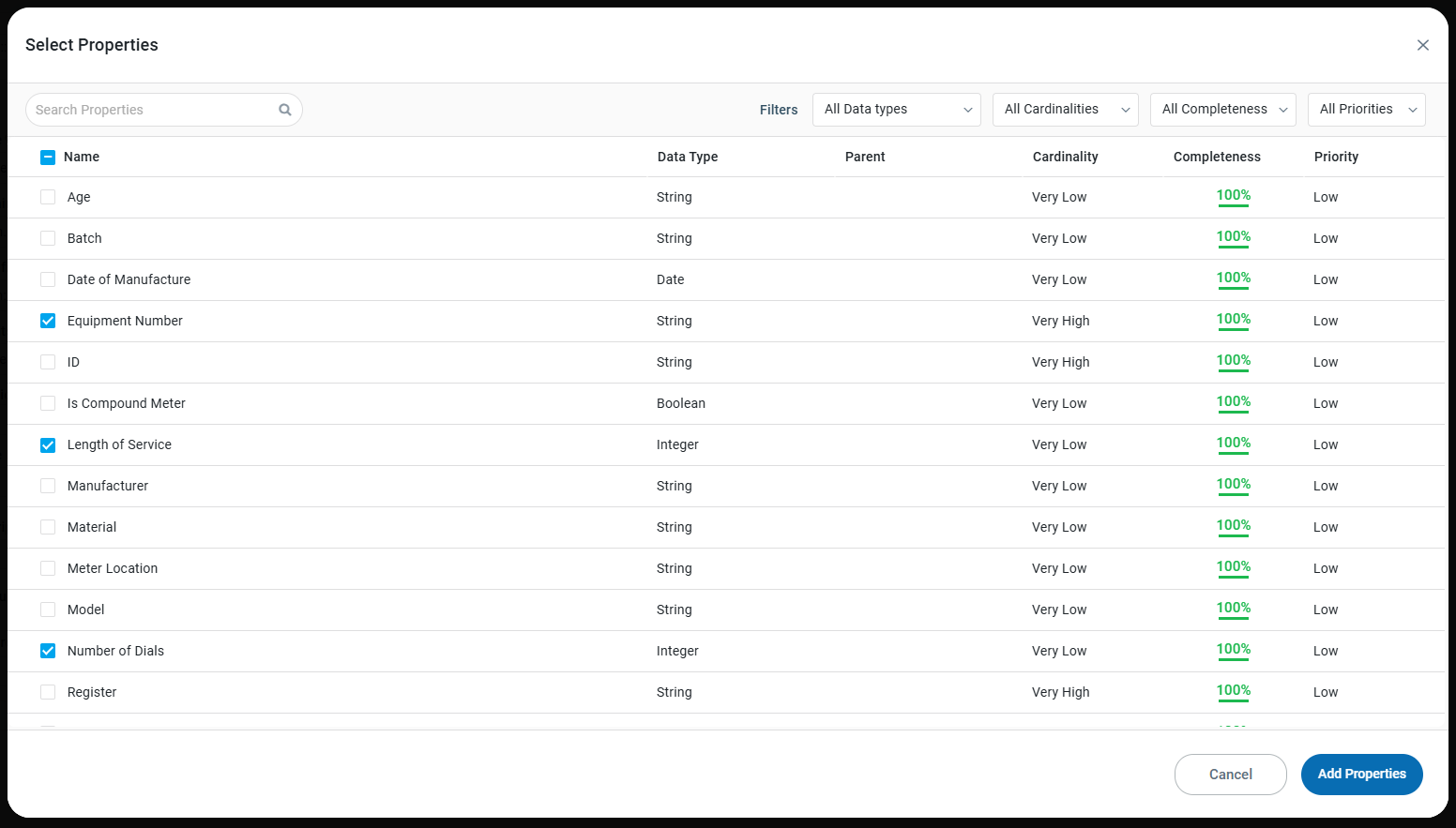
The Select Properties dialog opens when clicking the “+” icon in the previous screen. Check the checkbox(es) to select one or more MSO Properties, then click the Add Properties button. Disregard the added MSO Properties by clicking the Cancel button instead.
Actions in Table Header
-
Search - search field - enter a search term to find MSO Properties that have been added.
-
Data Types - filter - the dropdown includes: All Data Types, and a list of all Data Types available for the MSO Properties in the current MSO.
-
Cardinality - filter - this is related to the MSO Statistics generated for MSO Properties that represent categorical values in the data. The dropdown includes: All Cardinalities, No Cardinality, Very Low, Low, Normal, High, Very High.
-
Completeness - filter - this is related to the MSO Statistics. The dropdown includes a percentage indicating the level of completeness for Statistics generated for the MSO Property, including the following options: All Completeness, 0-10%, 11-20%, 21-30%, 31-40%, 41-50%, 51-60%, 61-70%, 71-80%, 81-90%, 91-100%.
-
Priorities - filter - this is the MSO Priority from the LLM Content page. The dropdown includes: All Priorities, No Priority, High, Medium, and Low.
Contact App Orchid | Disclaimer