
Intended audience: analysts developers administrators
AO Platform: 5.0
Overview
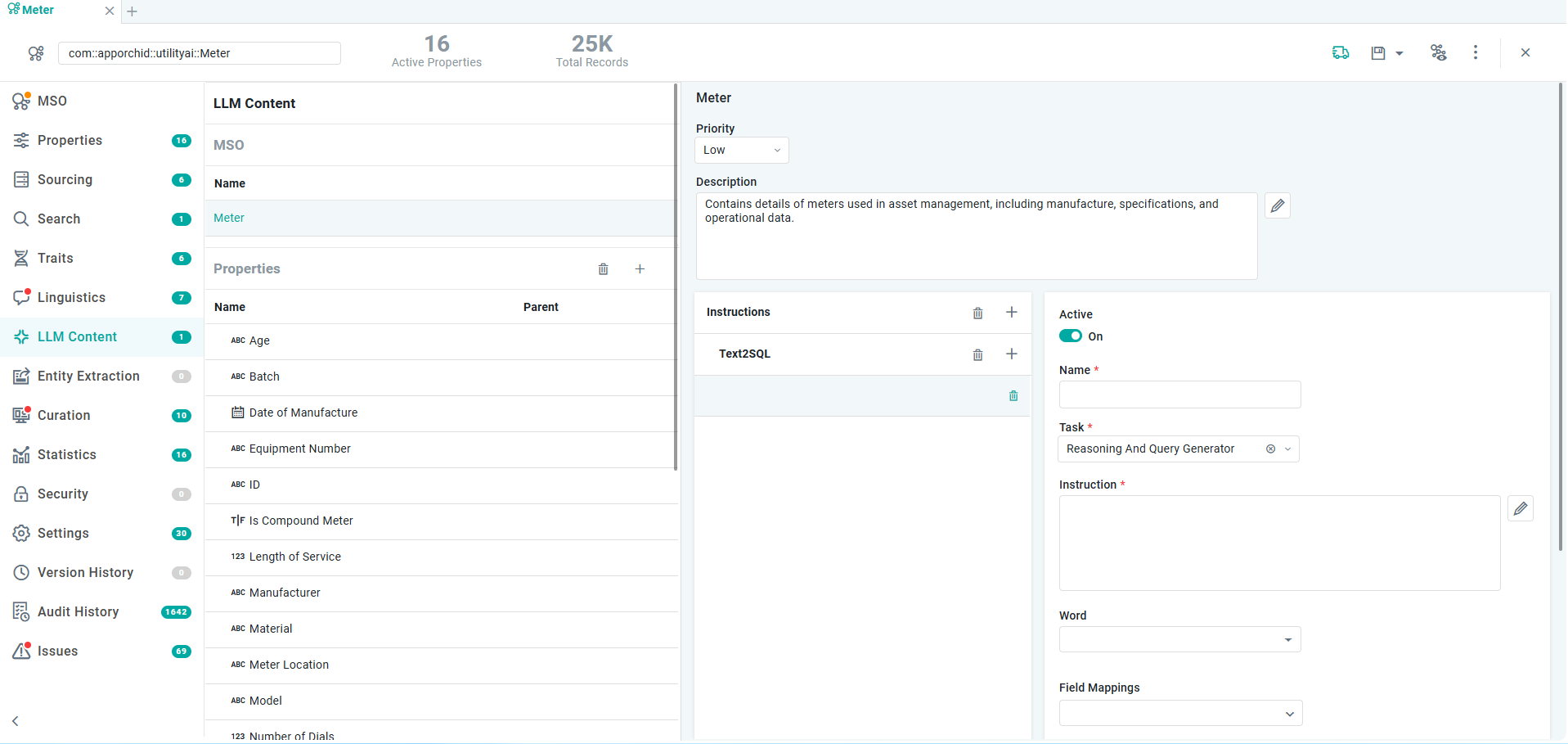
This section contains the configuration of LLM Content used by Easy Answers when configured for LLM Use. There are two sections to the MSO and MSO Property LLM Content:
-
Priority and LLM Descriptions
-
Prompt Instructions
User Actions
-
Add New (+) - adds a new MSO property with which Priority and LLM Description can be associated.
-
Delete - deletes all or individual MSO properties from the list.
MSO Options Menu
-
Generate LLM Content - opens a dialog to allow the Priority and LLM Descriptions for the current MSO and MSO Properties to be generated.
LLM Content for MSO and MSO Properties
Priority and LLM Descriptions
The Priority and LLM Descriptions can be manually created/edited in the LLM Content page, but also generated from the Ontology > Advanced > Generate LLM Content menu for all MSOs, or the MSO > Advanced > Generate LLM Content for the current MSO. Once generated, the MSO and all MSO Properties will show the default Priority (Low) and LLM Descriptions.
Properties
|
Label |
UI Widget |
Default |
Description |
|---|---|---|---|
|
Priority |
Dropdown |
|
Once the MSO and MSO Property Priority have been automatically configured via the Generate LLM Content process, the user can manually set the Priority according to the following options:
|
|
Description |
Multi-Line Text Field |
|
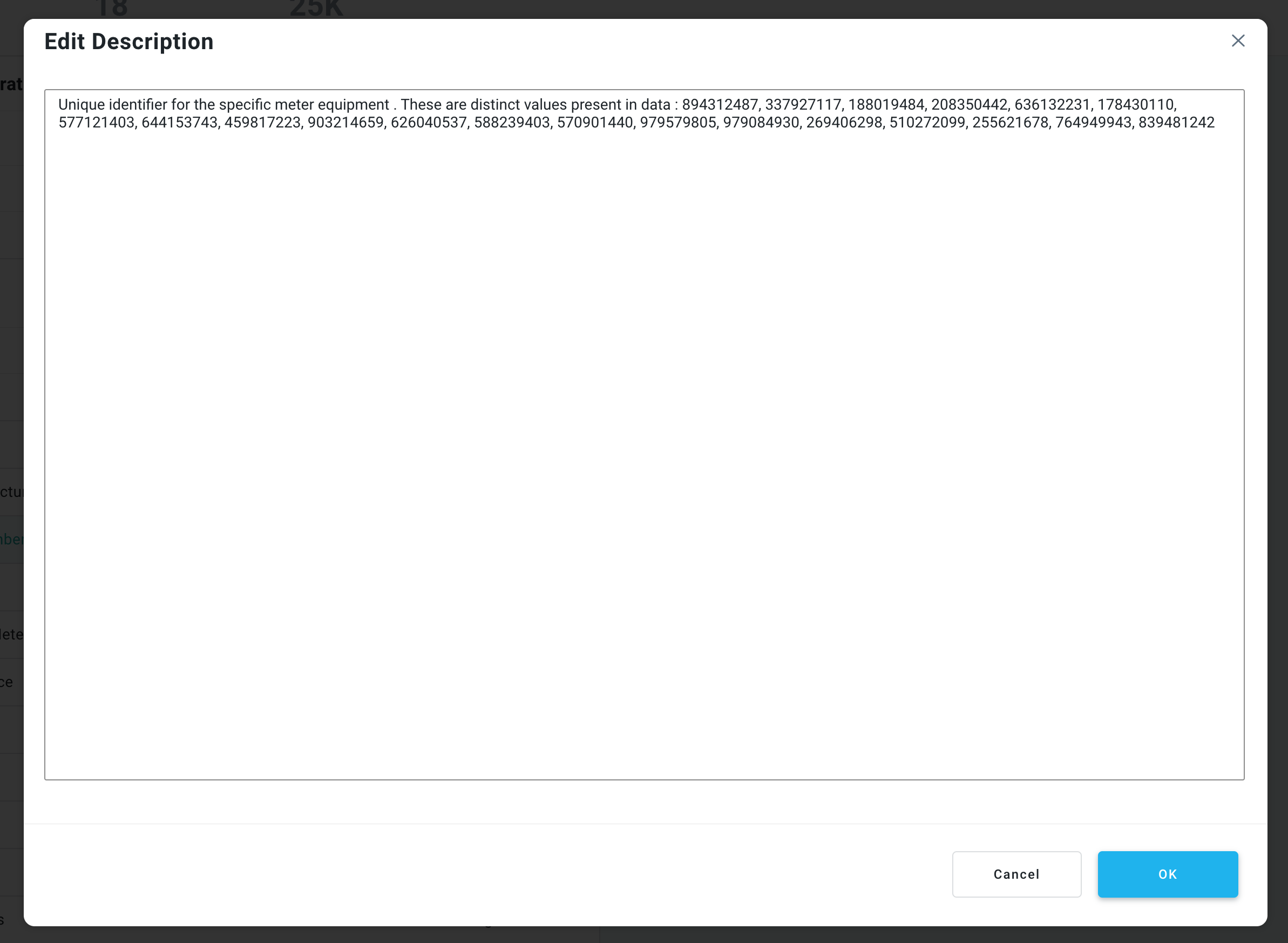
An LLM Description that is generated by the associated LLM to describe in verbose terms what the MSO (and MSO Properties) are about. The initial LLM Description is typically auto-generated, but can be edited for added clarity. |
|
Add Unique Values to Context |
ON/OFF Toggle |
OFF |
Only available for MSO Properties. |
|
Data Type |
Icon |
|
The Data Type of the MSO Property. Only available for MSO Properties. |
|
Name |
Text Field |
|
Name of MSO Property. Only available for MSO Properties. |
Prompt Instructions
A Prompt Instruction is a short instruction, written in plain English, that tells Easy Answers how to understand a question. Think of it as a business rule you hand to the AI — a definition, or a hint about what a word means in your business. The AI reads it while it turns the question into a query.
A prompt is guidance, not code. Easy Answers still finds the data and writes the SQL itself. Your prompt only shapes how it does that. Because of this, a good prompt works for many ways of asking the same thing — not just one exact question.
See Best Practice > Configuring Ontology Prompts - for a Best Practice Guide on Prompt Instructions.
Properties
|
Label |
UI Widget |
Default |
Description |
|---|---|---|---|
|
Prompt Instruction Type |
Dropdown |
|
First, add a Prompt Instruction Type using the “+” icon, including:
Secondly, enter one or more Prompt Instructions for each type using the following configuration properties. |
|
ON/OFF Toggle |
Enable |
If enabled, the configured Prompt Instruction will be active in the system. Disable to make it inactive! |
|
Text Field |
|
Enter a meaningful Name for the Prompt Instruction. |
|
Dropdown |
|
Select from the following Tasks for the Prompt Instruction:
|
|
Multi-Line Text Field |
|
Provide the Prompt Instruction as relating to the Task Property. Use the pencil icon to open a pop-up dialog to see a larger text box. |
|
Dropdown |
|
Add one or more words that will trigger the use of the Prompt Instruction. Such words will be added to the Prompt BoW on the Linguistics page for the MSO Property. |
|
Dropdown |
|
The Repeater Section is used to select one or more MSO Field Properties from primary or connected MSOs for which the Prompt Instruction will be associated. |
Contact App Orchid | Disclaimer