
Intended audience: end-users analysts developers administrators
AO Platform: 4.5
Overview
On the Ontology Composer’s home page, the user can add/discover a new Ontology. Once Ontologies have been created, the user can continue to configure the existing Ontologies by selecting from the Ontology cards on the page.
|
Ontology Composer - no Ontologies have been created |
Ontology Composer - multiple Ontologies have been created |
|---|---|
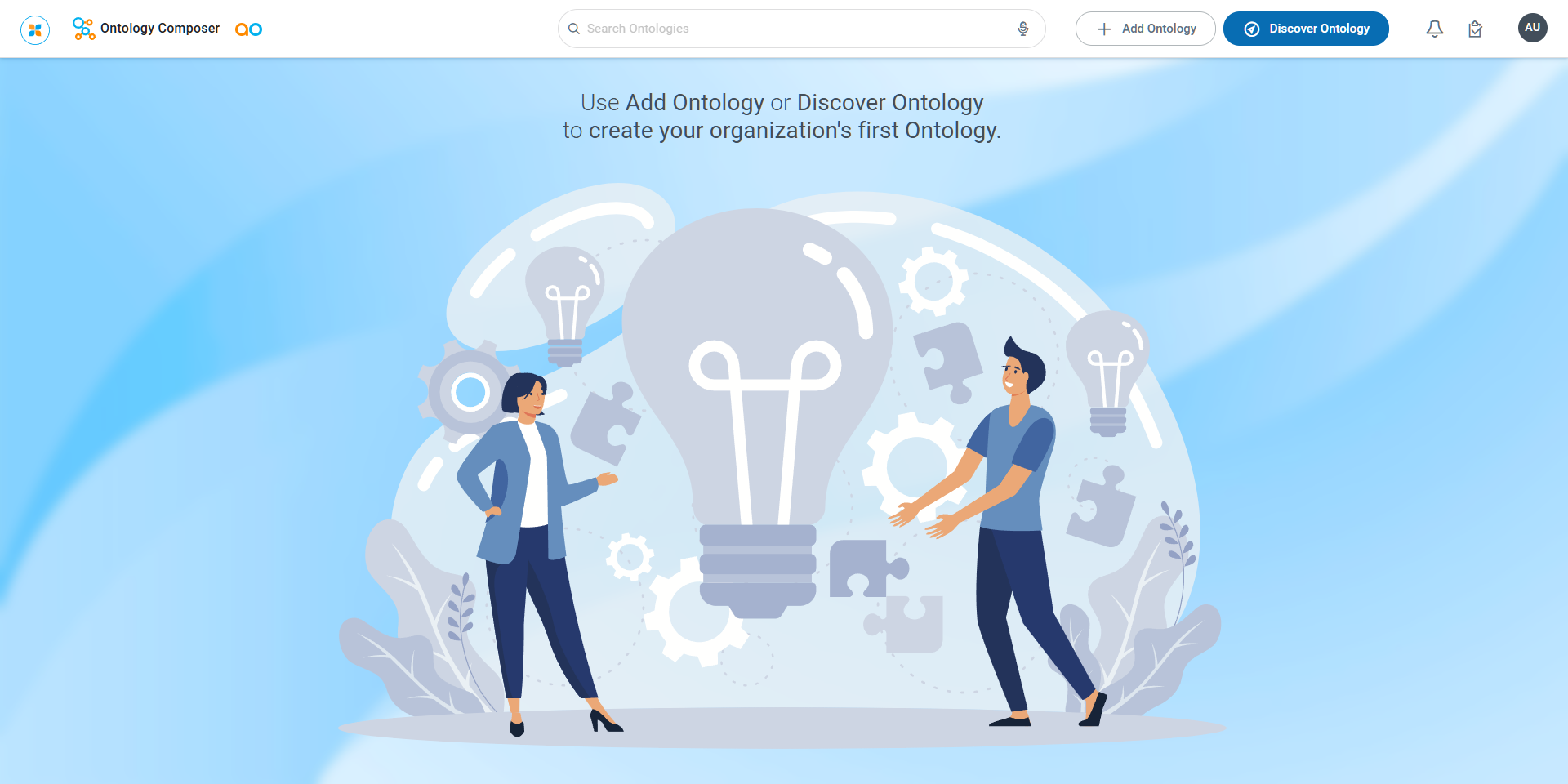
|
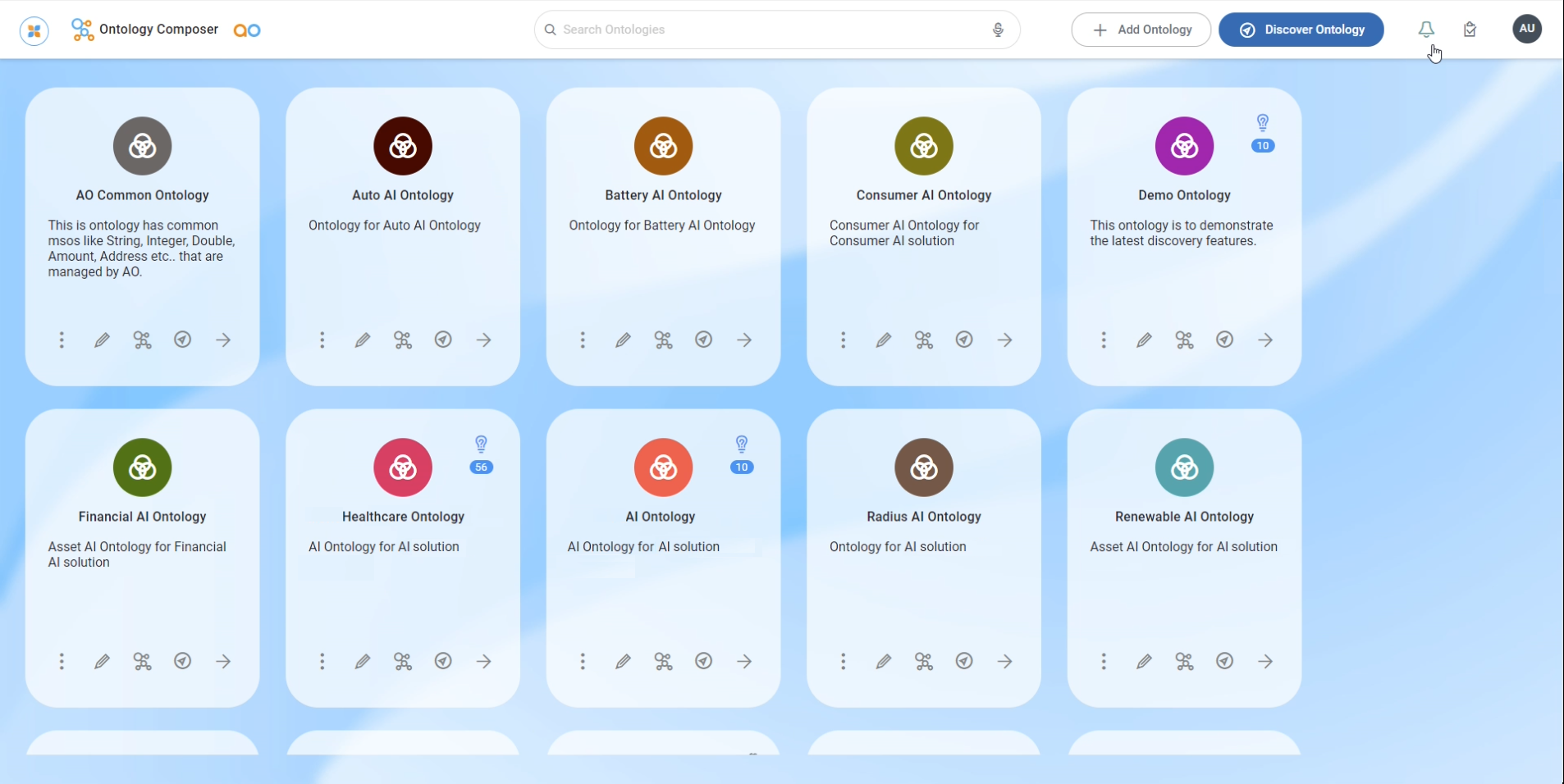
|
User Actions
In Header
-
Search - enter a Search term to find relevant objects on the selected page.
-
Add Ontology - click to create a new object on the current page. See Creating an Ontology.
-
Discover Ontology - click to start the Discover Ontology wizard, - a step-by-step workflow to select a schema-based data source from which an Ontology will be created. See Discovering an Ontology.
On Individual Ontology Cards
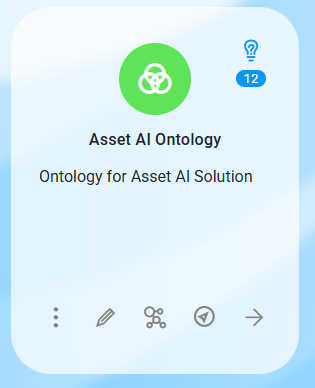
-
Options Menu - see Ontology - Options Menu.
-
Edit - click to edit all property configurations for the selected Ontology. See Editing an Ontology.
-
View Ontology - click to see a graphical representation of an Ontology in the Ontology Viewer.
-
Discover Ontology - click to re-run/update the Ontology using the Discover Ontology wizard - starting at Step 2 in the process. See Discovering an Ontology.
-
View MSOs - switches to the MSO home page showing a listing of all MSOs associated with the selected Ontology.
Contact App Orchid | Disclaimer