
Intended audience: developers administrators
AO Platform: 5.0
Overview
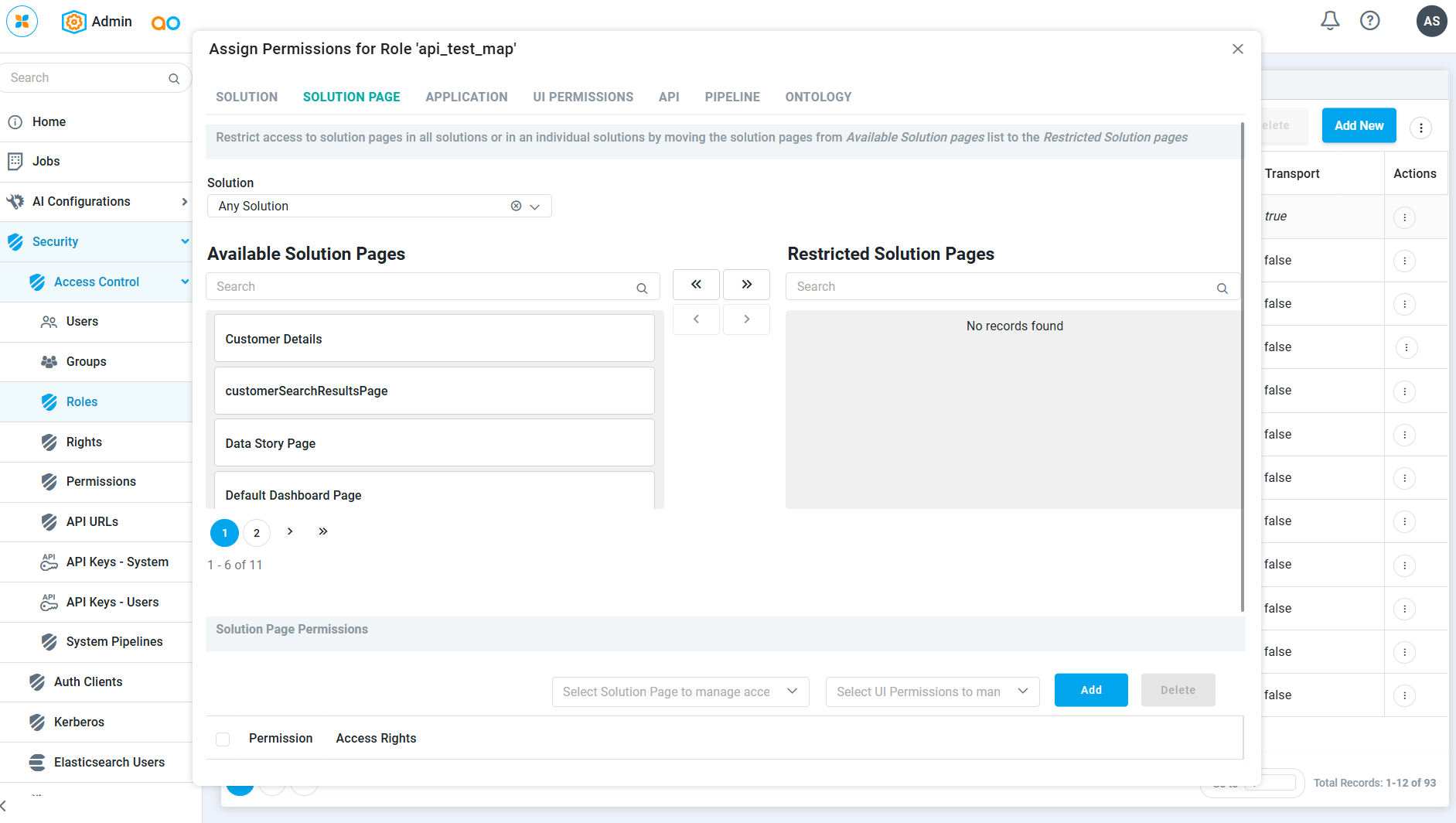
The SOLUTION PAGE tab controls which pages within a Solution a Role can open. By default, a Role can reach every page in the Solutions it has been granted, so this tab is about taking access away rather than giving it: you restrict the pages a Role shouldn't see. This is the opposite of the SOLUTION tab, where access starts at nothing and you grant it.
Because it works on pages inside permitted Solutions, set up the Role's Solution access on the SOLUTION tab first. The tab then works in two parts. You choose which pages to restrict in the top section, and you set specific permissions for the pages that stay available in the Solution Page Permissions section below.
Assigning Solution Page Permissions
1. Restrict pages
-
From the Solution dropdown, choose the Solution whose pages you want to manage, or pick Any Solution to apply the restriction across every Solution.
-
The left panel lists the Available Solution Pages (the pages a Role can currently reach) and the right panel lists the Restricted Solution Pages. Find a page in Available Solution Pages using the search box or the page controls, then select it.
-
Move it to Restricted Solution Pages with the arrow buttons. The single right arrow (›) moves the page you've selected, and the double right arrow (») moves all of them.
-
To restore access to a page, select it under Restricted Solution Pages and use the left arrows (‹ or «) to move it back.
[screenshot]
2. Set permissions for a page
Use the Solution Page Permissions section at the bottom to configure specific permissions on the pages a Role can still reach.
-
From the first dropdown, pick a Solution Page. The pages and the permissions on offer depend on the Solution you are working in.
-
From the second dropdown, pick the permission you want to set for that page, for example Assign Dashboard, then select Add. The permission appears in the table with its Access Rights.
-
To remove a permission, select its row and choose Delete.
When you have finished, select Save to apply the changes, or Cancel to discard them.
Contact App Orchid | Disclaimer