
Intended audience: end-users analysts developers administrators
AO Platform: 5.0
Overview
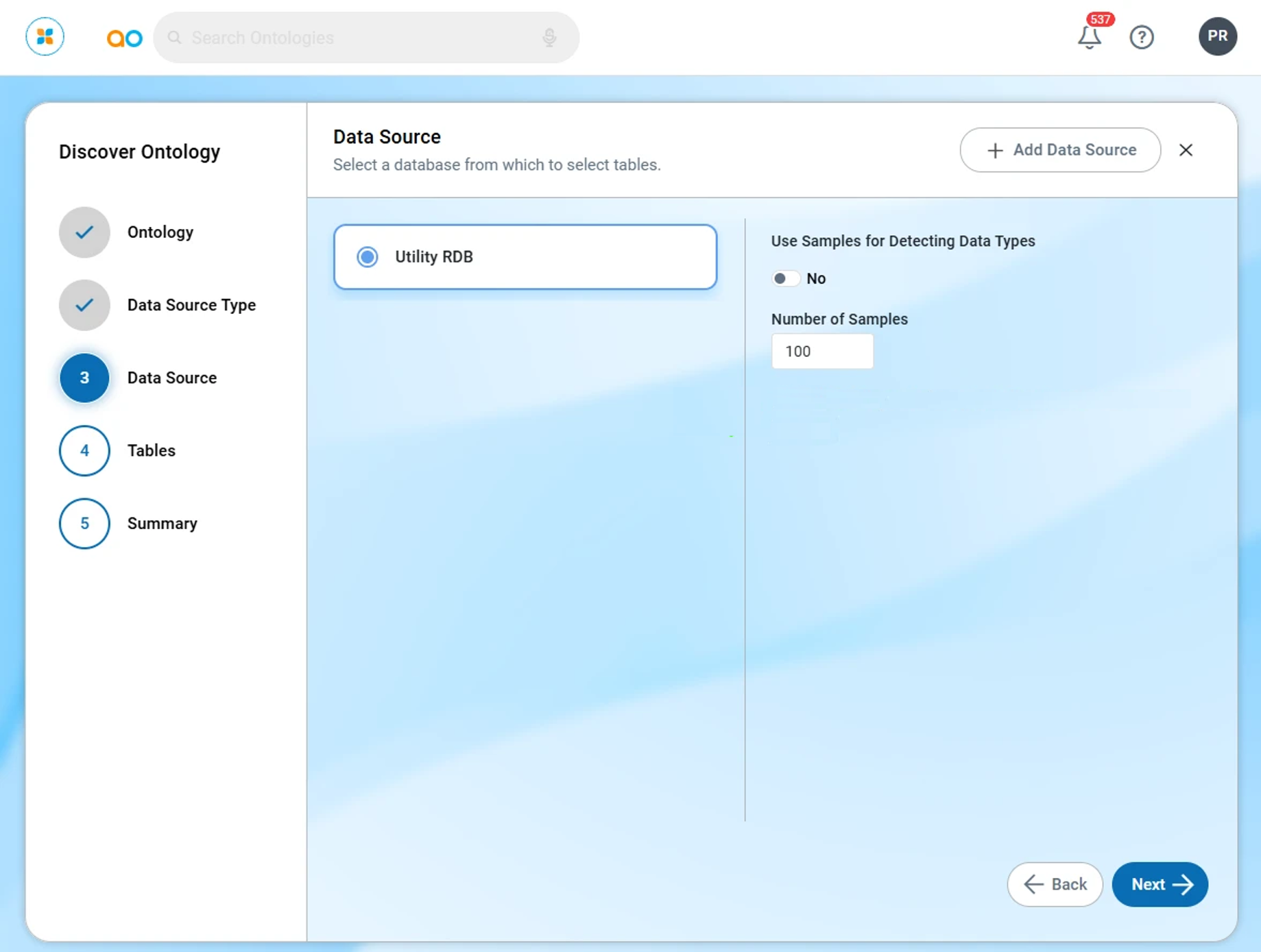
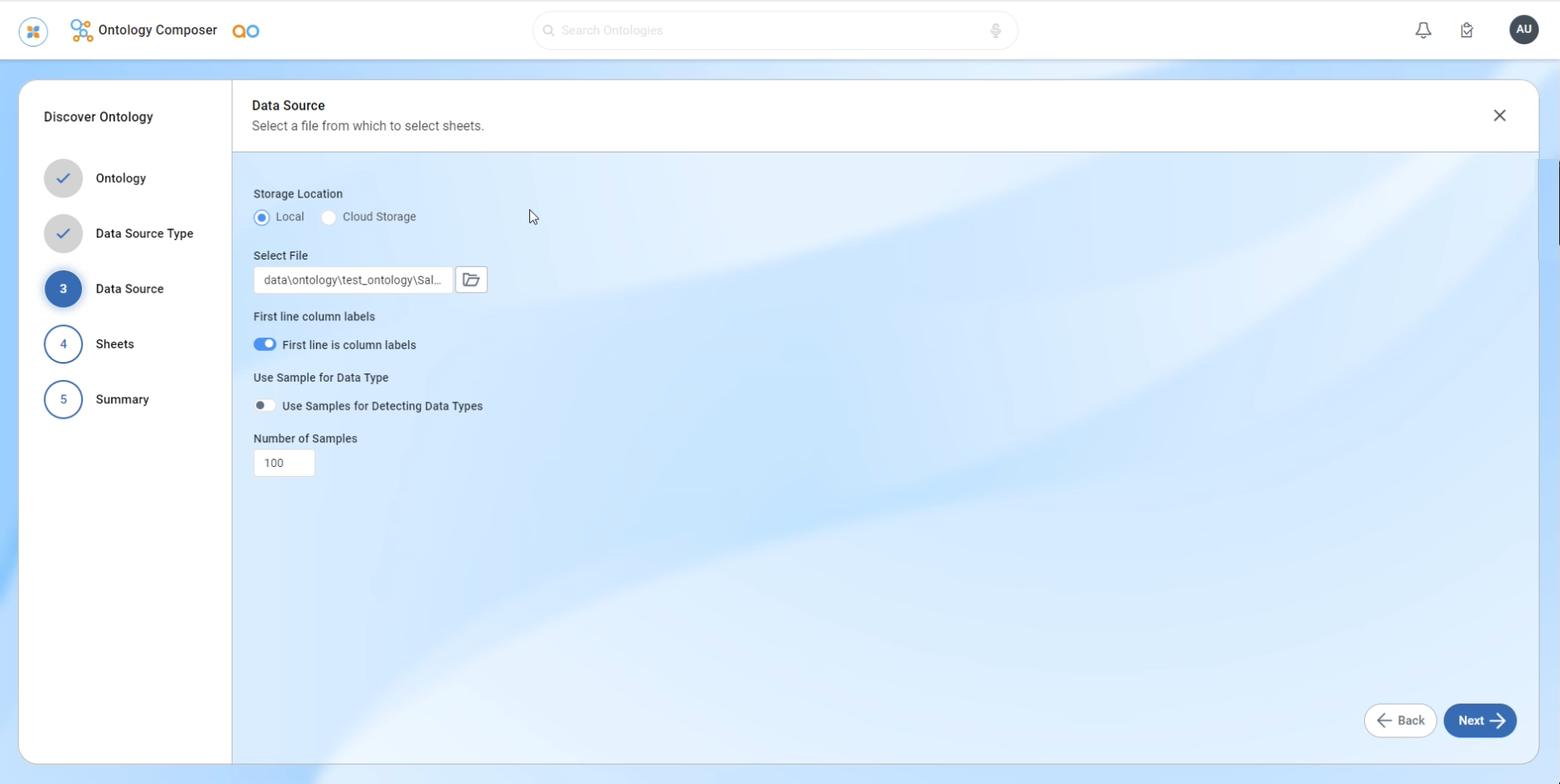
Step 3 is the Data Source page in the Discover Ontology wizard. There are slightly different options depending on whether a Database Data Source is selected or a File Data Source.
On this page, the user can select which schema/database or file (based on what was selected on the Data Source Type page) and which Tables (or Sheets in an Excel data source) can be selected.
Database Data Source
File Data Source
Select a Data Source
-
Depending on the chosen data source type in the preceding step, this page will dynamically adjust to display database data sources, or the user can select a file data source from either the local system or a cloud location. The selections provided for each data source type will be the choices found in the current Add MSO wizard screen. See Creating an MSO | Create MSO Wizard.
-
Additional properties include:
-
a toggle to enable using a Sample of the data to detect data types
-
a number value for the number of sample records to use
-
a toggle to enable if MSO Properties shall be made Inactive if the Row Count in the source table is zero.
-
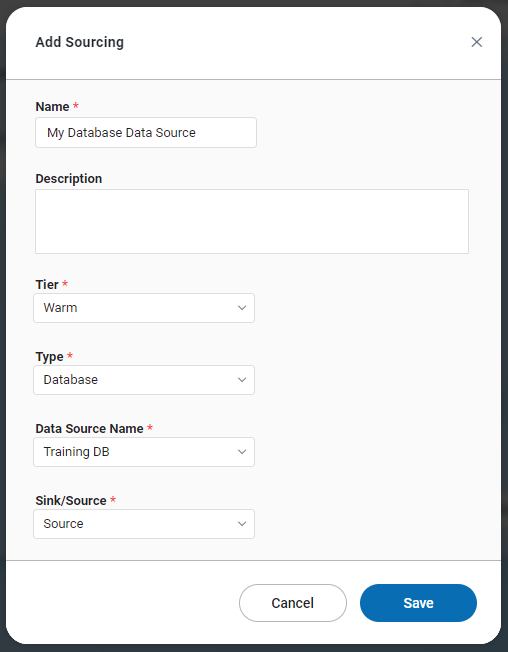
Add Data Source
-
If a data source is not available, the data source can be created by selecting the + Add Data Source button in the dialog. This will add a new data source for the data source system selected at the Ontology level.
-
Click Next to go to Step 4 - Tables (or Sheets).
Contact App Orchid | Disclaimer