
Intended audience: end-users analysts developers administrators
AO Platform: 5.0
Overview
Step 5 is the Summary page in the Discover Ontology wizard. On this page, the user will see a summary of the configuration from each step in the wizard workflow. If any final changes are required, the user can click the Back button to return to a previous page.
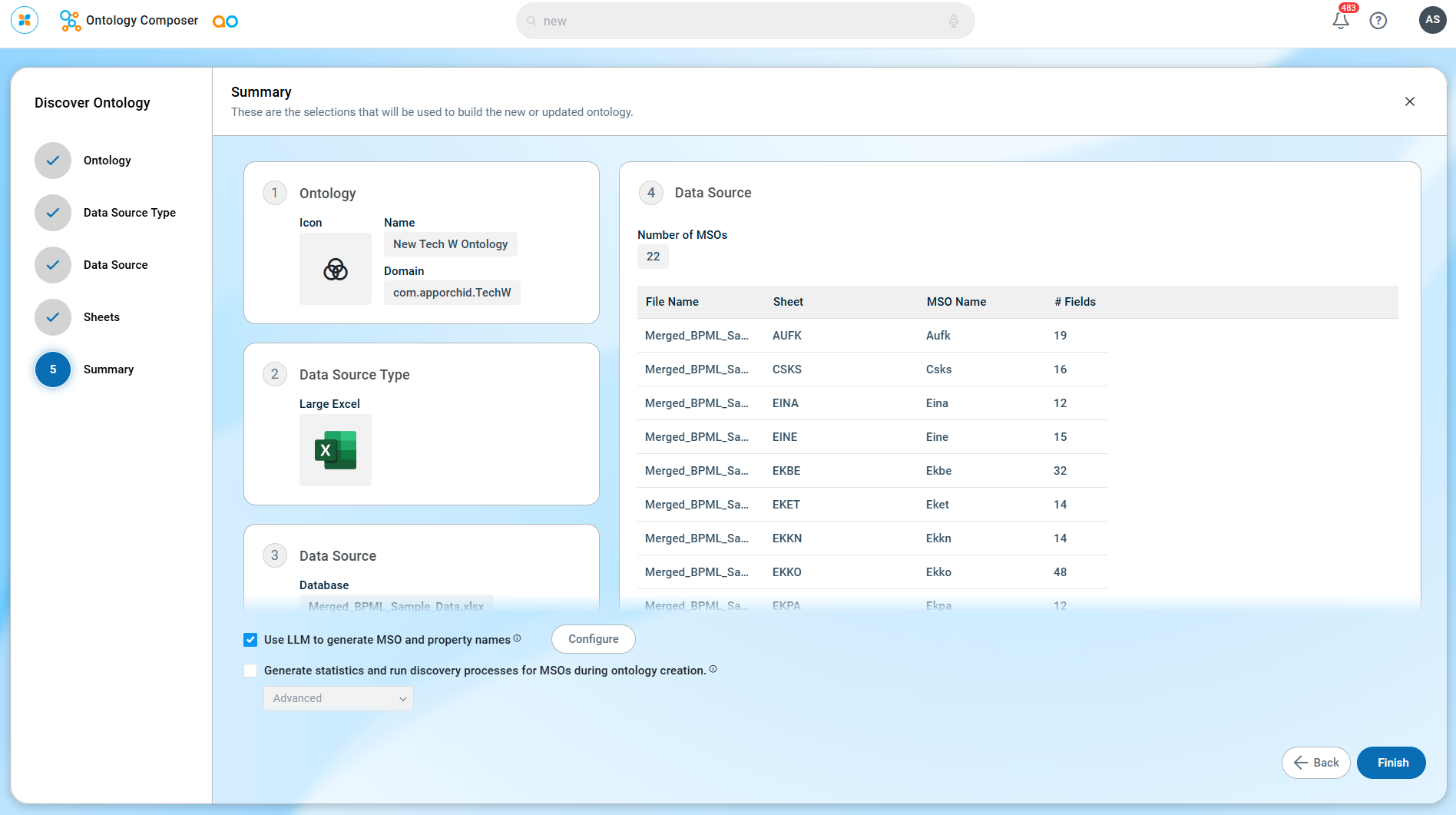
Summary
When the summary information has been validated by the user and deemed OK, there are two checkboxes a user can consider to select/deselct:
-
Use LLM to generate MSO and Property Names (which is selected by default)
-
Generate statistics and run discovery processes for MSOs during ontology creation
1. Use LLM to generate MSO and Property Names
This checkbox is selected by default on the Summary page. When enabled, the platform uses an LLM to automatically generate business-friendly names for MSOs and their properties, rather than using the raw column and table names from the data source. The process runs as a background task, allowing the user to continue working while names are being generated.
-
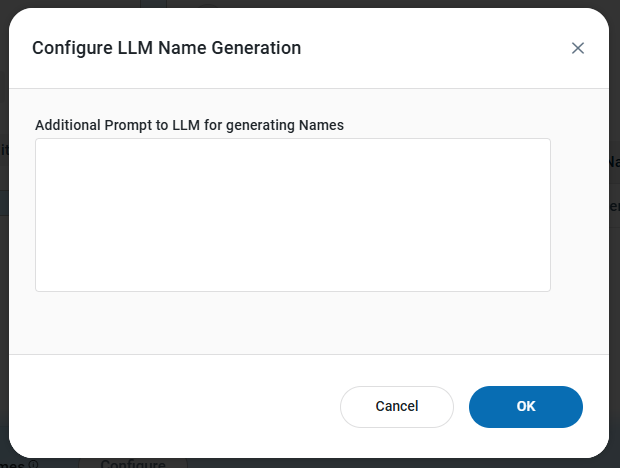
When the check box is selected, click Configure to open the configuration dialog and optionally add custom prompt instructions to guide the LLM in generating MSO and Property Names.
2. Generate statistics and run discovery processes for MSOs during ontology creation
-
Generating statistics and running discovery processes during Ontology creation is beneficial on smaller data volumes and a smaller number of tables for instance when establishing a quick proof of concept solution.
-
If statistics and discovery processes are not done during Ontology creation, or if the processes were run on a small sample data set, the user may choose to run these processes manually from the Action menu on the Ontology card when production data is available, as the outcome of these processes directly impacts the user experience when using the Easy Answers solution.
After selecting checkbox(es), click the Finish button on the Summary page to start the Ontology creation process.
Discovery Process
During the Finish process, a number of tasks will be automatically run on the configuration done in the wizard workflow, including:
-
Creating MSOs for all selected Tables.
-
Updating the Ontology Graph.
-
If the “Use LLM to generate MSO and Property Names” checkbox was selected on the Summary page, the platform will additionally run the following background tasks:
-
Collecting top-N sample values for each table column to provide context to the LLM.
-
Generating business-friendly MSO names and property names for all selected tables using the LLM, processed as a batch. The outcome can be reviewed by navigating to the individual MSOs after the Ontology creation process is complete.
-
-
If the checkbox for “Generate statistics and run discovery processes for MSOs during ontology creation” was checked, the following tasks will also be executed:
-
Creating Statistics for all MSOs. A Statistics Level can be selected to reduce the initial generation time in case of big ontologies with many MSO and associated MSO Properties, and/or due to large data volumes. See Statistics Levels.
-
Discovering items to enrich each MSO, such as:
-
Relationships - links that can be created between MSOs.
-
Words - that can be used when asking Natural Language Questions of the data using the Easy Answers solution.
-
Traits - for additional functionality, behaviors, and automatic visualization of the data.
-
-
These processes take time and will therefore run in the background. A spinning gears icon will be shown on the Ontology Card on the home page until the process has finished. During this time, the user will be sent Notifications to alert the user when various tasks start and finish. See Notifications. Also, to view the status of the individual processes, the user can select the option to View Tasks in the Action menu for the Ontology being created. See View Tasks for Ontology.
Next Steps
To view the outcome of the Discovery process, the user has the following options from the Ontology Card:
-
View Ontology - see Ontology Viewer.
-
Show Suggestions - see Showing Suggestions for Ontology.
-
Go to MSOs - see MSO Composer - Home Page.
Contact App Orchid | Disclaimer