
Intended audience: developers administrators
AO Platform: 5.0
Overview
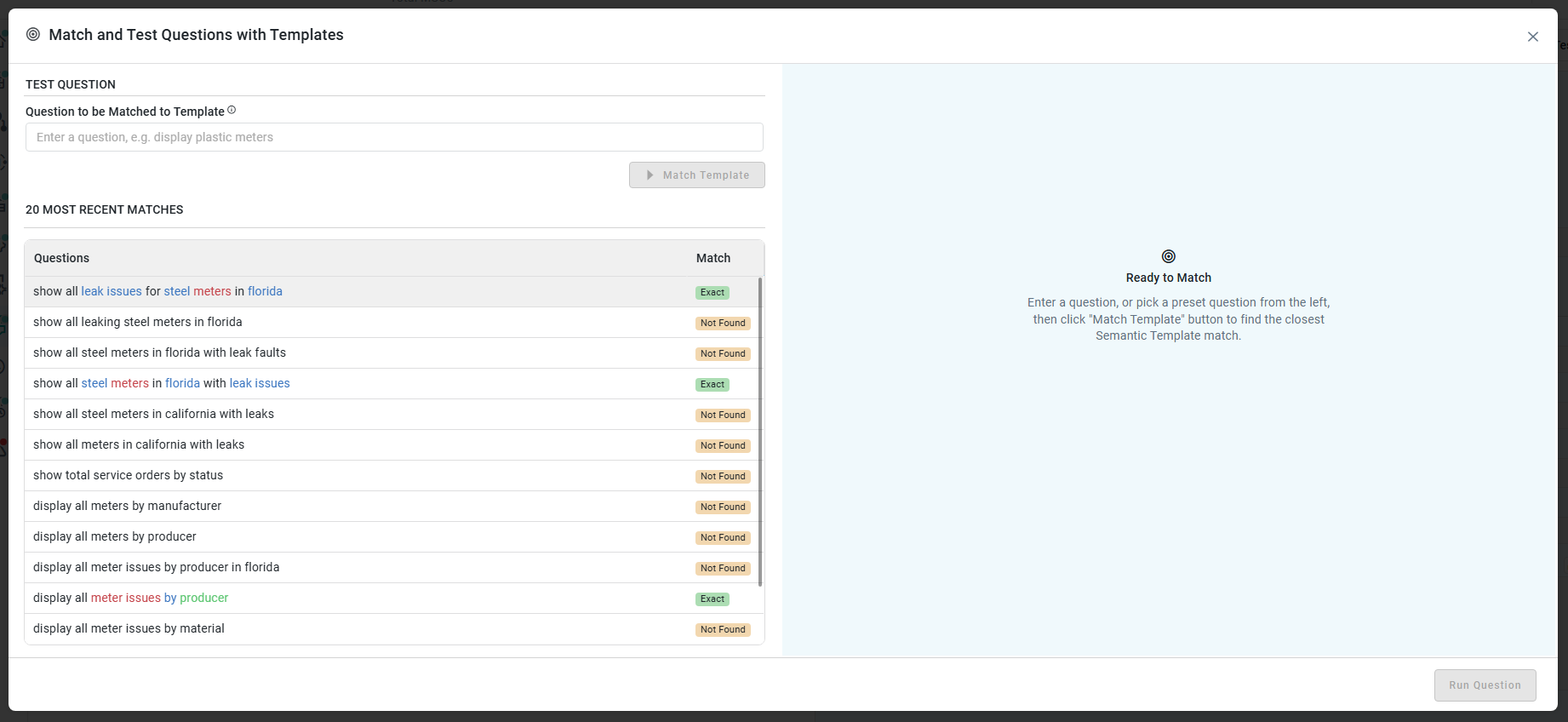
This dialog allows the solution developer to try out new questions for template matching. This is particularly useful in the early stages of ontology enrichment when troubleshooting questions that may not be interpreted correctly due to unknown terminology or phrasing. Click the Match and Test button on the main Semantic Templates page.

Match and Test Questions with Templates
The dialog is divided into a left-side panel and a right-side panel.
User Actions
-
Match Template - button - click the button after a question has been entered. The question will be processed, and existing templates will be searched for a possible match. If an exact match is found, the details from the matching template will be shown in the right-side panel.
-
Run Question - button - if the question entered in the left-side panel resolves to a template match, clicking the Run Questions button allows the user to execute the question in Easy Answers. Once the question is executed in Easy Answers, the question will be automatically associated with the matching template.
-
View Trace - link - click to open the View Matching Trace dialog with very specific details about the matching process. See section below.
Content - Left-Side Panel
TEST QUESTION
-
Question to be Matched to Template - text field - enter a question to be matched with an existing template.
20 MOST RECENT MATCHES
-
Questions - list of previously tested questions. Only the 20 most recent questions will be shown.
-
Match - status of the test for previous questions, including: Exact, Not Found.
Content - Right-Side Panel - Matching Templates Tab
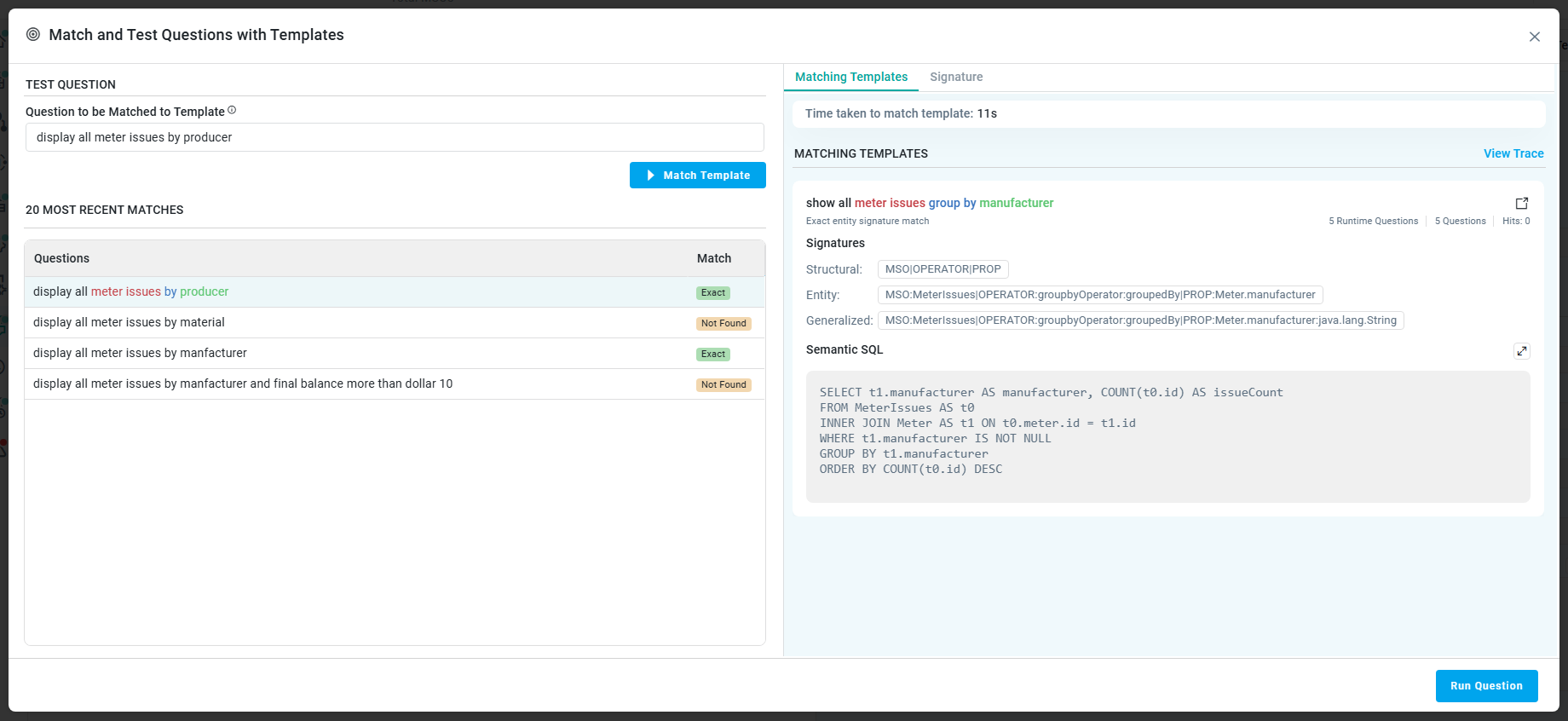
Once a question has been entered and the Match Template button clicked, the right-side panel will be populated with the results of the matching process.
-
Execution Status - read-only text - shows how long it took for the question to be matched with an existing template, eg: “Time taken to match template: 11s”.
MATCHING TEMPLATES
-
Question - read-only text - the user’s question.
-
Status - read-only text - shows the level of match, eg. “Exact entity signature match”.
-
# Runtime Questions - read-only text - shows all questions that have auto-associated with an existing template at the time the question was asked in Easy Answers (at runtime).
-
# Questions - read-only text - shows all questions associated with the semantic template.
-
Hits - read-only text - indicates how many times the question has been asked.
Signatures
-
Structural - read-only text - a signature focusing on the “course shape” of the question, eg.
MSO|VAL -
Entity - read-only text - a signature focusing on the match key, eg.
MSO:Meter|VAL:Meter.material.<value> -
Generalized - read-only text - a signature that generalizes the value input, eg.
MSO:Meter|VAL:any:
Semantic SQL
-
Semantic SQL - read-only text - the original LLM-generated SQL interpreted from the question, eg.
SELECT t0.* FROM Meter t0
WHERE t0.material = ‘Brass’
Content - Right-Side Panel - Signature Tab
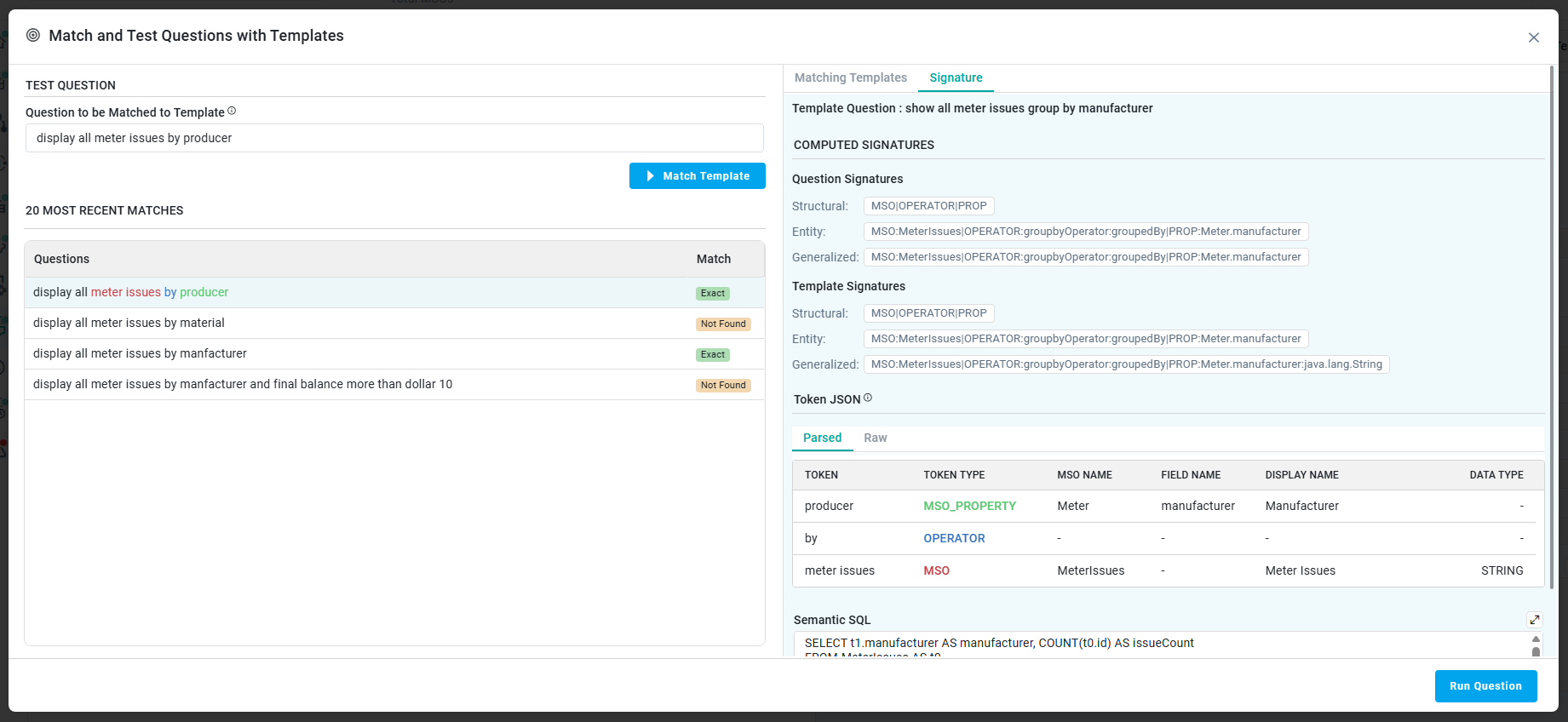
Select the Signature tab to view the additional information about how the signatures from the question and matching template match.
-
Template Question - read-only text - shows the original (primary) question that was used to generate the semantic template.
COMPUTED SIGNATURES
-
Question Signatures
-
Structural - read-only text - a signature focusing on the “course shape” of the question, eg.
MSO|VAL -
Entity - read-only text - a signature focusing on the match key, eg.
MSO:Meter|VAL:Meter.material.<value> -
Generalized - read-only text - a signature that generalizes the value input, eg.
MSO:Meter|VAL:any:
-
-
Template Signatures
-
Structural - read-only text - a signature focusing on the “course shape” of the question, eg.
MSO|VAL -
Entity - read-only text - a signature focusing on the match key, eg.
MSO:Meter|VAL:Meter.material.<value> -
Generalized - read-only text - a signature that generalizes the value input, eg.
MSO:Meter|VAL:any:
-
Token JSON
-
Parsed - read-only text - shows a table with the Tokens, Token Type, MSO Name, Field Name, Display Name, and Data Type from the Token JSON created.
-
Raw - read-only text - shows a regular raw format JSON object with the same info.
Semantic SQL
-
Semantic SQL - read-only text - the original LLM-generated SQL interpreted from the question, eg.
SELECT t0.* FROM Meter t0
WHERE t0.material = ‘Brass’
View Matching Trace Dialog
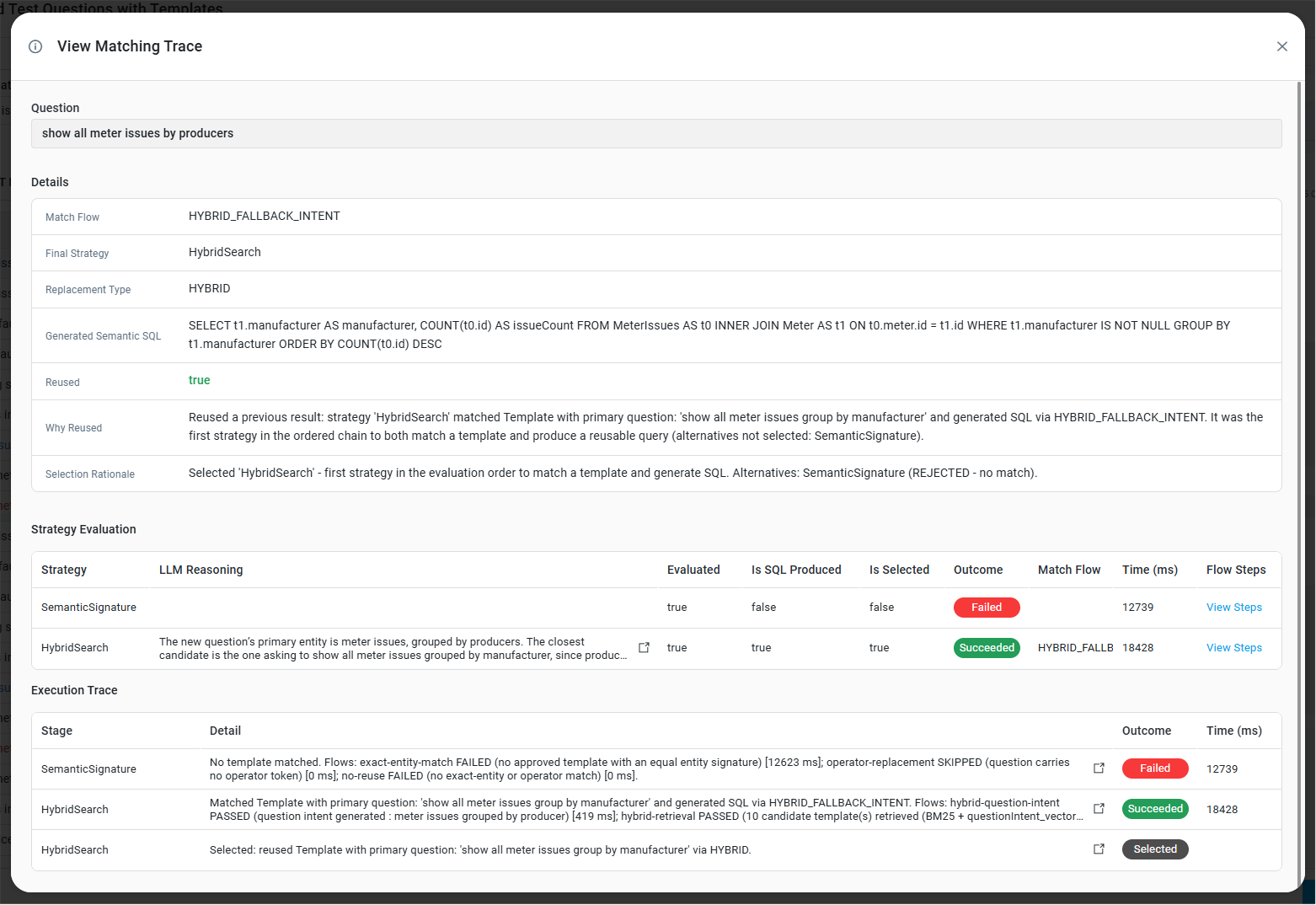
This dialog shows when the user clicks on the View Trace link in the Match and Test Question with Templates dialog on the Matching Templates tab. It provides deep insight into the matching process to aid with understanding and troubleshooting where required.
-
Question - shows the user’s question.
Details
-
Match Flow - …, eg. HYBRID_FALLBACK_INTENT.
-
Final Strategy - …, eg. HybridSearch.
-
Replacement Type - …, eg. HYBRID
-
Generated Semantic SQL - …
-
Reused - …, eg. true.
-
Why Reused - …
-
Selection Rationale - …
Strategy Evaluation - table with a row for each strategy applied.
-
Strategy - read-only text - shows strategy name, including: SemanticSignature, HybridSearch.
-
LLM Reasoning - read-only text - shows a description for the LLM Reasoning.
-
Evaluated - read-only text - shows whether or not the strategy was evaluated, including true or false.
-
Is SQL Produced - read-only text - shows whether or not SQL was produced, including true or false.
-
Is Selected - read-only text - shows whether or not the strategy was selected, including true or false.
-
Outcome - status indicator - shows status, including: Failed, Succeeded, Selected.
-
Match Flow - …
-
Time (ms) - shows how long it took to execute the Task.
-
Flow Steps - link - click to open the Flow Steps dialog. See Flow Steps Dialog info below.
Execution Trace - table with a row for each stage in the execution:
-
Stage - read-only text - shows the Stage Category Name, including: SemanticSignature, HybridSearch.
-
Detail - read-only text w/link - shows a Description for the executed Stage.
-
Outcome - status indicator - shows status, including: Failed, Succeeded, Selected.
-
Time (ms) - shows how long it took to execute the Stage.
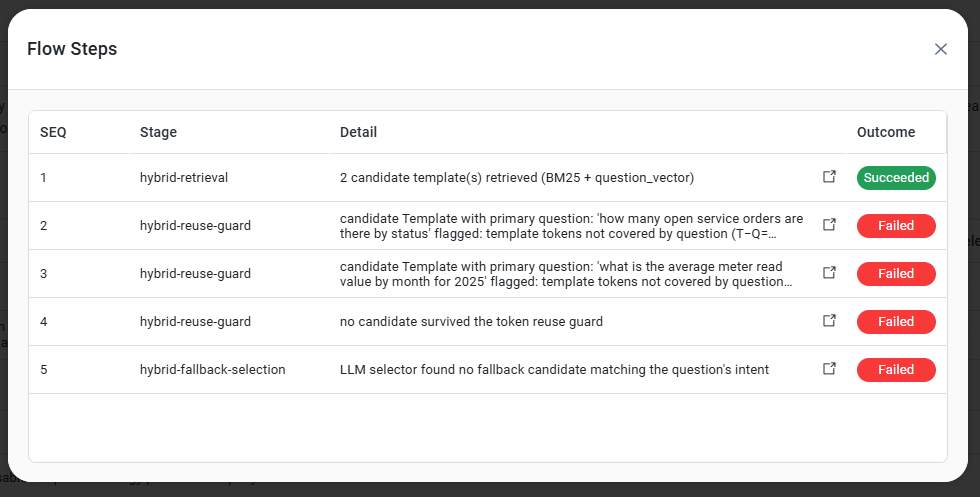
Flow Steps Dialog
-
SEQ - read-only number - sequential numbers representing the order in which the Stages are executed.
-
Stage - read-only text - shows the Stage name within the Stage Category Name, eg. hybrid-retrieval, hybrid-reuse-guard, hybrid-fallback-selection, …
-
Detail - shows a Description w/Link for the executed sub-Stage.
-
Outcome - status indicator - shows Status, including: Failed, Succeeded, Selected.
Contact App Orchid | Disclaimer