
Intended audience: developers administrators
AO Platform: 5.0
Overview
The creation of the Semantic Templates workflow starts by clicking the Import Questions button in the main Semantic Templates page.

The Step 1 (of 2) dialog opens, allowing the user to select and review questions to be templatized. The dialog starts by automatically importing non-templatized questions.
Review Questions
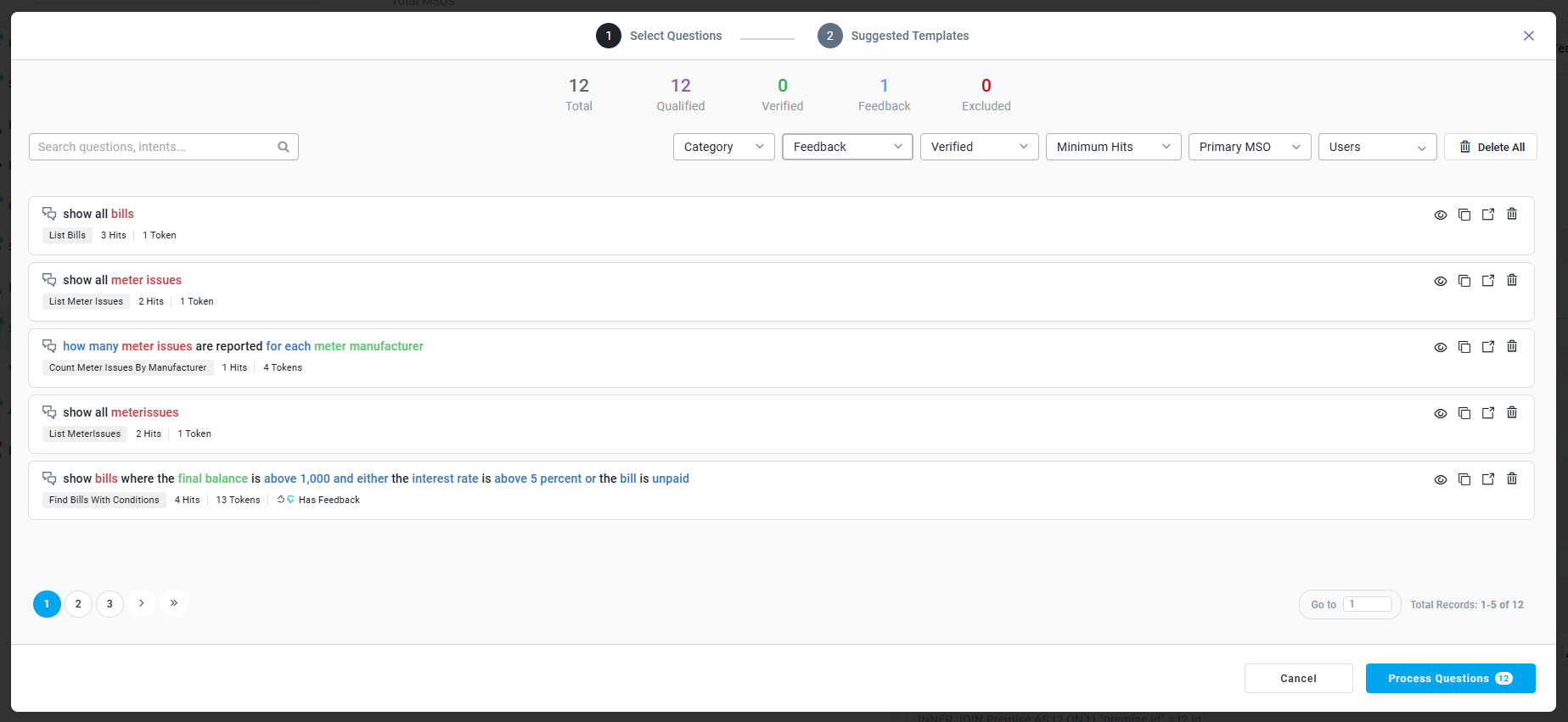
User Actions
Page level
-
Search - text field - enter a search term to find templates matching the search term.
-
Category - filter dropdown - select a category value from the dropdown.
-
Feedback - filter dropdown - select yes/no for question feedback.
-
Verified - filter dropdown - select yes/no for question verification.
-
Minimum Hits - filter dropdown - select a value range for the minimum number of times a question has been asked.
-
Primary MSO - filter dropdown - select questions that are based on the selected Primary MSO.
-
Users - filter dropdown - select questions asked by the selected user.
-
Delete All - button - click to delete all questions on the page. Deleting all questions requires user confirmation.
-
Pagination - click “page” buttons to see first/previous/next/last page of questions, or enter a specific page number in the input field.
-
Cancel - button - click to cancel the Import Questions and Template Suggestions workflow.
-
Process Questions - button w/question selected decorator - click to generate Template Suggestions from the selected questions.
Question level
-
View Question Details - eye icon - click to open a dialog with additional question details. See View Question Details Dialog section below.
-
Copy - copy icon - click to copy the template to the clipboard.
-
Execute - link icon - click to open the question in a new browser tab to execute in Easy Answers.
-
Delete - icon - click to delete the template. This also removes the associated questions from the cache.
Statistics (All Questions)

-
Total - number of non-verified questions that have been imported.
-
Qualified - number of non-verified questions that are qualified for templatization to represent the question.
-
Verified - number of verified questions.
-
Feedback - number of questions that have received user feedback.
-
Excluded - number of questions that have been excluded, typically due to one or more validation issues. Hover the number to get more specific details about the issues.
Content (Individual Questions)
-
Icon - shows either “speech bubbles” (non-verified) or a “blue badge” (verified).
-
Question - the user’s question.
-
Question Intent - an LLM-generated intent description for the question.
-
# of Hits - indicates how many times the question has been asked.
-
# of Tokens - indicates how many tokens are contained in the question.
-
Has Feedback - thumbs up/down icons - shows the icons if a question has feedback. The type of feedback is identified by showing the icon in a blue color.
View Question Details Dialog
When clicking the “eye” icon, the Question Details dialog shows.
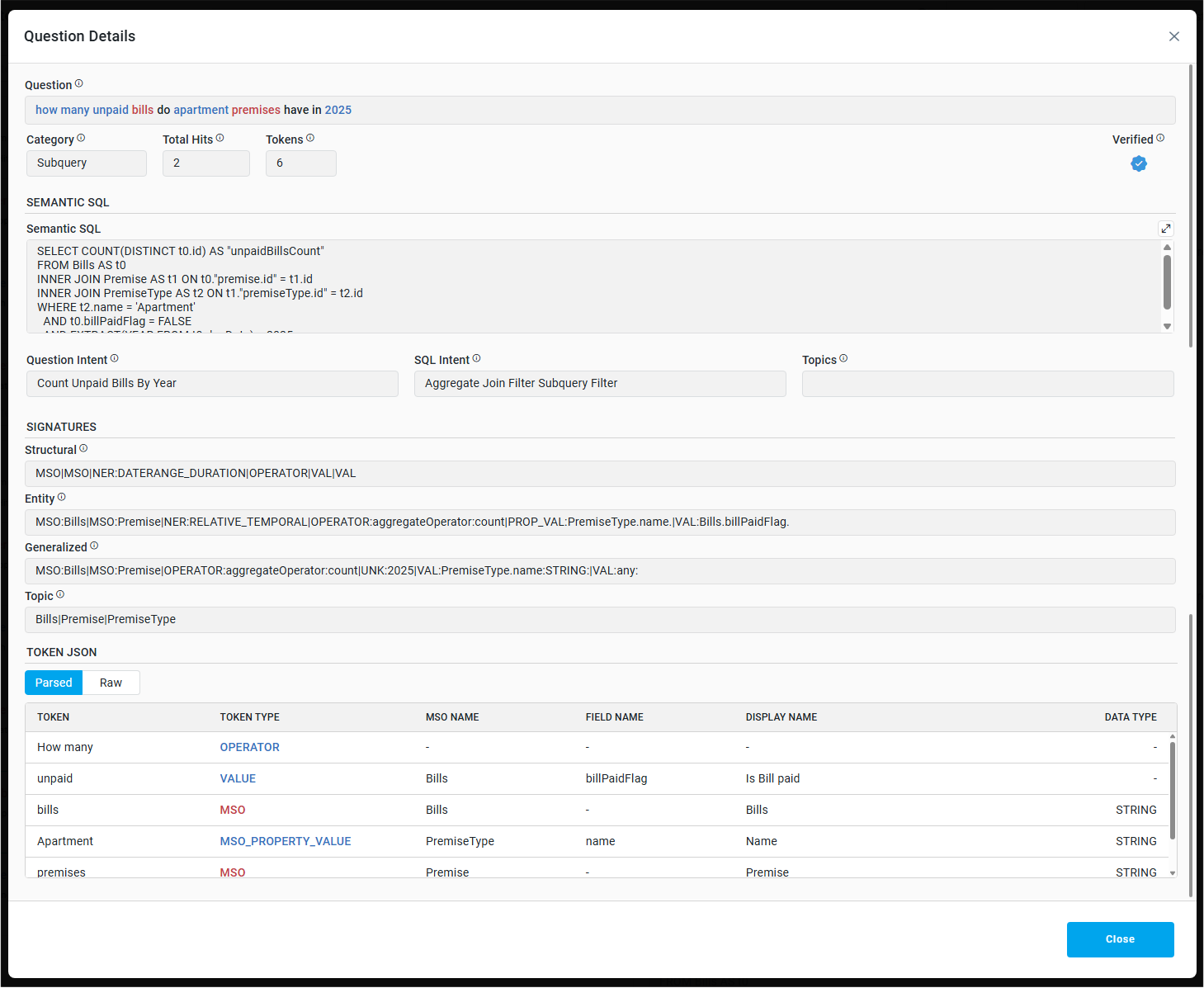
Properties
-
Question - read-only text - the user’s question.
-
Category - read-only text - shows a “simple” label for an auto-generated category for the question, eg. “Simple Select”
-
Total Hits - read-only text - indicates how many times the question has been asked.
-
Tokens - read-only text - indicates how many tokens are contained in the question.
-
Verified - if present, a “blue badge” icon shows that the question has been verified (by user or implicitly through automatic template association).
SEMANTIC SQL
-
Semantic SQL - read-only text - the original LLM-generated SQL interpreted from the question, eg.
SELECT t0.* FROM Meter t0
WHERE t0.material = ‘Brass’ -
Question Intent - read-only text - an LLM-generated intent description for the question.
-
SQL Intent - read-only text -
-
Topics - read-only text -
FEEDBACK
-
Provided By - read-only text - the user’s name who provided the feedback.
-
Date - read-only timestamp - the timestamp for when the feedback was provided.
-
Type - read-only text - the feedback type, eg thumbs up or thumbs down.
-
Feedback - read-only text - the actual feedback as entered into the Feedback field during clarification.
SIGNATURES
-
Structural - read-only text - a signature focusing on the “course shape” of the question, eg.
MSO|VAL -
Entity - read-only text - a signature focusing on the match key, eg.
MSO:Meter|VAL:Meter.material.<value> -
Generalized - read-only text - a signature that generalizes the value input, eg.
MSO:Meter|VAL:any: -
Topic - read-only text - the topics extracted from the question, eg.
Bills|Premise|PremiseType
TOKEN JSON
-
Parsed - read-only text - shows a table with the Tokens, Token Type, MSO Name, Field Name, Display Name, and Data Type from the Token JSON created.
-
Raw - read-only text - shows a regular raw format JSON object with the same info.
Process Questions
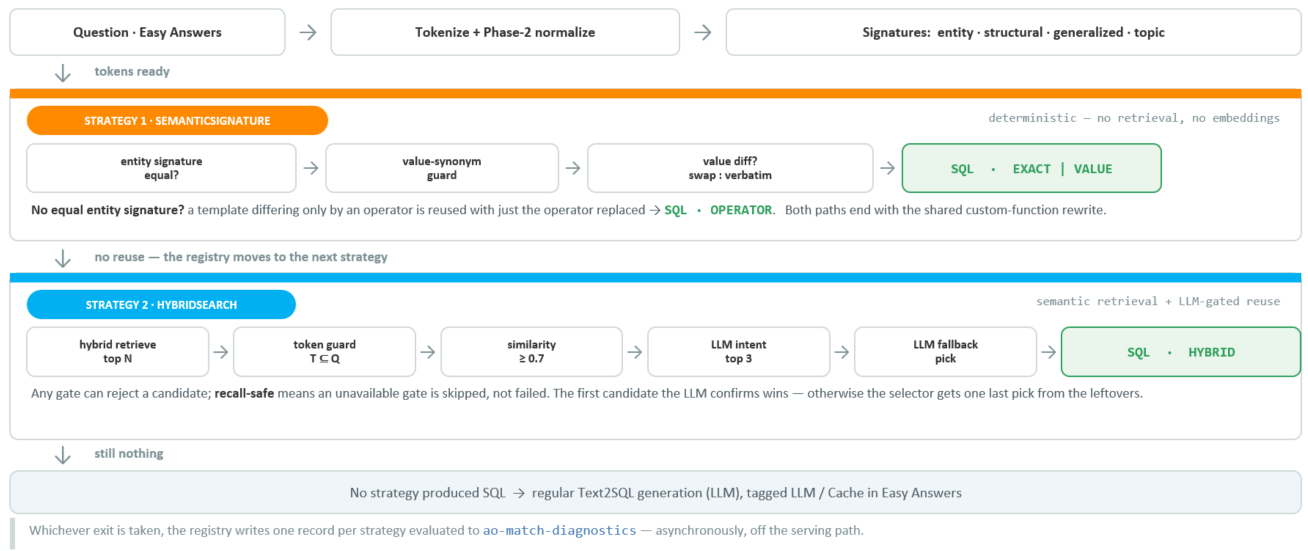
Processing Questions involves creating a “signature” for each question, then either associating the question with an existing template, or suggesting a new template be created. This matching process consists of a number of matching strategies. Strategies run in order; the first one that both matches a template and produces reusable SQL wins, and the rest are never run. See the Template Settings section in the Ontology Settings > Text2SQL page.


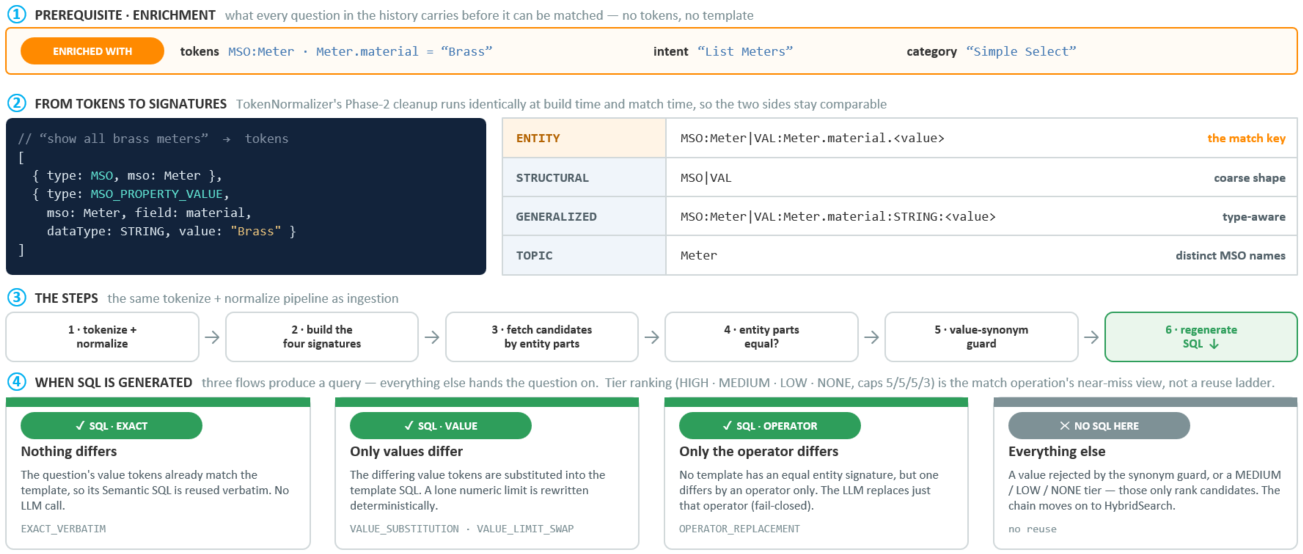
Semantic Signature Matching
Tokens become four signatures; the entity signature decides the match. Only three flows regenerate SQL.
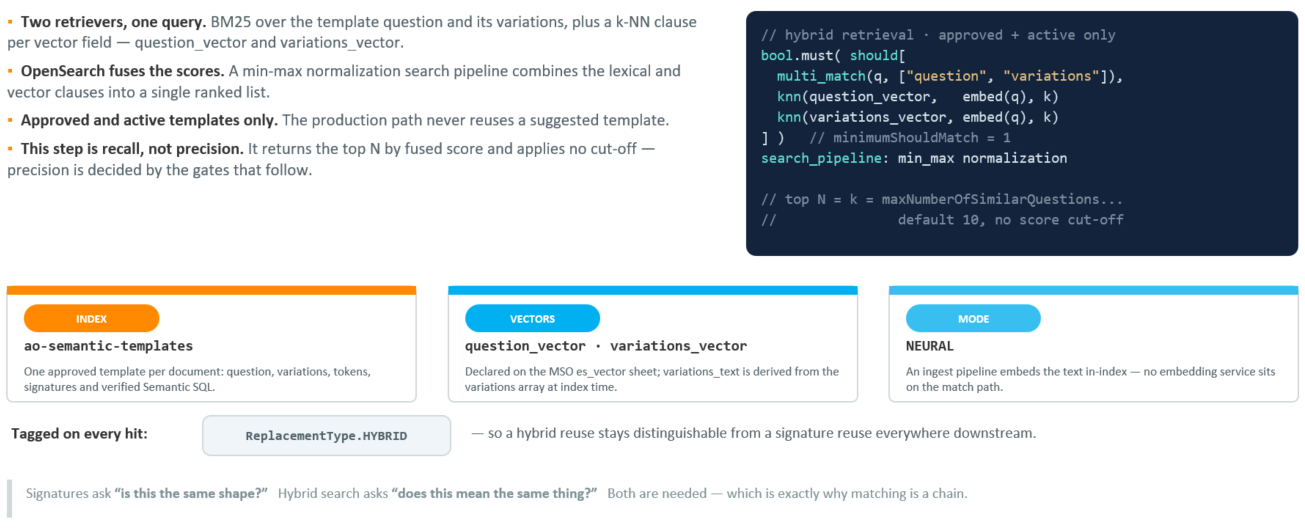
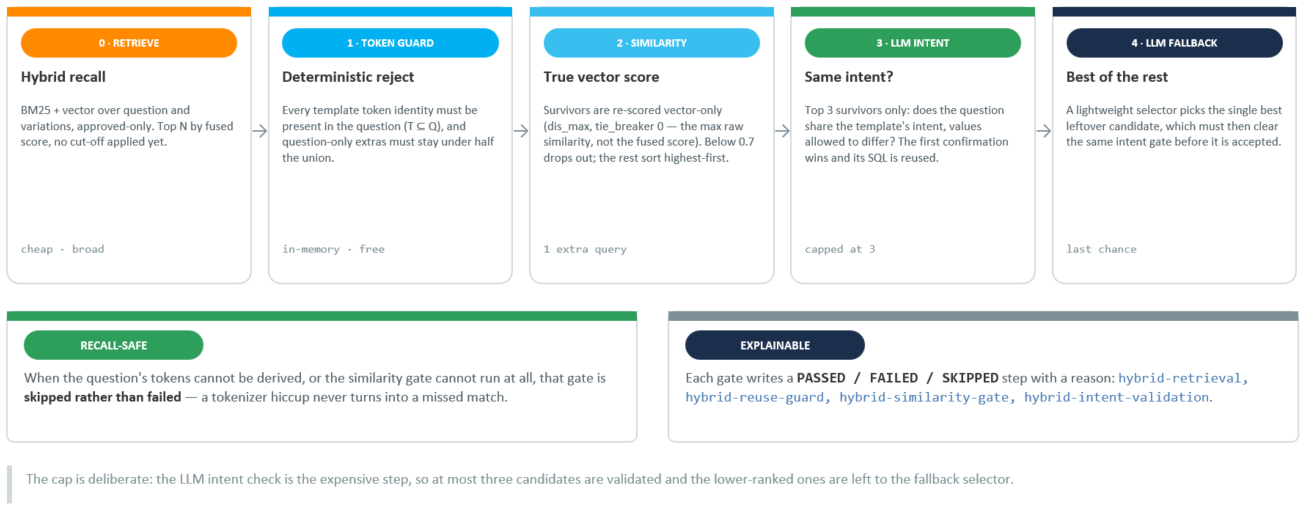
HybridSearch
Retrieval by meaning - reuse a template whose wording differs so much that no signature will ever match it.
The precision gates - a retrieved candidate must clear every gate below before its SQL is reused.
End-2-End Matching Flow - How a Match Actually Happens
One question, one pass down the chain — and every exit is recorded.
Continue to Semantic Templates - Step 2: Template Suggestions Dialog or go back to Ontology - Semantic Templates.
Contact App Orchid | Disclaimer