
Intended audience: developers administrators
AO Platform: 5.0
Overview
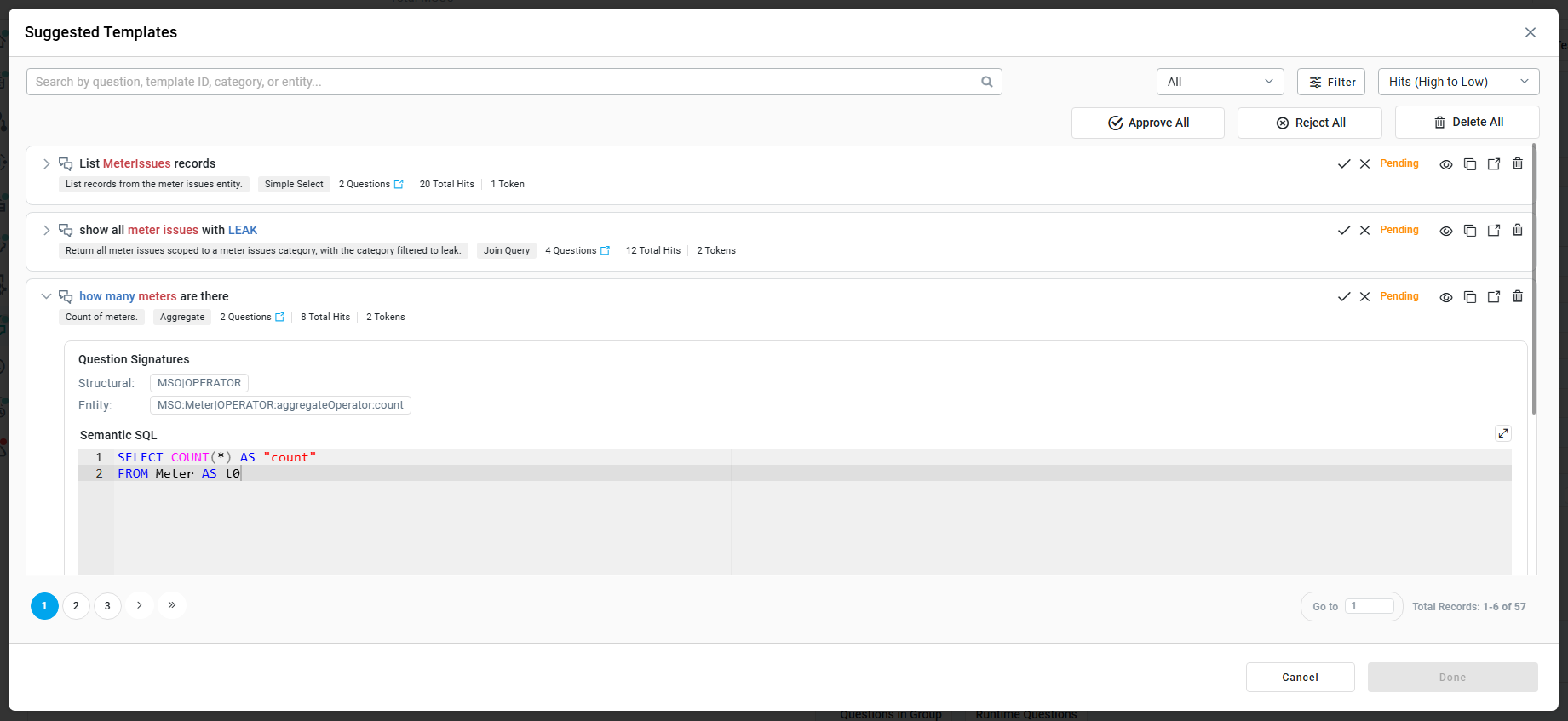
The step 2 of the creation of the Semantic Templates workflow automatically opens the Template Suggestions dialog when the Process Questions button is clicked in the step 1 dialog.

Alternatively, this dialog can also be reached by clicking the Template Suggestions button from the main Semantic Templates page.

Review Suggested Templates
The purpose of this dialog is for the solution developer to review the suggested templates and ultimately either Approve 

User Actions
Page level
-
Search - text field - enter a search term to find suggested templates matching the search term.
-
Approve/Rejected - filter dropdown - select to show All, Approved, or Rejected suggested templates from the dropdown.
-
Filters - dropdown - select from the available dropdowns what to filter on, including:
-
Sort - dropdown - select from the available options in the dropdown how to sort the list of suggested templates.
-
Approve All - button - click to approve all suggested templates on the page.
-
Reject All - button - click to reject all suggested templates on the page.
-
Delete All - button - click to delete all suggested templates on the page. Deleting all suggested templates requires user confirmation.
-
Pagination - click “page” buttons to see first/previous/next/last page of suggested templates, or enter a specific page number in the input field.
-
Cancel - button - click to cancel the Import Questions and Template Suggestions workflow.
-
Done - button - click to go back to the main Semantic Templates screen to view all approved templates.
Question/Template level
-
Approve - icon - click to approve the suggested template.
-
Reject - icon - click to reject the suggested template.
-
Status - read-only text - shows Pending, Approved, Rejected to indicate the current status of the suggested template.
-
View Question Details - eye icon - click to open a dialog with additional question details. See View Question Details Dialog section below.
-
Copy - copy icon - click to copy the question from the suggested template to the clipboard.
-
Execute - link icon - click to open the question for the suggested template in a new browser tab to execute in Easy Answers.
-
Delete - icon - click to delete the suggested template. This also removes the associated questions from the cache.
Content (Individual Questions)
-
Icon - shows either “speech bubbles” (non-verified) or a “blue badge” (verified).
-
Question - the user’s question based on which the suggested template will be created.
-
Question Intent - an LLM-generated intent description for the question.
-
Category - read-only text - shows a “simple” label for an auto-generated category for the question, eg. “Simple Select”
-
# Questions - read-only text w/link - shows all questions associated with the semantic template. Click link to open dialog showing all Questions in Group.
-
# Total Hits - indicates how many times the question has been asked.
-
# Tokens - indicates how many tokens are contained in the question.
-
Expand/Collapse - icon - click to expand the row to show the Question Signatures:
-
Structural - read-only text - a signature focusing on the “course shape” of the question, eg.
MSO|VAL -
Entity - read-only text - a signature focusing on the match key, eg.
MSO:Meter|VAL:Meter.material.<value> -
Semantic SQL - read-only text - the original LLM-generated SQL interpreted from the question, eg.
SELECT t0.* FROM Meter t0
WHERE t0.material = ‘Brass’
-
Continue to Semantic Templates - Match and Test Dialog or go back to Semantic Templates - Step 1: Import Questions Dialog.
Contact App Orchid | Disclaimer