
Intended audience: developers administrators
AO Platform: 5.0
Overview
The Semantic Templates page in the Ontology Composer allows solution developers to import questions to generate, test, and manage semantic templates. A Semantic Template captures one proven shape — tokens, signatures, and verified Semantic SQL — and answers matching questions by swapping only the values. This makes answering questions in Easy Answers faster (fewer LLM round-trips), cheaper (fewer tokens used), and improves accuracy (repeat use of templates generated from verified questions)!

Question Verification
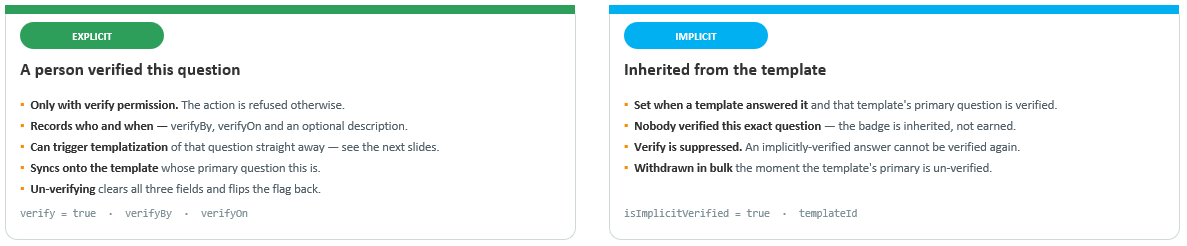
Verification is where everything starts — a verified answer is what gets turned into a template, and what earns the badge. See Using Question Verification.
Relative to semantic templates, the action of verifying the answer to a question has two different workflows:

Semantic Templates Page
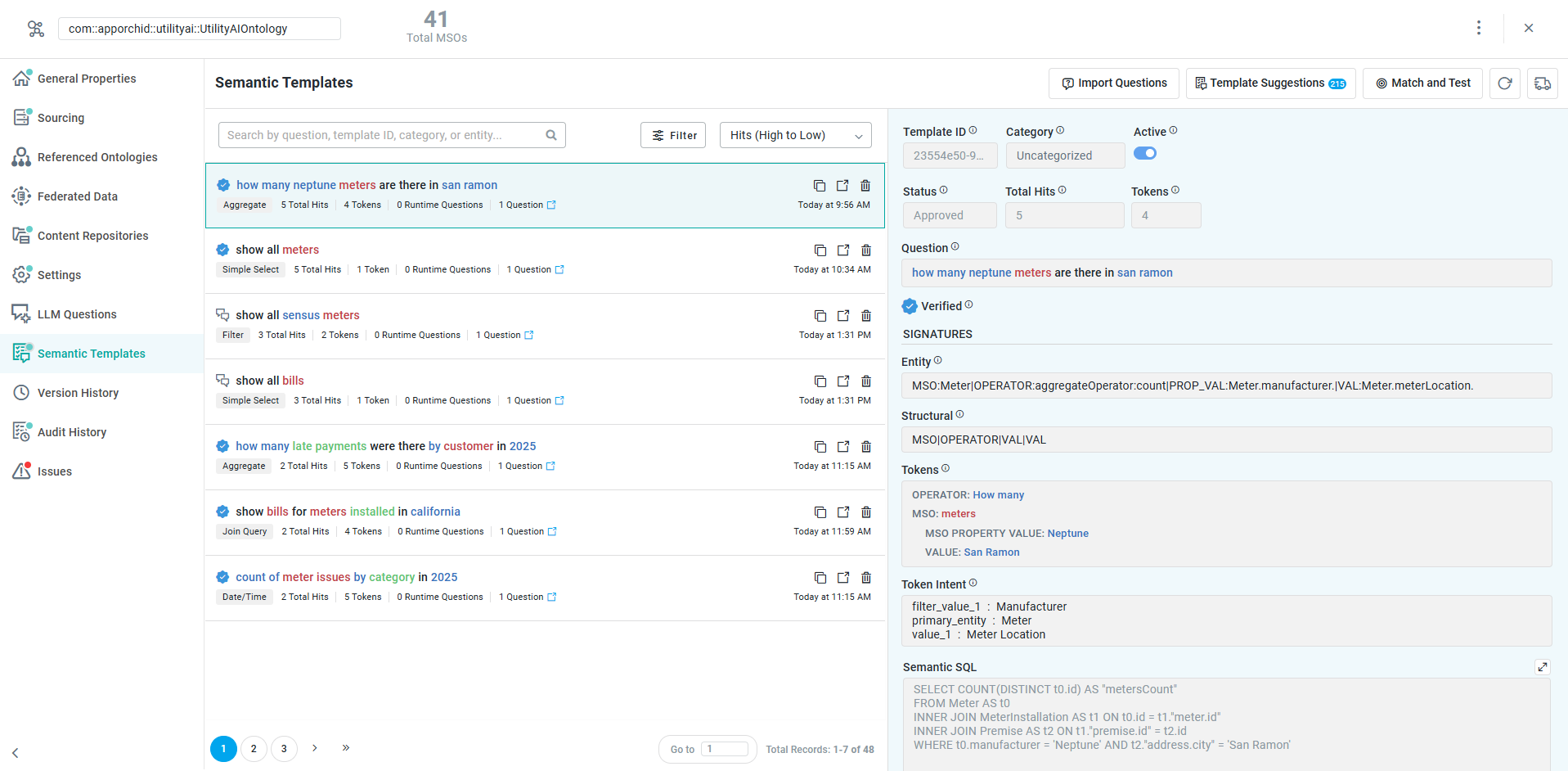
Once Semantic Templates have been created either through the import question workflow or through the auto-verification and matching process in Easy Answers, this page will be populated with the approved and/or verified templates. The left-side panel lists all semantic templates, and the right-side panel shows the details of a selected template.
User Actions
Page level
-
Import Questions - click to open Step 1 of 2 dialog - to import questions that have not yet been templatized. Step 2 processes the imported questions to create template suggestions. See Step 1: Import Questions Dialog section below.
-
Template Suggestions - click to open Step 2 dialog - to review template suggestions, and either approve or reject suggestions as needed. See Step 2: Template Suggestions Dialog section below.
-
Match and Test - click to open a dialog from which questions can be tested for match with existing semantic templates. See Match and Test Dialog section below.
-
Refresh - refreshes the page if the templates change.
-
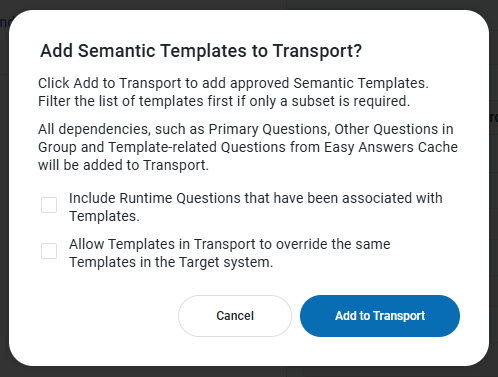
Add to Transport - click to open the Add Semantic Templates to Transport dialog. Options include adding Runtime Questions to the transport (excluded by default), as well as allowing the Templates in the transport to override the same Templates if available on the Target system (excluded by default).
Template level - all
-
Search - text field - enter a search term to find templates matching the search term.
-
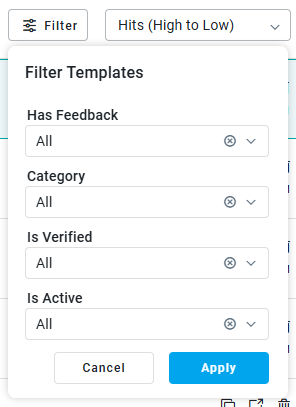
Filters - dropdown - select from various dropdowns to filter the list of templates. Filters include: Has Feedback, Category, Is Verified, and Is Active. Set any filters, then click Apply to remove non-filtered semantic templates from view.
-
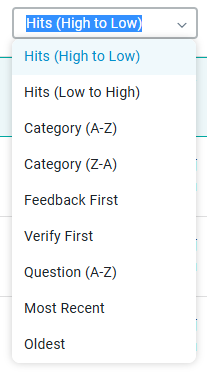
Sort - dropdown - select how to order the list of templates. Options include: Hits (High to Low), Hits (Low to High), Category (A-Z), Category (Z-A), Feedback First, Verify First, Questions (A-Z), Most Recent, Oldest.
Template level - individual
-
Copy - copy icon - click to copy the template to the clipboard.
-
Execute - link icon - click to open the question in a new browser tab to execute in Easy Answers.
-
Delete - icon - click to delete the template. This also removes the associated questions from the cache.
-
Active - on/off toggle - click to disable an active semantic template. Templates are active by default.
-
Questions in Group - link and button - click to open a dialog showing all questions associated with the semantic template.
-
Runtime Questions - link and button - click to open a dialog showing all questions that have auto-associated with an existing template at the time the question was asked in Easy Answers (at runtime).
Content (Left-Panel)
-
Icon - shows either “speech bubbles” (non-verified) or a “blue badge” (verified).
-
Question - read-only text - the user’s question that the semantic template was created from (primary).
-
Category - read-only text - shows a “simple” label for an auto-generated category for the question, eg. “Simple Select”
-
# Total Hits - read-only text - indicates how many times the question has been asked.
-
# Tokens - read-only text - indicates how many tokens are contained in the question.
-
# Runtime Questions - read-only text w/link - click to open a dialog showing all questions that have been auto-associated with an existing template at the time the question was asked in Easy Answers (at runtime).
-
# Questions in Group - read-only text w/link - click to open a dialog showing all questions associated with the semantic template.
Content (Right-Panel)
-
Template ID - read-only text - represents an internal ID for the template created.
-
Category - read-only text - shows a “simple” label for an auto-generated category for the question, eg. “Simple Select”
-
Active - click to disable an active semantic template. Templates are active by default.
-
Status - read-only text - shows whether or not the template has been approved or rejected.
-
Total Hits - indicates how many times the question has been asked.
-
Tokens - indicates how many tokens are contained in the question.
-
Question - read-only text - the user’s original question that the semantic template was created from (primary).
-
Question Intent - read-only text - an LLM-generated intent description for the question.
-
Verified - if present, a “blue badge” icon shows that the question has been verified (by user or implicitly through automatic template association).
SIGNATURES
-
Entity - a signature focusing on the match key, eg.
MSO:Meter|VAL:Meter.material.<value> -
Structural - a signature focusing on the “course shape” of the question, eg.
MSO|VAL -
Tokens - the core tokens extracted for the signature during matching, eg. MSO: Meter, Meter.material = ”Brass”
-
Token Intent - an LLM-generated intent description for the Tokens found.
-
Semantic SQL - the original LLM-generated SQL interpreted from the question, eg.
SELECT t0.* FROM Meter t0
WHERE t0.material = ‘Brass’
Questions in Group / Runtime Questions Dialogs
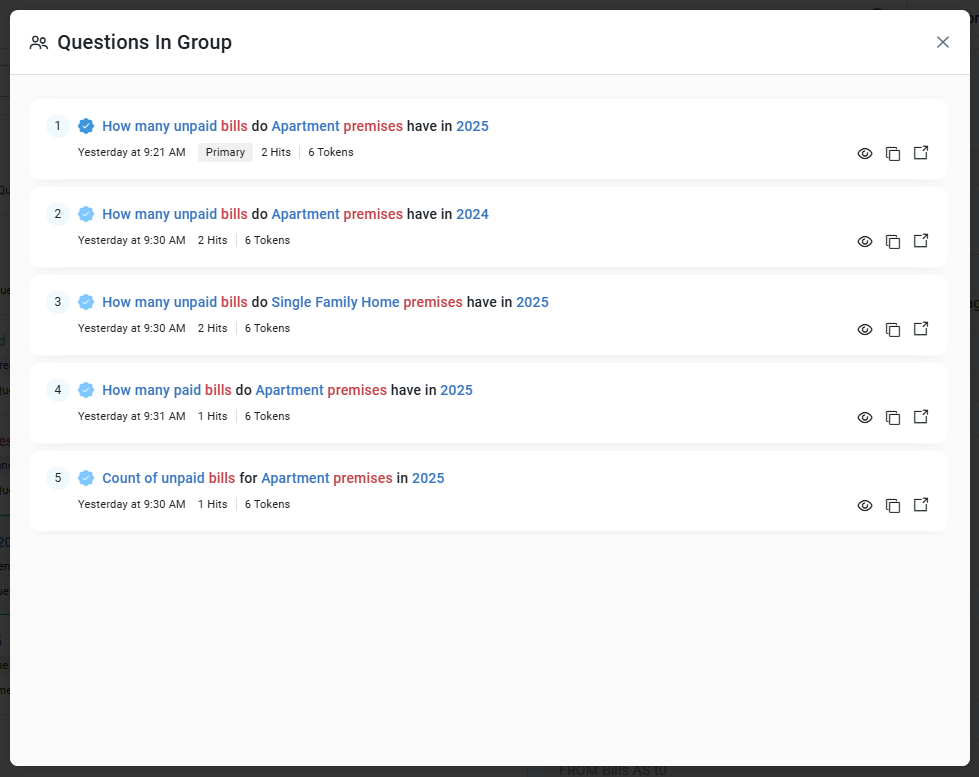
Click the Questions in Group or Runtime Questions links/buttons and the following type of dialog opens:
-
Questions in Group - read-only text - shows all questions associated with the semantic template.
-
Runtime Questions - read-only text - shows all questions that have been auto-associated with an existing template at the time the question was asked in Easy Answers (at runtime).
Workflows: Creating and Testing Semantic Templates
Contact App Orchid | Disclaimer