
Intended audience: analysts developers administrators
AO Platform: 5.0
Text2SQL
This section includes the configuration settings for the Text2SQL transformation functionality. Text2SQL transformation happens when a user enters a Natural Language Question (NLQ) in the Easy Answers solution and the Easy Answers Agent. This includes the Easy Answers native interpretation of Natural Language Questions and the enhanced, Large Language Model-based integration for interpreting questions.
See Use of Generative AI for details.
If a commercial LLM is enabled (compared to an Open Source LLM), each transaction (API request) will incur a transaction fee.
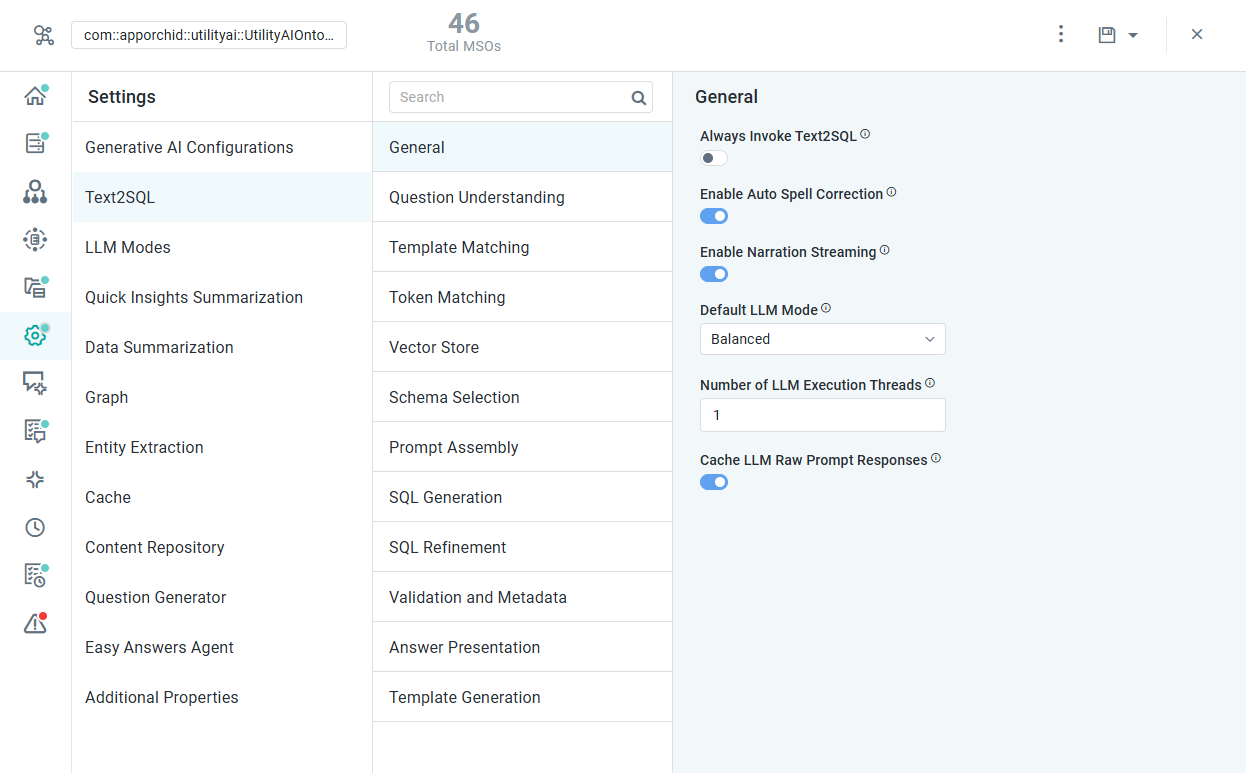
General
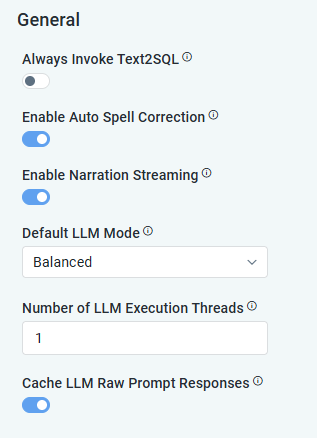
Properties
|
Label |
UI Widget |
Defaults |
Description |
|---|---|---|---|
|
ON/OFF Toggle |
OFF |
If enabled, the “text2SQL” translation will be performed for every question posed in Easy Answers. If disabled, the system will reuse previous natural language questions and their translations into SQL (indexed by Elasticsearch) from the cache. In a production environment, this toggle should be disabled to gain performance. Always Invoke Text2SQL is disabled by default. |
|
ON/OFF Toggle |
ON |
If enabled, when entering natural language questions (NLQs) in Easy Answers, an automatic spell-check correction will be performed. This setting can be overridden by individual users by using a similar setting in the User Settings dialog available from the User menu. If disabled, the Auto Correction will not be performed, and the User Settings override toggle will not be available. |
|
ON/OFF Toggle |
ON |
If enabled, the processing done (response tokens generated) by the LLM when interpreting questions will be streamed in real time into the Easy Answers UI. |
|
ON/OFF Toggle |
OFF |
Not shown in the composer in the 4.6.2 release; When on, also streams the raw model output live under the narration lines. Raw output can quote prompt fragments and schema internals, so it stays off. |
|
Dropdown |
Balanced |
Select from the dropdown which LLM Interpretation Mode users in Easy Answers will use when asking questions, including: Controlled, Balanced, and Freeform. Users with permissions to change the LLM Interpretation Mode at runtime will be able to select any of the three modes when retrying a question. |
|
Number Field |
1 |
With the LLM Validation Strategy set to Default, only 1 thread can be configured. If the LLM Validation Strategy is Strict, then 2 or more LLM Execution Threads can be configured. |
|
ON/OFF Toggle |
ON |
If enabled, it will cache raw LLM prompt responses to improve performance. |
Question Understanding
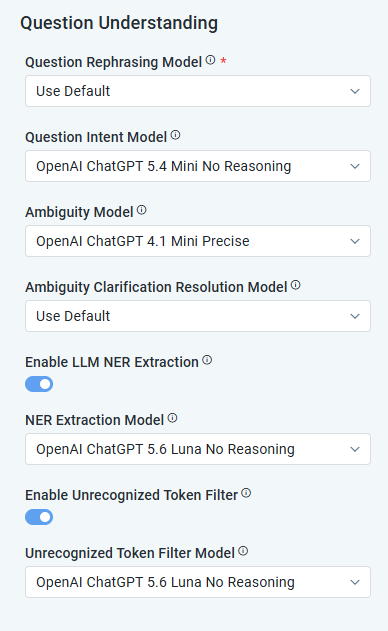
Properties
|
Label |
UI Widget |
Defaults |
Description |
|---|---|---|---|
|
Question Rephrasing Model |
Dropdown |
Use Default |
Select the LLM Model to use for Question Rephrasing. |
|
Question Intent Model |
Dropdown |
OpenAI ChatGPT 6 Luna No Reasoning |
Select the LLM Model that will be used to rewrite a question into its abstract, value-agnostic intent - store it on each semantic template and generate it for every incoming question to retrieve matching templates by meaning, relative to the ontology being used. |
|
Ambiguity Model |
Dropdown |
OpenAI ChatGPT 6 Sol no Reasoning |
Select the LLM Model to use for the Ambiguity Model. |
|
Ambiguity Clarification Resolution Model |
Dropdown |
OpenAI ChatGPT 6 Luna No Reasoning |
Select the LLM Model to use for the Ambiguity Clarification Resolution Model. |
|
Enable LLM NER Extraction |
ON/OFF Toggle |
ON |
If enabled, named entities are extracted with the Global NER prompt instead of the existing NLP extraction flow. |
|
Dropdown |
OpenAI ChatGPT 6 Luna No Reasoning |
Select the LLM Model to use for the NER Extraction Model. |
|
Enable Prompt Token Tagging |
ON/OFF Toggle |
OFF (fixed) |
Not shown in the composer in the 4.6.2 release; If enabled, the Prompt token tagging strategy is included in token matching, letting the LLM tag tokens that the other strategies did not resolve. |
|
Dropdown |
Use Default |
Select the LLM Model to use for Question Tagging Model. |
|
Enable Unrecognized Token Filter |
ON/OFF Toggle |
ON |
If enabled, the unrecognized token filter matcher runs as the last token matching strategy, using the LLM to mark leftover tokens as stopwords, operators, literal values, or merged phrases. If disabled, the call is skipped, and the unrecognized tokens are left as the other strategies produced them. Enabled by default. |
|
Dropdown |
Use Default |
Select the LLM Model to use for the Unrecognized Token Filter Model. This configuration will be used to filter unrecognized tokens and identify operators in questions relative to the ontology being used. |
Template Matching
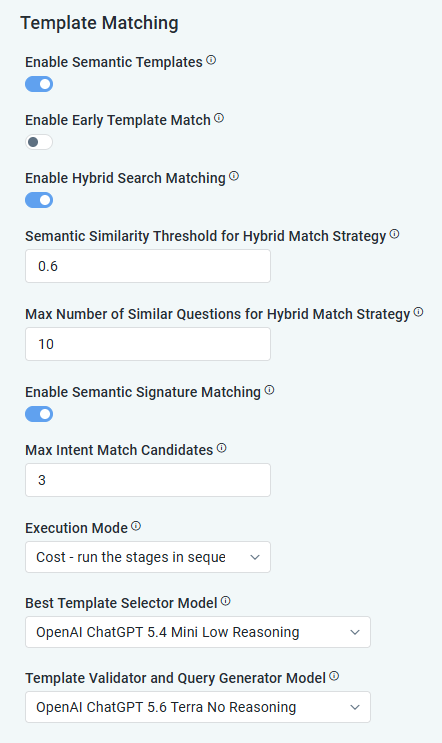
Properties
|
Label |
UI Widget |
Defaults |
Description |
|---|---|---|---|
|
Enable Semantic Templates |
ON/OFF Toggle |
ON |
If enabled, the Semantic Template settings will be available for configuration and used when creating and matching templates with questions in Easy Answers, or when managing templates on the Semantic Templates page in the Ontology Composer. When disabled, template matching and template-based SQL generation are bypassed, and Generate Template on Verification is forced off. All other configuration properties will not be shown. |
|
Enable Early Template Match |
ON/OFF Toggle |
ON |
If enabled, a “fast path” is selected; before token identification, reuse the closest approved template when the question differs only by values/named entities (gated by question similarity and an intent check). |
|
ON/OFF Toggle |
ON (follows Enable Early Template Match) |
Not shown in the composer in the 4.6.2 release; Takes the value of Enable Early Template Match. Deterministic no-LLM fast path: reuse an approved template whose entity signature exactly matches - verbatim or with a deterministic limit swap. Anything needing an LLM falls through. Runs before Early Template Match. |
|
ON/OFF Toggle |
ON (follows Enable Early Template Match) |
Not shown in the composer in the 4.6.2 release; Takes the value of Enable Early Template Match. Widens Early Exact Match to every question an approved template has already covered. Only applies when Early Exact Match is on. |
|
Number Field |
10 |
Retrieved candidates the catch-early fast path runs its gates (Jaccard, value-delta, intent) against, highest-ranked first. |
|
Number Field |
2 |
Fallback for the catch-early similarity gate: how many words may differ when the Jaccard score falls short. Counted after filter values are masked out. |
|
Enable Hybrid Search Matching |
ON/OFF Toggle |
ON |
If enabled, templates are matched using hybrid (lexical + semantic) search. |
|
Number Field |
0.6 |
Minimum semantic similarity score (0-1) required for a question to match under the hybrid match strategy. Higher values yield stricter, more accurate matches. |
|
Number Field |
10 |
Maximum number of similar questions returned when using the hybrid match strategy. |
|
Enable Semantic Signature Matching |
ON/OFF Toggle |
ON |
If enabled, templates are matched using semantic signatures. |
|
ON/OFF Toggle |
OFF (hidden) |
Not shown in the composer in the 4.6.2 release; If enabled, templates are matched using topic signatures. |
|
ON/OFF Toggle |
ON (fixed) |
Not shown in the composer in the 4.6.2 release; Validates the shortlisted templates concurrently for lowest latency (spends the whole shortlist’s LLM calls). Off validates sequentially, stopping at the first confirmation. The matched template is identical either way. |
|
Number Field |
3 |
Retrieved candidates that the hybrid strategy runs LLM intent validation against, highest-ranked first. |
|
Execution Mode |
Dropdown |
Auto |
Auto picks between Cost and Latency from the ontology’s measured template hit rate: a low hit rate favors speculating, a high one favors waiting for the match. Cost runs template match first and generates only on a miss. Latency starts generation speculatively alongside the match. The answer is identical; only timing and spend differ. |
|
Number Field |
1500 |
Latency/Auto modes only: how long the template match is given to settle before speculative generation starts. Ignored in Cost mode. |
|
Number Field |
10 |
Auto mode only: the most extra LLM spend Auto may accept to buy the latency saving. |
|
Number Field |
10 |
Auto mode only: the smallest latency improvement worth paying for. |
|
ON/OFF Toggle |
ON (fixed) |
Not shown in the composer in the 4.6.2 release; On whenever Enable Semantic Templates is on. On a template reuse, the model returns the change as literal find/replace edits rather than rewriting the whole query; edits are applied in code with fallback to full generation. Takes effect only where the edit prompt is seeded for the configured model (GPT 5.6). |
|
Dropdown |
GPT 6 Luna No Reasoning |
Select the LLM Model to use for the Best Template Selector Model. Lightweight model that picks the fallback template best matching a question intent from the hybrid-search candidates. |
|
Dropdown |
GPT 6 Sol No Reasoning |
Select the LLM Model to use for the Template Validator and Query Generator Model. Validates a matched template and regenerates its Semantic SQL for a new question. This configuration will be used to validate a matched template and regenerate its Semantic SQL for a new question relative to the ontology being used. |
Token Matching
Properties
|
Label |
UI Widget |
Defaults |
Description |
|---|---|---|---|
|
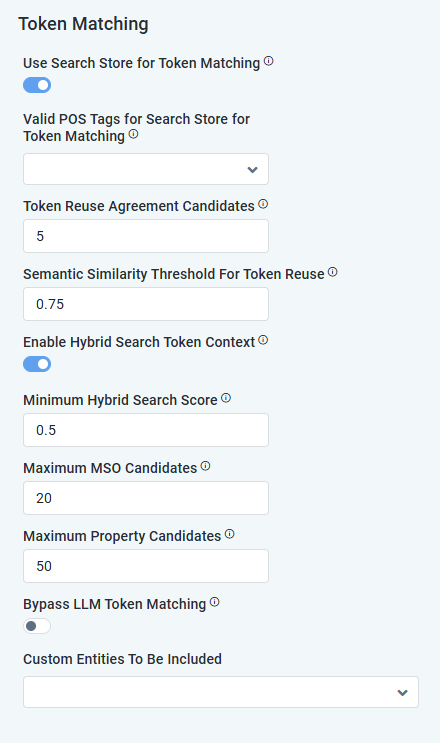
Use Search Store for Token Matching |
ON/OFF Toggle |
OFF |
If enabled, the Vector Store will be used for Token Matching. If disabled, the internal AO platform logic will be utilized. |
|
Dropdowns |
Noun, Adjective |
Repeater section for POS Tags. If enabled, use Search Store for Token Matching. If disabled, use internal AO Platform logic. Dropdown includes NOUN, ADJECTIVE, VERB, and ADVERB. |
|
Enable Token Reuse from Templates |
ON/OFF Toggle |
ON (fixed) |
Not shown in the composer in the 4.6.2 release; If enabled, token matching first reuses the MSO and MSO-property associations of an already-approved semantic template whose intent matches the question, and only the spans it cannot resolve go on to graph, entity, and LLM token matching. Values, entities, and rules are never reused. Requires Enable Semantic Templates and Enable Hybrid Search Matching, which supply the intent-based retrieval it uses. Enabled by default. |
|
Token Reuse Agreement Candidates |
Number Field |
3 |
How many of the intent-refined candidate templates must agree before an association is reused. The best candidate supplies the mapping; any other candidate within this many that maps the same wording to a different MSO or property vetoes it, so a span the candidates disagree about is resolved by token matching instead of by whichever template ranked first. |
|
Run Token Reuse Before Graph Matching |
ON/OFF Toggle |
OFF (fixed) |
Not shown in the composer in the 4.6.2 release; Where token reuse sits relative to graph token matching. Off (default) runs graph first, because it resolves the same MSO and MSO-property associations deterministically and more cheaply, and a question it answers in full never reaches reuse at all - what reuse saves is the entity and LLM matching that follows either way. On runs reuse first, which only pays off where it resolves spans the graph could not. Both orders are correct; this exists so the two can be compared. |
|
Semantic Similarity Threshold for Token Reuse |
Number Field |
0.75 |
How similar a stored question must be to the asked one before its token associations may be reused, as a raw question-to-question vector similarity between 0 and 1. Deliberately separate from the hybrid match threshold, which is measured between generated intents and is therefore a different score distribution. Higher by default, because a reused association has nothing downstream validating it, whereas a matched template still faces intent validation. |
|
Enable Hybrid Search Token Context |
ON/OFF Toggle |
ON |
If enabled, hybrid search narrows the ontology context sent to the token-matching LLM to the most relevant MSOs and properties; if disabled, the full ontology context is sent. |
|
Number Field |
0.3 |
Minimum hybrid-search relevance score (0-1) for an MSO or property to be added to the token-matching context. Deterministically identified MSOs/properties are always kept regardless of this threshold. |
|
Number Field |
7 |
Maximum number of hybrid-search MSO candidates added to the token-matching context (the deterministic floor is not counted against this cap). |
|
Number Field |
15 |
Maximum number of hybrid-search property candidates added to the token-matching context. |
|
Use Vector Store for Token Matching |
ON/OFF Toggle |
OFF |
If enabled, the Vector Store is used for token matching. This section only shows if the “Use Vector Store” configuration is enabled in the Vector Store section. |
|
Number Field |
Unset - platform default |
The Similarity Threshold for Token Matching value determines the results returned by the Vector Store in response to the “Did you mean…?” functionality in Easy Answers. “Did you mean…?” is a way of resolving partially understood questions based on previously asked questions. The higher the threshold, the more accurate (but likely fewer) alternative question suggestions will be shown. |
|
Number Field |
0.7 |
The Similarity Threshold for Nouns value determines the results returned by Vector Store in response to the “Did you mean…?” functionality in Easy Answers. “Did you mean…?” is a way of resolving partially understood questions based on previously asked questions. The higher the threshold, the more accurate (but likely fewer) alternative question suggestions will be shown. |
|
Text Field |
mso, mso_property |
|
|
ON/OFF Toggle |
ON |
If enabled, the LLM token-matching step is skipped, and the hybrid-search candidates above are sent to Text2SQL as schema context instead. Saves two LLM calls on questions the other strategies could not fully resolve, but those spans are no longer mapped to a specific table, column, or value - so filters that depend on a matched value may be lost, and Text2SQL sees a broader, less precise context. Leave off unless token matching is too slow. |
|
Custom Entities to be Included |
Dropdowns |
(none) |
Repeater section - The Custom Entities to be Included refers to configuring how custom entities are recognized. |
Vector Store
Properties
|
Label |
UI Widget |
Defaults |
Description |
|---|---|---|---|
|
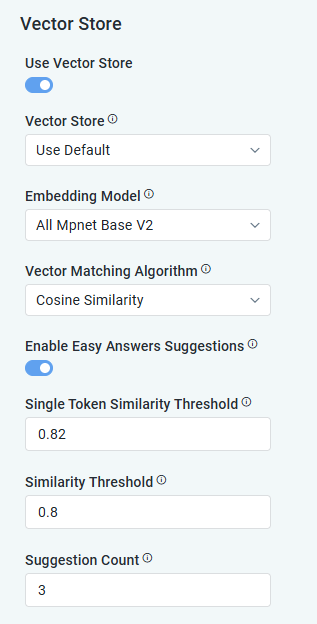
Use Vector Store |
ON/OFF Toggle |
OFF |
If enabled, this will enable the selected Vector Store to identify “Did you mean” alternative question suggestions in Easy Answers. If disabled, the Vector Store is not used for Text2SQL.
|
|
Dropdown |
Use Default |
Use the dropdown to select from the available Vector Store:
|
|
Dropdown |
All Mpnet Base V2 |
Embedding involves mapping high-dimensional vectors into a lower-dimensional space, facilitating machine learning tasks with large inputs, such as sparse vectors that represent words. Use the dropdown to select from available Embedding Model configurations. |
|
Dropdown |
Cosine Similarity |
Algorithm used to match vectors. The dropdown includes: Dot Product, L1 Distance, L2 Distance, Euclidean, Cosine Similarity. |
|
Enable Easy Answers Suggestions |
ON/OFF Toggle |
ON |
If enabled, the “Did you mean…?” functionality will be enabled in Easy Answers. If disabled, then the Easy Answers alternative question suggestions will not appear for user questions that are not fully understood. |
|
Number Field |
0.82 |
The Single Token Similarity Threshold value is used to suggest individual Words for the “Fix Unknown Words” functionality in Easy Answers. In that workflow, individual words will be suggested for words not understood by our Natural Language interpretation. The higher the threshold, the more accurate (but likely fewer) word suggestions will be shown. |
|
Number Field |
0.80 |
The Similarity Threshold value determines the results returned by Vector Store in response to the “Did you mean…?” functionality in Easy Answers. “Did you mean…?” is a way of resolving partially understood questions based on previously asked questions. The higher the threshold, the more accurate (but likely fewer) alternative question suggestions will be shown. |
|
Number Field |
3 |
The Suggestion Count determines the maximum number of suggestions shown in Easy Answers. |
Knowledge Base
Hidden from the composer in the 4.6.2 release. The settings are retained and applied unchanged with the values below.
Properties
|
Label |
UI Widget |
Defaults |
Description |
|---|---|---|---|
|
Enable Knowledge Base Indexing |
ON/OFF Toggle |
OFF |
This is the master switch for Knowledge Base ingestion of templatized questions. Every other setting in this section is honored only while this is on. |
|
Dropdown |
Use Default |
Extracts the reusable knowledge (topics and tokens) from a question and its answer. |
|
Dropdown |
Use Default |
Reviews the extracted tokens before they are persisted. |
|
Dropdown |
Use Default |
Refreshes topic descriptions after new tokens are assigned to them. |
|
Dropdown |
Use Default |
Assigns each extracted token to a candidate topic. |
|
Dropdown |
Use Default |
Derives the reusable pseudo-SQL for a token. |
|
Dropdown |
Use Default |
Token and context breakdown - one call per candidate, so a smaller model is usually the right choice. |
|
Dropdown |
Use Default |
Retained for contract compatibility; the finalizer phase is no longer invoked. |
|
Dropdown |
Use Default |
Duplicate-token detection model; consulted only when Duplicate Token Check is on. |
|
ON/OFF Toggle |
OFF |
If enabled, checks newly extracted tokens against existing ones for duplicates before indexing. |
|
Dropdown |
(none) |
Leave blank to use the model the knowledge indices are embedded with; query and document vectors must come from the same model. |
|
Number Field |
3 |
Self-consistency vote count during knowledge ingestion. |
Schema Selection
Properties
|
Label |
UI Widget |
Defaults |
Description |
|---|---|---|---|
|
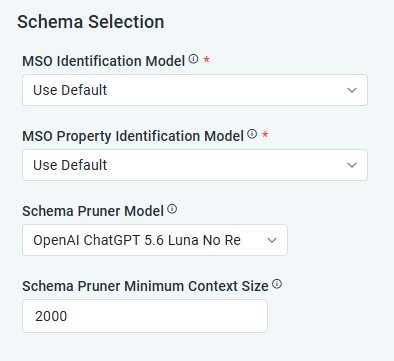
MSO Identification Model |
Dropdown |
Use Default |
Select the LLM Model to use for MSO Identification. |
|
MSO Property Identification Model |
Dropdown |
Use Default |
Select the LLM Model to use for MSO Property Identification. |
|
Enable Schema Pruner |
ON/OFF Toggle |
ON (fixed) |
Not shown in the composer in the 4.6.2 release; Reduces the schema context to the tables, columns, and relationships the generated Semantic SQL actually uses. Runs in the background and never delays the answer - the full schema context is used when a pruned one is unavailable. |
|
Schema Pruner Model |
Dropdown |
OpenAI ChatGPT 5.6 Luna Low Reasoning |
Select the LLM Model to use for the schema-pruning pass. |
|
Schema Pruner Minimum Context Size |
Number Field |
2000 |
Smallest schema context (characters) worth pruning; below this, the pruning call costs more than it saves. |
Prompt Assembly
Properties
|
Label |
UI Widget |
Defaults |
Description |
|---|---|---|---|
|
Enable Prompt Atom Routing |
ON/OFF Toggle |
OFF (fixed) |
Not shown in the composer in the 4.6.2 release; If disabled, every curated ontology, entity, and property instruction for the entities a question touches is sent with that question. Enable to send only the instruction blocks the question actually needs, selected by search. Requires the ontology prompts to have been atomized first. |
|
Dropdown |
Use Default |
Select the LLM Model to use for Routed Instructions Processor Model. Applies routed instructions to a generated statement when the pipeline step that would normally carry them is off. |
|
Dropdown |
Use Default |
Select the LLM Model to use for Prompt Atomization Model. Breaks a curated instruction into atomic prompt blocks. Runs on prompt save / re-index, never while answering. |
|
Dropdown |
Use Default |
Select the LLM Model to use for Prompt Block Split Model. Proposes cut points for oversized instruction blocks that could not be split on structure alone. |
|
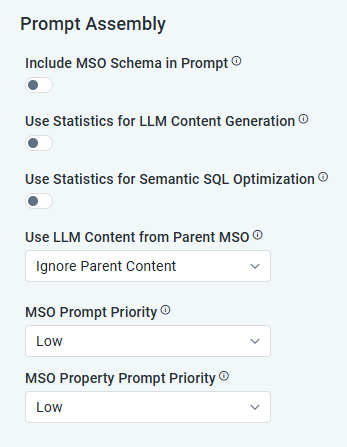
Include MSO Schema in Prompt |
ON/OFF Toggle |
OFF |
If enabled, the MSO schema is included in the prompt. |
|
Use Statistics for LLM Content Generation |
ON/OFF Toggle |
OFF |
If enabled, the Statistics gathered during MSO Discovery will be used to generate LLM Content. |
|
Use Statistics for Semantic SQL Optimization |
ON/OFF Toggle |
OFF |
If enabled, the Statistics gathered during MSO Discovery will be used when performing semantic queries, ensuring they scale efficiently with the data. |
|
Use LLM Content from Parent MSO |
Dropdown |
Ignore Parent Content |
Select from the following inheritance options:
|
|
MSO Prompt Priority |
Dropdown |
Low |
Dropdown includes: Low, None, Never. The MSO Prompt Priority can be auto-populated using the Generate LLM Content from the Options menu > Advanced in both Ontology and MSO Composers. Viewing or manually creating MSO Prompt Priorities can be done for each MSO on the LLM Content page. See MSO - LLM Content. |
|
MSO Property Prompt Priority |
Dropdown |
Low |
Dropdown includes: Low, None, Never. The MSO Property Prompt Priority can be auto-populated using the Generate LLM Content from the Options menu > Advanced in both Ontology and MSO Composers. Viewing or manually creating MSO Property Prompt Priorities can be done for each MSO on the LLM Content Page. See MSO - LLM Content. |
SQL Generation
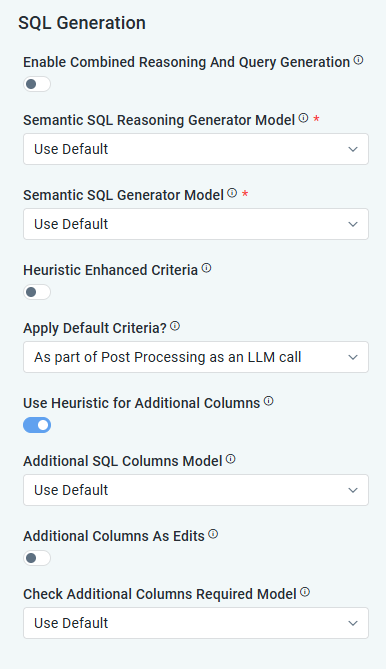
Properties
|
Label |
UI Widget |
Defaults |
Description |
|---|---|---|---|
|
Enable Combined Reasoning and Query Generation |
ON/OFF Toggle |
ON |
If enabled, the Semantic SQL reasoning and query generation are performed in a single combined LLM call. |
|
Dropdown |
OpenAI ChatGPT 5.6 Terra Low Reasoning |
Select the LLM Model used for the combined reasoning + generation call. |
|
ON/OFF Toggle |
ON |
If enabled, the generation prompt projects the display/proof columns itself; the separate Additional Columns step runs only as a fallback when its pre-check finds columns still missing. |
|
Dropdown |
Use Default |
Select the LLM Model to use for Semantic SQL Reasoning Generator. |
|
Dropdown |
Use Default |
Select the LLM Model to use for Semantic SQL Generator. |
|
Heuristic Enhanced Criteria |
ON/OFF Toggle |
ON |
If enabled, the operator implied by the question (contains, starts with, equals, negations) is decided by a deterministic phrase table instead of an LLM call. Ambiguous phrasings keep the configured match type. |
|
Apply Default Criteria |
Dropdown |
As part of Post-Processing as an LLM call |
Default criteria to be used for LLM Strategy. |
|
Use Heuristic for Additional Columns |
ON/OFF Toggle |
ON |
If enabled, runs first and completes the key and name properties deterministically with no LLM call. The LLM pre-check and additional-columns call (the two models below) then run only for what is still missing. |
|
Dropdown |
OpenAI ChatGPT 5.6 Luna No Reasoning |
Select the LLM Model to use for the Additional SQL Columns Model. This configuration will be used to add safe display and proof columns to the generated Semantic SQL relative to the ontology being used. |
|
Additional Columns As Edits |
ON/OFF Toggle |
ON |
If enabled, the additional-columns LLM call returns find/replace edits instead of rewriting the query. Edits must be additive and anchor unambiguously; otherwise, the call falls back to a full rewrite. |
|
Dropdown |
OpenAI ChatGPT 5.4 Nano Low Reasoning |
Select the LLM Model to use for the Check Additional Columns Required Model. This configuration will be used to decide whether additional display columns need to be added to the generated Semantic SQL relative to the ontology being used. |
SQL Refinement
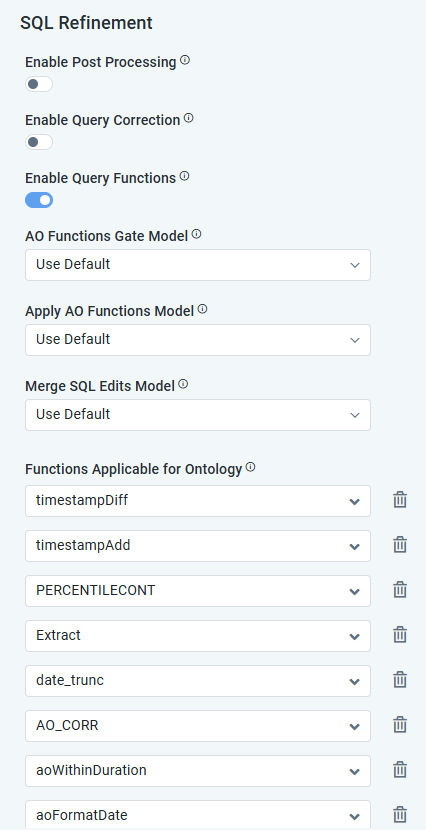
Properties
|
Label |
UI Widget |
Defaults |
Description |
|---|---|---|---|
|
Enable Post Processing |
ON/OFF Toggle |
ON |
If enabled, the generated Semantic SQL is put through an additional LLM post-processing step. Disable to use the query as generated and save that LLM call. |
|
Dropdown |
Use Default |
Select the LLM Model to use for the Semantic SQL Post Processing Model. |
|
Enable Query Correction |
ON/OFF Toggle |
ON |
If enabled, additional LLM requests are made to ensure optimal Text2SQL conversion. |
|
Dropdown |
OpenAI ChatGPT 6 Luna Low Reasoning |
Select the LLM Model to use for the Semantic SQL Corrector Model. |
|
Dropdown |
OpenAI ChatGPT 6 Luna Low Reasoning |
Select the LLM Model to use for |
|
Parallel SQL Correction |
ON/OFF Toggle |
ON (fixed) |
Not shown in the composer in the 4.6.2 release; Runs the optional SQL passes (query corrector, statistics optimizer, default criteria, post-processing, additional columns, AO functions) concurrently over one SQL snapshot and merges their edits with the Merge SQL Edits Model. Faster, but uses all the passes’ LLM calls. Note: nothing runs when Enable Query Correction is off. |
|
Dropdown |
Use Default |
Select the LLM Model to use for Semantic SQL Functions Model. |
|
Enable Query Functions |
ON/OFF Toggle |
ON |
If enabled, MSO query functions are applied to the generated Semantic SQL through an additional LLM call. Disable to skip that step. |
|
Dropdown |
OpenAI ChatGPT 5.6 Luna Low Reasoning |
Select the LLM Model to use for the AO Functions Gate Model. |
|
Dropdown |
OpenAI ChatGPT 5.6 Luna Low Reasoning |
Select the LLM Model to use for the Apply AO Functions Model. |
|
Dropdown |
OpenAI ChatGPT 6 Luna No Reasoning |
Select the LLM Model to use for the Merge SQL Edits Model. |
|
Dropdown |
aoWithinDuration, timestampAdd, aoFormatDate, timestampDiff, extract, date_trunc, percentile_cont, correlation |
Repeater section. The LLM functions that may be applied for this ontology. Add one row per function; only the functions listed here are considered during Semantic SQL generation. |
Validation and Metadata
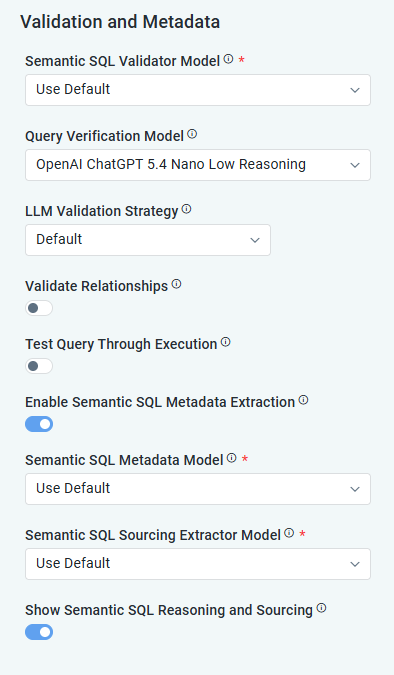
Properties
|
Label |
UI Widget |
Defaults |
Description |
|---|---|---|---|
|
Semantic SQL Validator Model |
Dropdown |
Use Default |
Select the LLM Model to use for Semantic SQL Validator. |
|
Query Verification Model |
Dropdown |
OpenAI ChatGPT 5.6 Luna No Reasoning |
Verifies the generated Semantic SQL against the question when it contains unrecognized phrases and produces the message shown to the user. Runs on the answer path, so a small, fast model is appropriate. |
|
LLM Validation Strategy |
Dropdown |
Default |
Dropdown includes:
|
|
Number field |
90 |
Cutoff score for the LLM validation strategy is configured to Strict. |
|
Validate Relationships |
ON/OFF Toggle |
OFF |
If enabled, Semantic SQL relationship validation is enabled. |
|
Test Query Through Execution |
ON/OFF Toggle |
OFF |
If enabled, Queries are test-executed before delivery. |
|
Enable Semantic SQL Metadata Extraction |
ON/OFF Toggle |
ON |
If enabled, Semantic SQL metadata is extracted heuristically; the extraction LLM call is made only when this is off. |
|
Semantic SQL Metadata Model |
Dropdown |
Use Default |
Dedicated model for generating Semantic SQL metadata. Moved here from the Easy Answers Agent tab and now saved with the Text2SQL settings; a value saved earlier on the agent tab is still honored until this one is set. |
|
Semantic SQL Sourcing Extractor Model |
Dropdown |
Use Default |
Select the LLM Model to use for Semantic SQL Sourcing Extractor. |
|
Show Semantic SQL Reasoning and Sourcing |
ON/OFF Toggle |
ON |
If enabled, it will make the Semantic SQL Reasoning and Sourcing functionality available in the Easy Answers Options menu on the Results page. See Viewing Sourcing Information | AO Easy Answers. |
Answer Presentation
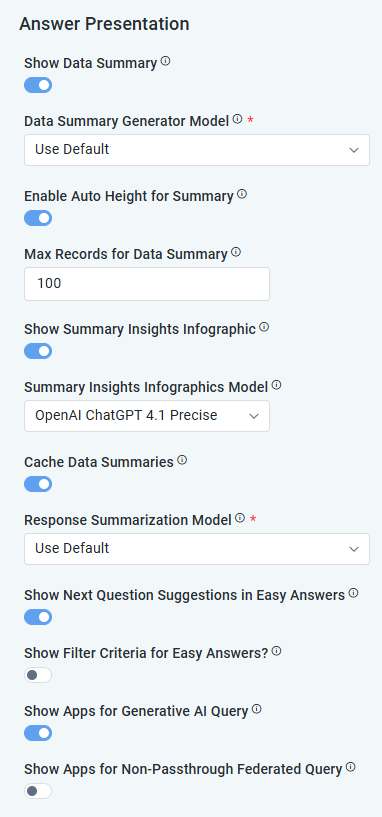
Properties
|
Label |
UI Widget |
Defaults |
Description |
|---|---|---|---|
|
Show Data Summary |
ON/OFF Toggle |
ON |
If enabled, a Summary of the question will be shown in Easy Answers. |
|
Data Summary Generator Model |
Dropdown |
OpenAI ChatGPT 6 Luna No Reasoning |
Select the LLM Model to use for generating Data Summary. |
|
ON/OFF Toggle |
ON |
If enabled, the Summary panel height adjusts automatically. |
|
Number Field |
100 |
Maximum records considered while generating the data summary. |
|
Show Summary Insights Infographic |
ON/OFF Toggle |
OFF |
If enabled, Summary Insights Infographics of the question will be shown in Easy Answers. |
|
Dropdown |
OpenAI ChatGPT 5.4 Mini No Reasoning |
Select the LLM Model to use for generating the Insights Infographics Summary. |
|
Cache Data Summaries |
ON/OFF Toggle |
ON |
If enabled, the Data Summary for the Semantic SQL will be cached. |
|
Dropdown |
Use Default |
Select the LLM Model to use for generating Response Summarization. |
|
Show Next Question Suggestions in Easy Answers |
ON/OFF Toggle |
ON |
If enabled, the Next Question Suggestions will be generated in the Chatbot based on the History list of past questions. |
|
Show Filter Criteria for Easy Answers |
ON/OFF Toggle |
OFF |
If enabled, Filter Criteria are shown in Easy Answers. |
|
Show Apps for Generative AI Query |
ON/OFF Toggle |
ON |
If enabled, additional Apps, if any, are shown along with the AI Response table. |
|
Show Apps for Non-Passthrough Federated Query |
ON/OFF Toggle |
OFF |
If enabled, Apps are shown for non-passthrough federated queries. |
Template Generation
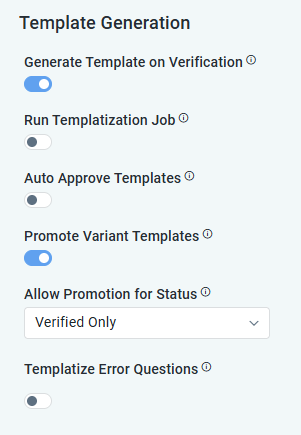
Properties
|
Label |
UI Widget |
Defaults |
Description |
|---|---|---|---|
|
Generate Template on Verification |
ON/OFF Toggle |
ON |
If enabled, a template is generated as soon as a question is verified. When disabled, templates are generated by a scheduled job (see Templatization Job Interval). |
|
Run Templatization Job |
ON/OFF Toggle |
OFF |
If enabled, a scheduled job templatizes the eligible questions of this ontology at the Templatization Job Interval. No job is scheduled until this is turned ON. Only applies when Semantic Templates is enabled. |
|
Text Field |
0 0 * * * ? |
Cron expression for the scheduled templatization job. Applicable only when Generate Template on Verification is disabled. Reference: https://crontab.guru/#*/3_*_*_*_*. |
|
Auto Approve Templates |
ON/OFF Toggle |
ON |
If enabled, generated templates are approved automatically instead of waiting for manual review. |
|
Promote Variant Templates |
ON/OFF Toggle |
ON |
If enabled, when a question answered via the slower hybrid path only adds value-bearing filters/properties to the template it reused, an independent, implicitly verified template is created asynchronously so that future variations take the fast exact-match path. |
|
Dropdown |
Verified Only |
Which served variants may be promoted to their own template.
|
|
Templatize Error Questions |
ON/OFF Toggle |
OFF |
If enabled, a question’s execution status is ignored while templatizing, so Failed and Partial questions can become templates too. All other exclusions (already templatized, no tokens, no semantic SQL, no category) still apply. Disabled by default; it templatizes only Success questions. |
Contact App Orchid | Disclaimer