
Intended audience: end-users developers
AO Platform: 4.5
Overview

With one or more Insights created, users will see a Card or List view of existing Insights. Either Search or select to see Model-based Insights using the Filter dropdown. Click the Edit icon (in Card view) or Edit option in the Action menu (in List view) on a Model-based Insight Card. Update the configuration properties as required.
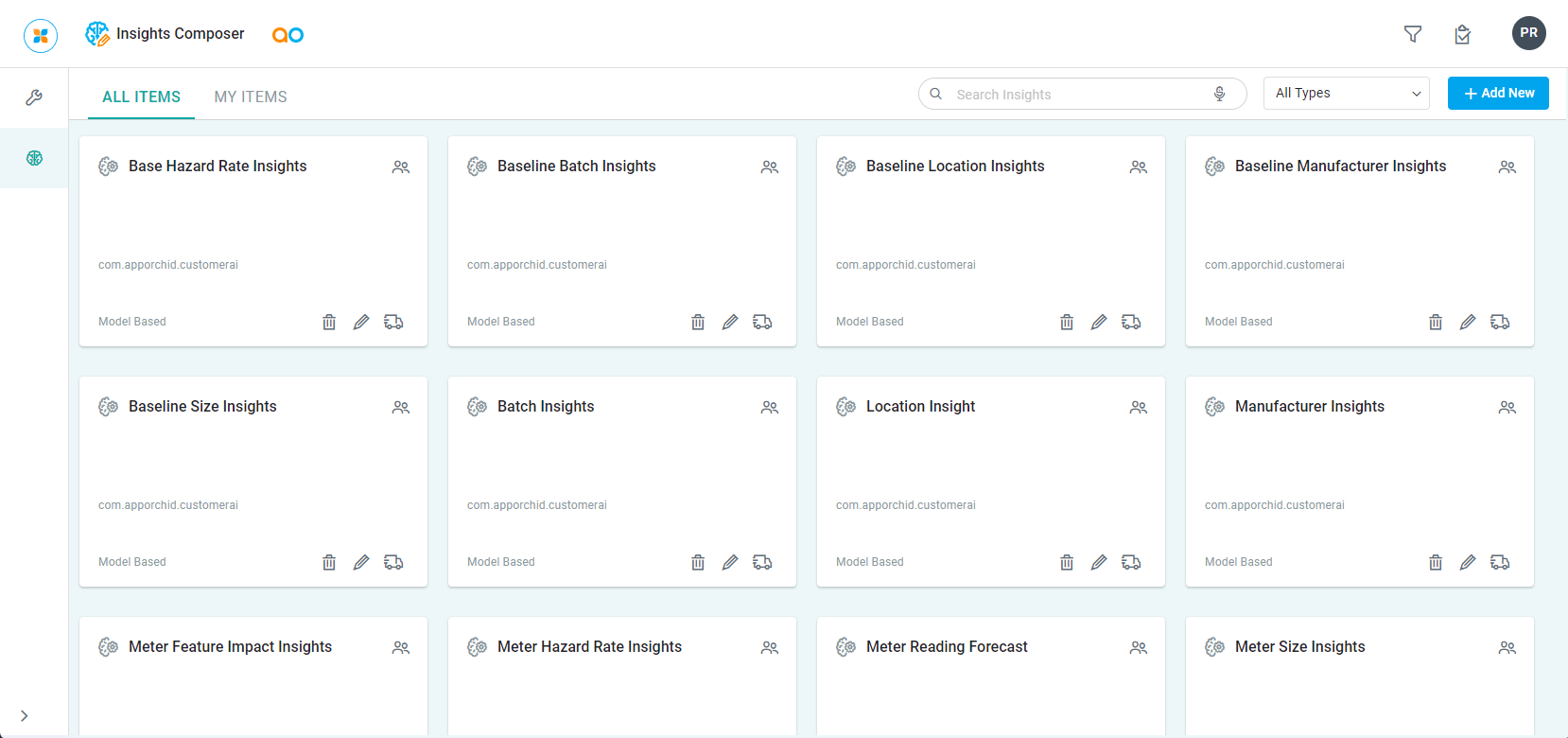
With a Model-based Insight opened in edit mode, the following key areas are available:
-
Version History - See equivalent functionality for Quick Insights - Version History.
General
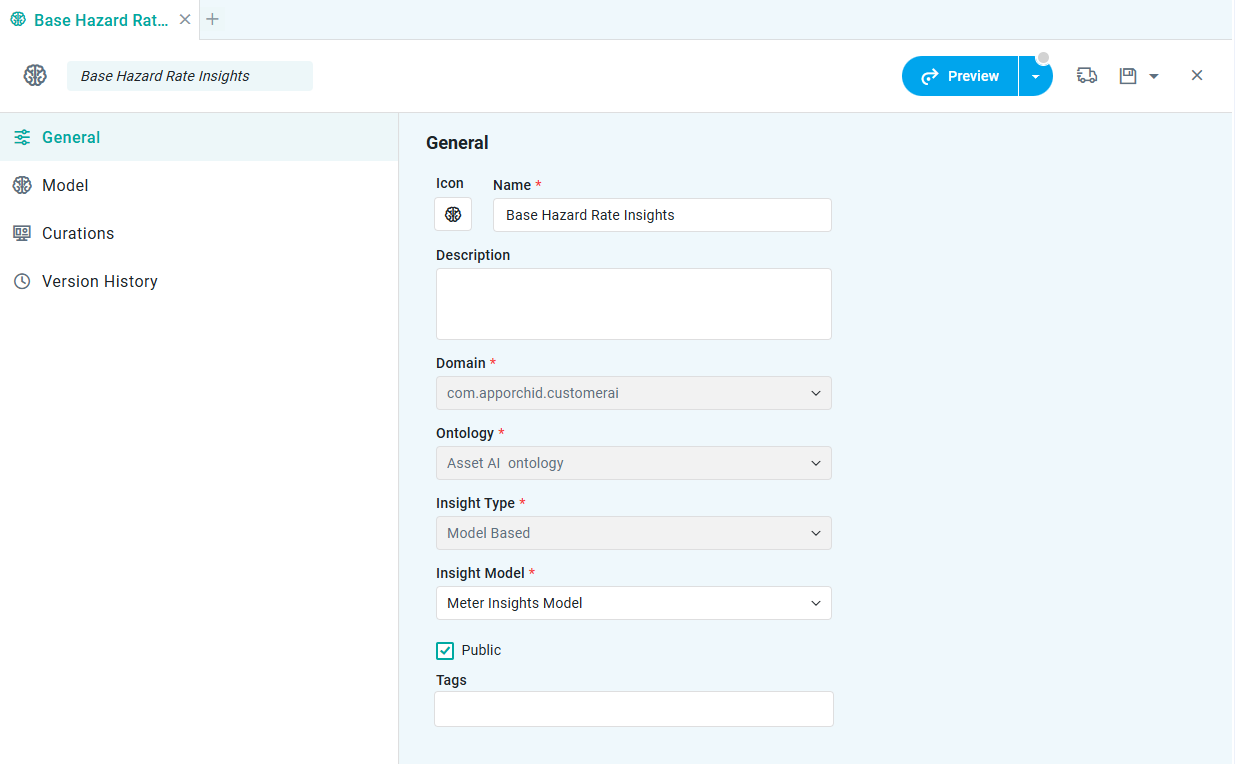
Properties
|
Label |
UI Widget |
Description |
|---|---|---|
|
Icon |
Icon |
The Icon button allows the user to upload/select an icon to represent the Insight configuration. Click to open the File Manager dialog. |
|
Name |
Text Field |
Add a Name to represent the Insight. |
|
Description |
Multi-Line Text Field |
Add a short Description about the Insight. |
|
Domain |
Dropdown - Read-only |
Select from the dropdown a Domain that the Insight belongs to. |
|
Ontology |
Dropdown - Read-only |
Select an Ontology from the dropdown for which the Insight will be related to. |
|
Insight Type |
Dropdown - Read-only |
Select from the dropdown:
|
|
Insight Model |
Dropdown |
Select from the dropdown an Insight Model created on the Insight Model Configurations Page. |
|
Public |
Checkbox |
Check to make the Custom Insight Public, otherwise it will be visible/available only to the current user. |
|
Tags |
Text Field w/Tags |
Add any additional Tags to help when searching for Insights. |
Model
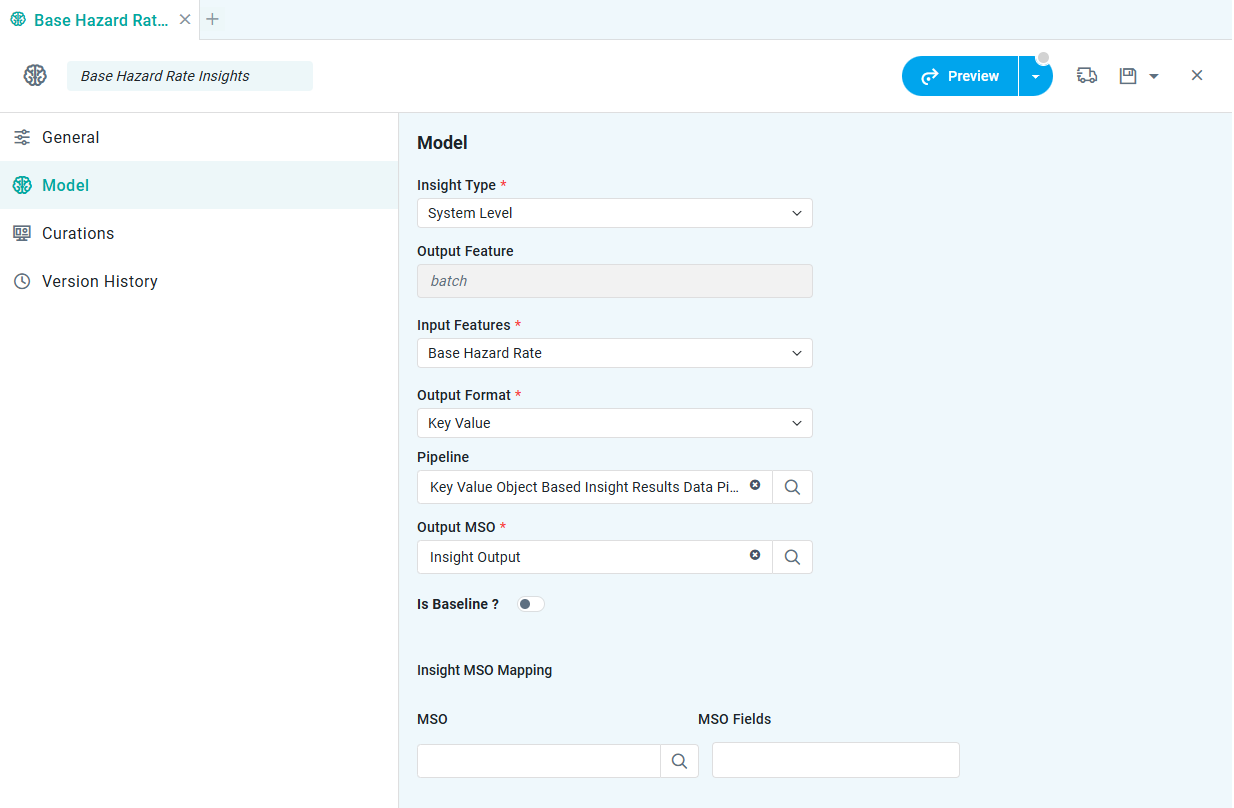
Properties
|
Label |
UI Widget |
Description |
|---|---|---|
|
Insight Type |
Dropdown |
Select between System Level and Entity Level.
|
|
Output Feature |
Text Field - Read-only |
Property comes from Input Features MSO via dropdown, and identifies the core output from the Insight Model, eg, “Meter Failure". This is a read-only property on the Model page, as it can only be configured in the Insight Model Configuration for the Insight Model selected. |
|
Input Features |
Dropdown |
The Input Features MSO will expose a set of properties to the user. These Input Features are Field Properties in the associated Pipeline that feeds the Input Features MSO from which the Insight Model takes its data input. Only one Input Feature selection can be made per Insight. |
|
Output Format |
Dropdown |
Select the Output Format, such as Key Value, Key Value List, or Key Value Object, from the dropdown. |
|
Pipeline |
Text Field w/Search |
Select a Pipeline from the Search dialog that will provide the data to this Insight. |
|
Output MSO |
Text Field w/Search |
Select an MSO from the Search dialog that will provide the output features to this Insight. |
|
Is Baseline? |
ON/OFF Toggle |
|
|
Insight MSO Mapping |
|
|
|
MSO |
Text Field w/Search |
Select an MSO from the Search dialog that the Insight will be associated with, eg. if the Insight is about Meter Failure Rate, then the associated MSO will likely be the Meter MSO. |
|
MSO Fields |
Text Field |
Select an MSO Field in addition to selecting the MSO in case the Insight should appear relative to an MSO Field property, eg, Meter Material or Meter Manufacturer. |
Curation
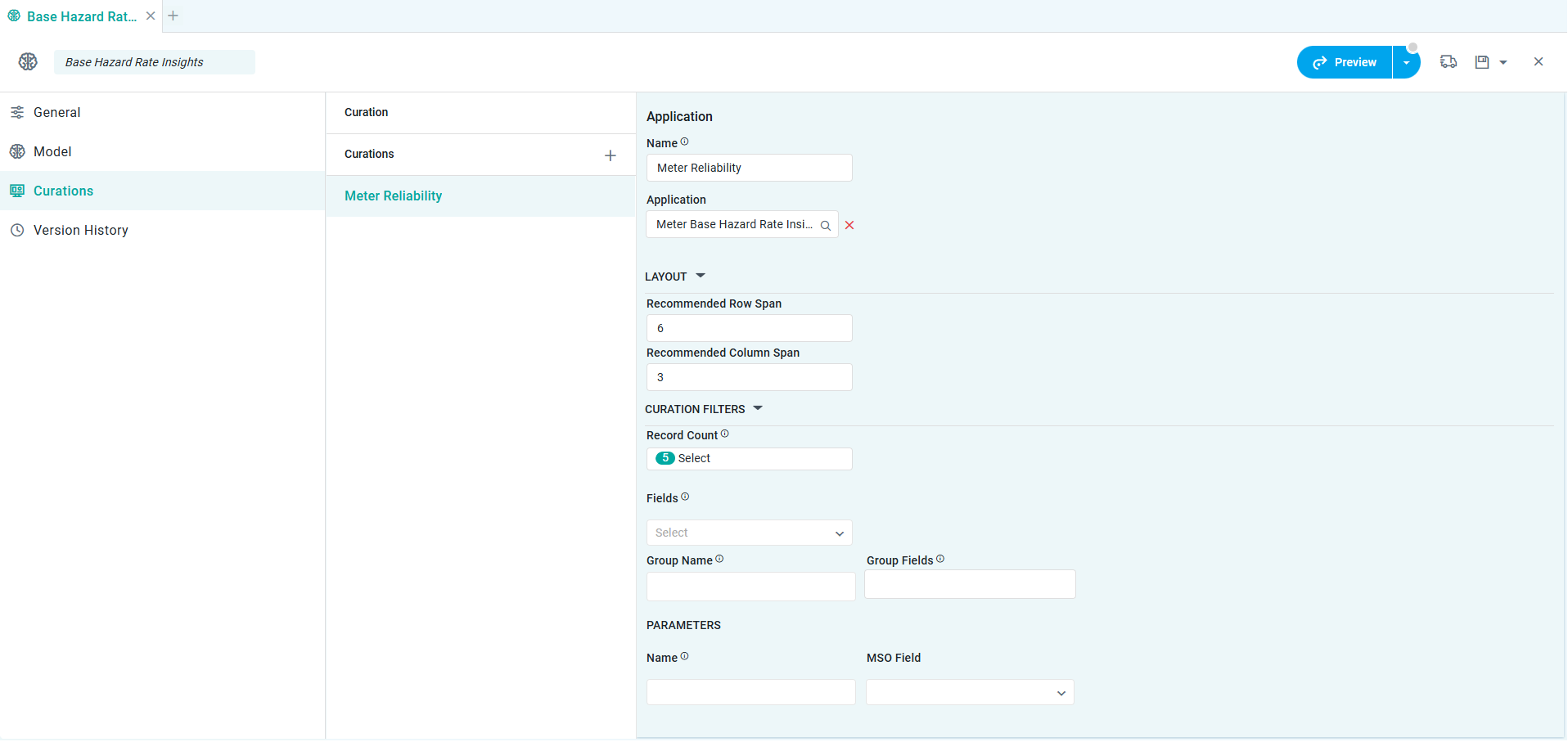
Properties
For Application and Micro Application Properties, refer to Curation - Application Properties and Curation - Micro Application Properties.
Contact App Orchid | Disclaimer