
Intended audience: analysts developers administrators
AO Platform: 4.5
Text2SQL
This section includes the configuration settings for the Text2SQL transformation functionality. Text2SQL transformation happens when a user enters a Natural Language Question (NLQ) in the Easy Answers solution and the Easy Answers Chatbot. This includes the Easy Answers native interpretation of Natural Language Questions and the enhanced, Large Language Model-based integration for interpreting questions.
See Use of Generative AI for details.
If a commercial LLM is enabled (compared to an Open Source LLM), each transaction (API request) will incur a transaction fee.
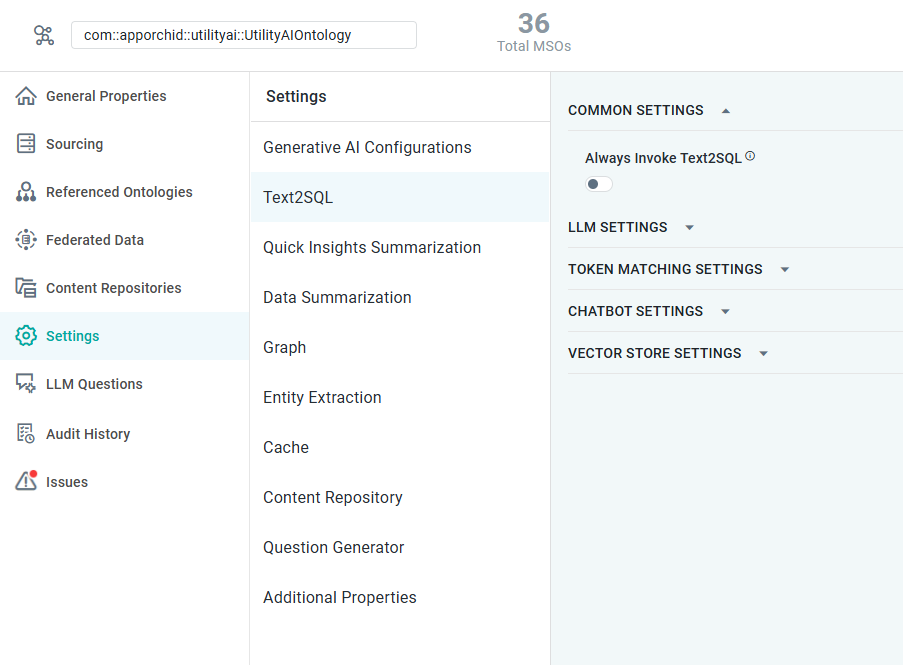
|
COMMON SETTINGS |
LLM SETTINGS |
TOKEN MATCHING SETTINGS |
VECTOR STORE SETTINGS |
|---|---|---|---|
|

|
|
|
Properties
|
Label |
UI Widget |
Defaults |
Description |
|---|---|---|---|
|
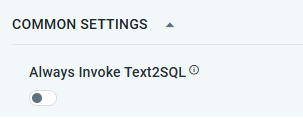
COMMON SETTINGS |
|
|
|
|
Always Invoke Text2SQL |
ON/OFF Toggle |
OFF |
If enabled, the “text2SQL” translation will be performed for every question posed in Easy Answers. If disabled, the system will reuse previous natural language questions and their translations into SQL (indexed by Elasticsearch) from the cache. In a production environment, this toggle should be disabled to gain performance. Always Invoke Text2SQL is disabled by default. |
|
LLM SETTINGS |
|
|
|
|
Use LLM |
ON/OFF Toggle |
OFF |
If enabled, the toggle turns on the use of a Large Language Model (LLM) for generating the internally used SQL code from the Easy Answers Question that the user has asked. Note: All remaining properties in the LLM SETTINGS section and in the CHATBOT SETTINGS section will not be used/available if the Use LLM toggle is turned OFF. |
|
Dropdown |
Use Default |
Select the LLM Model to use for Question Rephrasing, or leave it on Use Default to use what has been selected on the Settings - Generative AI Configurations page. |
|
Dropdown |
Use Default |
Select the LLM Model to use for MSO Identification, or leave it on Use Default to use what has been selected on the Settings - Generative AI Configurations page. |
|
Dropdown |
Use Default |
Select the LLM Model to use for MSO Property Identification, or leave it on Use Default to use what has been selected on the Settings - Generative AI Configurations page. |
|
Dropdown |
Use Default |
Select the LLM Model to use for Semantic SQL Reasoning Generator, or leave it on Use Default to use what has been selected on the Settings - Generative AI Configurations page. |
|
Dropdown |
Use Default |
Select the LLM Model to use for Semantic SQL Generator, or leave it on Use Default to use what has been selected on the Settings - Generative AI Configurations page. |
|
Dropdown |
Use Default |
Select the LLM Model to use for Semantic SQL Functions, or leave it on Use Default to use what has been selected on the Settings - Generative AI Configurations page. |
|
Dropdown |
Use Default |
Select the LLM Model to use for Semantic SQL Post Processing, or leave it on Use Default to use what has been selected on the Settings - Generative AI Configurations page. |
|
Dropdown |
Use Default |
Select the LLM Model to use for Semantic SQL Validator, or leave it on Use Default to use what has been selected on the Settings - Generative AI Configurations page. |
|
Dropdown |
Use Default |
Select the LLM Model to use for Semantic SQL Corrector, or leave it on Use Default to use what has been selected on the Settings - Generative AI Configurations page. |
|
Dropdown |
Use Default |
Select the LLM Model to use for Question Tagging Model, or leave it on Use Default to use what has been selected on the Settings - Generative AI Configurations page. |
|
Dropdown |
Use Default |
Select the LLM Model to use for Semantic SQL Sourcing Extractor, or leave it on Use Default to use what has been selected on the Settings - Generative AI Configurations page. |
|
Dropdown |
Use Default |
Select the LLM Model to use for Response Summarization, or leave it on Use Default to use what has been selected on the Settings - Generative AI Configurations page. |
|
Dropdown |
Use Default |
Select the LLM Model to use for the Ambiguity Model, or leave it on Use Default to use what has been selected on the Settings - Generative AI Configurations page. |
|
Dropdown |
Use Default |
Select the LLM Model to use for Ambiguity Clarification Resolution Model, or leave it on Use Default to use what has been selected on the Settings - Generative AI Configurations page. |
|
Number Field |
1 |
With the LLM Validation Strategy set to Default, only 1 thread can be configured. If the LLM Validation Strategy is Strict, then 2 or more LLM Execution Threads can be configured. |
|
Dropdown |
Default |
Dropdown includes:
|
|
ON/OFF Toggle |
OFF |
|
|
ON/OFF Toggle |
ON |
If enabled, will seek to reuse a previously Cached LLM RAW Prompt Response in case an identical question has already been asked. |
|
ON/OFF Toggle |
ON |
If enabled, it will make the Semantic SQL Reasoning and Sourcing functionality available in the Easy Answers Options menu on the Results page. See https://docs-easyanswers.apporchid.com/easy-answers-results-page/?contextKey=viewing-sourcing-information&version=latest. |
|
ON/OFF Toggle |
OFF |
If enabled, the Statistics gathered during MSO Discovery will be used when performing semantic queries, ensuring they scale efficiently with the data. |
|
ON/OFF Toggle |
OFF |
If enabled, the Statistics gathered during MSO Discovery will be used to generate LLM Content. |
|
Dropdown |
Ignore Parent Content |
Select from the following inheritance options:
|
|
ON/OFF Toggle |
OFF |
|
|
Dropdown |
As part of Post Processing as an LLM call |
Default criteria to be used for LLM Strategy. |
|
ON/OFF Toggle |
OFF |
|
|
ON/OFF Toggle |
ON |
Show additional Apps, if any, along with the AI Response table. |
|
ON/OFF Toggle |
ON |
If enabled, the Next Question Suggestions will be generated in the Chatbot based on the History list of past questions. |
|
ON/OFF Toggle |
ON |
If enabled, a Summary of the question will be shown in Easy Answers. |
|
ON/OFF Toggle |
OFF |
If enabled, Summary Insights Inographics of the question will be shown in Easy Answers. |
|
ON/OFF Toggle |
ON |
If enabled, the Data Summary for the Semantic SQL will be cached. |
|
ON/OFF Toggle |
OFF |
If enabled, Natural Language Question (NLQ) Templates will be used to answer a new NLQ whenever it finds a match in a template. |
|
ON/OFF Toggle |
ON |
If enabled, additional LLM requests will be made to ensure optimal Text2SQL conversion. |
|
Dropdown |
Balanced |
Select from the dropdown which LLM Interpretation Mode will be used for users in Easy Answers when asking questions. Users with permissions to change the LLM Interpretation Mode at runtime will be able to select any of the three modes when retrying a question. |
|
TOKEN MATCHING SETTINGS |
|
|
|
|
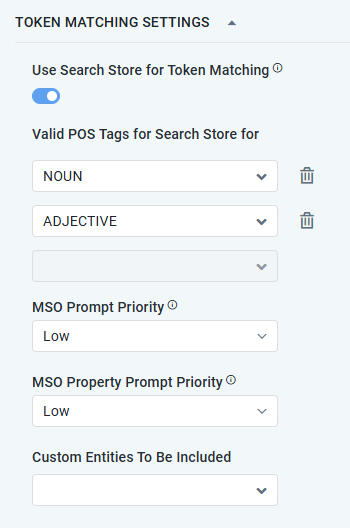
Use Search Store for Token Matching |
ON/OFF Toggle |
OFF |
If enabled, the Vector Store will be used for Token Matching. If disabled, the internal AO platform logic will be utilized. |
|
Dropdowns |
|
Repeater section for POS Tags. Dropdown includes NOUN, ADJECTIVE, VERB, and ADVERB. Only shown if Use Search Store for Token Matching is enabled. |
|
MSO Prompt Priority |
Dropdown |
Low |
Dropdown includes: None, Low, Medium, High. The MSO Prompt Priority can be auto-populated using the AO Platform REST API. Viewing or manually creating MSO Prompt Priorities can be done on the Generative AI > Ontology MSO Descriptions page in the Admin solution. |
|
MSO Property Prompt Priority |
Dropdown |
Low |
Dropdown includes: None, Low, Medium, High. The MSO Property Prompt Priority can be auto-populated using the AO Platform REST API. Viewing or manually creating MSO Property Prompt Priorities can be done on the Generative AI > Ontology MSO Descriptions page in the Admin solution. |
|
Custom Entities to be Included |
Dropdowns |
|
Repeater section - The Custom Entities to be Ubckyded refers to configuring how custom entities are recognized. |
|
VECTOR STORE SETTINGS |
|
|
|
|
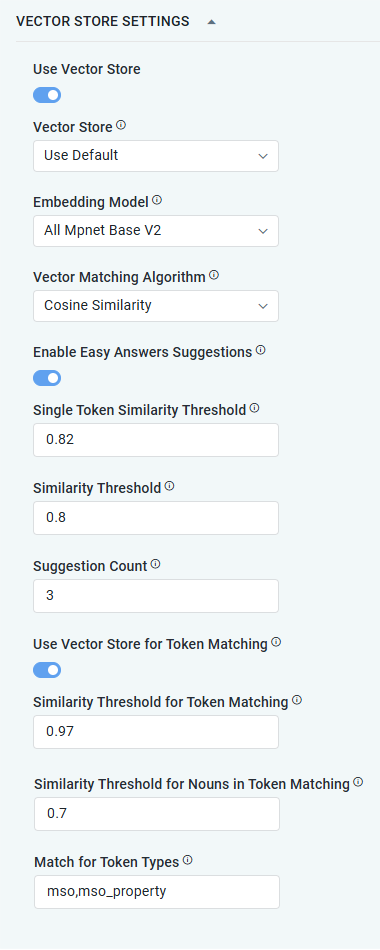
ON/OFF Toggle |
OFF |
If enabled, will enable the selected Vector Store to identify “Did you mean” alternative question suggestions in Easy Answers.
|
|
Dropdown |
Use Default |
Use the dropdown to select from the available Vector Store:
|
|
Dropdown |
All Mpnet Base V2 |
Embedding involves mapping high-dimensional vectors into a lower-dimensional space, facilitating machine learning tasks with large inputs, such as sparse vectors that represent words. Use the dropdown to select from available Embedding Model configurations. |
|
Dropdown |
Cosine Similarity |
Dropdown includes: Dot Product, L1 Distance, L2 Distance, Euclidean, Cosine Similarity. |
|
ON/OFF Toggle |
ON |
If enabled, the “Did you mean…?” functionality will be enabled in Easy Answers. If disabled, then the Easy Answers alternative question suggestions will not appear for user questions that are not fully understood. |
|
Number Field |
0.82 |
The Single Token Similarity Threshold value is used to suggest individual Words for the “Fix Unknown Words” functionality in Easy Answers. In that workflow, individual words will be suggested for words not understood by our Natural Language interpretation. The higher the threshold, the more accurate (but likely fewer) word suggestions will be shown. |
|
Number Field |
0.8 |
The Similarity Threshold value determines the results returned by Vector Store in response to the “Did you mean…?” functionality in Easy Answers. “Did you mean…?” is a way of resolving partially understood questions based on previously asked questions. The higher the threshold, the more accurate (but likely fewer) alternative question suggestions will be shown. |
|
Number Field |
3 |
The Suggestion Count determines the maximum number of suggestions shown in Easy Answers. |
|
ON/OFF Toggle |
OFF |
|
|
Number Field |
0.97 |
The Similarity Threshold for Token Matching value determines the results returned by Vector Store in response to the “Did you mean…?” functionality in Easy Answers. “Did you mean…?” is a way of resolving partially understood questions based on previously asked questions. The higher the threshold, the more accurate (but likely fewer) alternative question suggestions will be shown. |
|
Number Field |
0.7 |
The Similarity Threshold for Nouns value determines the results returned by Vector Store in response to the “Did you mean…?” functionality in Easy Answers. “Did you mean…?” is a way of resolving partially understood questions based on previously asked questions. The higher the threshold, the more accurate (but likely fewer) alternative question suggestions will be shown. |
|
Text Field |
mso, mso_property |
|
Contact App Orchid | Disclaimer