Solution Development
Breadcrumbs

Settings - LLM Modes

Intended audience: analysts developers administrators

AO Platform: 4.5


LLM Modes

This section includes the configuration settings for the LLM Modes, which determine how an Easy Answers Question will be interpreted and validated to form responses. There are three LLM Modes, including:

  • Controlled - enforces strict validation against the enterprise semantic layer, ensuring responses align precisely with defined data structures. Unknown or ambiguous words or phrases are shown to the user. Questions will fail if they cannot be validated, and the user will have to rephrase the question.

  • Balanced - provides guided flexibility, prompting clarification when needed while maintaining alignment to enterprise definitions. Users will be asked to clarify unknown or ambiguous words before a response can be generated.

  • Freeform - allows more exploratory reasoning, enabling the LLM to interpret the user questions with a greater degree of freedom. The LLM interpretation of questions will make assumptions where necessary to auto-resolve unknown or ambiguous words to produce a response; However, the user will also be able to provide additional clarifications where needed, which will further refine the results already provided.

The ability to view and select the LLM Modes at runtime in Easy Answers will be determined by Role Permissions. Without adequate permissions, the Default LLM Mode configured in the Ontology Composer > Settings > LLM Mode will be applied to the user’s questions.


Ambiguity Settings
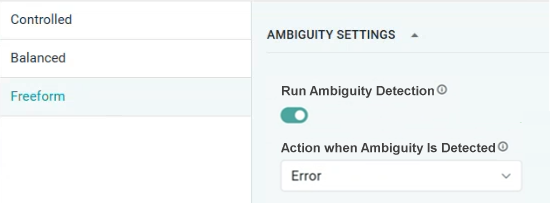
image-20260204-093248.png

Properties

Label

UI Widget

Defaults for Controlled Mode

Defaults for Balanced Mode

Defaults for Freeform Mode

Description

  • Run Ambiguity Detection

ON/OFF Toggle

ON

ON

ON

If enabled, ambiguity detection will take place during question interpretation using the current ontology schema.
If disabled, no ambiguity detection will be done, so questions are likely to fail if the generated Semantic SQL cannot be validated by the ontology.

  • Action when Ambiguity Is Detected

Dropdown

Error

Clarify

Continue

When ambiguity detection is enabled, select the desired action from the dropdown. Dropdown includes: Error, Clarify, Continue.

  • Error - Any ambiguities detected will result in the user's question being rejected, as the LLM interpretation cannot be validated successfully against the ontology schema. This is the default for Controlled mode.

  • Clarify - Any ambiguities detected will result in prompting the user for clarification of the question to resolve the ambiguity/ies. This is the default for Balanced mode.

  • Continue - Any ambiguities detected will result in the LLM attempting to respond to the user's question by making assumptions. This may lead to results that include more data than expected, eg. not filtered due to unknown word(s), or because the question can be interpreted in multiple ways, eg. question contains ambiguities and data is retrieved for all options. A message will be provided for the results describing any assumptions made. This is the default for Freeform mode.


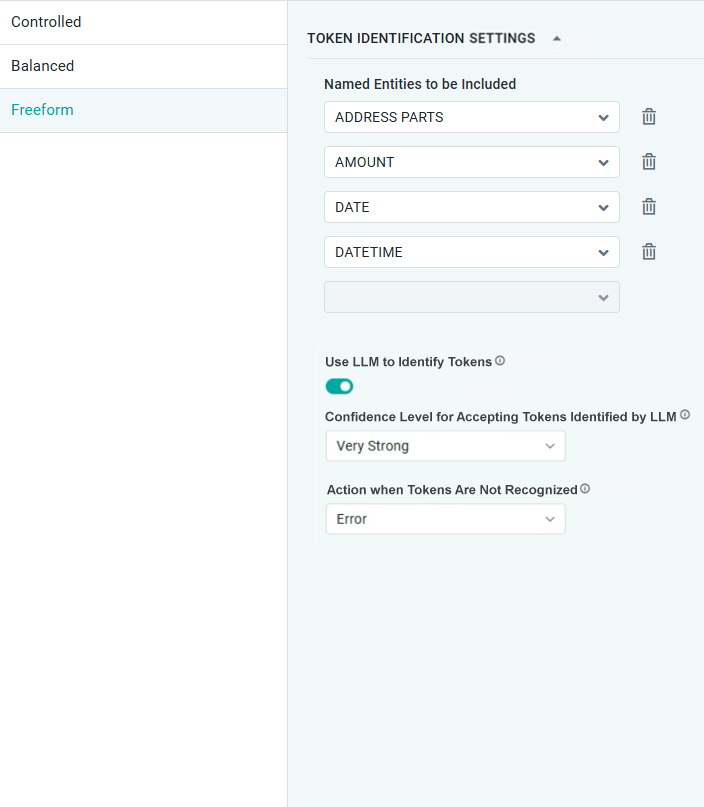
Token Identification Settings

image-20260204-093214.png

Properties

Label

UI Widget

Defaults for Controlled Mode

Defaults for Balanced Mode

Defaults for Freeform Mode

Description

  • Named Entities to Be Identified

Dropdown


Select one or more Named Entities from the dropdown. These entities will be used to match question tokens to mitigate unknown tokens when interpreting questions.

Here’s a list of some/all Named Entities available in the dropdown with their tooltips:

  • ADDRESS - Complete address including house number, street, city, state, postal code, and country.

    Examples: “1 Main Street, Trenton, NJ 08601” or “123, 5th Main Road, Jayanagar, Bengaluru 560041, KA, India”.

  • ADDRESS PARTS - Identifies part of an address.

    Examples: “Dallas” will be identified as a city, “California” as a state, or “Canada” as a country.

  • AMOUNT - Monetary values, including currencies and units.

    Examples: "$100", "$50 million", "€1M", "twenty cents", "500 Euro".

  • AREA - Any text that represents areas.

    Examples: “2 acres”, “20k sq meters”.

  • DATE - Absolute or relative dates, or periods.

    Examples: "5th May 2025", "January 1, 2024", "yesterday", "next Tuesday", "2006", "01/01/2025"

  • DATETIME – Any text that shows both date and time.

    Examples: “March 15, 2026, at 3 p.m”, “20th of May, at 7 o’clock”, “7/7/2025 3:00”.

  • DISTANCE - Any text that represents distance.

    Examples: “5 miles”, “30 KM”, ”8.3 μm”, “ 5.3’ ”.

  • ORGANIZATION - Companies, agencies, institutions, and other organized groups.

    Examples: "Google", "United Nations", "World Health Organization", "Microsoft", "Harvard University".

  • PERSON - Names of people, including fictional characters, titles, and honorifics.

    Examples: "Elon Musk", "Barack Obama", "Dr. Jane Doe", "Nelson Mandela", "Harry Potter".

  • TIME - Specific times smaller than a day.

    Examples: "5 PM", "3:00 PM", "15:00".

  • Use LLM to Identify Tokens

ON/OFF Toggle

ON

ON

ON

If enabled, the LLM will be using the LLM Descriptions of the MSOs and Properties to identify the tokens in addition to the identified Named Entities.

  • Confidence Level for Accepting Tokens Identified by LLM

Number Field

Very Strong

Strong

Moderate

If the Use LLM to Identify Tokens property is enabled, a Confidence Level will be used to accept tokens.

Dropdown includes: Very Strong, Strong, Moderate, and None.

  • Very Strong - The token's role in the NLQ intent and its local context strongly align with the TABLE/COLUMN/VALUE semantics described in the schema. This is the default for Controlled mode.

  • Strong - The token's role in the NLQ intent aligns well with the TABLE/COLUMN/VALUE semantics, with minor contextual indirectness. This is the default for Balanced mode.

  • Moderate - The token's role in the NLQ intent shows a weaker but reasonable semantic alignment, relying more on surrounding context. This is the default for Freeform mode.

  • None - Use this confidence level to accept all tokens irrespective of confidence score.

  • Action when Tokens Are Not Recognized

Dropdown

Error

Clarify

Continue

Select the desired action from the dropdown when neither the Named Entities nor the LLM tokens have been recognized.

Dropdown includes: Error, Clarify, and Continue.

  • Error - Any unknown words detected will result in the user's question being rejected, as the LLM interpretation cannot be validated successfully against the ontology schema. This is the default for Controlled mode.

  • Clarify - Any unknown words detected will result in prompting the user for clarification of the question to resolve the unknown word(s). This is the default for Balanced mode.

  • Continue - Any unknown words detected will result in prompting the user for clarification of the question to resolve the unknown word(s); However, even if a clarification is not provided, results will still be shown, often by ignoring unknown word(s). This is the default for Freeform mode.


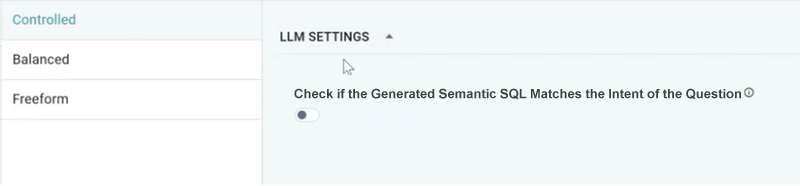
LLM Settings

image-20260204-093053.png

Properties

Label

UI Widget

Defaults for Controlled Mode

Defaults for Balanced Mode

Defaults for Freeform Mode

Description

  • Check if the Generated Semantic SQL Matches the Intent of the Question

ON/OFF Toggle

OFF

OFF

OFF

If enabled, a separate call to the LLM is made to request an assessment of the generated semantic SQL against the original user's intent.


Contact App Orchid | Disclaimer