
Intended audience: end-users analysts developers
AO Platform: 4.5
Overview
The ER Diagram Viewer provides an overview of the Ontology in diagram format. It shows every MSO in the Ontology, the MSO Properties, and all Relationships that have been created between the MSOs. This is a great tool to understand how MSOs are connected in the Ontology.
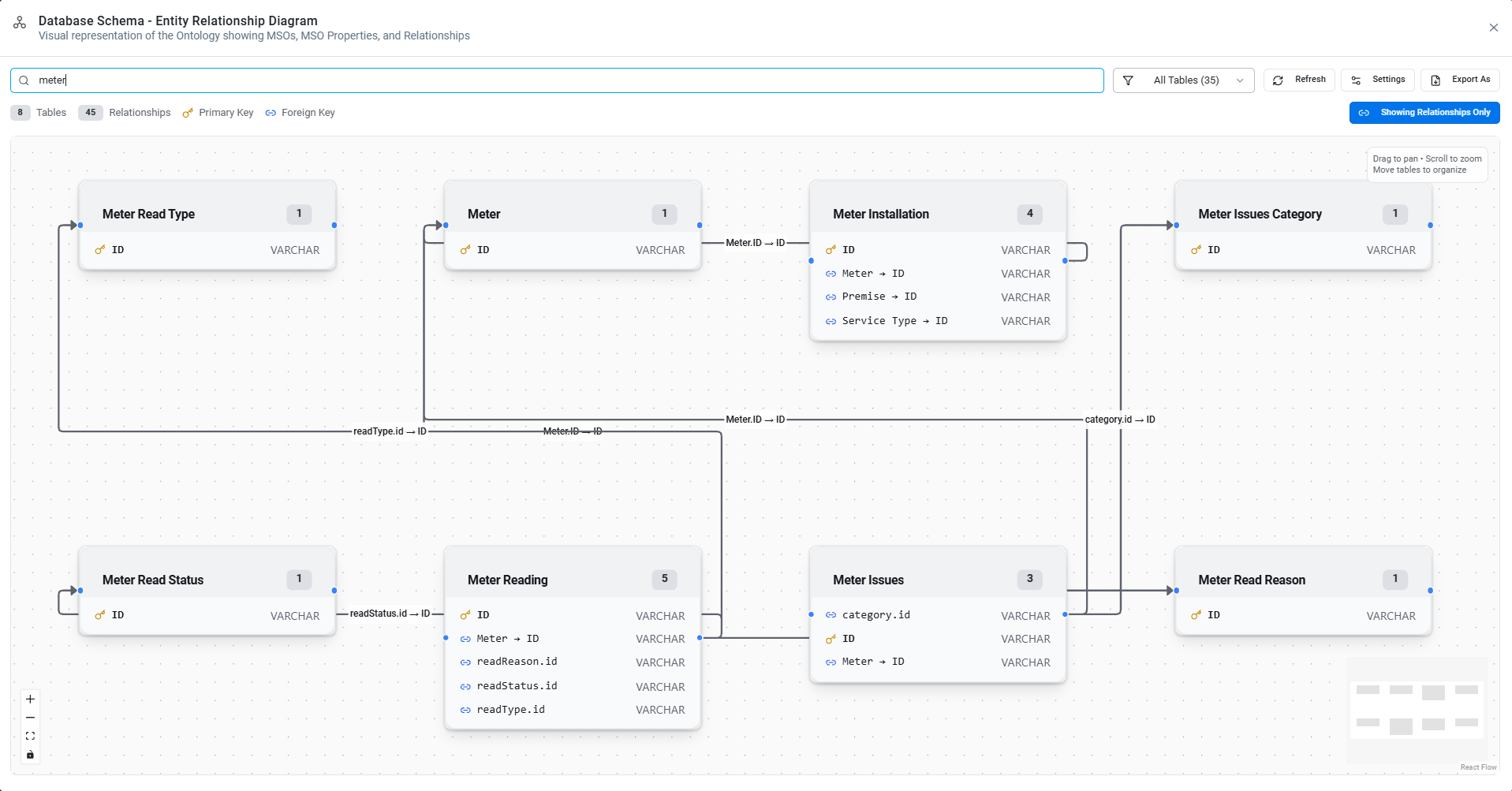
Information in Header
-
MSOs - shows a number indicating the number of MSOs (tables) on Canvas.
-
Relationships - shows a number indicating the number of Relationships available between MSOs.
-
Primary Key -

-
Foreign Key -
-
Zoom In / Out - icons - click to perform the zoom in/out functionality.
-
Fit View - icon - click to perform the fit view (reset Canvas to show the most MSOs on Canvas) functionality.
-
Lock - icon - click to lock/unlock the Canvas. Locking the Canvas prevents unintentional changes to the Canvas.
-
Navigator Thumbnail - toggle - default is enabled. If enabled, a thumbnail shows on Canvas that allows a frame to be moved around in the ER Diagram.
Action in Header
-
Search - input text field - across all MSOs and Properties, or within a specific MSO, search for Properties only.
-
Filter - dropdown - all MSOs or a subset of MSOs.
-
Refresh - button w/icon - refreshes the Canvas.
-
Settings - button w/icon.
-
Auto-Layout - ON/OFF Toggle - if enabled, the Canvas opens in the best possible layout.
-
-
Export As (Download) - button w/icon - opens dropdown with options to Download to SVG, PDF, PNG, or JSON file.
-
Show Only Relationships - toggle button - when clicked, each MSO only shows Key/Foreign Keys Properties and Relationship connections.
Actions on Canvas
-
Pan and Zoom - navigation with mouse controls in the Canvas.
-
Move MSOs - to avoid overlap, and provide better clarity.
-
Thumbnail - if zoomed in, move the frame around to view other areas of Canvas.
-
Hover on Relationships (lines) - shows animation on the Relationship being hovered, and opens a popup showing the Source MSO and Source Column, and the Target MSO with Target Column.
Contact App Orchid | Disclaimer