
Intended audience: end-users developers
AO Platform: 4.5
Generalized Correlation
The Model tab generally includes one or more of the following sections:
-
Data Fields - these are the data field configuration properties mandatory for the model to execute.
-
Model Specific Configurations - configuration properties in this section will vary depending on the selected model. If the model does not require additional configuration, the section(s) will not be shown.
Configuration
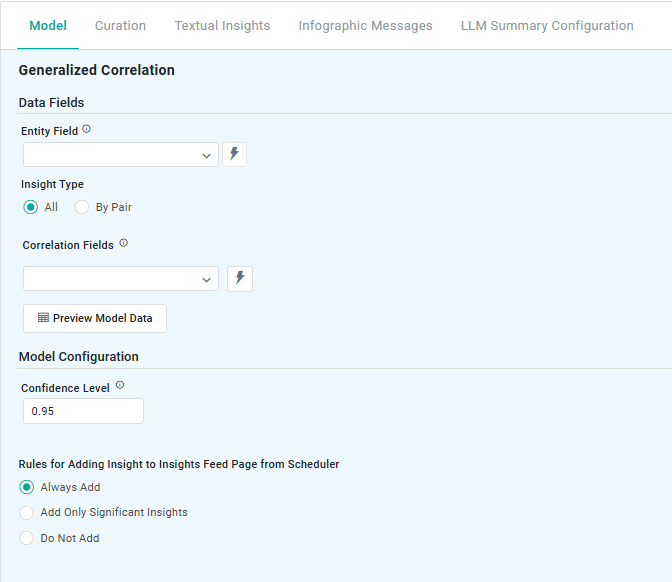
Properties
|
Label |
UI |
Default |
Description |
|---|---|---|---|
|
Data Fields |
|
|
|
|
Dropdown w/Expression |
|
Represents non-numeric groupings (eg, product type, customer segment) used to compare differences across multiple samples. |
|
Radio-buttons |
All |
Option to select All, or By Pair:
|
|
Dropdown w/Expression |
|
Correlation fields represent numerical data used to measure relationships between variables. At least two numerical fields are required to calculate correlation, helping businesses understand patterns (eg, sales vs. advertising spend). Correlation fields properties support continuous, nominal and ordinal categorical values, and binary values. |
|
Button |
|
Opens a dialog to view the data that will be used by the model. See Model > Model tab | Preview Model Data Dialog. |
|
Model Configuration |
|
|
|
|
Number field |
0.95 |
Represents the range in which the true prediction is expected to fall, based on a chosen confidence level. For example, a 0.95 value means there’s a 95% chance the actual value lies within that range. Users can adjust the Confidence Score in the range from 0.9 to 0.99, with higher levels widening the interval to reflect greater certainty. |
|
Rules for Adding to Insights Feed Page from Scheduler |
Radio-buttons |
|
This section allows the user to select if the Quick Insight will be added to the Insights Feed page when generated from a Scheduled Task. See Model > Model tab | Rules for Adding Insights Feed Page from Scheduler. |
Contact App Orchid | Disclaimer