
Intended audience: Developers Administrators
AO Platform: 4.5
Overview
This option allows the user to open dialogs to view performance and statistics insights from asking questions in Easy Answers solutions using the selected Ontology. There are two separate submenus:
-
Easy Answers
-
Agent
Easy Answers
-
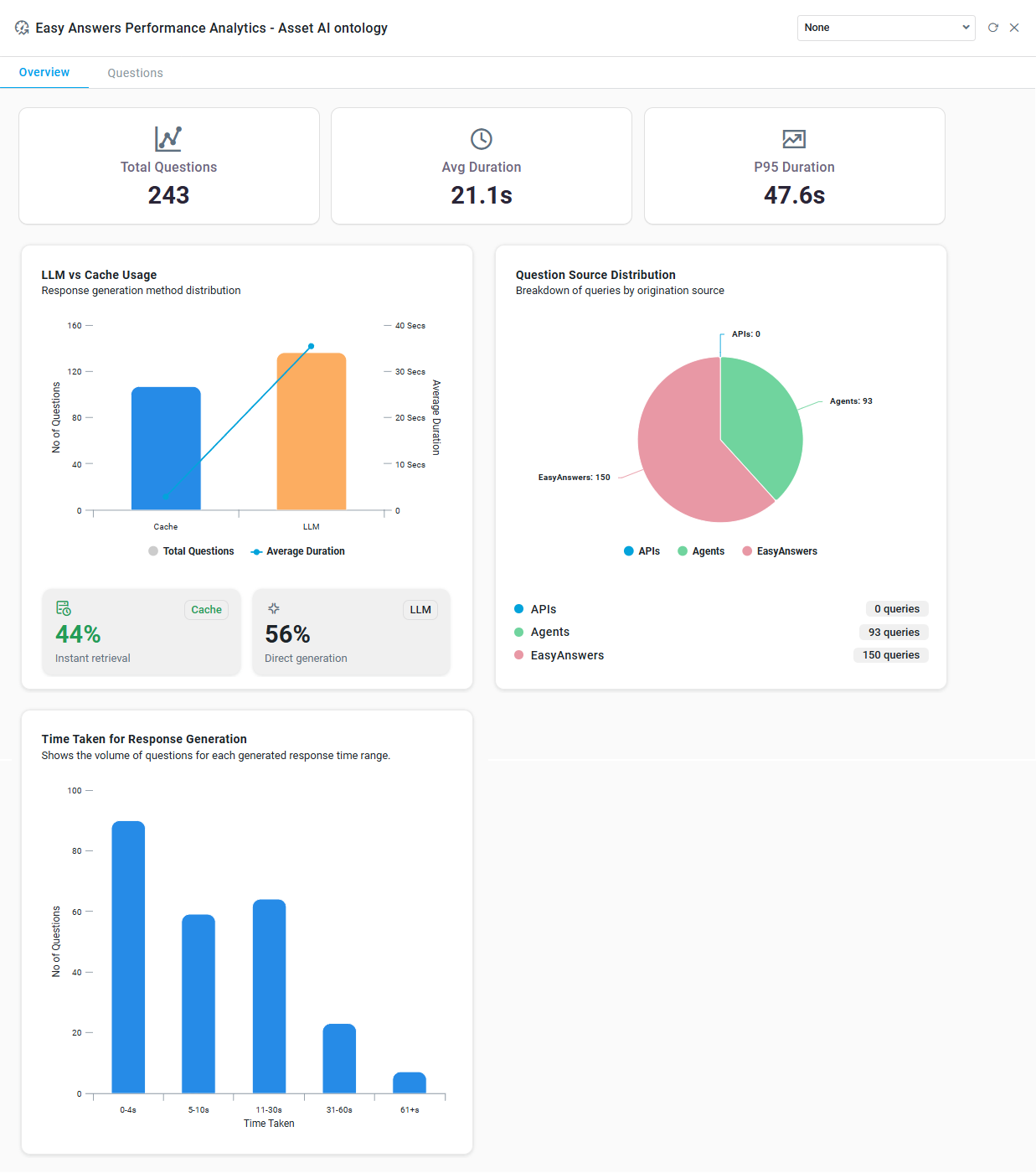
This option displays performance and statistics for Easy Answers questions, including Recent Questions and Slowest Questions, across various question sources (Easy Answers, Agent, API).
-
Two tabs are available:
-
Overview - this tab provides statistical information, including Total Questions, Avg Duration (execution time), and P95 Duration (95% probability for execution time). Additionally, the following charts are shown:
-
LLM vs Cache Usage - Bar/Line Chart - showing the source of the response: Cache or LLM, and the average duration to generate responses.
-
Question Source Distribution - Pie Chart - showing a breakdown of questions from each of the three sources: Easy Answers, Agents, and APIs.
-
Time Taken for Response Generation - Bar Chart - showing the volume of questions for each generated response time range.
-
-
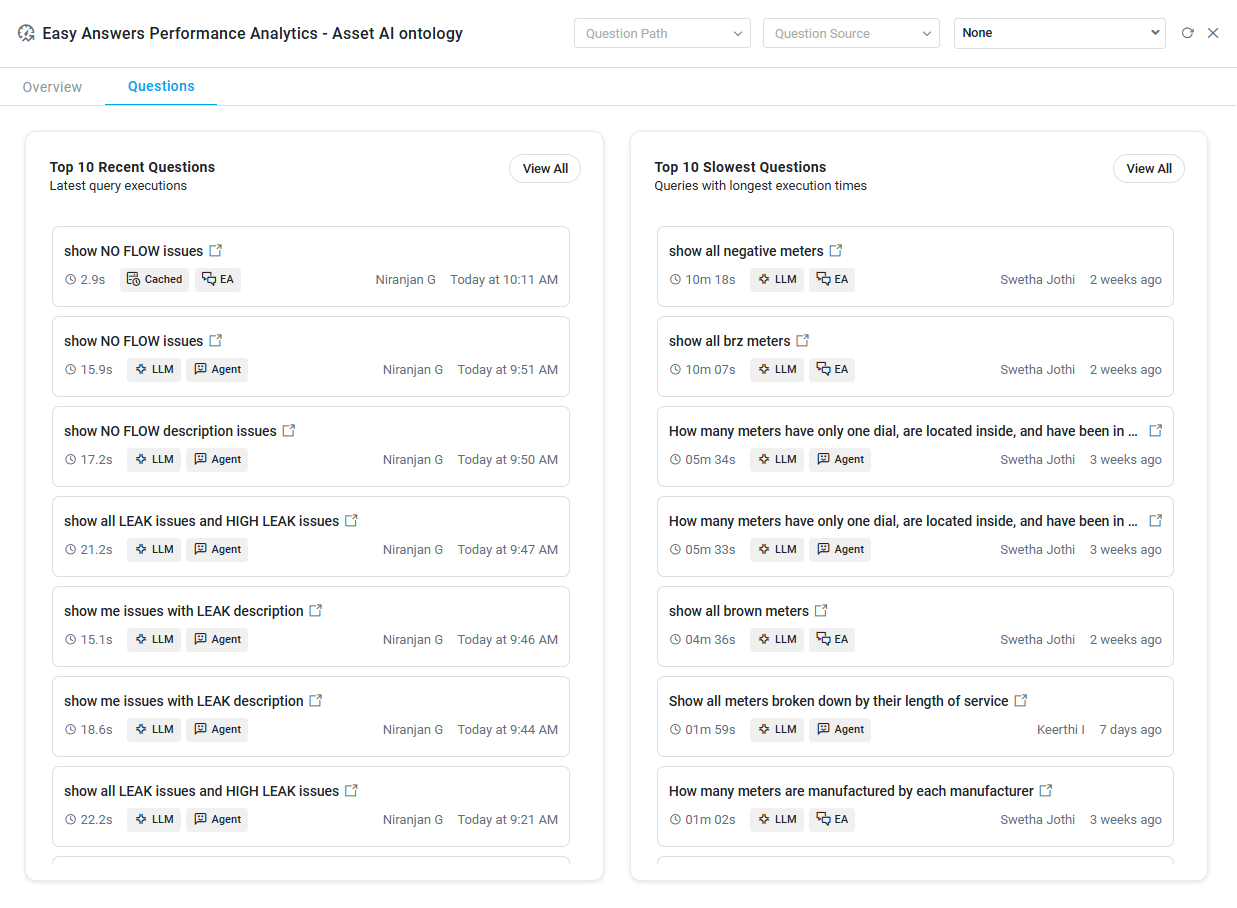
Questions - this tab provides insight into the Top 10 Recent and Slowest Questions, as well as identifying where questions are executed from (LLM/Cache) and the source of the questions (Easy Answers/Agent/API)
-
General Actions - in Header
-
Question Path - filter - select a question path, including Cached or LLM - only available when on the Questions tab.
-
Question Source - filter - select a Question Source, including Easy Answers, Agents, or APIs - only available when on the Questions tab.
-
Time Range - filter - select a time period from the dropdown to filter the data in the Apps displayed in the Performance Analytics dialog.
-
Refresh - click to refresh the Performance Analytics dialog.
-
Close - X icon.
Actions on the Questions tab
-
View All - click on the View All button to open a dialog showing all Questions (Recent or Slowest Questions). See the section for View All at the end of this topic.
-
Execute Question in Easy Answers - click on the

|
Overview tab |
Questions tab |
|---|---|
|
|
Agent
-
This option shows performance and statistics for Agent Tools, ie, which Tools were used by the Agent to interpret and answer questions.
-
Two tabs are available:
-
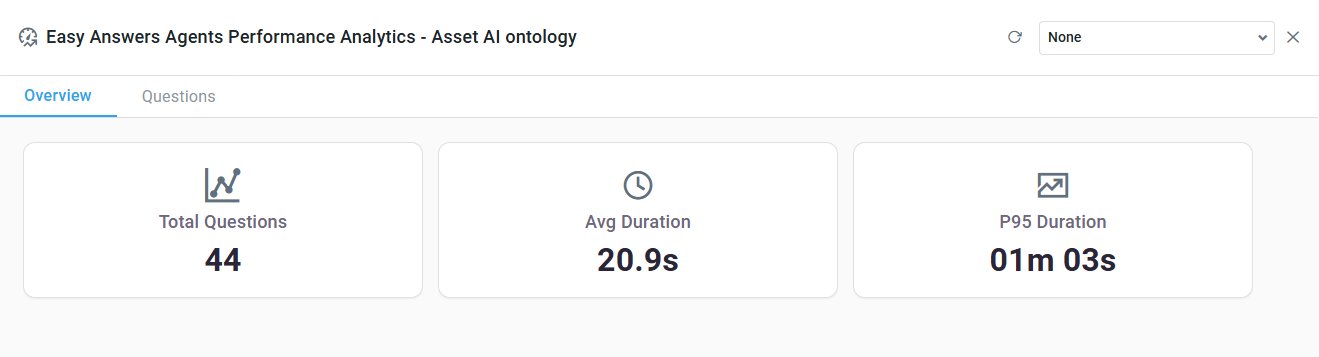
Overview - this tab provides statistical information, including Total Questions, Avg Duration (execution time), and P95 Duration (95% probability for execution time).
-
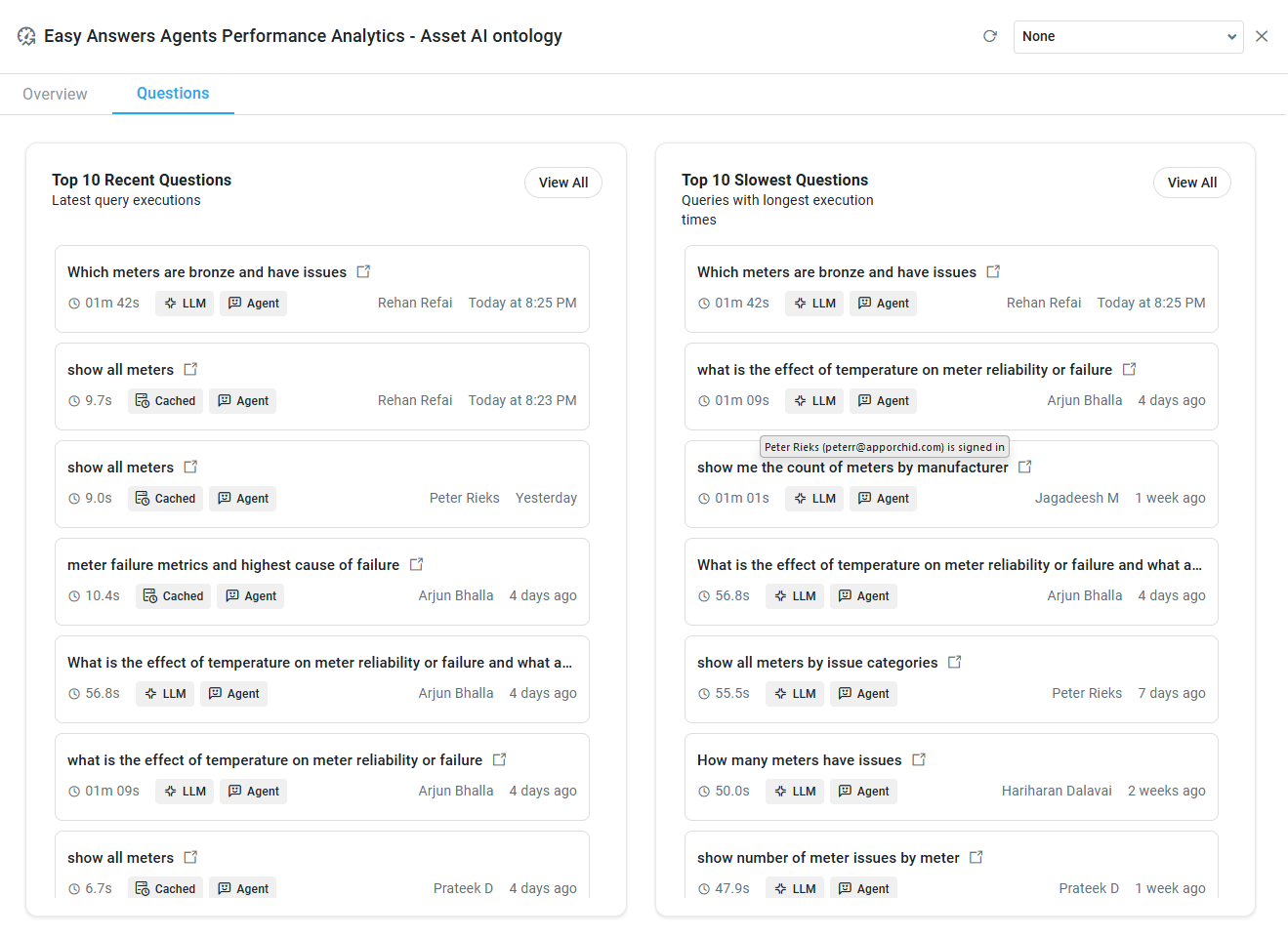
Questions - this tab provides insight into Recent and Slowest Questions, as well as identifying where questions are executed from (LLM/Cache) and the source of the questions (Easy Answers/Agent/API)
-
General Actions - in Header
-
Question Path - filter - select a question path, including Cached or LLM - only available when on the Questions tab.
-
Question Source - filter - select a Question Source, including Easy Answers, Agents, or APIs - only available when on the Questions tab.
-
Time Range - filter - select a time period from the dropdown to filter the data in the Apps displayed in the Performance Analytics dialog.
-
Refresh - click to refresh the Performance Analytics dialog.
-
Close - X icon.
Actions on the Questions tab
-
View All - click on the View All button to open a dialog showing all Questions (Recent or Slowest Questions). See the section for View All at the end of this topic.
-
Execute Question in Easy Answers - click on the
|
Overview tab |
Questions tab |
|---|---|
|
|
View All
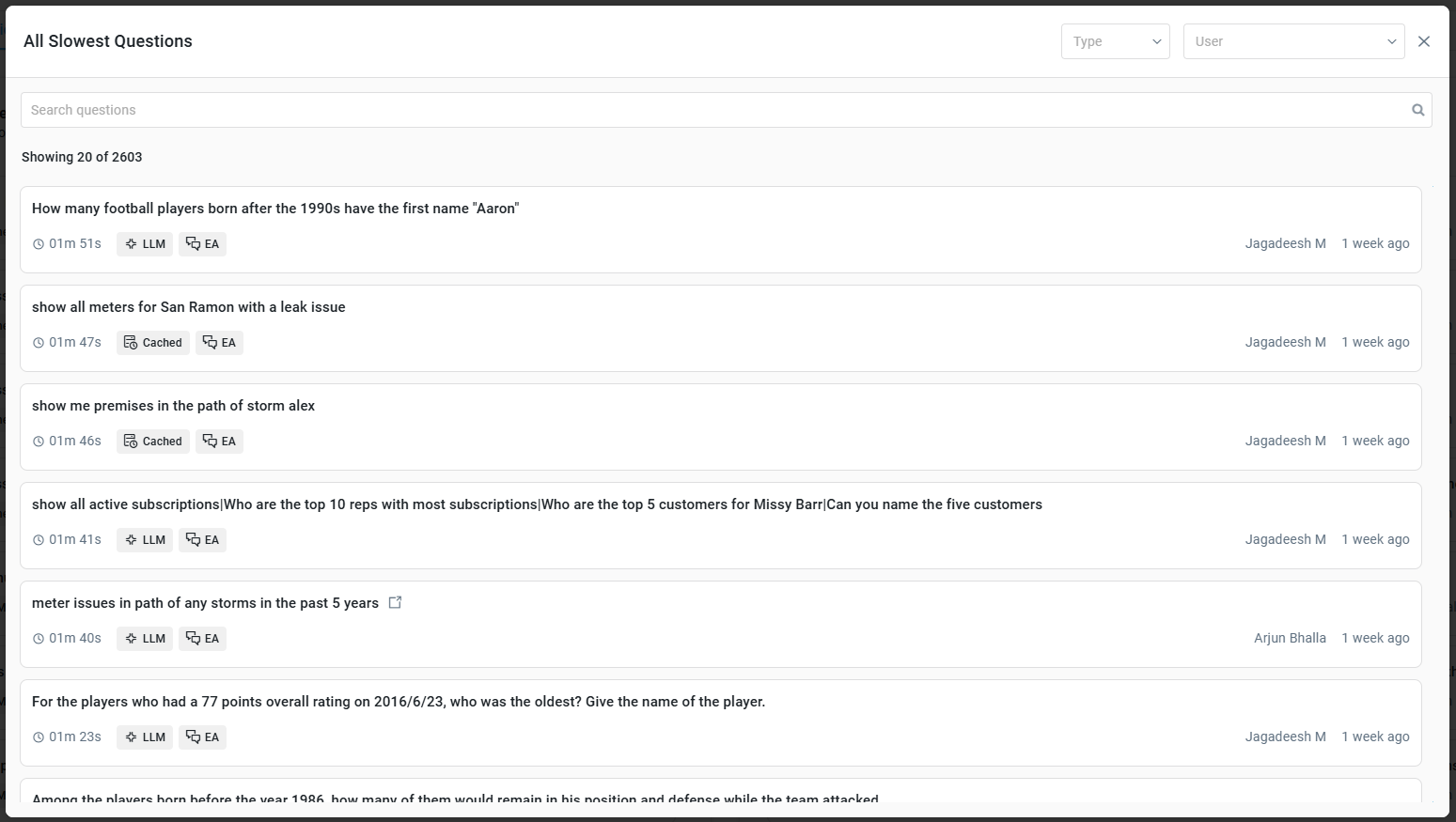
When the View All button on the Questions tab is clicked, the following dialog is displayed.
Actions - in Header
-
Type - dropdown - select between Cache or LLM.
-
User - dropdown - select questions from a specific user.
Contact App Orchid | Disclaimer