
Intended audience: developers administrators
AO Platform: 4.3
Overview
An important aspect of the Role configuration within the Security > Access Control category in the Admin solution is to assign permissions to the individual Roles. This page describes the concept behind assigning permission for the different components in the AO Platform.
Access Control > Roles
Assigning permissions starts within the Access Control > Roles page. The Roles page includes a list of Roles available on the AO Platform. Roles fulfill a vital function in the AO Platform, as all Permissions are associated with the Role configuration. The Administrators is a system Role and therefore read-only. Other Roles can be created as required. Roles are typically functional/hierarchical in nature, such as Users, Analysts, Developers, Managers, Executives, Field Service Staff, Operations Staff, etc…
Assigning Permissions
Use the Action menu to Assign Permissions to a specific Role. The Assign Permissions for Role [selected role] opens. On a new system, the general rule is that only users assigned to the Admin Role have access to all solutions and to all functionality by default. Therefore, the initial step is to assign permissions to other Roles to be able to access the available solutions. Once permissions have been granted to access one or more solutions, other permission areas typically work by setting restrictive permissions.
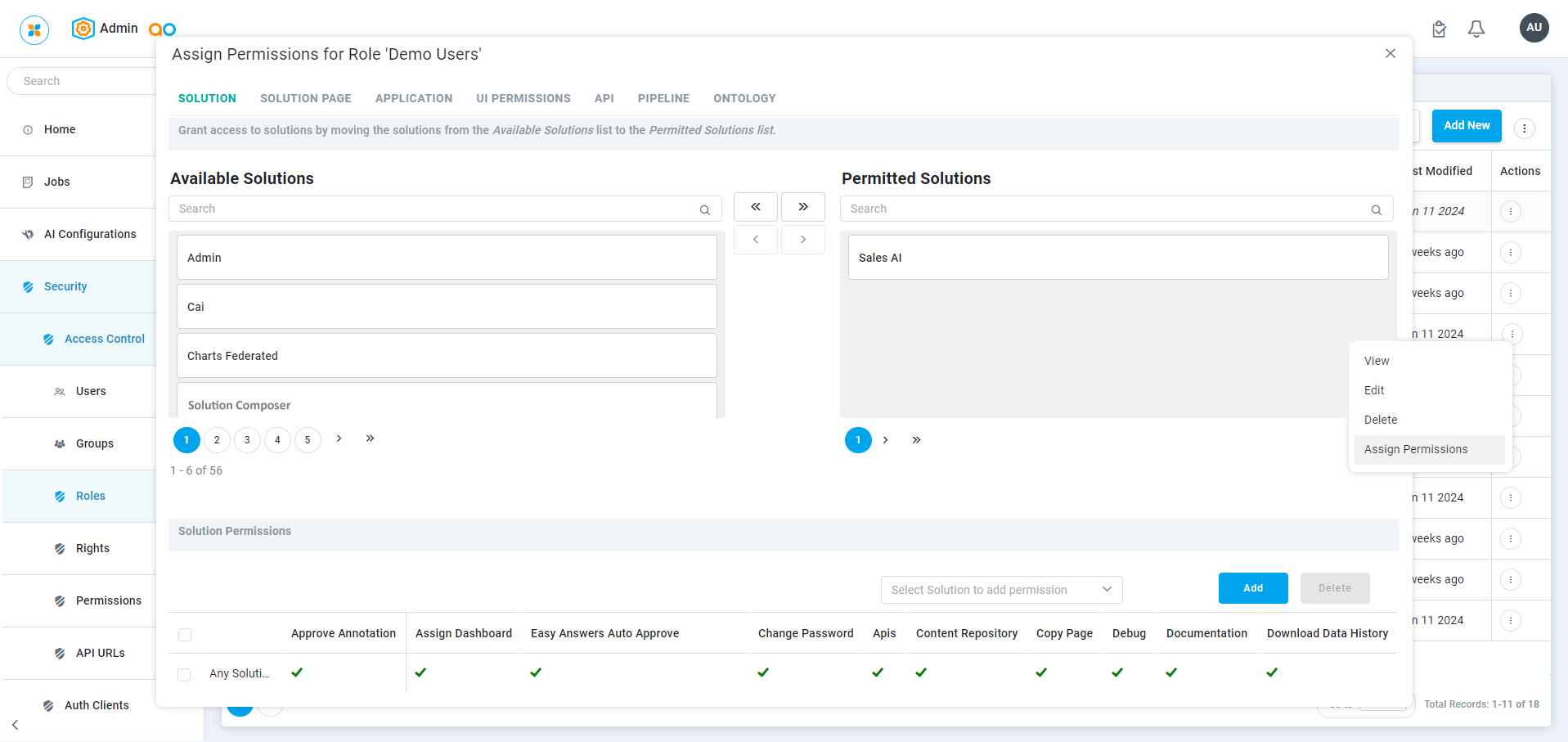
The following sections are available:
-
SOLUTION - on this tab, identify which Solutions shall be available to the selected Role by moving the Solution from the left to the right area in the top part of the dialog. Once this is done, specific Rights for the permitted Solutions can be enabled/disabled in the bottom part of the dialog
-
SOLUTION PAGE - having selected which Solutions to be permitted for the selected Role, on this tab, identify which Pages within a given Solution shall not be allowed access (ie, restricted). By default, all Pages in a Solution have permitted access. Once this is done, specific Rights for the permitted Pages can be enabled/disabled in the bottom part of the dialog
-
APPLICATION - for permitted Solution Pages, on this tab, identify which Applications within a given Solution > Solution Page shall not be allowed access (ie, restricted). By default, all Applications on a Solution Page have permitted access. Once this is done, specific Rights for the permitted Applications can be enabled/disabled in the bottom part of the dialog
-
UI PERMISSIONS - on this tab, specific Rights can be enabled/disabled for the UI components available in the permitted components
-
API - on this tab, identify which APIs shall not be allowed access (ie, restricted). By default, all APIs have permitted access. It’s generally recommended to restrict all API access for all Roles and only grant permissions to a dedicated “API Role” in order to prevent unauthorized access to the AO Platform from 3rd party applications/systems.
-
PIPELINE - on this tab, select which Pipelines shall be allowed access within a given Domain. Pipelines that are associated with a permitted Application within a Solution and/or Pipelines specifically added as System Pipelines (see Access Control > System Pipelines) have permitted access granted by default. However, Pipelines can also be used independently for instance via API or when associated with a Scheduler Task/Job. In those cases, the required Pipelines must be given specific access for the Roles using the Pipelines.
-
ONTOLOGY - on this tab, select the Rights (Allow, Deny) to be granted/revoked for all the MSOs of the Ontology. A list of the MSOs associated with the Ontology is also shown.
Please make sure to select and Allow MSOs associated wit the AO Common Ontology for any Easy Answers solution enabled. If the AO Common Ontology is not selected and enabled, some Easy Answers functionality will fail with a “User doesn’t have access to Ontology” error message.
For each of the above areas, once a configuration has been done, remember to click the Save button before moving to another tab.
Contact App Orchid | Disclaimer