
Intended audience: users
AO Easy Answers: 4.4
Overview
The AO Easy Answers solution is by default represented by the icon below in the Solution menu. However, when creating an Easy Answers solution, the solution developer can configure any icon.

The Easy Answers solution is visually and operationally simple, but very powerful. Although configurable, a typical Easy Answers solution will include the following pages:
|
Pages and Short Descriptions |
Screenshots |
|---|---|

Easy Answers - Home Page - this page is typically the default page for the Easy Answers solution, helping both new and experienced users easily view Topics, Questions, Insights, Dashboards, Data Summaries, and other Resources. Additionally, users with customization permissions can make both appearance and section changes to their Home Page. |
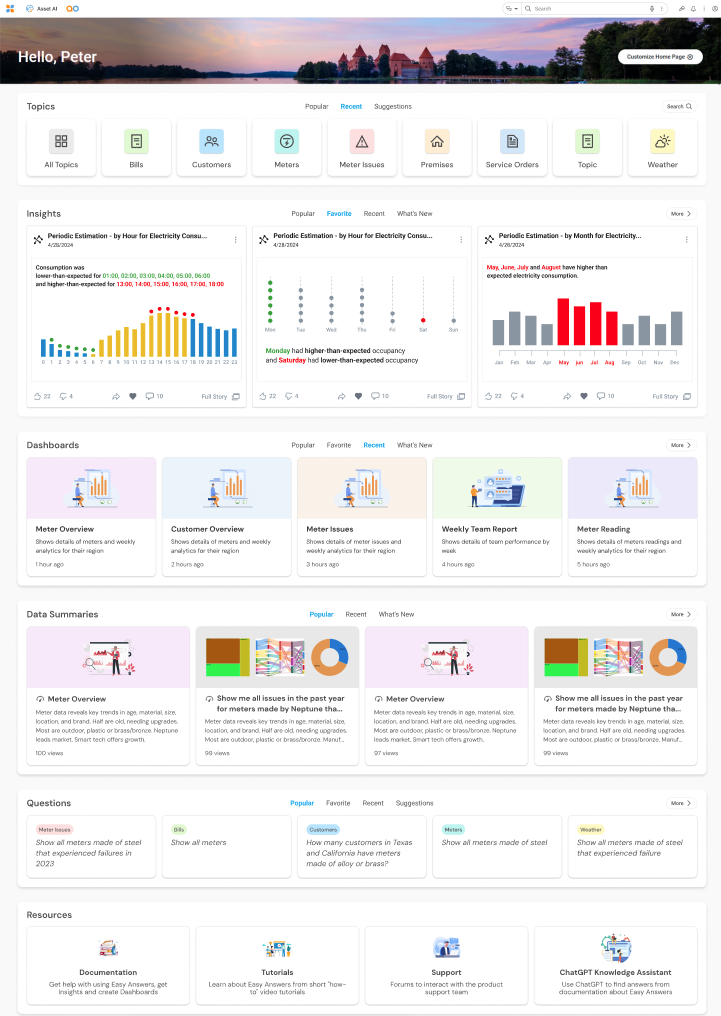
|

Easy Answers - Results Page - this page allows the user to ask Questions and have a “Conversation” with the Easy Answers Agent to retrieve data available in the Ontology used by the Easy Answers solution. There are three options in the dropdown from the Easy Answers field:
|
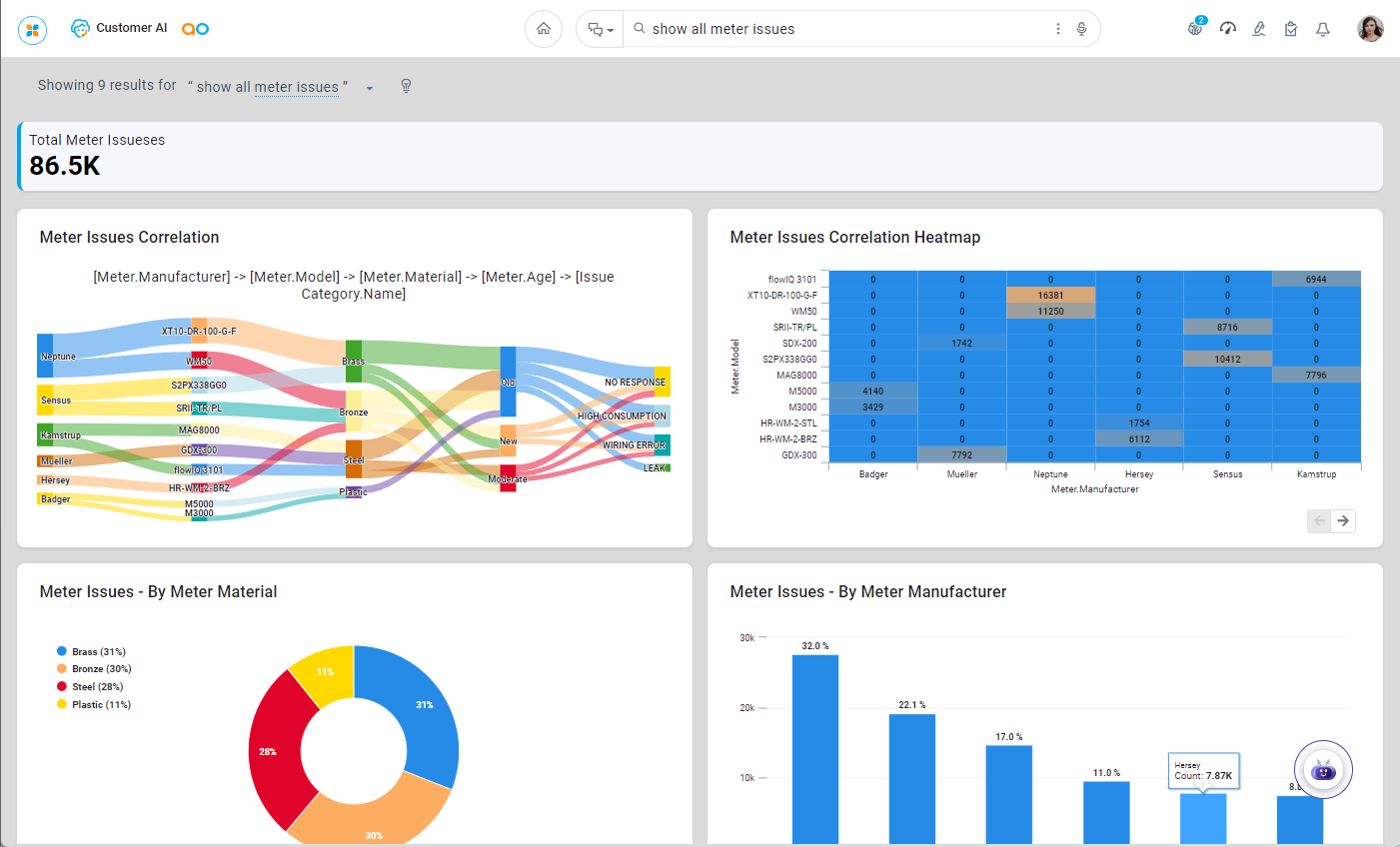
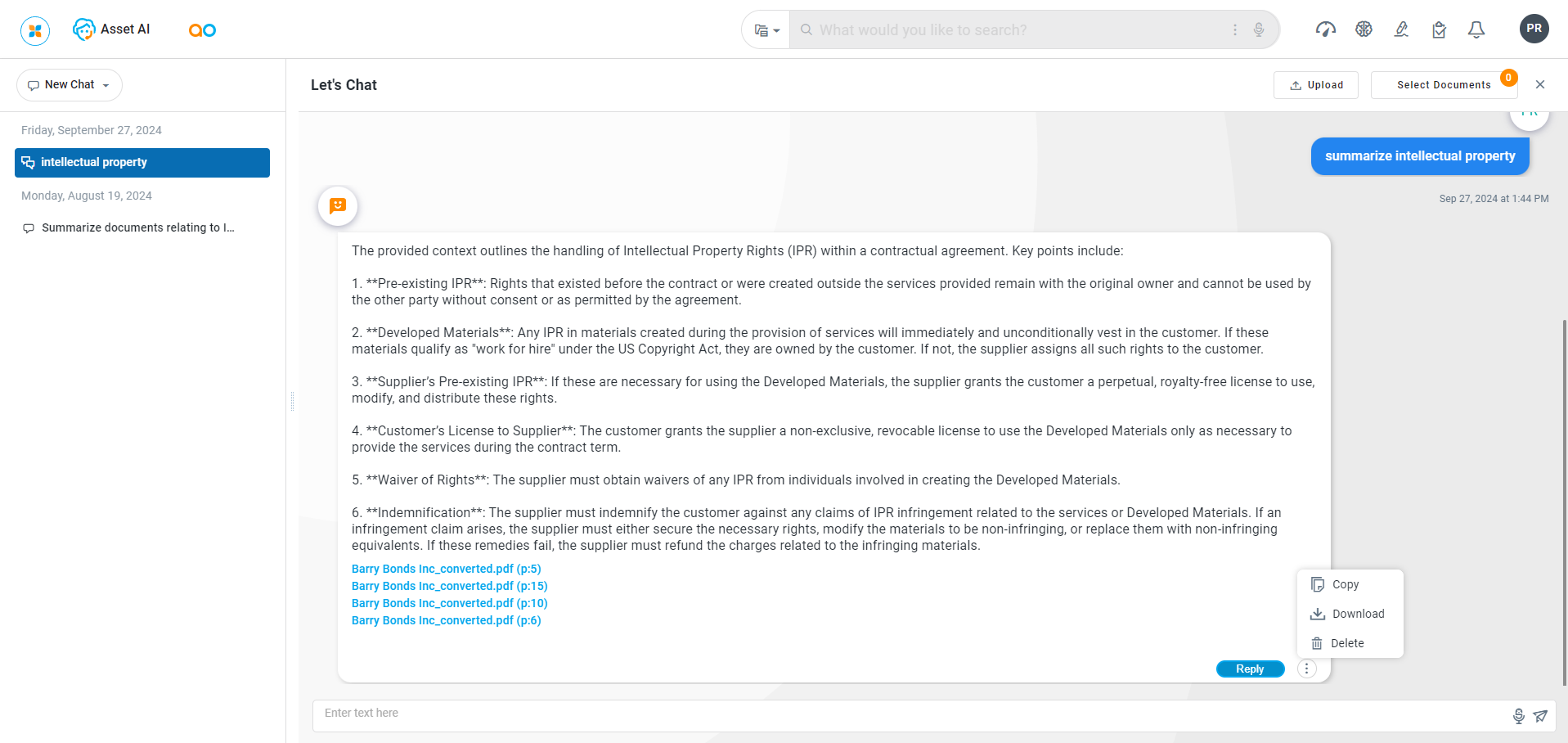
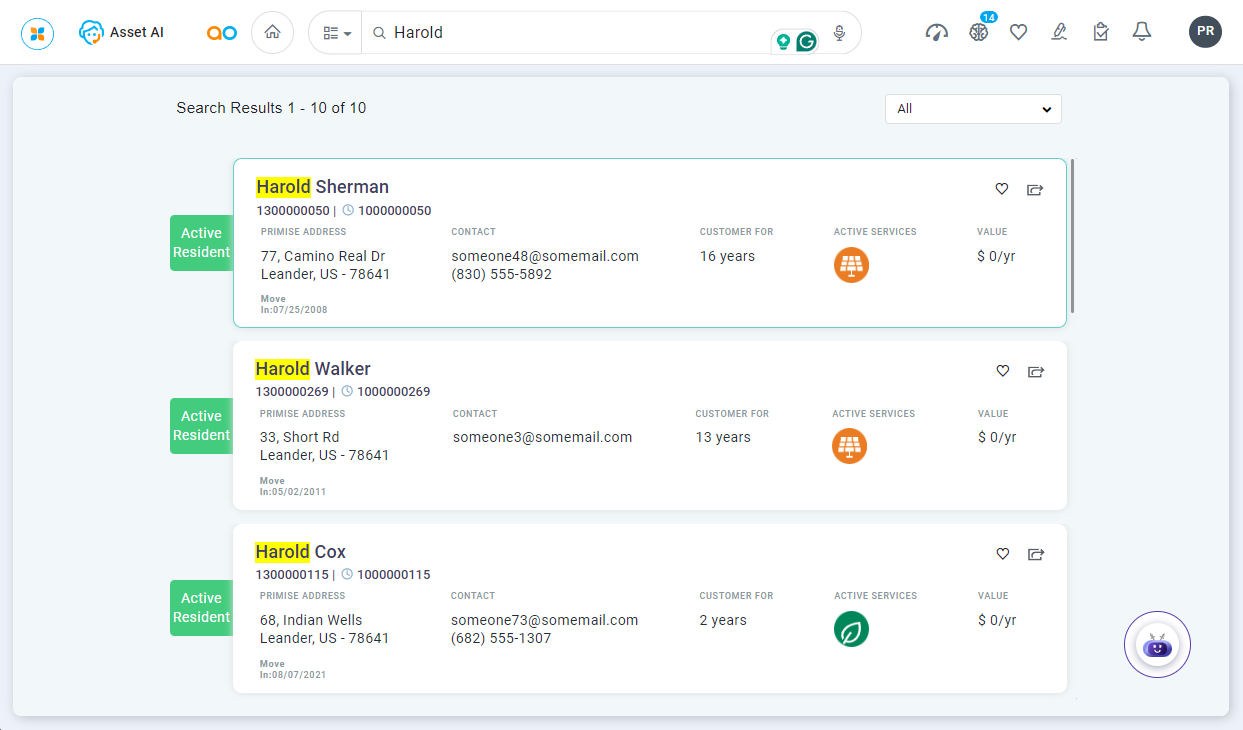
|

Easy Answers - Dashboards Page - this page contains one or more named Dashboards, either private to the current user or public for all users with access to the solution. Any Dashboard can be selected as a Default Dashboard. |
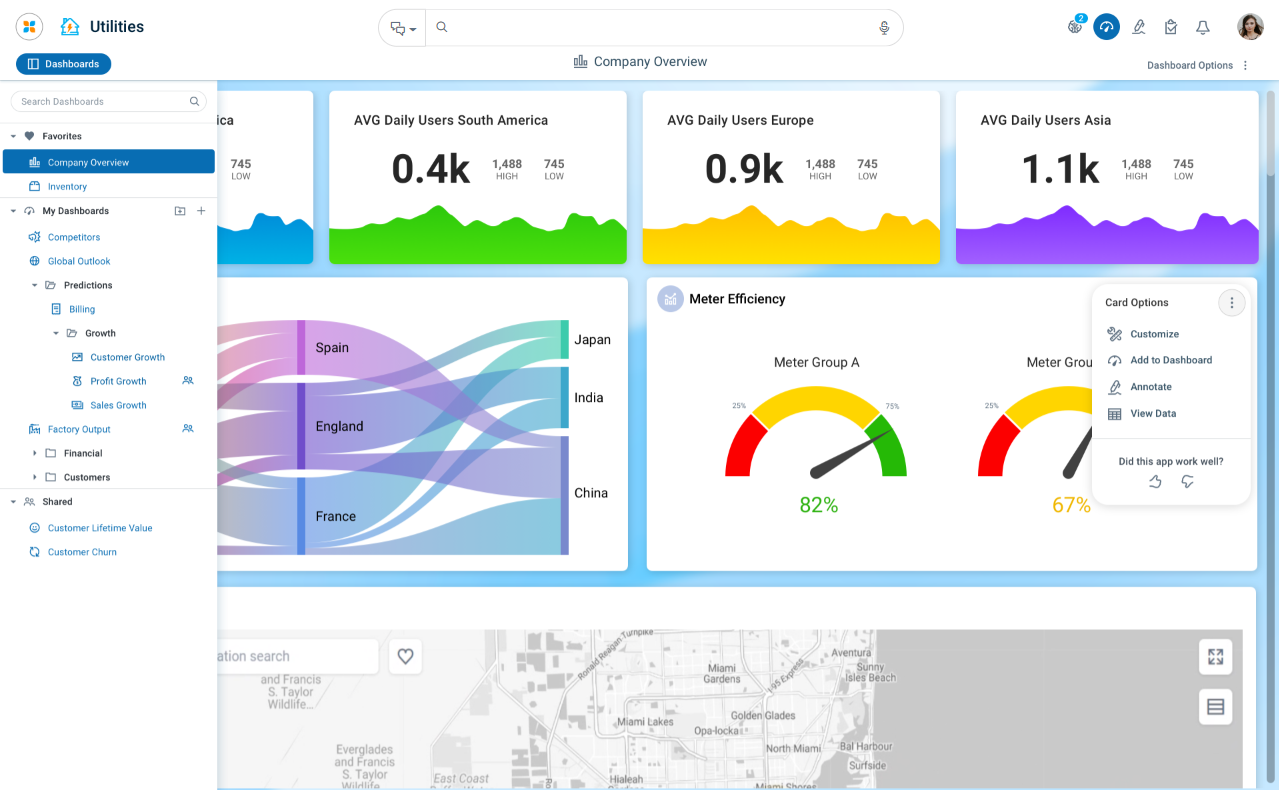
|

Easy Answers - Insights Page - this page contains different Insights in chronological order. There are currently two possible types of Insights on this page:
|
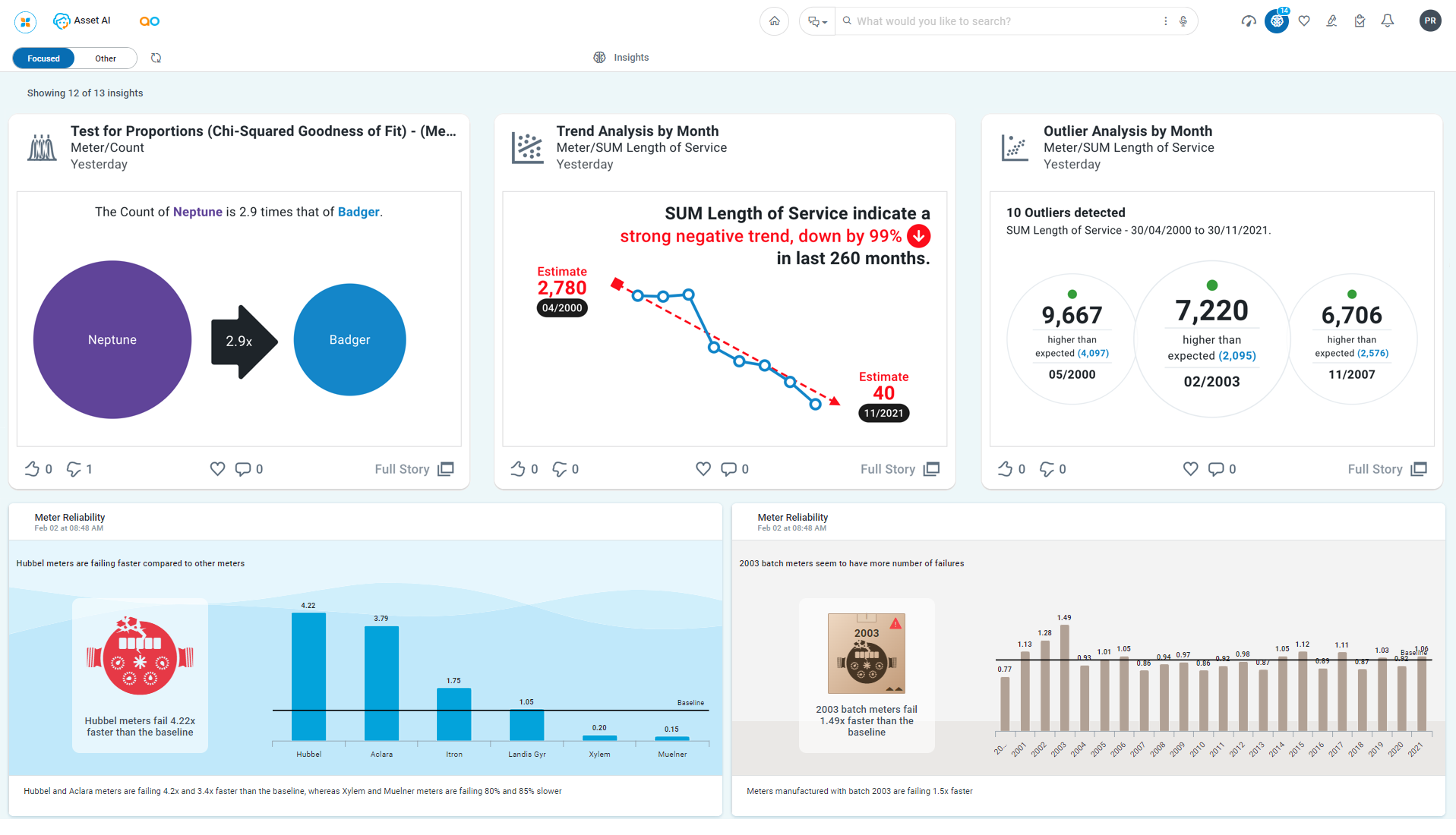
|


Understanding Easy Answers
Using Easy Answers via the pages described above will be intuitive to most new and experienced users. However, to fully benefit from the depth and breadth of Easy Answers, make sure to consult the Reference Topics for lots of additional insights and examples.
Contact App Orchid | Disclaimer