
Intended audience: end-users analysts developers administrators
AO Platform: 4.4
Materialized Views
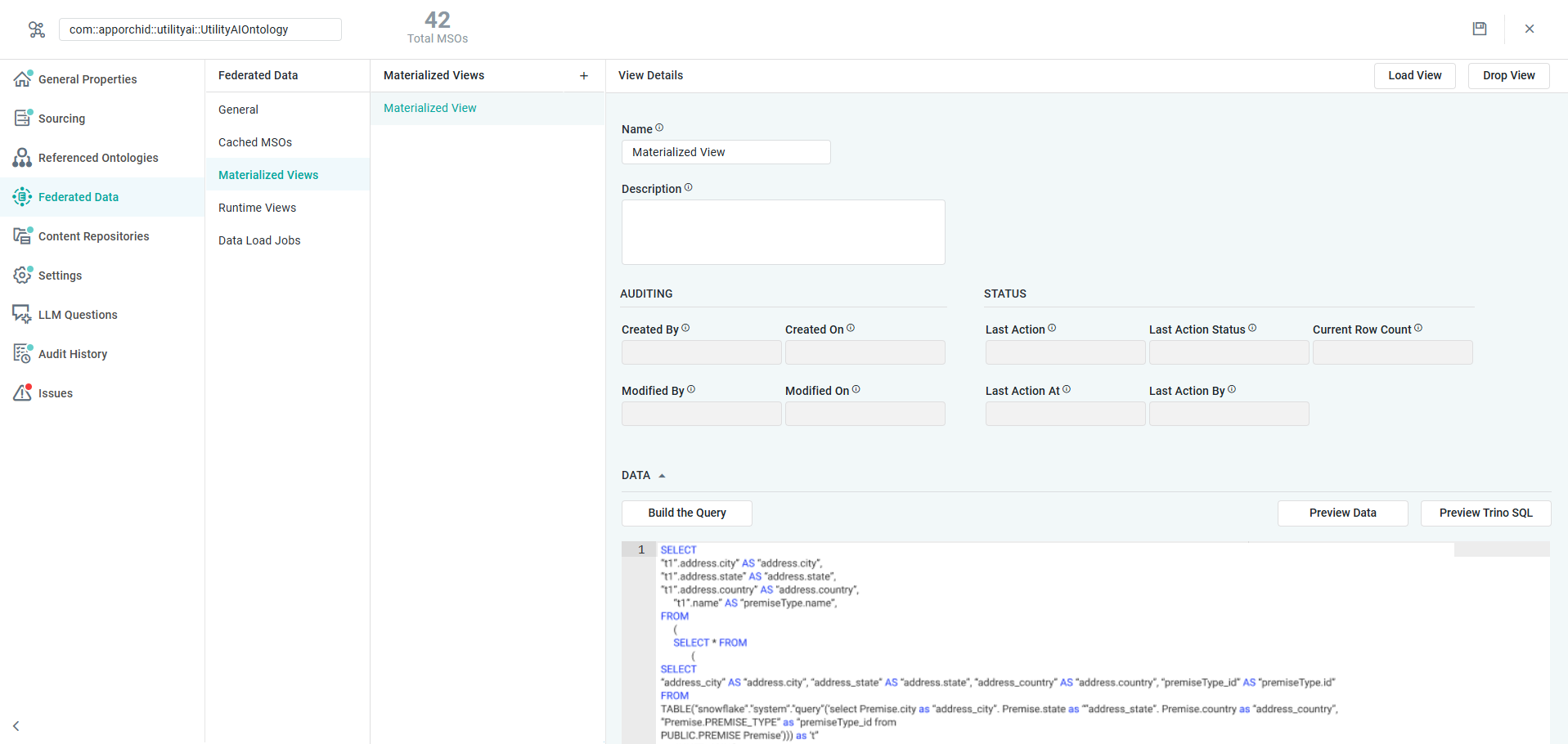
This page includes the configuration for one or more Materialized Views that can be created to persist data retrieved from the federated environment using either Build the Query or Advanced mode. In other words, it’s a way to eliminate long-running processes retrieving data in a federated environment in a live production environment, but instead loading data from a federated data query into a persisted view of the data that can then be accessed “locally” to the AO Platform. Such Materialized Views can be refreshed both manually and on schedule.
|
Data - using SQL |
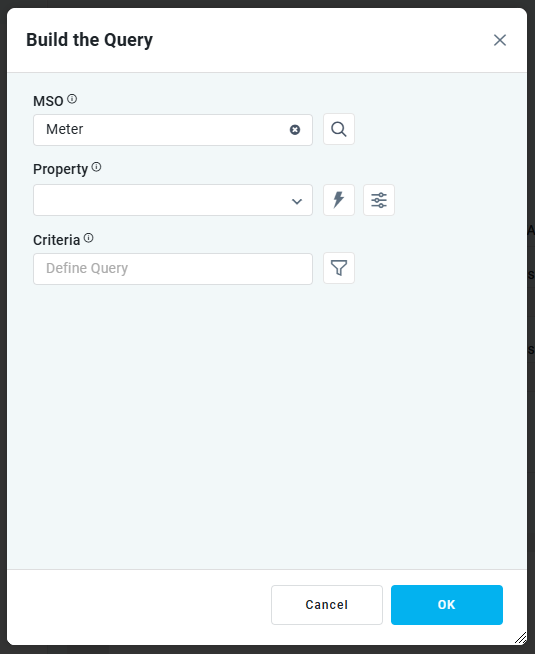
Data - using Build the Query |
|---|---|
|
|
Properties
|
Label |
UI Widget |
Default |
Description |
|---|---|---|---|
|
Materialized Views |
|
|
Repeater section |
|
Icon |
|
Click to create a new Materialized View |
|
Read-Only Text Field |
|
Displays the name for the configuration of a Materialized View. |
|
Icon |
|
Click to delete a configured Materialized View. |
|
View Details |
|
|
|
|
Button |
|
Click to run the process that creates the Materialized View and populates the view with the data extracted from the Federation Server. |
|
Button |
|
Click to run the process that drops the Materialized View, including data if populated, from the data source. |
|
Text Field |
|
Enter the Name of the Materialized View that will be created. |
|
Multi-Line Text Field |
|
Enter a short Description of the Materialized View. |
|
AUDIT |
|
|
|
|
Read-Only Text Field |
<empty> |
Displayss the user name of the user who created the Materialized View. |
|
Read-Only Timestamp Field |
<empty> |
Displays the timestamp for when the Materialized View was created. |
|
Read-Only Text Field |
<empty> |
Displays the user name of the user who modified the Materialized View. |
|
Read-Only Timestamp Field |
<empty> |
Displays the timestamp for when the Materialized View was modified. |
|
STATUS |
|
|
|
|
Read-Only Text Field |
<empty> |
Displays the most recent Action performed. Options include: View Refreshed, View Dropped. The Field will be empty if the Last Action Status is Not Started. |
|
Read-Only Text Field |
Not Started |
Displays the status from the Materialized View process. Options include: Not Started (black), In Progress, Completed, Failed. |
|
Read-Only Timestamp Field |
<empty> |
Displays the timestamp for when the Materialized View was most recently refreshed. The field will be empty if the Last Action Status is Not Started. |
|
Read-Only Text Field |
<empty> |
Displays the user name of the user who started the most recent process. The field will be empty if the Last Action Status is Not Started. |
|
Read-Only Number Field |
<empty> |
Displays the number of records loaded into the Materialized View. If Last Action Status resulted in Failed or Not Started, the field will be empty. |
|
DATA |
|
|
This section is used to create the Federated Data Query to retrieve data from the Federation Server, and to populate the Materialized View. Use either Build a Query or the Advanced mode to create the query. |
|
Radio-button |
Default |
This option is the interactive way of building a query by selecting an MSO, Properties, and configuring Criteria (optional). |
|
…MSO |
Text Field w/Search |
|
Enter the primary MSO for which the Federated Data Query shall be based. |
|
…Property |
Dropdown w/Expression and Additional Properties |
|
A Repeater section for entering one or more MSO Properties for which the Federated Data Query shall be based, - including Properties for Connected MSOs. |
|
…Criteria |
Text Field w/Query Builder |
|
Opens a Query Builder dialog to allow entering one or more filters to be used as a data filter for the Federated Data Query. |
|
Radio-button |
|
This is an Advanced option for power users entering a query in the SQL language. |
|
…MSO Query |
Multi-Line Text Field |
|
Enter or paste an entire MSO Query SQL into a multi-line text box. |
|
Button |
|
Opens a dialog showing the data retrieved from the Federated Data Query. |
|
Button |
|
Opens a dialog showing the Trino-specific SQL used to retrieve data based on the Federated Data Query. |
|
Button |
|
Opens a dialog showing the MSO Query SQL used to retrieve data from the Federated Server. |
Contact App Orchid | Disclaimer