
Intended audience: end-users analysts developers administrators
AO Platform: 4.4
Data Load Jobs
This page provides status monitoring of any scheduled, longer-running tasks relating to the federated data and materialized view configurations, and it allows scheduled tasks to be created.
|
Status tab |
Scheduled Tasks tab |
|---|---|
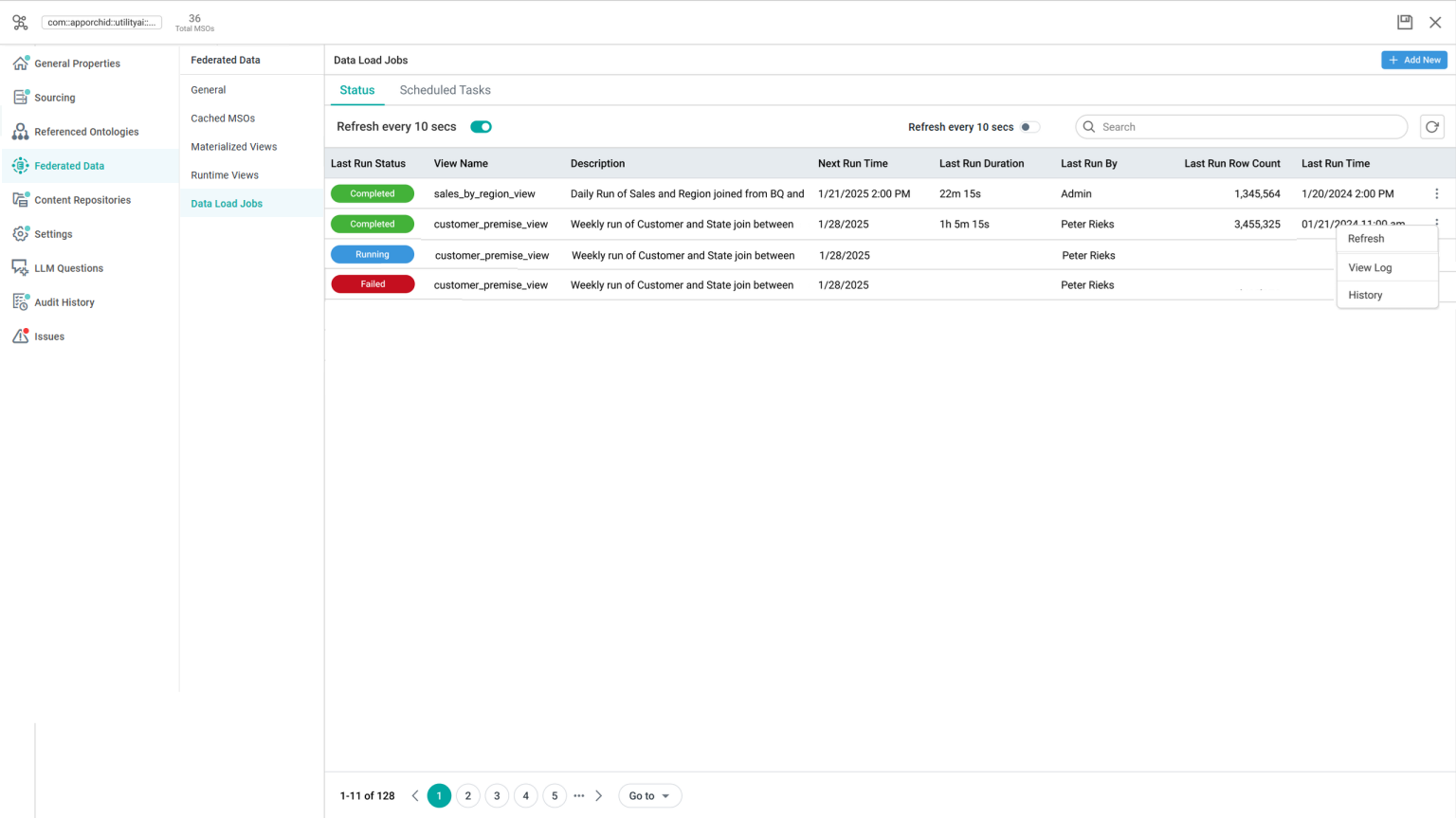
|
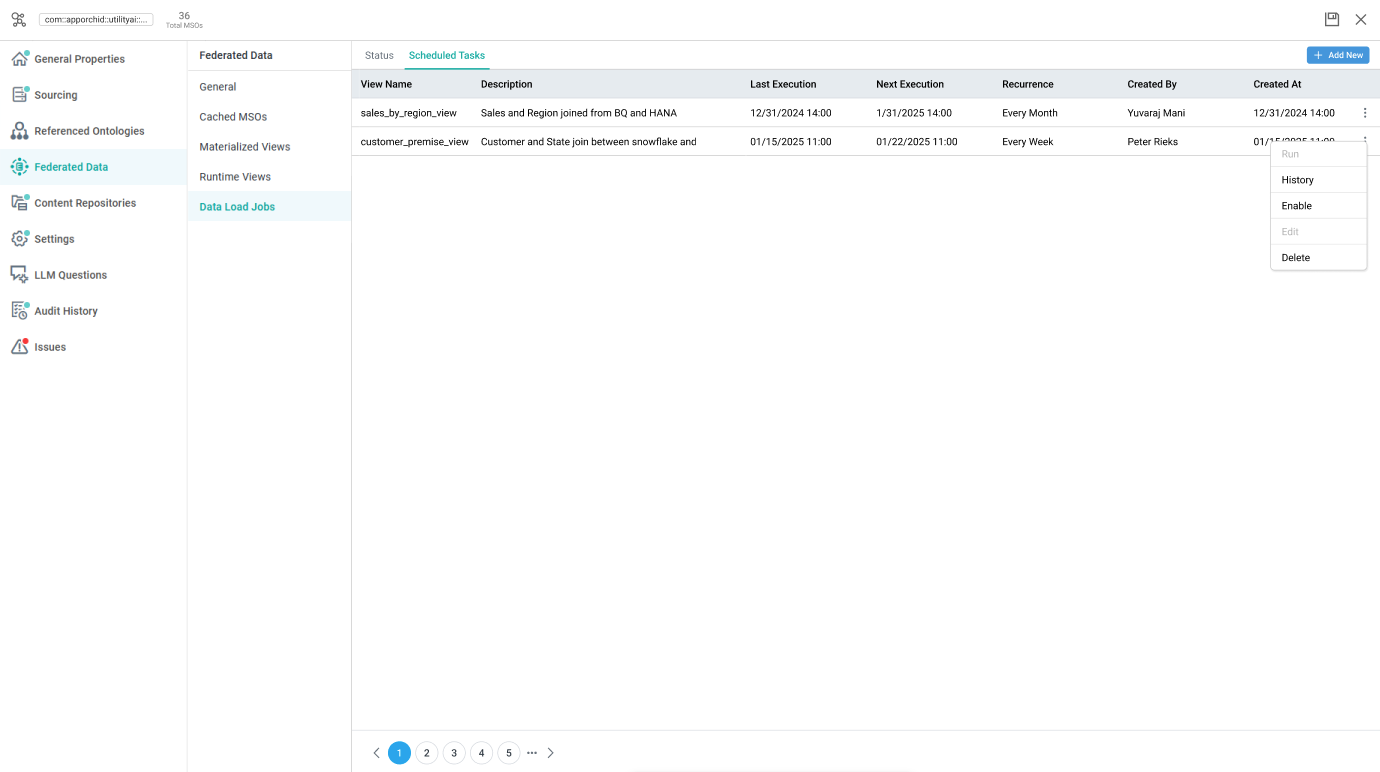
|
|
History dialog |
New Scheduled Task dialog |
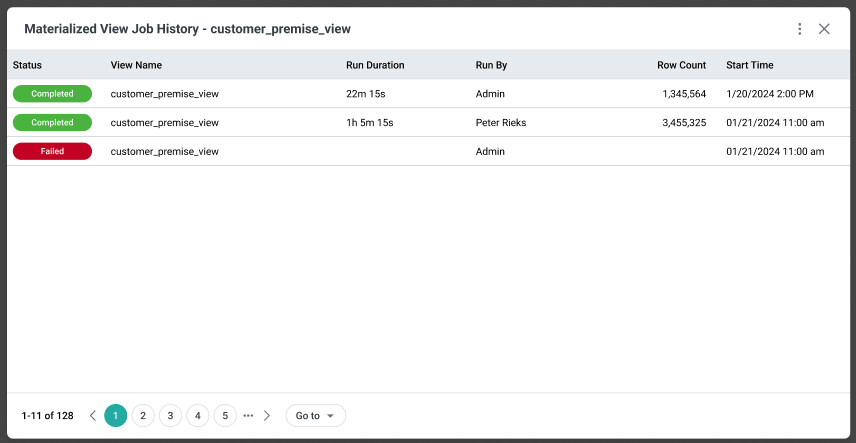
|
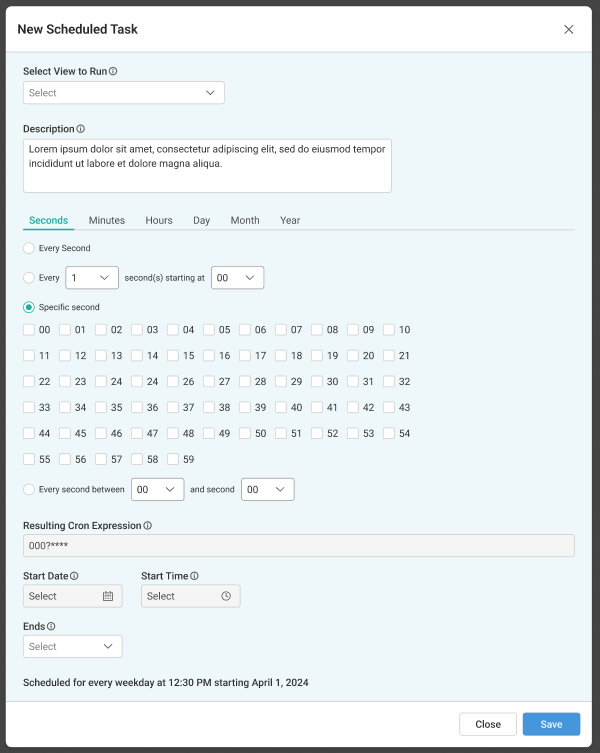
|
Properties
|
Label |
UI Widget |
Default |
Description |
|---|---|---|---|
|
Tab: Status |
|
|
|
|
ON/OFF toggle |
ON |
If enabled, the entries on the Status tab will automatically refresh every 10 seconds. |
|
|
|
Enter a search term to find specific View Names. |
|
|
|
Click to manually refresh all entries on the page to get the latest status. |
|
Table with Status |
All read-only |
|
|
|
|
|
Displays the most recent status of an executed task. There are three types of Status buttons that can appear in this column: Completed running and failed |
|
|
|
Displays the name of the materialized view that the task relates to. |
|
|
|
Displays the short description for the scheduled task. |
|
|
|
Displays the timestamp for when the task will be executed next. |
|
|
|
Displays the duration for the most recent execution of the task. |
|
|
|
Displays the user name of the person who initiated the most recent execution of the task. |
|
|
|
Displays the amount of records that were loaded into the materialized view from a federated data query. |
|
|
|
Displays the timestamp for the most recent execution of the task. |
|
Options menu |
|
|
Available for each entry in the Status table. |
|
|
|
Select to refresh the specific entry for which the Options menu is selected. |
|
|
|
Select to view the log file content in a separate dialog for the specific entry for which the Options menu is selected. |
|
|
|
Select to view the history in a separate dialog for the specific entry for which the Options menu is selected. |
|
Tab: Scheduled Tasks |
|
|
|
|
|
|
Click to open the New Scheduled Task dialog allowing the user to configure a scheduled task for the loading of data into a materialized view. |
|
Table of Scheduled Tasks |
All read-only |
|
|
|
|
|
Displays the name of the materialized view that the task relates to. |
|
|
|
Displays the short description for the scheduled task. |
|
|
|
Displays the timestamp for the most recent execution of the task. |
|
|
|
Displays the timestamp for when the task will be executed next. |
|
|
|
Displays a short description of the recurrence schedule. |
|
|
|
Displays the user name of the person who created the scheduled task. |
|
|
|
Displays the timestamp for when the scheduled task was created. |
|
Options menu |
|
|
|
|
|
|
Select to run the task manually, outside the schedule. |
|
|
|
Select to view the history in a separate dialog for the specific entry for which the Options menu is selected. |
|
|
|
Select to enable/disable a scheduled task. |
|
|
|
Select to open the Scheduled Task dialog to edit existing scheduled properties. |
|
|
|
Select to delete the scheduled task. |
Contact App Orchid | Disclaimer