
Intended audience: end-users analysts developers administrators
AO Platform: 4.4
Overview
This section provides an overview of a Trend Cue Card for a Curation Micro Application. Trend Cue Card is a powerful visualization tool designed to highlight key trends, patterns, and performance metrics over time.
Example
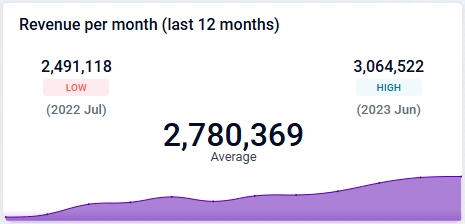
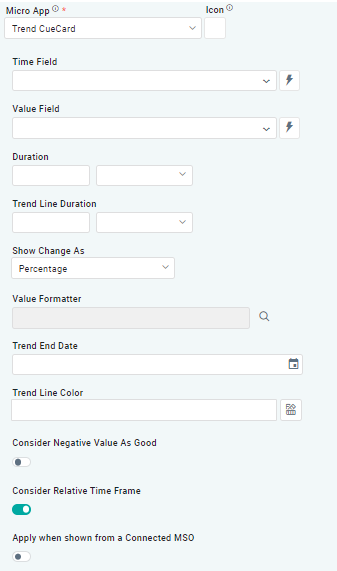
Configuration of Trend Cue Card
DATA Properties
|
Label |
UI Widget |
Default |
Description |
|---|---|---|---|
|
Dropdown w/Expression option |
|
The Time Field allows users to specify a column or attribute in the dataset that holds temporal information, such as dates or timestamps. This field is used to map and plot data on the heatmap in a calendar-style layout. |
|
Dropdown w/Expression option |
|
The Value Field allows users to specify a column or attribute in the dataset that contains numerical or quantitative data. These values determine the intensity or color gradient of each cell in the calendar heatmap. |
|
Dropdown |
|
The Duration field allows users to select a defined time range, such as daily, weekly, or monthly intervals. |
|
Dropdown |
|
The Trend Line Duration field allows users to select a defined time range, such as daily, weekly, or monthly intervals. |
|
Dropdown |
|
The Show Changes As dropdown field allows users to select Percentage or Value from the dropdown. |
|
|
|
The Value Formatter field allows users to select JS Functions. |
|
|
|
The Trend End Date in a Duration Trend Cue Card refers to the final date of the time range over which the trend is analyzed and displayed. |
|
Text Field w/Color Palette option |
|
The Trend Line Color allows users to select which color to use for the series. See Curation - Field Properties - Data Styles | Selection of Color. |
|
ON/OFF Toggle |
OFF |
If enabled, the Consider Negative Value as Good option specifies the negative values in the dataset be interpreted positively in the context of performance or outcomes. |
|
ON/OFF Toggle |
ON |
If enabled, the Consider Relative Time Frame setting in a Trend Cue Card ensures that trends are analyzed and displayed for a dynamically adjustable time frame based on relative periods. |
|
ON/OFF Toggle |
OFF |
The Apply When Shown from a Connected MSO ON/OFF Toggle determines whether the settings or actions are applied specifically when data is displayed through a connected MSO.
|
Contact App Orchid | Disclaimer