
Intended audience: Data scientists developers administrators
AO Platform: 4.4
Overview
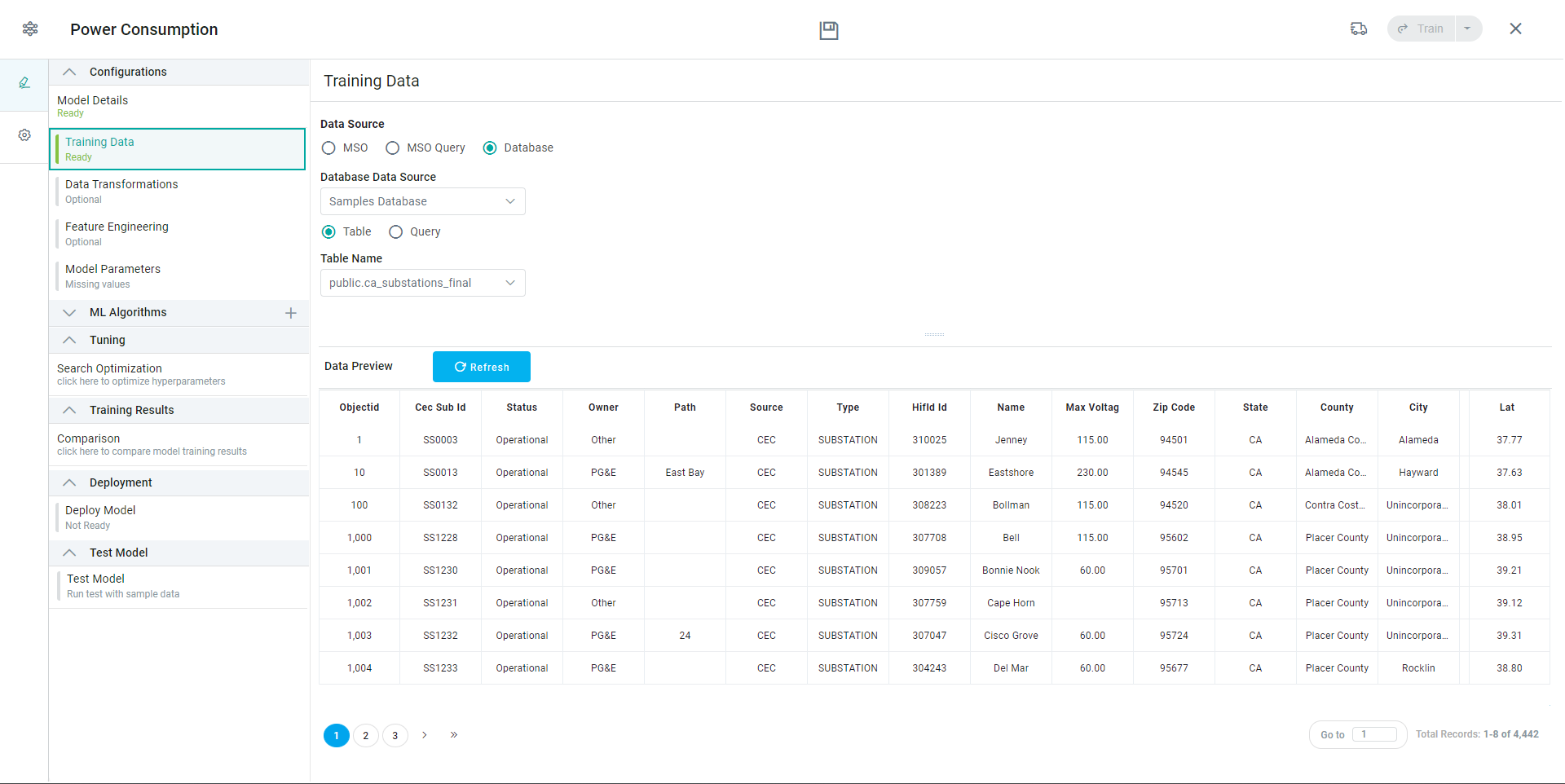
The Training Data page allows users to select the training data that’ll be used to train the model.
Properties
|
Label |
Description |
|---|---|
|
Data Source |
Select the Data Source Type for the training data to be used for the model, including MSO, Semantic SQL, and Database. |
|
MSO |
Select the MSO radio button to connect using the available MSOs configured. |
|
Click the “+” icon to add an MSO from the Search dialog. |
|
Select any number of properties to include from the tree structure. |
|
Semantic SQL |
Select the Semantic SQL radio button to connect using the available MSOs configured. |
|
Use the pencil icon to open a dialog for entering and validating the Semantic SQL statement. |
|
Database |
Select the Database radio button to connect to the available Databases configured. |
|
Select from the available Database Data Sources in the dropdown. |
|
Select the Table option to allow users to select from the Tables available in the selected Database Data Source. |
|
Select the Table to use from the Table Name dropdown. |
|
Select the Query option to allow users to input a database SQL Query to retrieve the data. |
|
Enter a SQL Query relative to the Database Data Source. Click the SQL Query builder icon to open a dialog that provides syntax highlighting and validation when creating SQL queries. |
|
Data Preview |
With the configuration of the Training Data done, a Preview of the data retrieved will be shown. Use the Refresh button to refresh the data in case configuration parameters are changed. |
Contact App Orchid | Disclaimer