
Intended audience: end-users analysts developers administrators
AO Platform: 4.4
Properties for Easy Answers > Popup Views
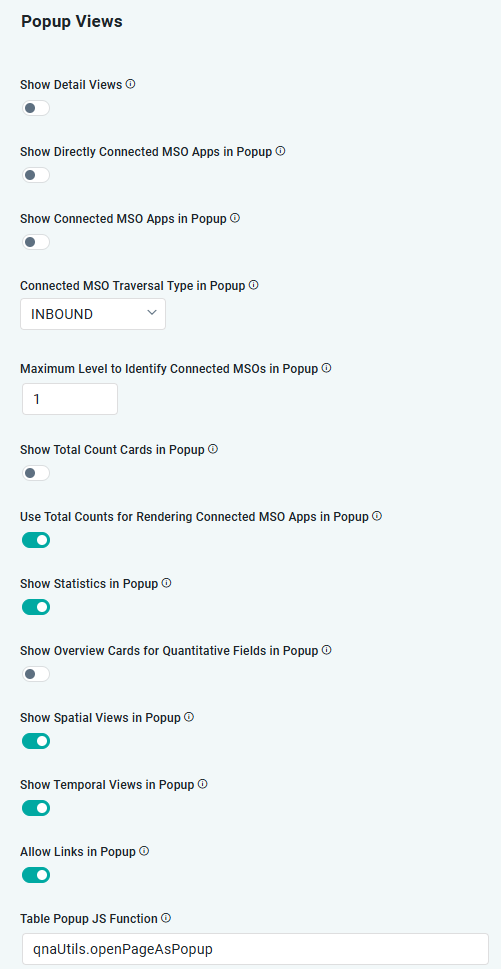
|
Label |
Type |
Default Value |
Description |
|---|---|---|---|
|
ON/OFF Toggle |
OFF |
… |
|
ON/OFF Toggle |
OFF |
If enabled, only directly connected MSO Apps will be shown in Single Entry Popup dialog. |
|
ON/OFF Toggle |
OFF |
If enabled, MSO Apps will be shown for all connected MSOs in Single Entry Popup dialog. |
|
Dropdown |
INBOUND |
Select from available options, including INBOUND, OUTBOUND, or ANY. |
|
Number Field |
1 |
Select how many connected node levels to include in the Ontology Graph. |
|
ON/OFF Toggle |
OFF |
If enabled, show Total Count Card in Single Entry Popup dialog. |
|
ON/OFF Toggle |
ON |
|
|
ON/OFF Toggle |
ON |
If enabled, Statistics view will be shown in the Single Entry Popup dialog. |
|
ON/OFF Toggle |
OFF |
If enabled, Overview Cards will be shown for Quantitative fields in Popup dialog. |
|
ON/OFF Toggle |
ON |
If enabled, Map view will be shown in the Single Entry Popup dialog. |
|
ON/OFF Toggle |
ON |
If enabled, Timeseries views will be shown in the Single Entry Popup dialog. |
|
ON/OFF Toggle |
ON |
If enabled, will allow drill down links (nested linking) for entries in the Single Entry Popup dialog. |
|
String |
qnaUtils.openPageAsPopup |
A customized JS Function can be added which will replace the default JS Function that displays the Single Entry Popup dialog. |
Contact App Orchid | Disclaimer