
Intended audience: analysts developers administrators
AO Platform: 4.4
Overview
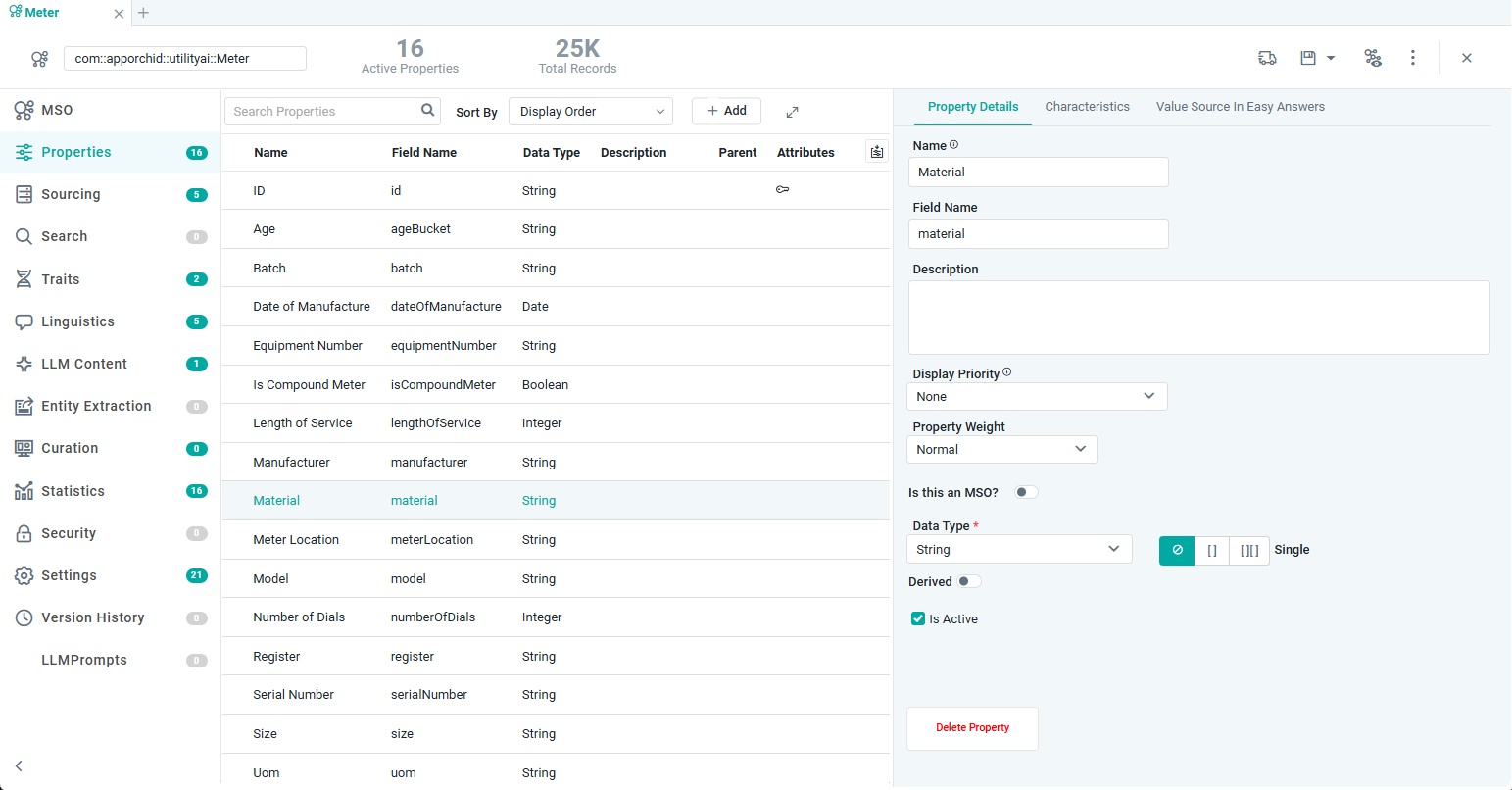
This section contains the data structure properties (fields) in the MSO as well as the relationships to other MSOs.
User Actions
-
Show Properties - filter allowing users to select properties based on “Is Active” configuration in the Property Details panel.
-
All
-
Active
-
Inactive
-
-
Search Properties - search field allowing users to search for a property by Name.
-
Sort By - select from the dropdown the sort order required for the list of Properties.
-
Display Order
-
A-Z (Ascending)
-
Z-A (Descending)
-
-
+ Add - select to add Properties and/or Compositions. See the Compositions section below.
-
Property - add a new MSO Field Property.
-
Composition Property - this will open a dialog allowing the user to associate/map multiple existing MSO Field Properties to a Common MSO with similar fields, such as the Address MSO.
-
Value Composition Property - this will open a dialog allowing the user to directly map a single MSO Field Property from the current MSO to a Common MSO, such as the Amount MSO.
-
-
Expand/Collapse – use this option to expand/collapse the properties section when the property details are shown in the right-side panel.
-
Show Inherited Properties – use this option to display inherited properties. Inherited properties come from a Parent MSO, identified in the Inherits From field on the MSO page. All properties from the Parent MSO will be inherited and identified using an icon for each entry in this column (where applicable) on the Properties page.
-
Move - available on hover at the beginning of the Properties entry line, allowing users to rearrange the Properties into any order (referred to as Display Order.
Click on a Property in the list to configure Property Details and/or Characteristics in the right-side panel:
Property Details
Properties
|
Label |
UI Widget |
Default |
Description |
|---|---|---|---|
|
Name |
Text Field |
|
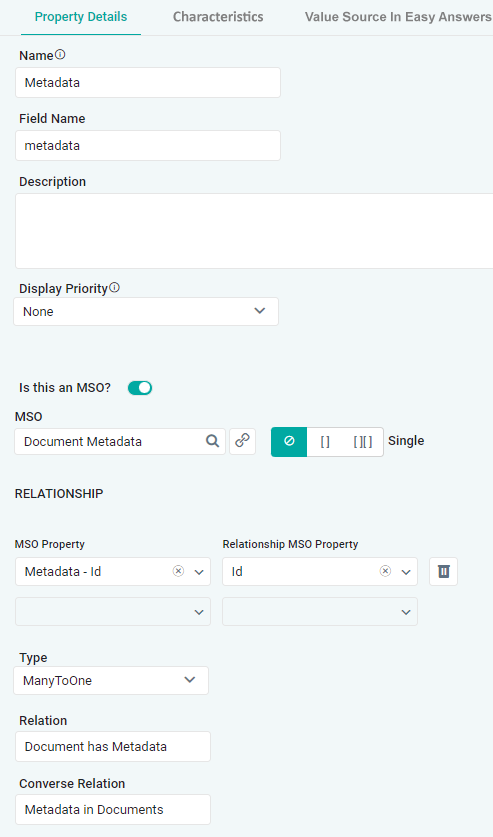
The Name field displays the friendly name of the property. |
|
Field Name |
Text Field |
|
The Field Name displays the name of the field. The Field Name cannot include spaces. If spaces are entered, they will be automatically removed on Save. |
|
Description |
Multi-Line Text Field |
|
The Description field displays a brief description of the property. |
|
Display Priority |
Dropdown |
None |
The Display Priority field allows users to set the Priority for the field in case multiple fields are displayed, for example, in a table. Optional values are High/Medium/Low/None. Fields with High priority will be shown towards the beginning of the table. If no Priority is set, the fields will be displayed in the order of the MSO properties. |
|
Is this an MSO? |
ON/OFF Toggle |
OFF |
Is this an MSO? - ON/OFF slider that allows the data type for the current property to be configured.
|
|
Data Type |
Dropdown |
|
Only shows if Is this an MSO? is OFF. Select the data type for this property field. Secondly, select how the data is represented: Single | Array | Two-Dimensional. |
|
Data Representation |
3-Way Button |
Single |
Select how the data is represented: Single | Array | Two-Dimensional. |
|
Derived? |
ON/OFF Toggle |
OFF |
If the Derived ON/OFF slider is ON, the user can configure the field property based on a Semantic SQL function, using the Semantic SQL Function Builder. See https://docs.apporchid.com/getting-started/?contextKey=using-expressions&version=latest. |
|
Is Active |
Checkbox |
Checked |
Checkbox to determine if the Property is currently in use. It’s sometimes required to have Properties in the MSO configuration that are not actually used in the downstream Curations. Unchecking the checkbox will make the Property Inactive. |
|
MSO |
Text Field w/Search |
|
Only shows if Is this an MSO? is ON. Select the MSO that defines this property field. |
|
RELATIONSHIP |
Repeater Section |
|
Repeater section for one or more MSO property relationship configurations. |
|
Dropdown |
|
Select a Field Property available in the current MSO that shall be used to link to the Field Property in the Relationship MSO. |
|
Dropdown |
|
Select a Field Property in Relationship MSO that is the target for the relationship. |
|
Type |
Dropdown |
|
Use a dropdown to select the Type of relationship between the current and Relationship MSO, eg, OneToOne, OneToMany, ManyToOne, or ManyToMany. For example, a relationship between a Bills MSO and a Customer MSO will typically be a ManyToOne relationship, ie, multiple Bills per Customer. |
|
Relation |
Text Field |
|
A short description of the relationship between the current and Relationship MSO, eg, Bills for Customer (ManyToOne). |
|
Converse Relation |
Text Field |
|
A short description of the opposite relationship between the Relationship MSO and the current MSO, eg, Customer receiving Bills. |
Characteristics
Properties
|
Label |
UI Widget |
Default |
Description |
|---|---|---|---|
|
Date/Time Interval |
Dropdown |
Day |
For MSO Properties with the Date data type, a suitable Date/Time Interval can be specified by which values will be shown. The options available in the dropdown for this property include: Millisecond, Second, Minute, Hour, Day, Week, Month, Quarter, and Year. This is used by Insights and Curations to show data based on the configured interval. |
|
Property Sentiment |
Dropdown |
Neutral |
For MSO Properties with the Number data type (Integer, Double, …), a Sentiment value can be provided to assist with the textual articulation of Insight results. The options available in the dropdown for this property include: Neutral, Positive, and Negative. |
|
Reference Average Value |
Number Field |
<empty> |
For MSO Properties with the Number data type (Integer, Double, …). |
|
ChangePoint Insight Event Function |
Text Field w/Search |
<empty> |
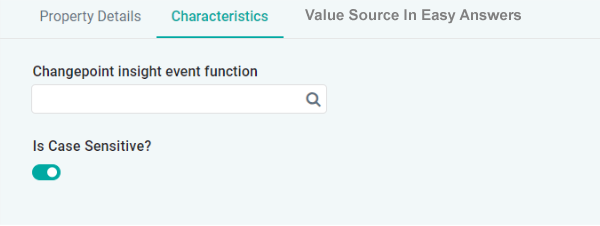
Available for all MSO Properties irrespective of data type, this Function will provide the Event that causes a change for the Change Point Insight detection. |
|
Is Case Sensitive |
ON/OFF Toggle |
ON |
For MSO Properties with the String data type. If enabled, the property has to be used with the correct casing in an Easy Answers question to be understood. |
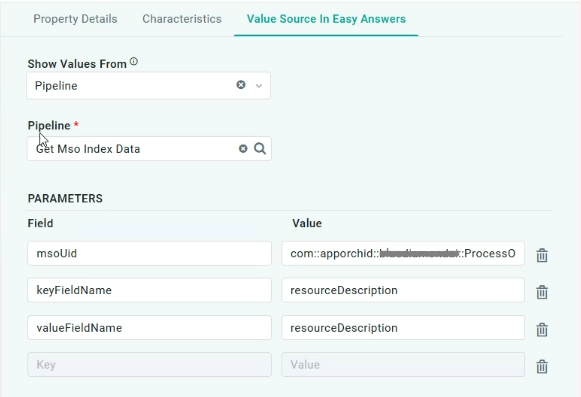
Value Source in Easy Answers
|
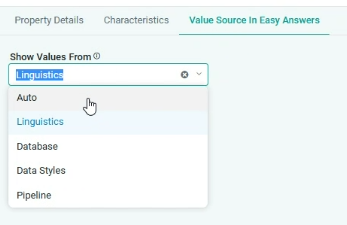
Value Source In Easy Answers - Dropdown |
Pipeline selected for Show Values From Dropdown |
|---|---|
|
|
Properties
|
Label |
UI Widget |
Default |
Description |
|---|---|---|---|
|
Show Values From |
Dropdown |
Auto |
Select from available options in the Dropdown for the values available in Easy Answers during a word replacement in a question, including:
|
Compositions
One of the key MSO Properties concepts is to create/use “Common MSOs” that have data structures for common things, like Address fields, Amount fields, etc. Using such “Common MSOs” to create better, more consistent, and useful MSO data structures for MSOs with Sourcing is referred to as “Compositions”.
The +Add button enables two use cases for Compositions:
-
Add a new MSO Field Property from a “Common MSO” and map existing MSO data properties to the data structure of the “Common MSO”.
-
Replace one or more simple data types for an MSO Field Property, eg, Double, with a “Common MSO”, such as “Amount”, to ensure consistency in how number values are represented.
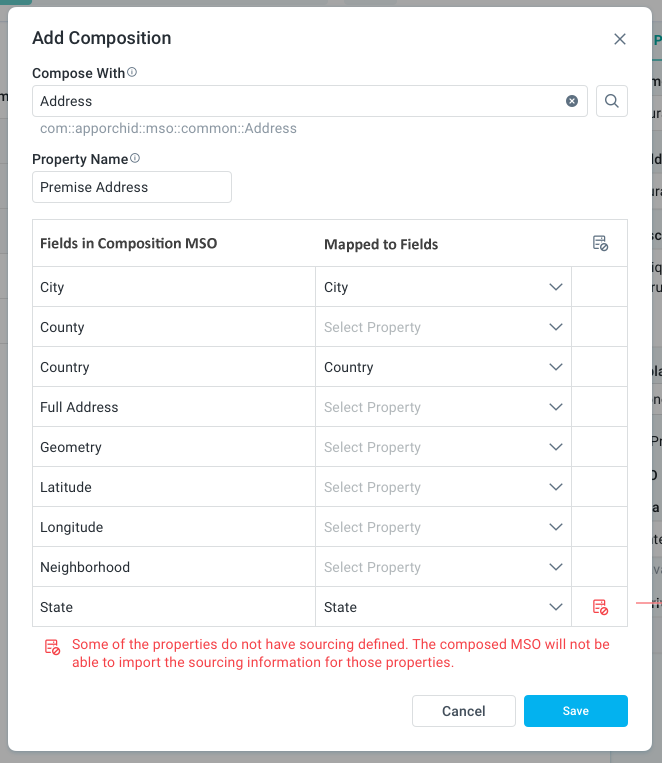
Add Composition
-
When selected, a dialog opens with the Title: Add Composition:
Properties
|
Label |
Widget Type |
Description |
|---|---|---|
|
Compose with |
Search |
Click the “magnifying glass” icon to open and select the Compose With MSO in the MSO Search dialog. |
|
Property Name |
Text |
Add a meaningful MSO Field Property Name representing the “Compose with” MSO data structure. |
|
Fields in Composition MSO |
Read-only Text |
List of Field properties from the “Compose with” MSO. |
|
Mapped to Fields |
Dropdown |
Select MSO Field Properties from the current MSO to be mapped to the Fields from the “Compose with” MSO. |
-
Clicking OK in the dialog will persist all changes, the Fields identified in the column: “Mapped to Fields” will be removed from the current MSO, and data related to those fields will be transferred to the new structure added from the “Compose with” MSO. The new MSO Field property being added will have the data type named after the “Compose with” MSO Name.
-
Note: users still have to click Save in the Header to persist as part of the MSO configuration.
-
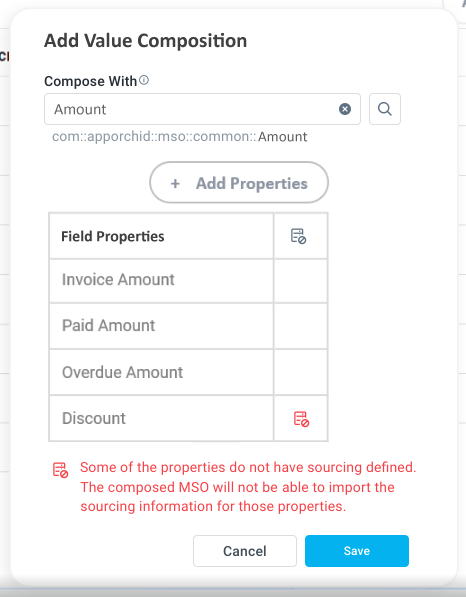
Add Value Composition
-
When selected, a dialog opens with the Title: Add Value Composition:
Properties
|
Label |
Widget Type |
Description |
|---|---|---|
|
Compose with |
Search |
The user has to click the “magnifying glass” icon to open the MSO Search dialog. The MSO Search dialog shall only show MSOs that do not have Sourcing. Add the fully qualified domain name as “ghost-text” below the field once “Compose with” MSO has been selected. |
|
+ Add Properties |
Button/Icon |
Click the button to add one or more Field property/ies from existing MSO that shall have their data type replaced by the MSO/Field properties from the “Compose with” selected MSO. |
|
Field Properties |
Text |
A read-only list of Field property names from the existing MSO added by the user. On hover, show the “x” icon, allowing the user to remove an entry. |
|
Sourcing |
Icon |
Shows a red icon if Sourcing is not available for the Fields being mapped. Also, the following red text will be shown at the bottom of the Fields list: Some of the properties do not have sourcing defined <sourcing icon>. The composed MSO will not be able to import the sourcing information for those properties. |
-
Clicking OK in the dialog will persist all changes; the Fields identified in the column: “Field Properties” will have the data type named after the “Compose with” MSO Name.
-
Note: the user has to click Save in the Header to persist as part of the MSO configuration.
-
Contact App Orchid | Disclaimer