
Intended audience: developers administrators
AO Platform: 4.4
Overview
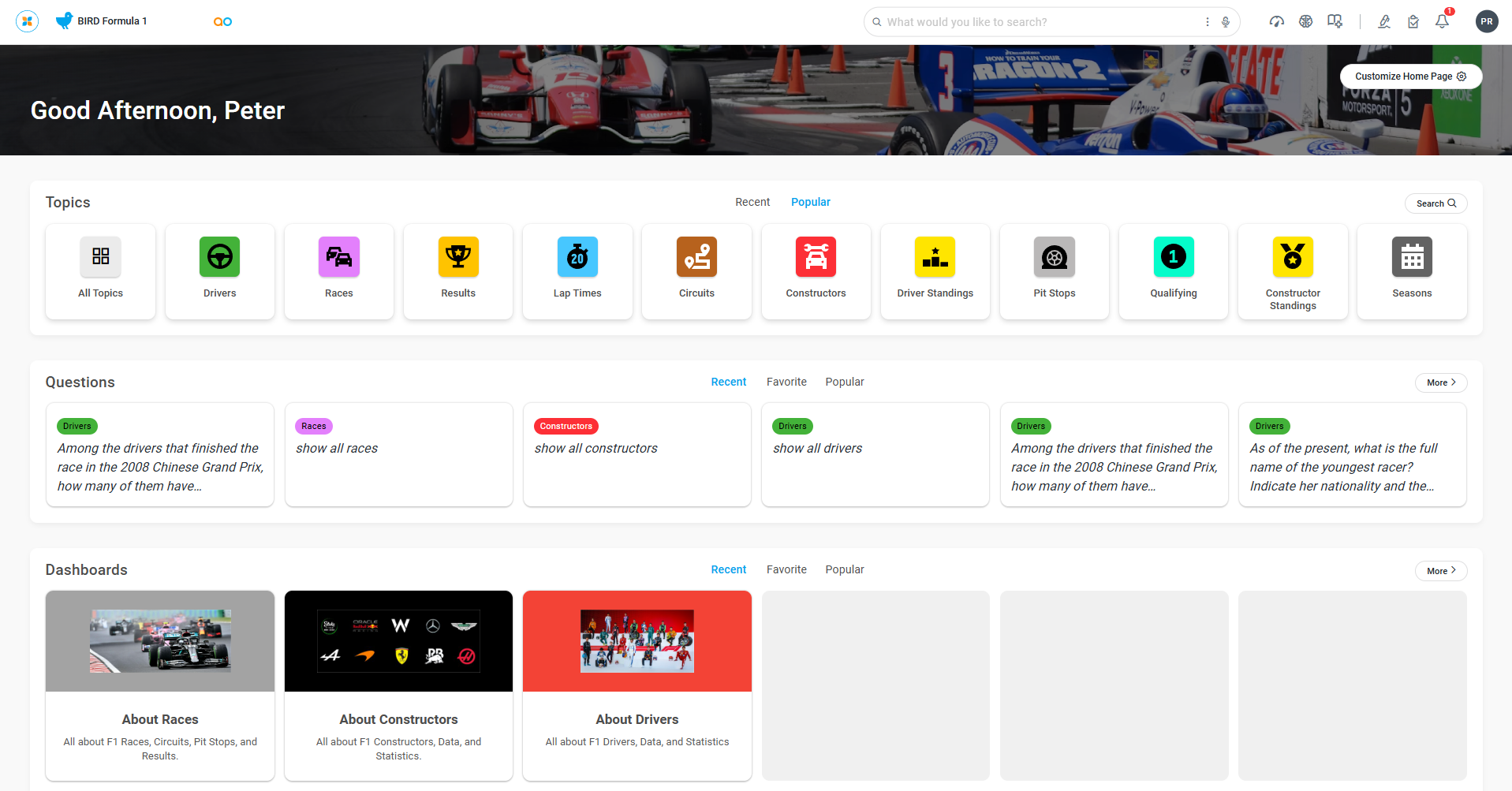
The Solution is the icing on the cake; it’s the user interface to the data that the Ontology has been created from. It’s what we generally refer to as: Easy Answers. An Easy Answers solution normally includes the following sections (pages):
-
Home Page - this page provides a quick overview of all the Topics (MSOs) that are available from the Ontology created, Questions asked, Dashboards created, Insights and Data Summaries generated. Additionally, helpful Resources, such as online Help and other references, are available.
-
Questions and Answers - this is where users ask Natural Language Questions (NLQs) and receive results from their data in the form of dynamically generated Apps (Tables, Charts, Maps, etc…)
-
Dashboards - this is the page where one or more Dashboards can be created in order to persist results from previous questions. Dashboards also allow Sections, Filters, and Layouts to be managed for a customized experience.
-
Insights - this page will show Insights that are generated using Machine Learning models to reveal trends, patterns, forecasts, and statistical insights from historical data.
-
Data Summaries - this page allows textual Summarizations to be generated for an App or even a full page of Apps, such as from a Dashboard.
Why Is This Important
The Ontology is the foundation that brings data together in an enriched fabric for an organization, but the Easy Answers solution is the user interface for business users. This is where the data comes alive!
The starting point is to create the basic framework for the Easy Answers solution, then, over time, build out and enrich the solution.
What To Do
Creating an Easy Answers Solution
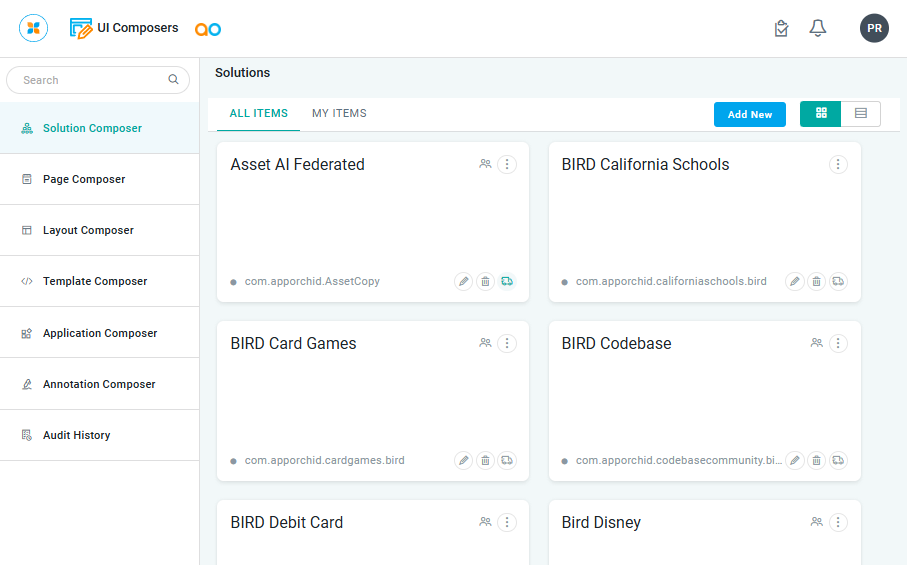
Go to the UI Composers section in the AO Platform menu, then within the UI Composer, select the Solution Composer. Finally, click the Add New button to create a Solution.
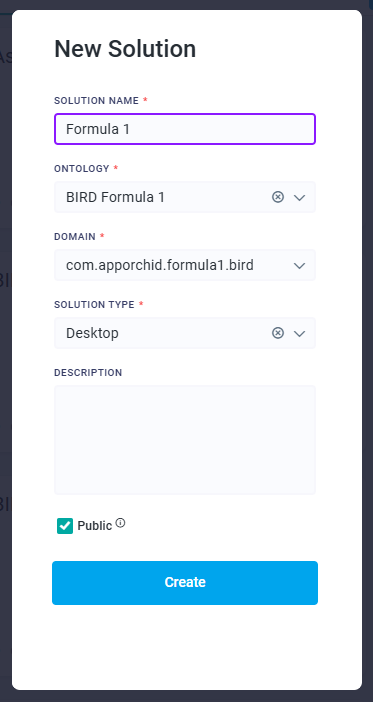
Fill in the New Solution dialog, ensuring the Ontology and Domain fields are populated with the Ontology previously created.
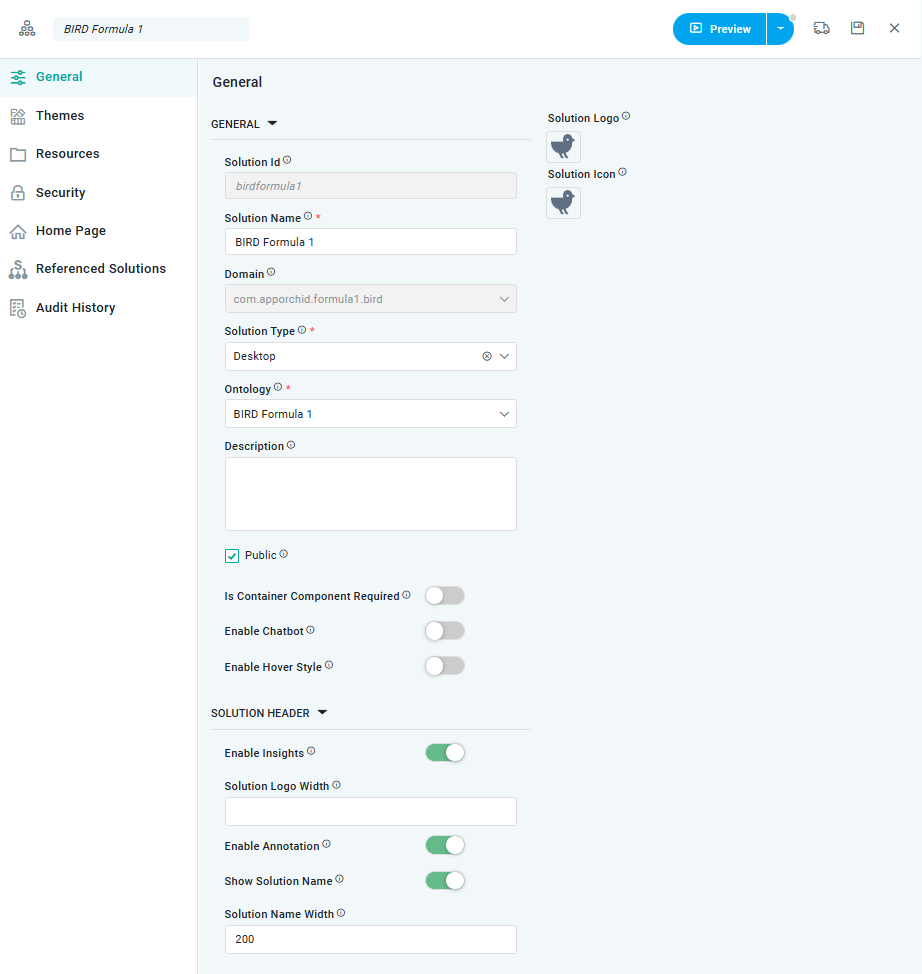
Once the solution has been created, it will be added to the Solution page. Now select the pencil icon to open the Solution Composer to populate properties. Focus on the following pages for a quick getting-started solution. The solution can be enhanced and customized later.
-
General - all general properties plus various optional toggles.
-
Themes - apply a default theme to the solution (light, dark, etc…)
-
Security - add the BIRD Team Role on this page to ensure that other users with the same role can view your progress.
References
Contact App Orchid | Disclaimer