
Intended audience: users DEVELOPERS ADMINISTRATORS
AO Platform and AO Easy Answers: 4.3
Overview
Database Authentication is the default for the AO Platform. Alternative 3rd party identity management solutions can be integrated and used instead. See Using 3rd Party Identity Providers.
When using the Database Authentication, the Administrator of the AO Platform will be creating user accounts and distribute the access URL and default Passwords to users. With the URL, the user can now access the AO Platform via a browser. Alternatively, the user may simply receive an email with a registration link. Follow the link to create user details according to the account detail screen.
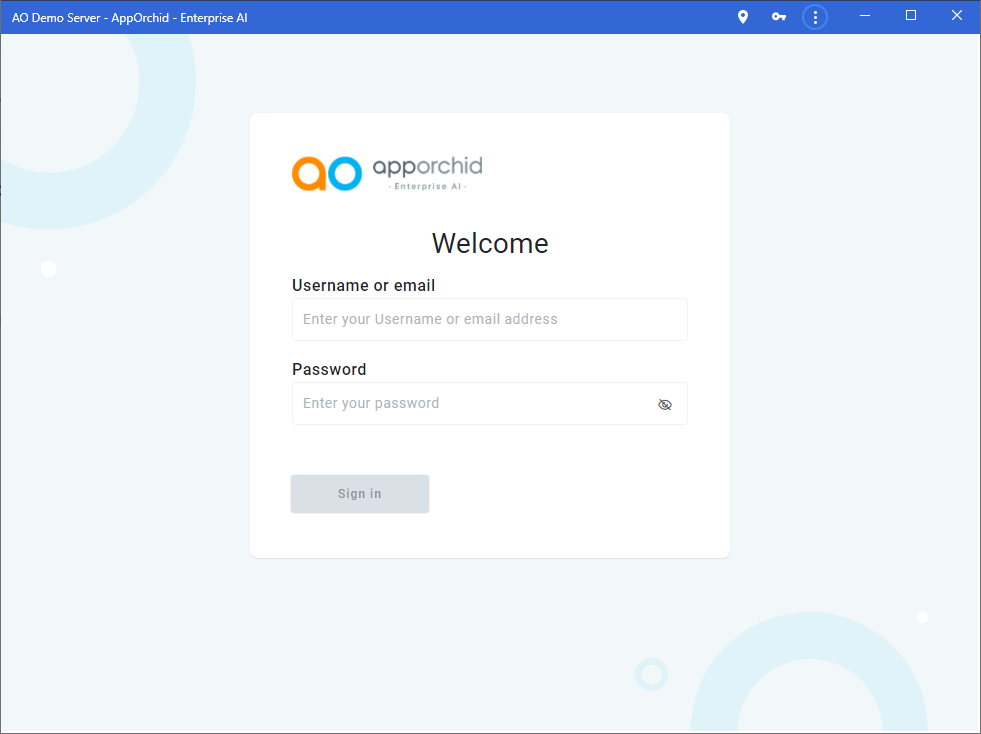
Using the AO Platform URL, the initial page to open will be the Welcome page. Enter the Username (or the email address associated with that Username) and the Password, then click the Sign in button. Click the eye icon (:show-password:) to verify the password that has been entered.
If all is good, the user will be signed in and the default Solution for the user will be opened. See Solutions.
The user may be prompted to immediately change the password for the account being used when signing in. This is an extra security precaution that can be enabled by the Administrator.
Should any issues arise during sign-in, including using the wrong username/password combinations, the account being locked, made inactive, or not verified, please contact the Administrator of the AO Platform.
In the specific case of a user account being locked due to multiple attempts signing in with the wrong password (default is 3 attempts), the user can try again after some time (default is 15 seconds).
Video
Contact App Orchid | Disclaimer