
Intended audience: end-users developers
AO Platform: 4.3
Spatial Correlation
The Model tab generally includes one or more of the following sections:
-
Data Fields - these are the data field configuration properties mandatory for the model to execute.
-
Model Specific Configurations - configuration properties in this section will vary depending on the selected model. If the model does not require additional configuration, the section(s) will not be shown.
Configuration
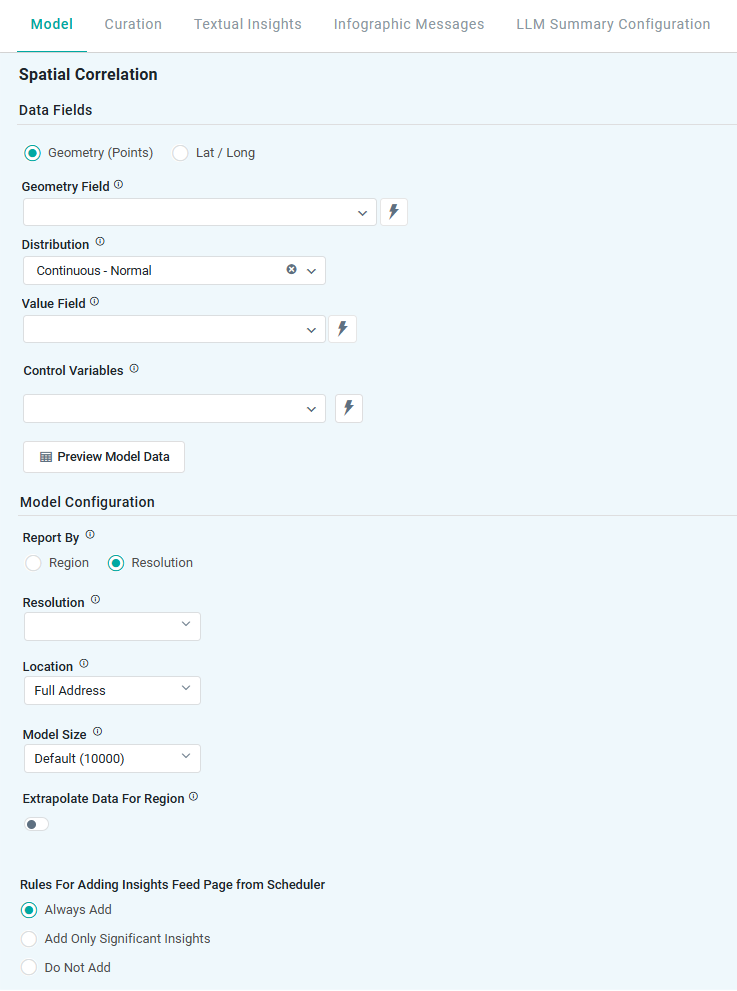
Properties
|
Label |
UI |
Default |
Description |
|---|---|---|---|
|
Data Fields |
|
|
|
|
Radio-button |
Geometry (Points) |
Enable input of Topic property containing data using a geometry format (single field). |
|
Radio-button |
|
Enable input of Topic properties containing data using the lat/long format (two fields). |
|
Dropdown w/Expression |
|
Select a Topic property to identify geometry points. Only shown if Geometry (Points) radio-button is selected. |
|
Dropdown w/Expression |
|
Select Topic property to identify a Latitude field. Only shown if Lat / Long radio-button is selected. |
|
Dropdown w/Expression |
|
Select Topic property to identify a Longitude field. Only shown if Lat / Long radio-button is selected. |
|
Dropdown |
Continuous - Normal |
Select from the available options, including:
|
|
Dropdown w/Expression |
|
Select a Topic property for the insight analysis. |
|
Dropdown w/Expression |
|
|
|
Button |
|
Opens a dialog to view the data that will be used by the model. See Model > Model tab | Preview Model Data Dialog. Will be shown on a Map. |
|
Model Configuration |
|
|
|
|
Report by |
Radio-button |
|
Enables input of either …
|
|
|
|
Select a Region for the model analysis, including:
Only shown if Region radio-button is selected. |
|
|
|
Select the Region MSO property that includes the selected Region in the previous property. Only shown if Region radio-button is selected. |
|
|
|
Select the MSO property from the customer data that shall be mapped to the Region property. Only shown if Region radio-button is selected. |
|
Dropdown |
Auto |
This is for Address-level details, or to allow selection of the smallest regions to be generated for the insight. If numbers are selected from a dropdown, the higher the number (1-16), the smaller the regions. Only shown if Resolution radio-button is selected. |
|
Dropdown |
Full Address |
Selection for the Location - used in the Infographic card. This "granularity" of the address information comes from the address returned by the reverse geocoding that comes from selecting the Resolution option. Only shown if Resolution radio-button is selected.
|
|
Number |
Default (10000) |
Select from either…
|
|
Number |
10000 |
The Number of Trials is only shown if Custom is selected for Model Size. |
|
ON/OFF toggle |
ON |
If enabled, for areas within a given Region that are missing spatial data, the model will extrapolate data to “fill in” the entire Region. |
|
Rules for Adding to Insights Feed Page from Scheduler |
Radio-buttons |
Always Add |
This section allows the user to select if the Quick Insight will be added to the Insights Feed page when generated from a Scheduled Task. See Model > Model tab | Rules for Adding Insights Feed Page from Scheduler. |
Contact App Orchid | Disclaimer