
Intended audience: developers administrators
AO Platform: 4.4
Overview
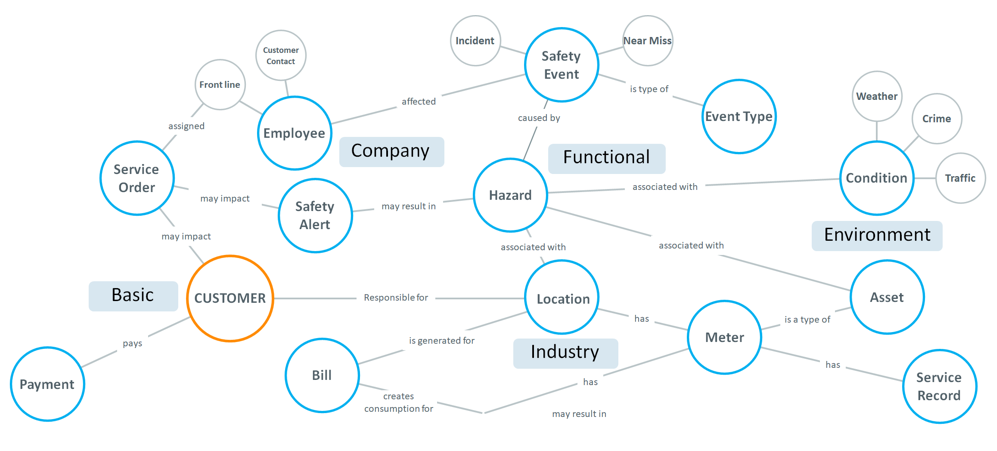
This topic describes the importance of relationships between nodes in the Ontology graph. After the initial Discover Ontology wizard has been run, review the relationships created using the Ontology Viewer.
Why Is This Important
Just like in a relational database, creating relationships between fields in tables, it’s vitally important to create relationships between MSO Nodes in the Ontology graph. Depending on the data sources used, relationships between the MSOs created in an Ontology may be auto-discovered when using the Discover Ontology wizard in the Ontology Composer. However, sometimes it’s necessary to create relationships manually, or to create relationships that are not found in the original data sources, as an Ontology Graph can much better and more flexibly, represent relationships.
Relationships ensure that the Ontology graph can be traversed forwards and backwards, linking related nodes to produce an optimized response when users ask questions in Easy Answers solutions. This concept is used when questions are interpreted by the LLM, allowing the LLM access to not just the primary MSO node but also any connected MSOs to form a much richer response in the curated visualizations produced.
What To Do
Discover Relationships
The starting point for creating relationships is the Discover Relationships option, which is run either automatically as part of the Discover Ontology wizard or manually run from the Discover section in the Ontology and MSO Options menus.
Discover Relationships dialog - available from the Ontology and MSO Options menu in the Discovery section.
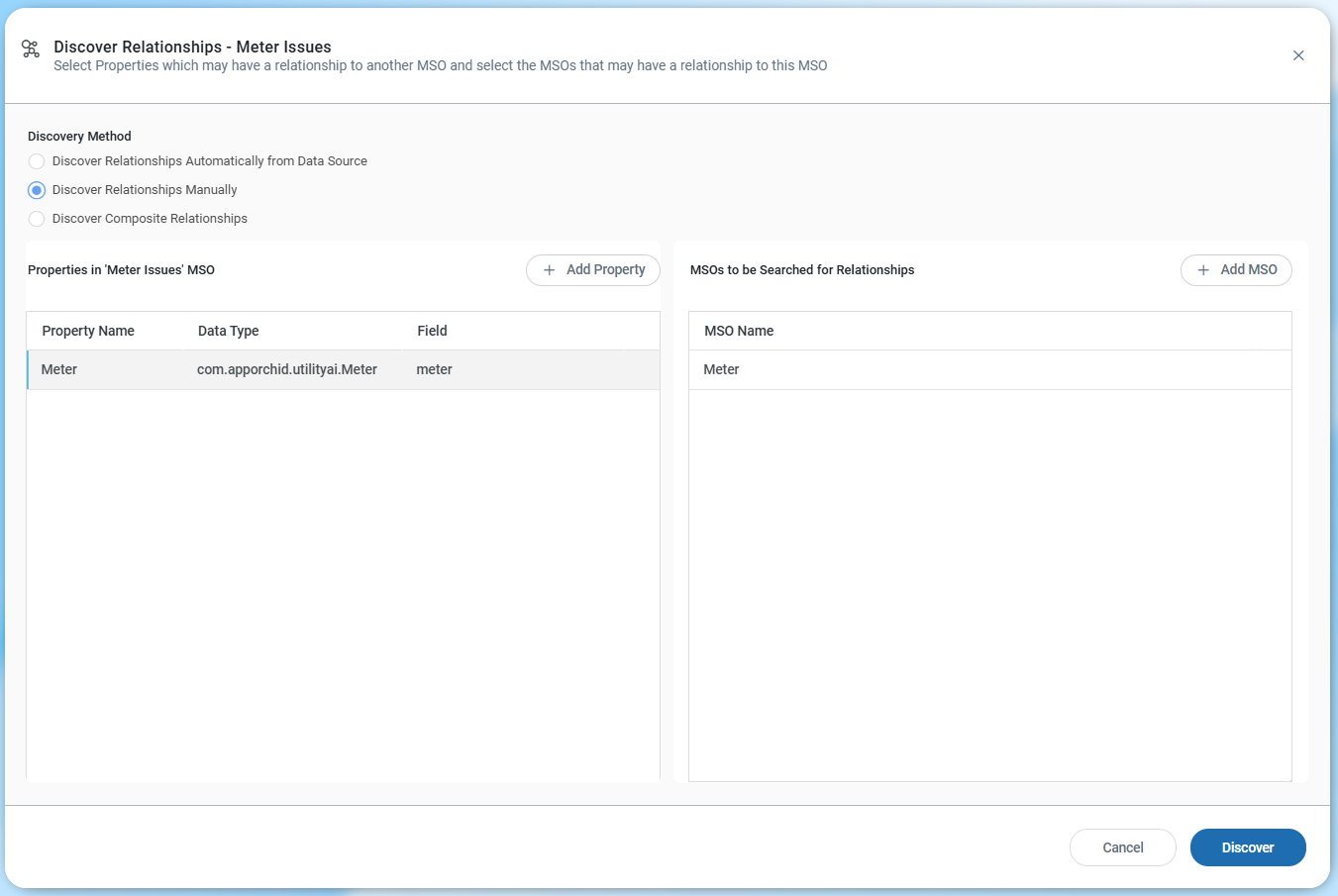
It’s recommended to review all relationships created and manually update them, as well as create new relationships where needed.
After relationships are manually created or updated, the Create/Update Graph process should be run. See Best Practice > Updating the Ontology Graph.
Property Naming when Creating Relationships with Other MSO
-
Make sure to change the name of an ID property if used to create a relationship with another MSO
-
Example: If a
customerIDproperty in aContractMSO is linked to aCustomerMSO, then once linked, thecustomerIDproperty gets the datatype of “Customer” (ie, the relationship MSO). Now change thecustomerIDproperty name toCustomer, too. Subsequently, also rerun the Statistics on this property. See Best Practice > Generating Statistics.
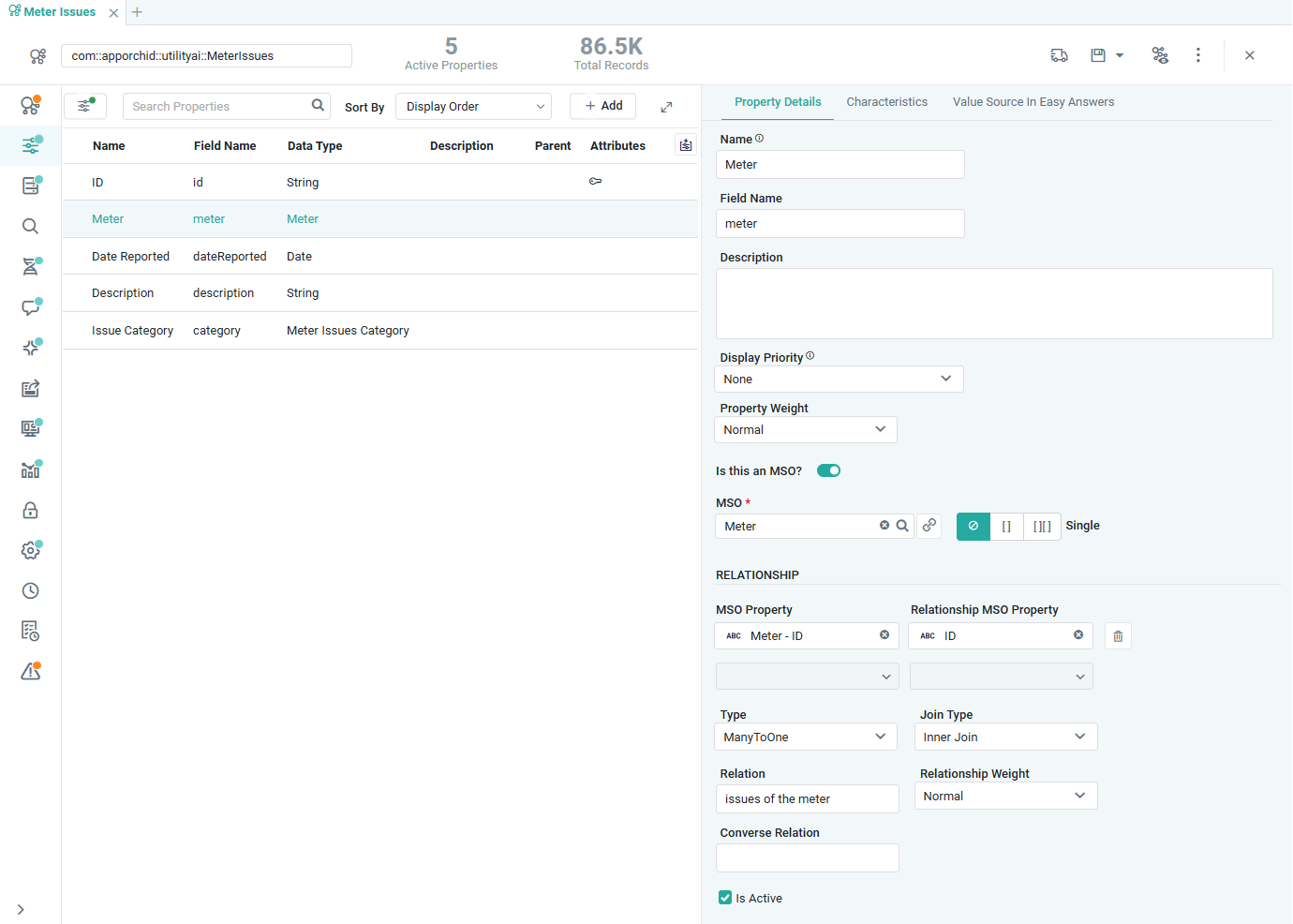
Creating a Foreign Key Relationship from an MSO Property to another MSO
Relationship Types
Please follow these guidelines when creating relationships. If relationships are not automatically discovered during the Ontology Discovery process (the prerequisite is that relationships are already configured in the data source), then make sure to add them manually.
-
Inner Joins: Use an inner join when there are no null values in your target MSO.
-
Left Joins: Use a left join when there may be null values in your target MSO.
-
Consistent Data Types: If an MSO property (e.g., `propertyA`) in one MSO references an MSO property in another MSO, `propertyA` should adopt the data type of the referenced MSO. Adjustments must be made to the relationship and sourcing properties to maintain consistency.
Relationships with Common MSOs
-
Common MSOs are created in a unique, separate Ontology called the AO Common Ontology. MSOs from the AO Common Ontology are automatically inherited by domain-specific Ontologies.
-
Use Common MSOs for entities such as `Address`, `Amount`, or `Percentage`, and map specific fields accordingly.
-
Do not create domain-specific MSOs with the same name as the common MSOs to avoid ambiguity.
-
Example: If a current Customer MSO has address fields such as Street Address, City, Zip/Postal Code, County, State, and Country, replace those fields in the Customer MSO with a single MSO Property, called Address, link it to the Common MSO, Address, and map the fields. Do the same for Premise MSO, Vendor MSO, etc… This way, all MSOs with address information will have a consistent Common Address MSO structure.
References
Contact App Orchid | Disclaimer