
Intended audience: developers administrators
AO Platform: 4.4
Overview
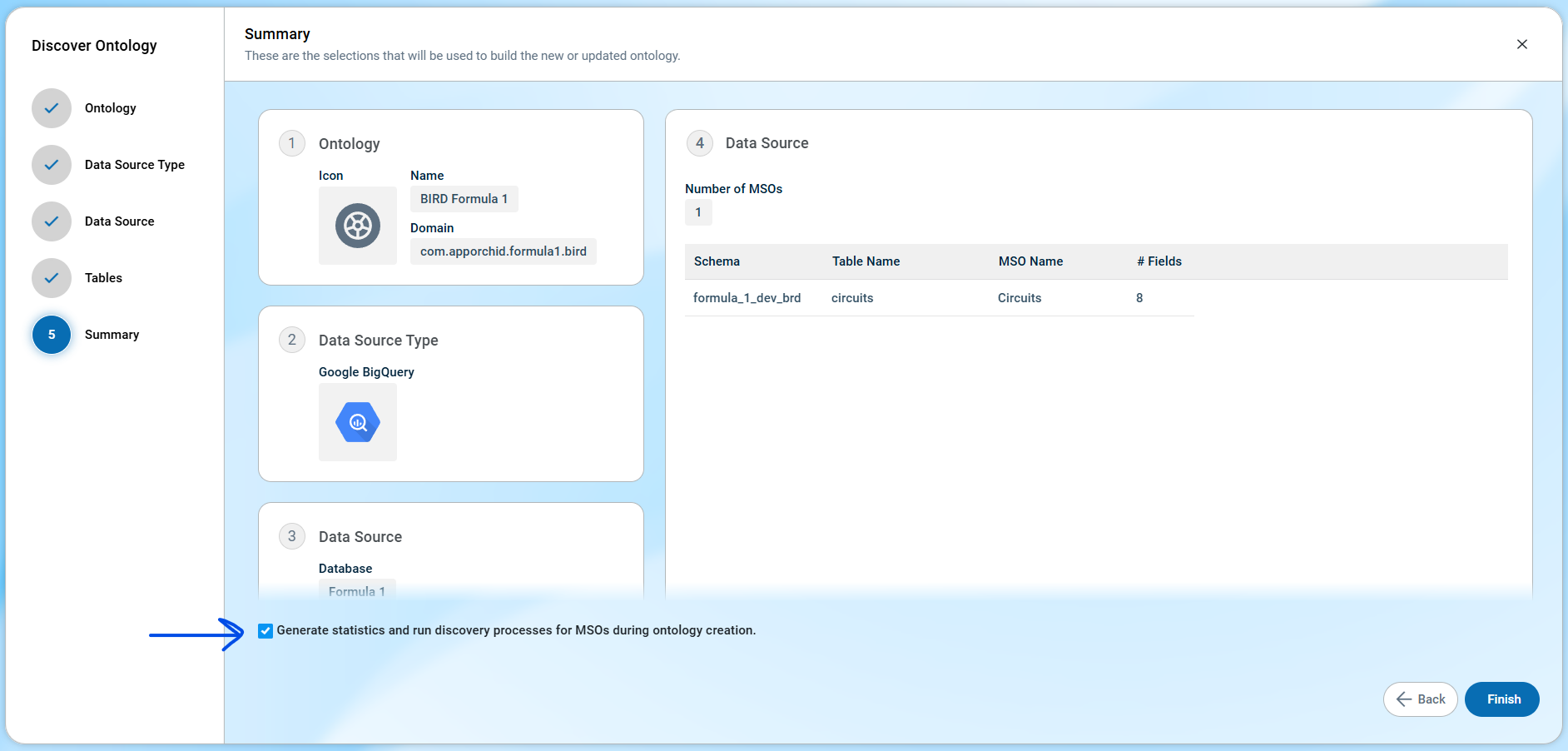
Enriching an Ontology is likely to be one of the most time-consuming, yet satisfying tasks that will bring the most benefits to an Easy Answers solution. At the very end of the Discover Ontology wizard (Summary page), enabling the checkbox at the bottom will initiate the creation of Statistics and scanning of the data for auto-enrichments. This will result in a number of enrichment suggestions. This is the best way to get started with Ontology Enrichments.
Why Is This Important
Ontology enrichments enable and benefit:
-
Question interpretation when users ask questions in Easy Answers (eg. adding organization-specific terminology)
-
Response accuracy from questions in Easy Answers (mitigating ambiguities and hallucinations from LLM).
-
Improved filter configurations when asking questions, or persisted in created dashboards.
-
More visualizations will be displayed automatically for generated results when users ask questions in Easy Answers.
-
Improved question complexity, as connected topics (MSOs) will also provide information from the Ontology graph.
-
Advanced visualizations added for specific results to questions.
-
…and so much more!
What To Do
There are two fundamental ways to do enrichments:
-
Auto Discovery of Words, Relationships, and Traits. This is the focus of this topic.
-
Manual Enrichments. See most other topics in this Best Practice guide.
Auto Discovery - Post Discover Ontology Creation
On the last page in the Discover Ontology wizard (Summary page), enabling the checkbox at the bottom will initiate the creation of Statistics and scanning of the data for auto-enrichments. Notifications will be shown as the Statistics are created and during the scanning of the data for:
-
Words - the process will look for categorical data values across all MSO Properties. Such values will be important when users ask questions in Easy Answers, as these data values will not just be recognized by the system, but also enable visualizations to automatically be displayed in response to questions.
-
Relationships - the process will scan the data for any explicit relationships between tables in the schema that was used for the Ontology.
-
Traits - the process will look for certain types of data, eg. time-series, categories, location, quantities, etc… and suggest Traits to be added which will enable visualizations to automatically be displayed in response to questions. For example, if customer data contains latitude and longitude coordinates, and a Spatial Trait is enabled for said data, a Map will automatically be generated with customer locations shown based on questions, like: “show all customers”.
Auto Discovery - From Ontology/MSO Options Menu
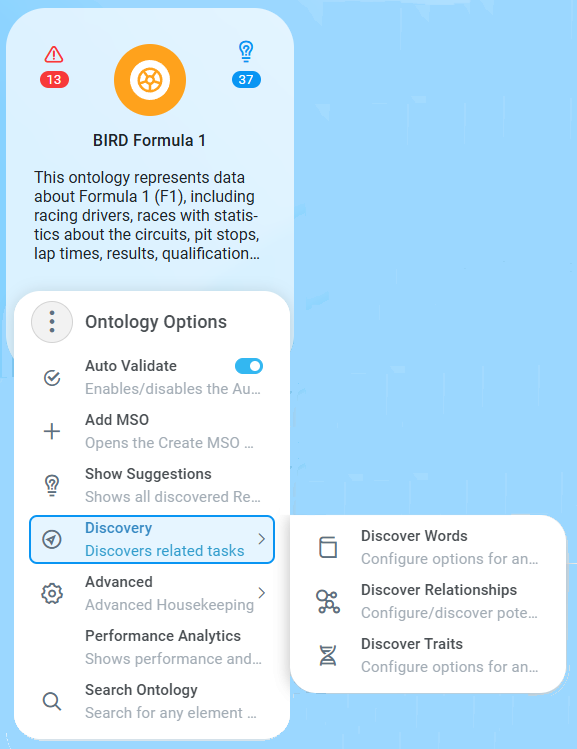
The three Discovery options described above for Words, Relationships, and Traits can also be run from the Ontology and MSO Composers' Options menu. When run from the Ontology Composer's Options menu, the processes will run across all (or selected) MSOs, whereas when run from the MSO Composer, only the selected MSO will be exposed to the discovery process, ie, one MSO at a time.
View Suggestions
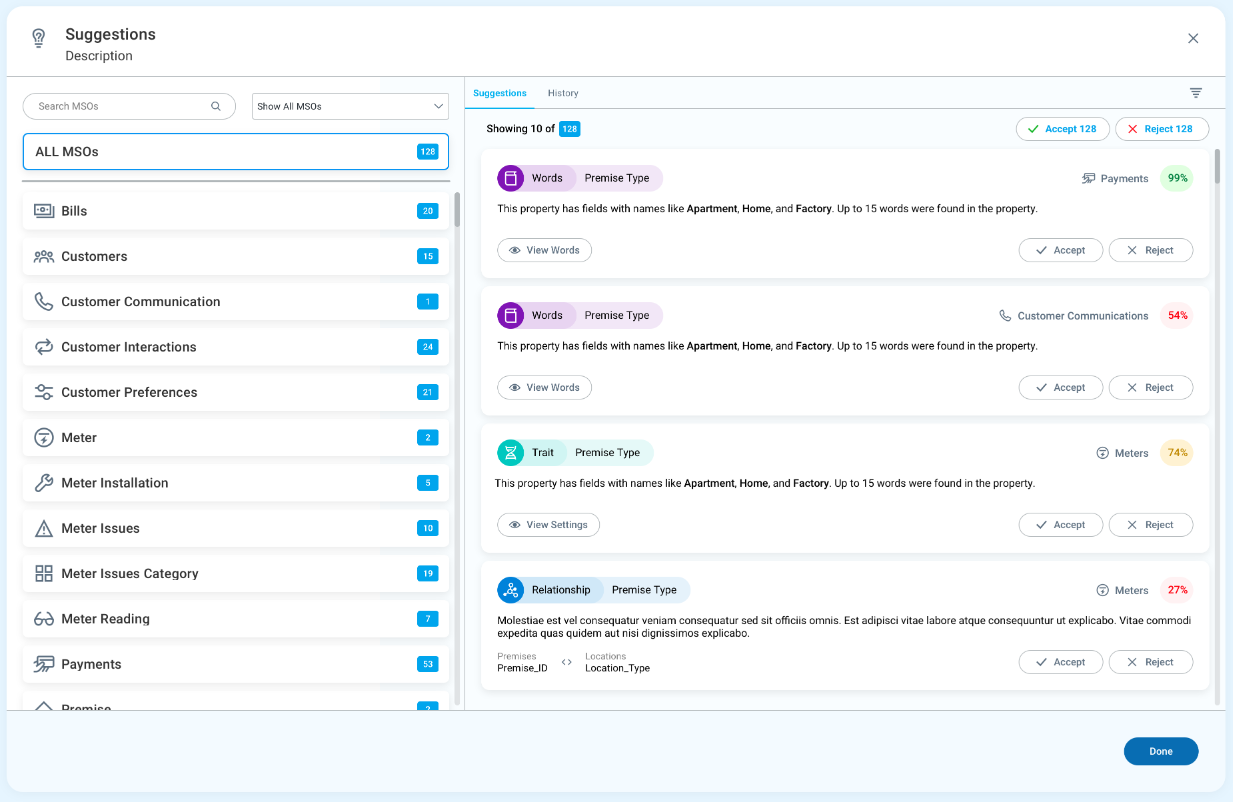
Once one or more of the Discover Words, Relationships, and Traits processes have run, it’s time to review the suggested enrichments. Open the Show Suggestions entry in the Ontology (or MSO) Composer’s Options menu.
The dialog shows all the suggestions for further enrichment of the MSOs found during the Ontology/MSO Discovery process, allowing the user to either Accept or Reject each suggested item.
Pay attention to the red/amber/green percentages for each suggestion, as they indicate a confidence rating of the suggested enrichment.
References
Contact App Orchid | Disclaimer