
Intended audience: end-users analysts developers administrators
AO Platform: 4.4
Overview
This section offers an overview of the Serverside Treetable. The Serverside Treetable is a hierarchical data representation that organizes information in a tree-like structure, combining features of tables and trees. It is used to display structured data with parent-child relationships, where users can expand or collapse nodes to navigate through different levels of data.
Example
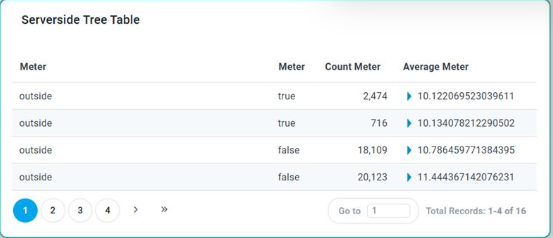
Configuration of Serverside Treetable
DATA Properties
|
Label |
UI Widget |
Default |
Description |
|---|---|---|---|
|
Dropdown w/Expression |
|
|
|
Dropdown w/Expression |
|
|
|
Dropdown w/Expression and Additional Properties options |
|
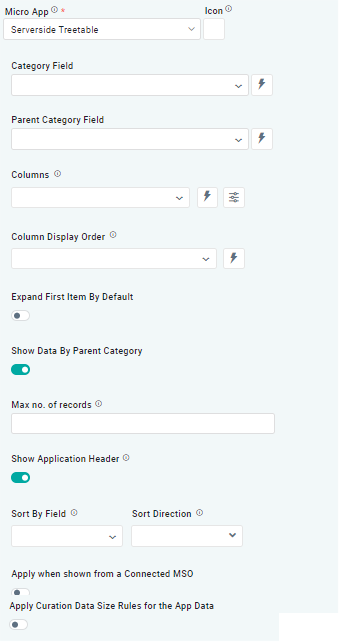
The Column dropdown allows the user to select one or more MSO field properties to be included in the Serverside Treetable App. |
|
Dropdown w/Expression |
|
The Column Display Order allows the user to select the display order for one or more selected MSO Field Properties. |
|
ON/OFF Toggle |
OFF |
If enabled, allows the user to expand the first item by default. |
|
ON/OFF Toggle |
ON |
If enabled, allows the user to display data by parent category. |
|
Number Field |
|
Option to set a Max number of records to be used by the Chart. |
|
ON/OFF Toggle |
ON |
If enabled, the App will show the App Header with an Icon and Title. If disabled, only the visual component from the Template will be shown. |
|
Dropdown w/Expression option |
|
The Sort By Field option allows users to select a field to sort the data and also provides the flexibility to define a custom expression for more advanced sorting criteria. |
|
Dropdown |
|
Option to set the Sort order for data in the Chart to either Ascending or Descending. |
|
ON/OFF Toggle |
OFF |
The Apply When Shown from a Connected MSO ON/OFF Toggle determines whether the settings or actions are applied specifically when data is displayed through a connected MSO.
|
|
ON/OFF Toggle |
OFF |
If enabled, the Record Count rules will be applied. The series will not be shown if the Record Count rules are not met. |
Contact App Orchid | Disclaimer