
Intended audience: users DEVELOPERS ADMINISTRATORS
AO Platform and AO Easy Answers: 4.3
Overview
The AO Platform uses OpenID to support integration with different 3rd party Identity Providers (IDPs), and SAML, to facilitate Single Sign On (SSO) access. If using a 3rd party integrated IDP, in most cases the workflow will be similar:
-
Access the AO Platform URL in a browser
-
If the user is already signed in,
-
the default AO Platform Solution will open
-
-
If the user is not signed in,
-
user will be redirected to the 3rd party IDP to provide the required credentials
-
once the user has signed in using the 3rd party IDP user interface, the user will be redirected back to the AO Platform and the default Solution for the user will be opened. See Solutions
-
Should an issue arise during Sign In with a 3rd party IDP, including using wrong username/password combinations, account being locked, made inactive, or account not verified, please contact the IDP Administrator.
Supported 3rd party IDPs
-
Okta
-
PingOne/Ping Identity
-
Auth0
-
Azure AD
-
SAML
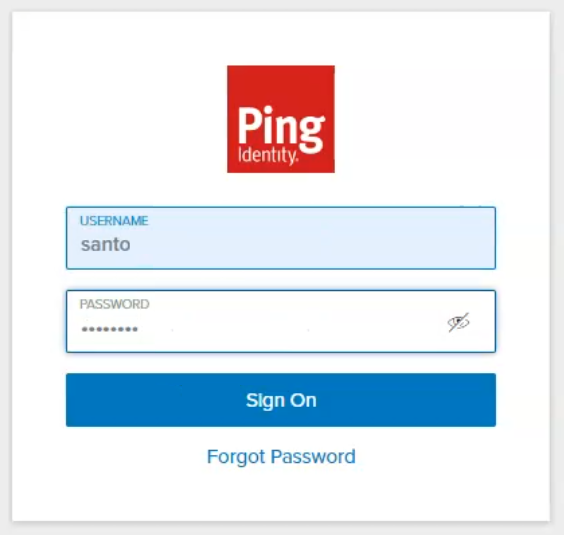
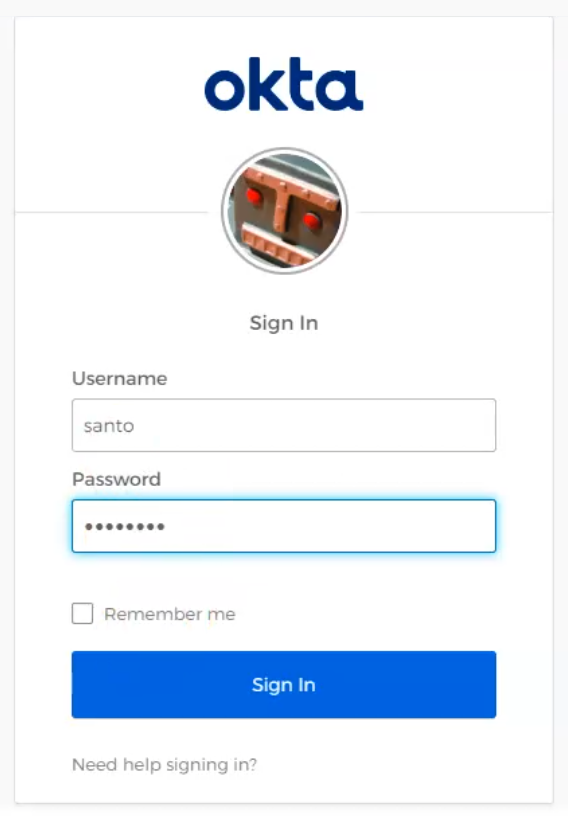
Examples of 3rd Party IDP Sign-In User Interfaces
|
Using PingOne |
Using Okta |
|---|---|
|
|
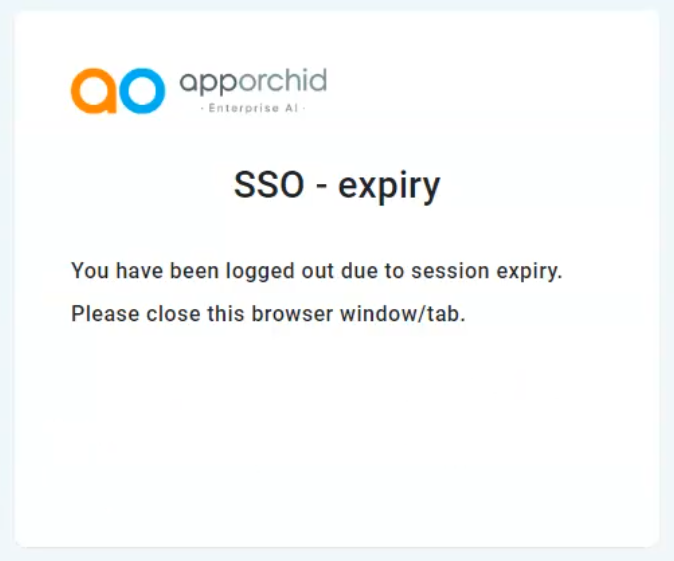
Expired Session
Once Signed In with any of the above IDPs and the current active session expires, the user will see the following message. Simply close the browser window (or tab) and Sign In again. To prevent a session from expiring, the user will receive an expiry notification prior to being logged out allowing the user to either continue the session or to allow the session to expire.
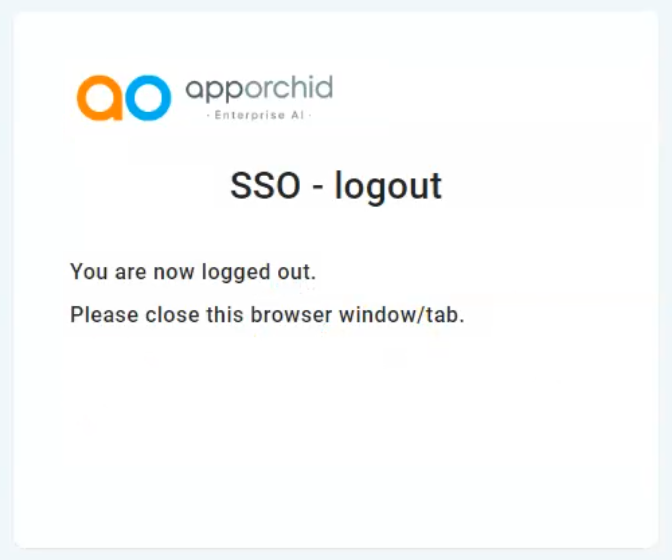
SSO Logout
Users can choose to log out from the AO Platform’s current session using the Logout option in the User menu. If this is done, the user will log out from the IDP and affect all SSO-enabled systems forcing the user to Sign In again via the IDP user interface.
Contact App Orchid | Disclaimer