
Intended audience: end-users analysts Developers Administrators
AO Platform: 4.3
Overview
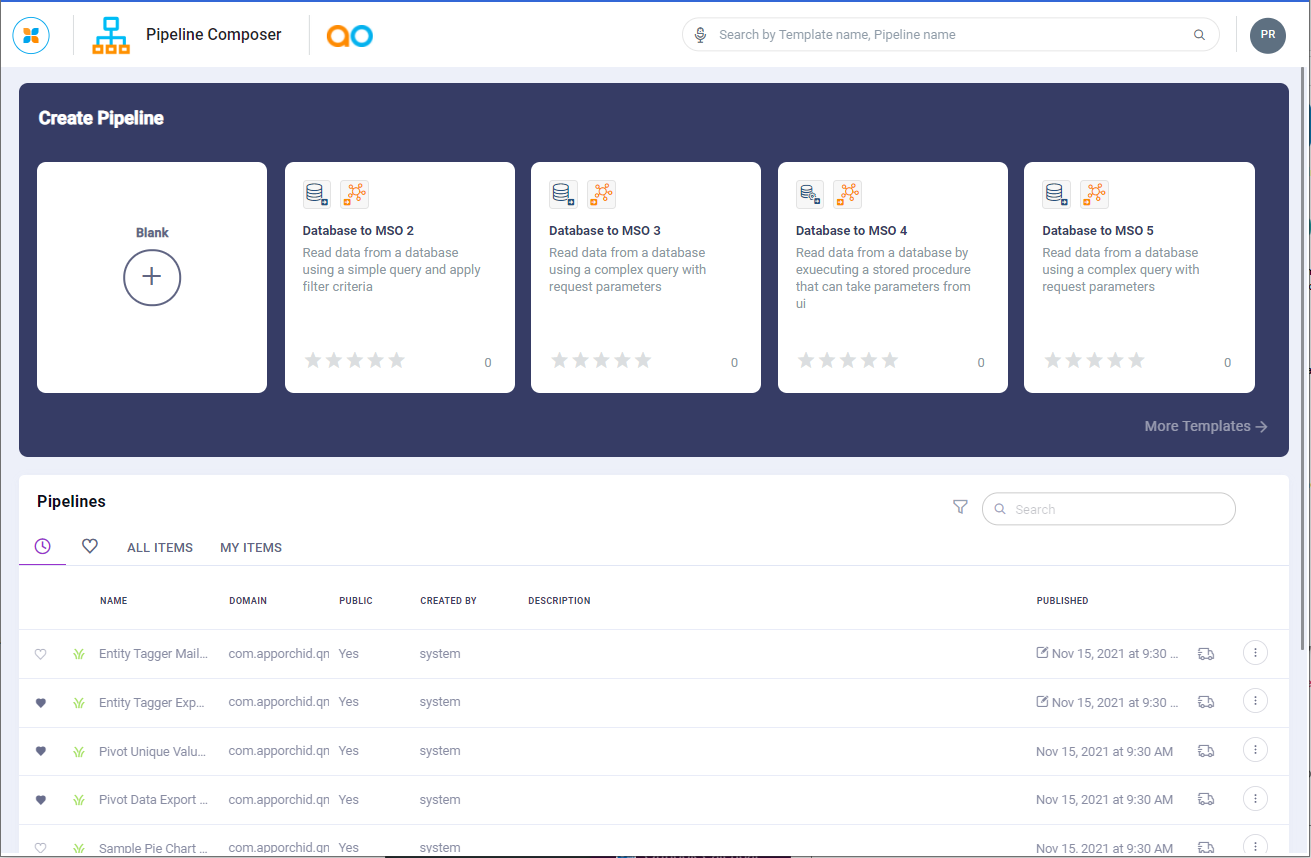
Creating a pipeline is the starting point for working with data in the AO Platform. There are two ways a Pipeline can be created:
-
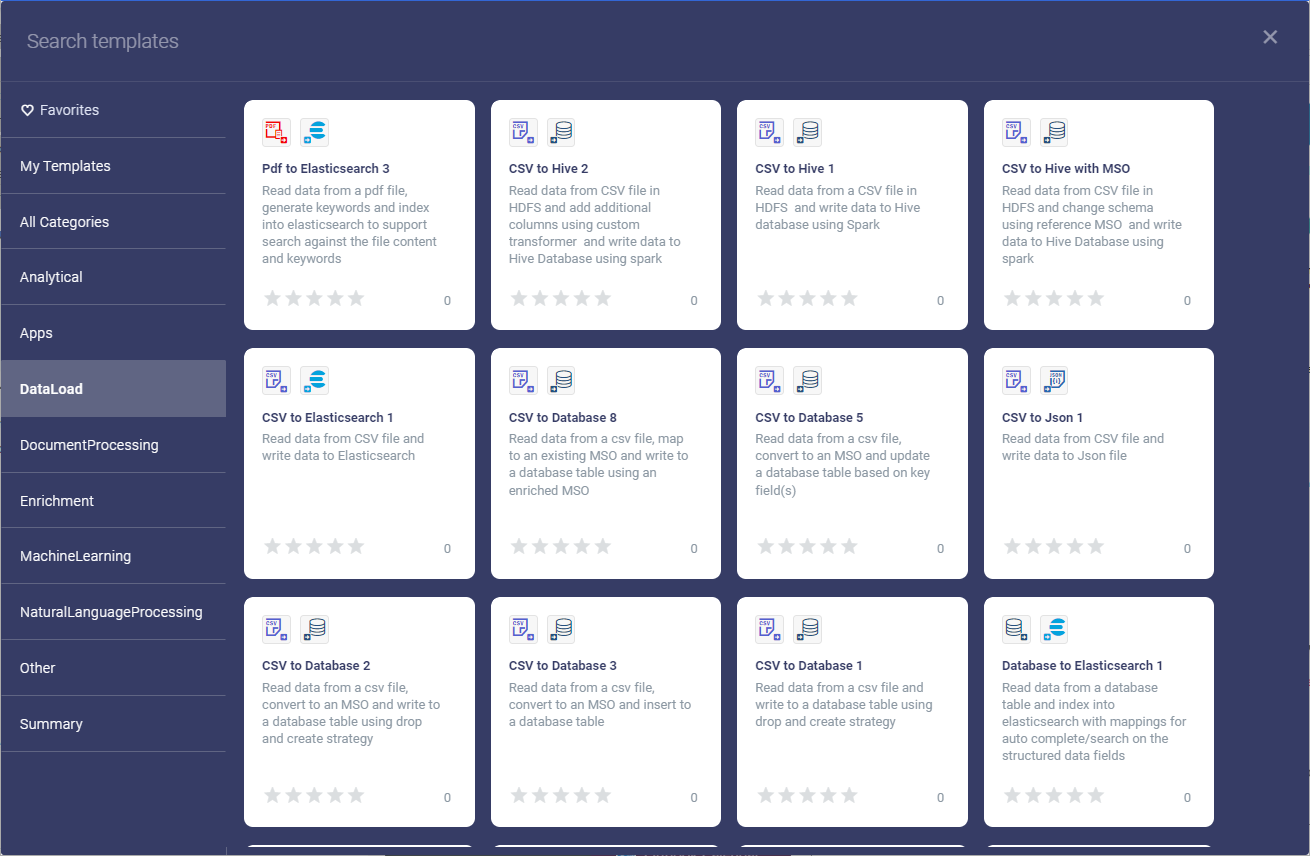
Creating a Pipeline using an existing Pipeline Template - this option will create a copy of the template selected. A template will typically include an existing working Pipeline with Datasource(s), Transforms, Sinks and/or Workflows. This greatly reduced the work needing to be done.
-
Creating a Pipeline from scratch - this option starts with a blank canvas. Click the Blank (+) tile, or the Add New button.
Creating a Pipeline from scratch
Creating a Pipeline using an existing Pipeline Template
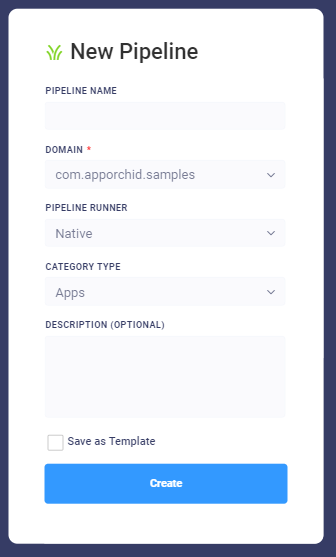
In both above cases, the next step is to populate the dialog box for New Pipeline, providing the…
-
Pipeline Name - name given to the Pipeline being created.
-
Domain - select the domain for the new Pipeline. As this is the name of the package for the domain, it’s typically expressed in the reverse domain name format: com.apporchid.samples.
-
Pipeline Runner - allows user to select where to execute the pipeline created. Options are:
-
Native - this will execute the pipeline within the AO Platform. It provides the most diverse set of options for Source, Transformer, Sink and Flow Control Tasks.
-
Spark local - selecting Spark local will impact which Source, Transformer, Sink and Flow Control Tasks are available. A Spark local Pipeline Runner is executed by a locally installed Spark instance.
-
Spark remote - selecting Spark local will impact which Source, Transformer, Sink and Flow Control Tasks are available. A Spark remote Pipeline Runner is executed by a remotely installed Spark instance.
-
Python - selecting Python will impact which Source, Transformer and Sink Tasks are available. A Python Pipeline Runner is executed by an external Python Server.
-
-
Spark Provider - this option is only available/visible if Spark remote option is selected in the Pipeline Runner dropdown and determines where the Spark execution takes place. Allows user to select between:
-
EMR - the Amazon Elastic MapReduce platform.
-
HDP - Hortonworks Data Platform.
-
-
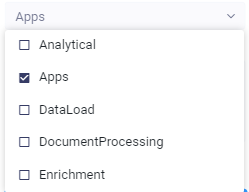
Category Type - pipelines can be used in different ways. Assign a Category Type and the AO Platform will be able to only show those Pipelines relevant for a given area of the product. Category Types include:
-
Analytics
-
Apps
-
DataLoad
-
DocumentProcessing
-
Enrichment
-
MachineLearning
-
NaturalLanguageProcessing
-
Other
-
Summary
-
ModelTraining
-
-
Description - allows user to provide a short paragraph describing the purpose of the Pipeline.
-
Save as Template - select if you want to create the new Pipeline as a Template.
Once the Create Pipeline has been finalized, user is now ready to edit the pipeline - see Editing a Pipeline for details.
Contact App Orchid | Disclaimer